|
10.23.2 CNH North America - Repair Order data, VIN Inquiry, SRT (LOP), Telemetry, and Faults
KB 3164, Release Note, Manufacturer, 5/26/2026
In version 10.23.2 we are excited to launch the new advanced integration between v10 and CNH. New service integrations include:
Repair Order Data Transfer
-
Service Order information is sent directly to CNH. The Work Order Upload integration captures data at the time creation and tracks all updates through to cashiering, including Customer and vehicle details, technician, jobs, payment, etc.
VIN Inquiry
-
Provides real-time and on-demand unit details available within Service Orders, Appointments, the Vehicle screen, and Tech View Actions. Users can view build details, warranties and repair history, and seamlessly transfer selections - such as PIPs (recalls), Faults, and Caution Code directly to Service Orders or Appointments. Integrated Telemetry delivers data from the unit, including alarms and location, along with various stats from the unit that include operating hours, remaining fuel, oil temps, and speed readings.
SRT (Standard Repair Time / LOP)
-
Offers real-time and on-demand lookups to locate repair and their associated standard repair times. Users can browse categorized menus or search using details like a VIN or part number to quickly find applicable repairs. Jobs can be transferred directly onto Service Orders and Appointments, reducing duplicate entry and minimizing errors.
How-To
Advisors can find the
CNH VIN Inquiry
and
CNH SRT
options in the right-hand menu, located under the
Requests
section within
Service Orders
and
Appointments
.
Example:
Service Order
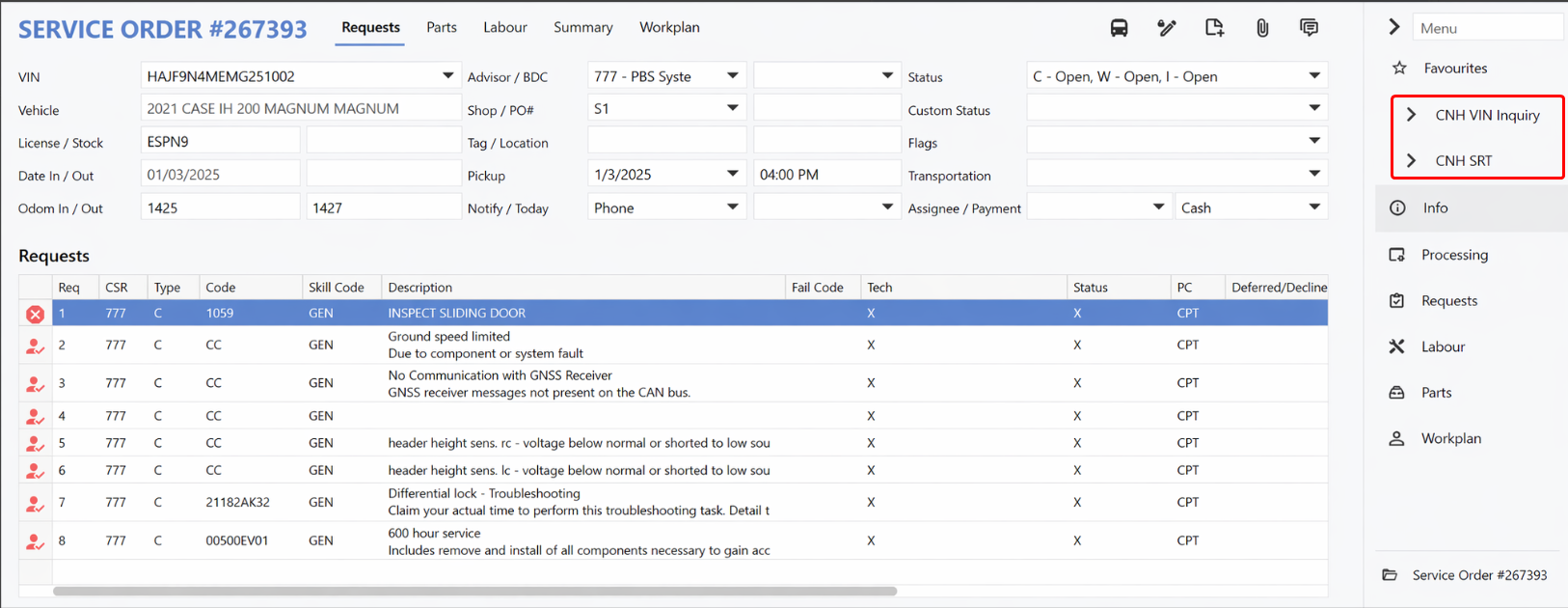
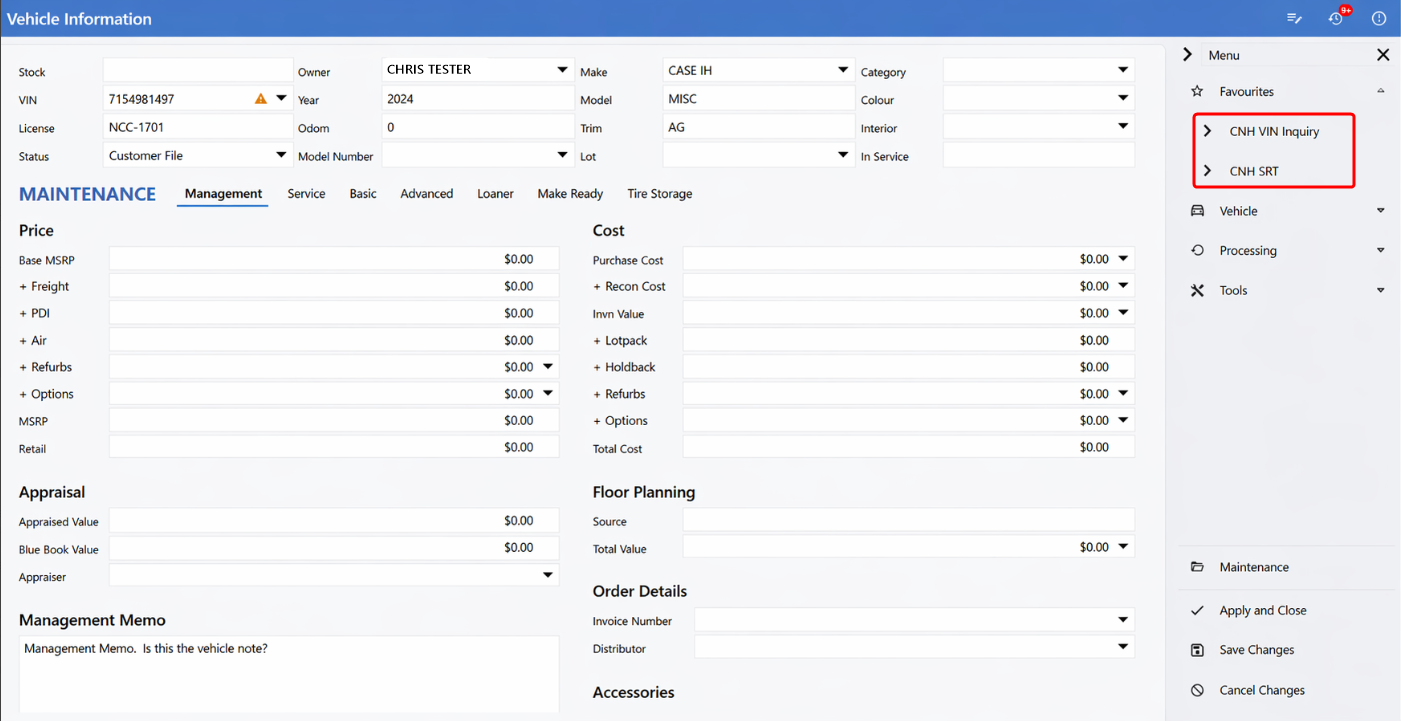
The CNH VIN Inquiry and CNH SRT options are also accessible from the right-hand menu within the
Vehicle File
, under the
Processing
section. The information is
read-only
and cannot be transferred.
Example:
Vehicle File
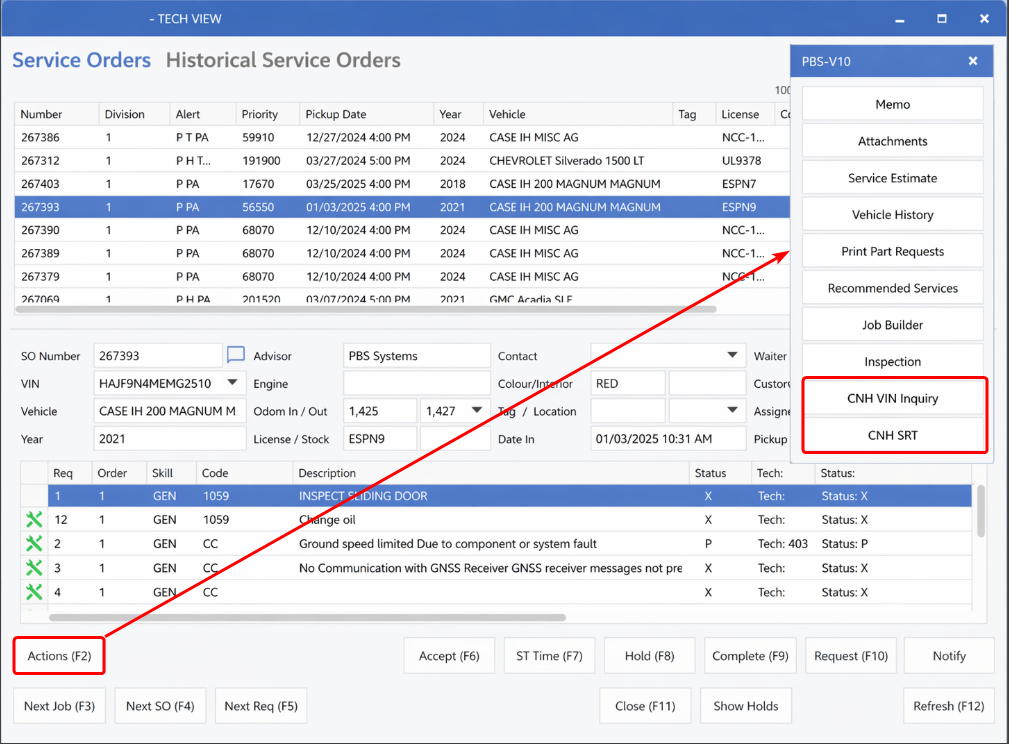
Technicians can also find the CNH VIN Inquiry and CNH SRT options under the
Actions
button on the Tech View page. The information is
read-only
and cannot be transferred.
Example:
Tech View
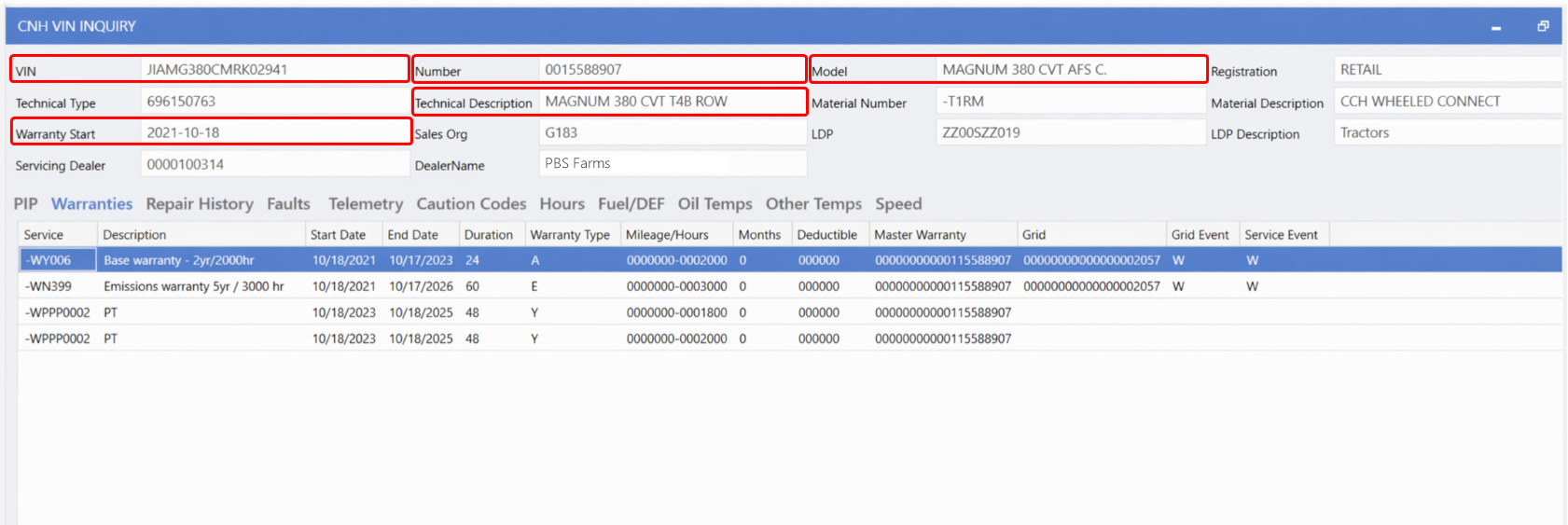
VIN Inquiry
The VIN Inquiry window displays vehicle details in the top header section, with tabs below that allow you to navigate through the different sections.
The
PIP
tab (Product Improvement Program): lists
open
and
closed Recalls
. Open PIPs can be selected to transfer to Service Orders and Appointments.
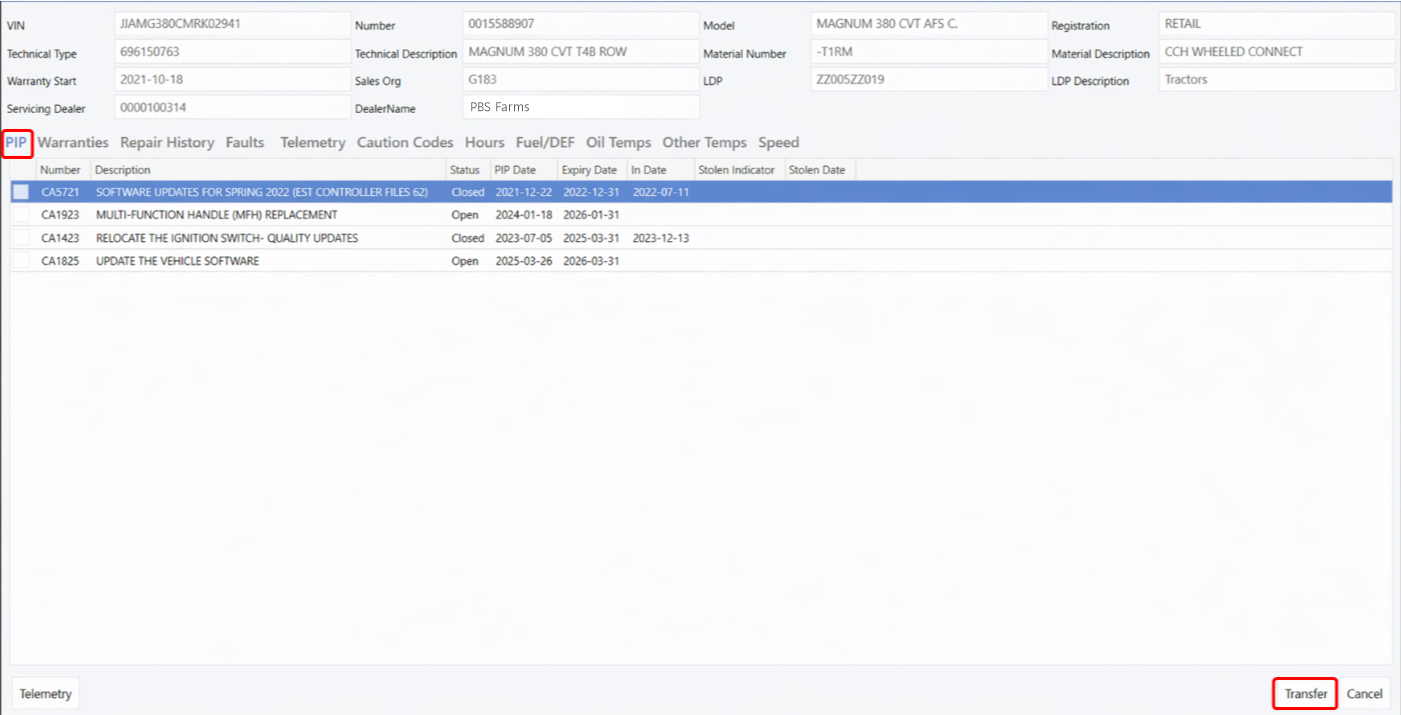
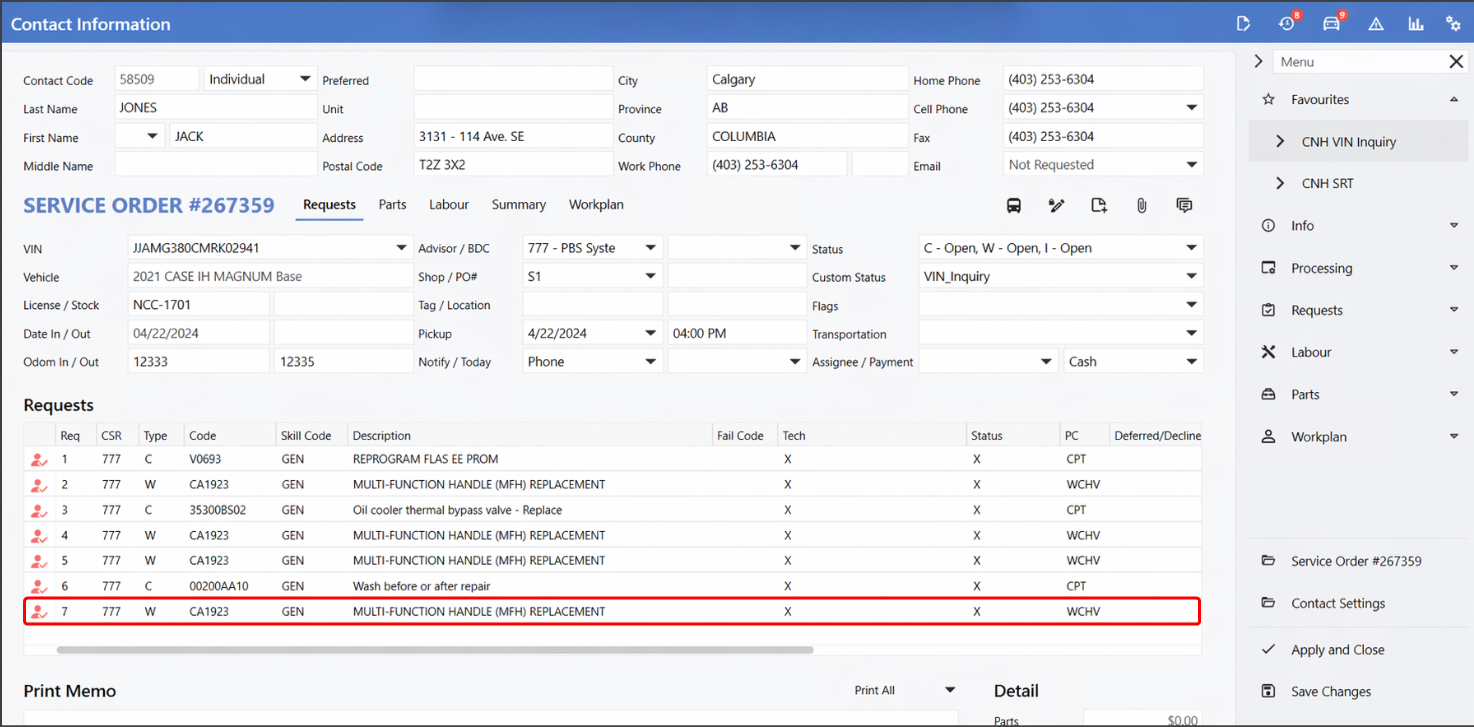
Example:
Service Order with an Open Recall transferred onto the line with the pay type automatically set to W (Warranty).
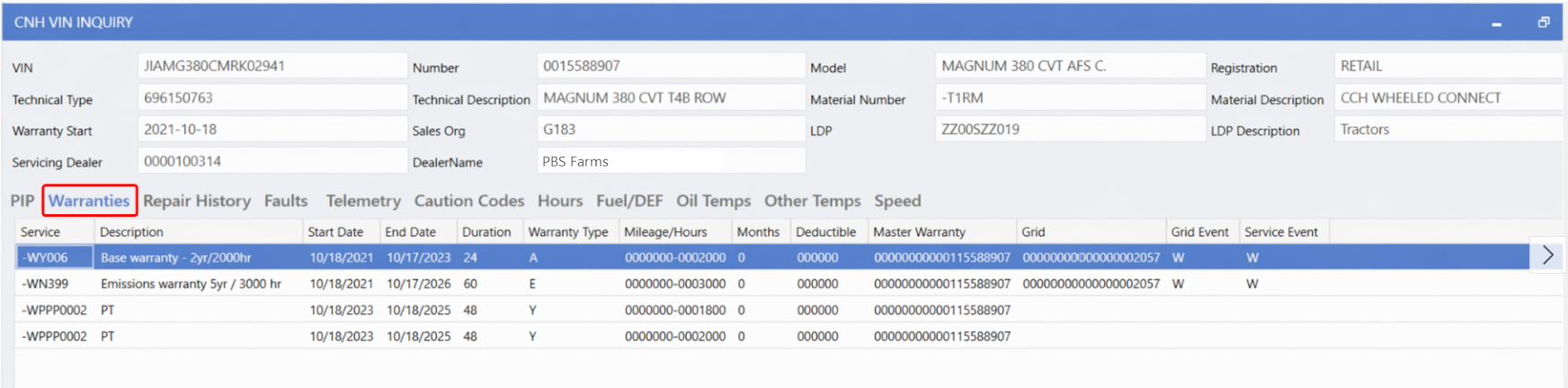
Warranties
tab: lists
current
and
expired Warranties
associated with the vehicle.
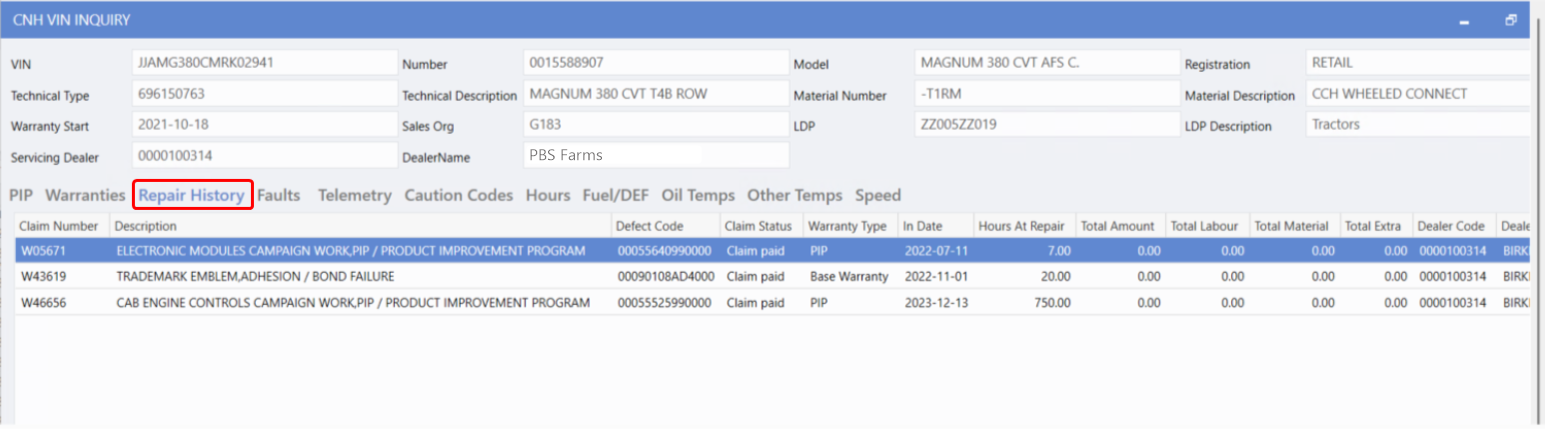
Repair History
tab: shows the details of the maintenance and repair work that has been performed on the vehicle.
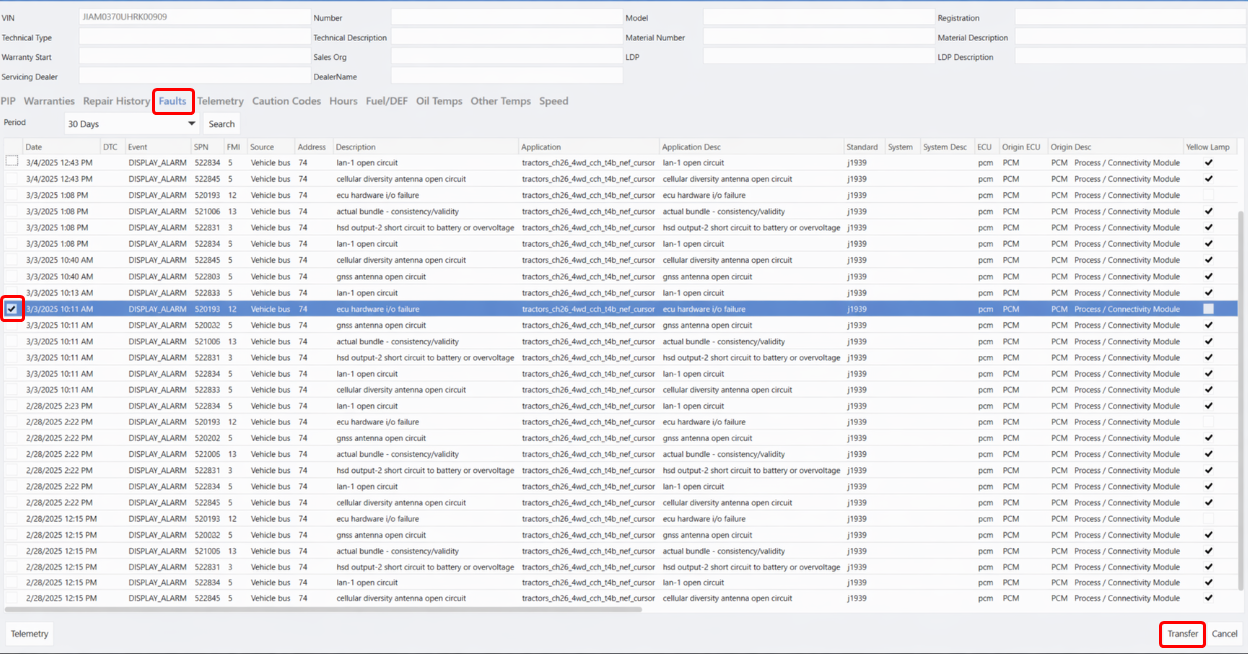
Faults
tab: includes information about the equipment needed for a vehicle work or Service Order. You can search Faults from the past 24 hours, past 7 days, past 30 days, or within a custom date range.
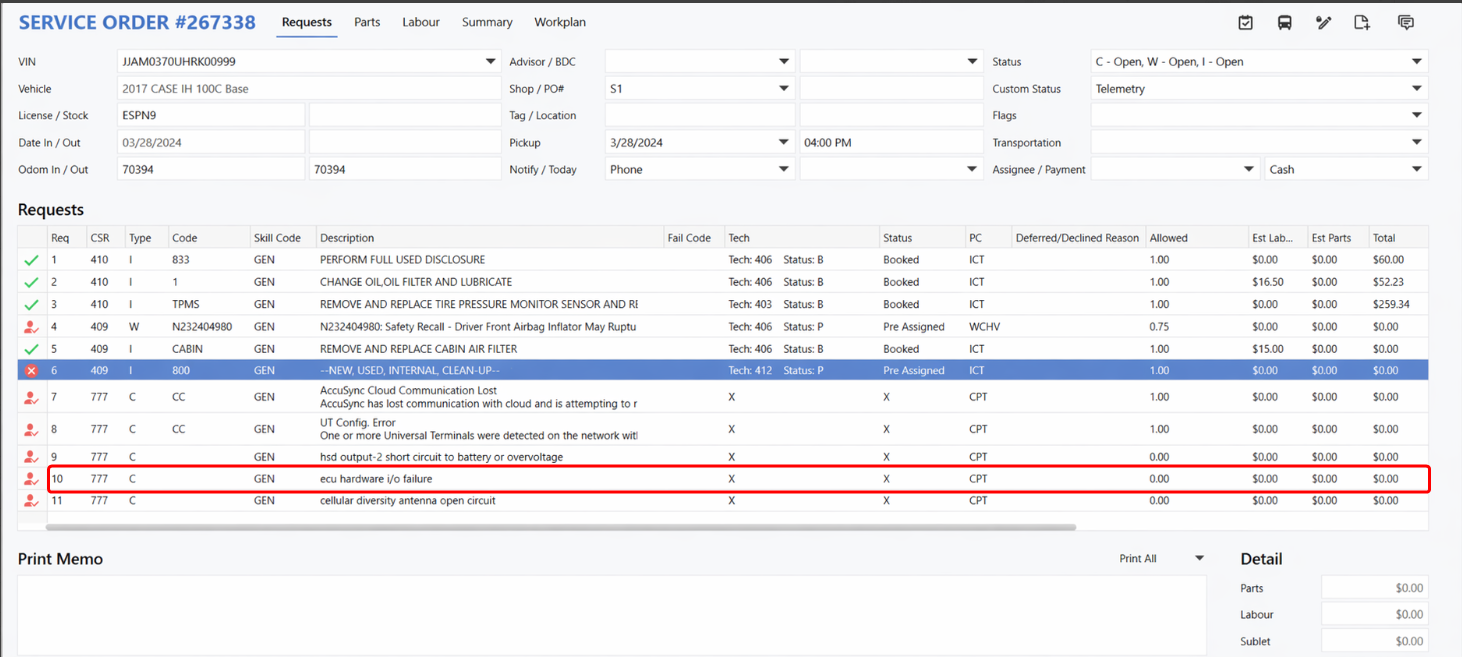
Users can select a Fault and transfer it to Service Orders and Appointments.
Example:
Service Order showing a Fault transferred onto a line with C (Customer) pay type automatically assigned.
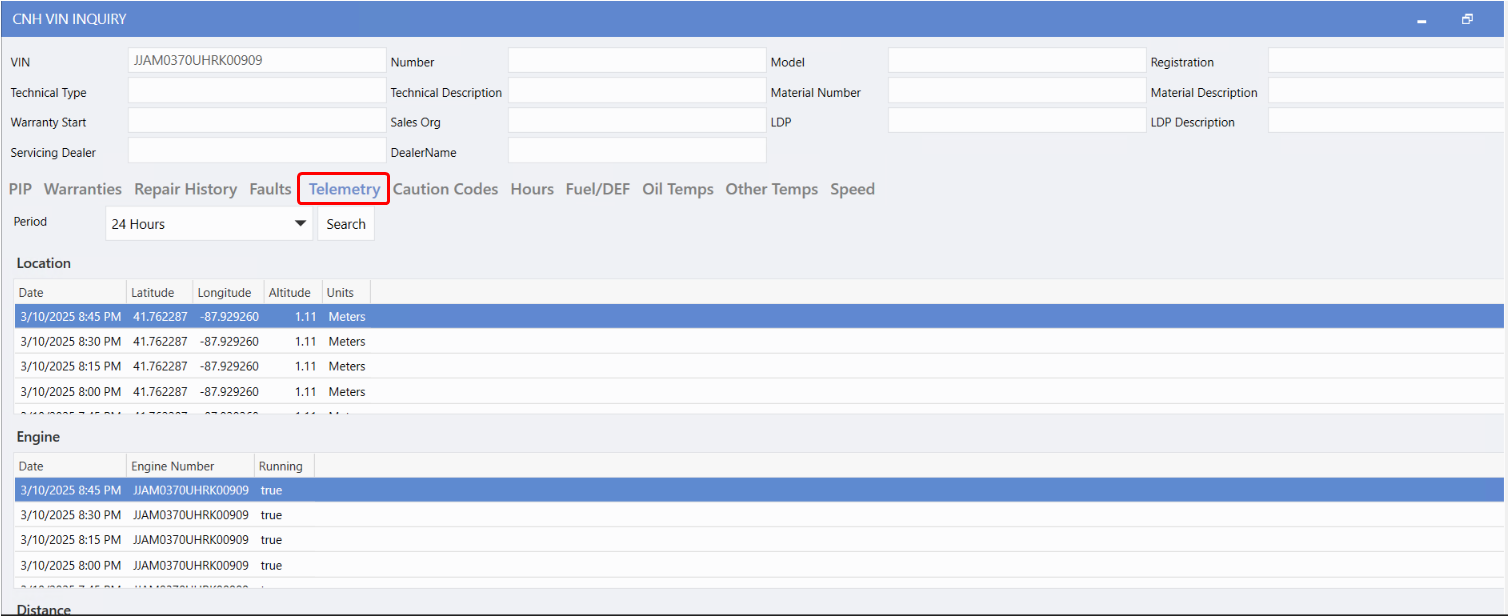
Telemetry
tab: provides Users with information of different parts of the equipment before or during the creation of a Service Order in the DMS. Telemetry data can be searched for the past 24 hours, past 7 days, or within a custom date range.
Caution Codes
tab - lists the Caution Codes attached to the vehicle. They indicate issues, risk and special conditions that deserve extra attention. Caution Codes can also be searched for the past 24 hours, past 7 days, or for a custom date range.
Users can select a Caution Code and transfer it to Service Orders and Appointments.
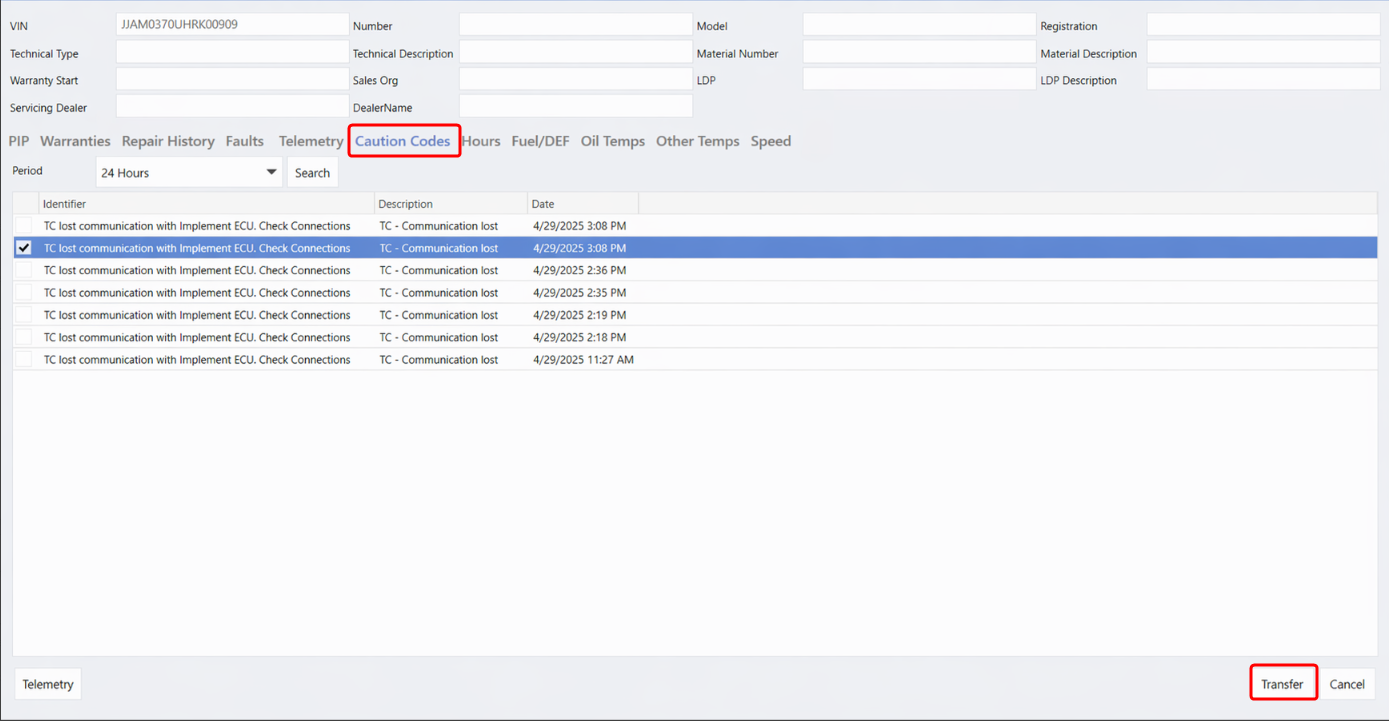
Example:
Service Order displaying the transferred Caution Code on the line, with the pay type automatically populated as
C
(Customer) and the code set to
CC
.
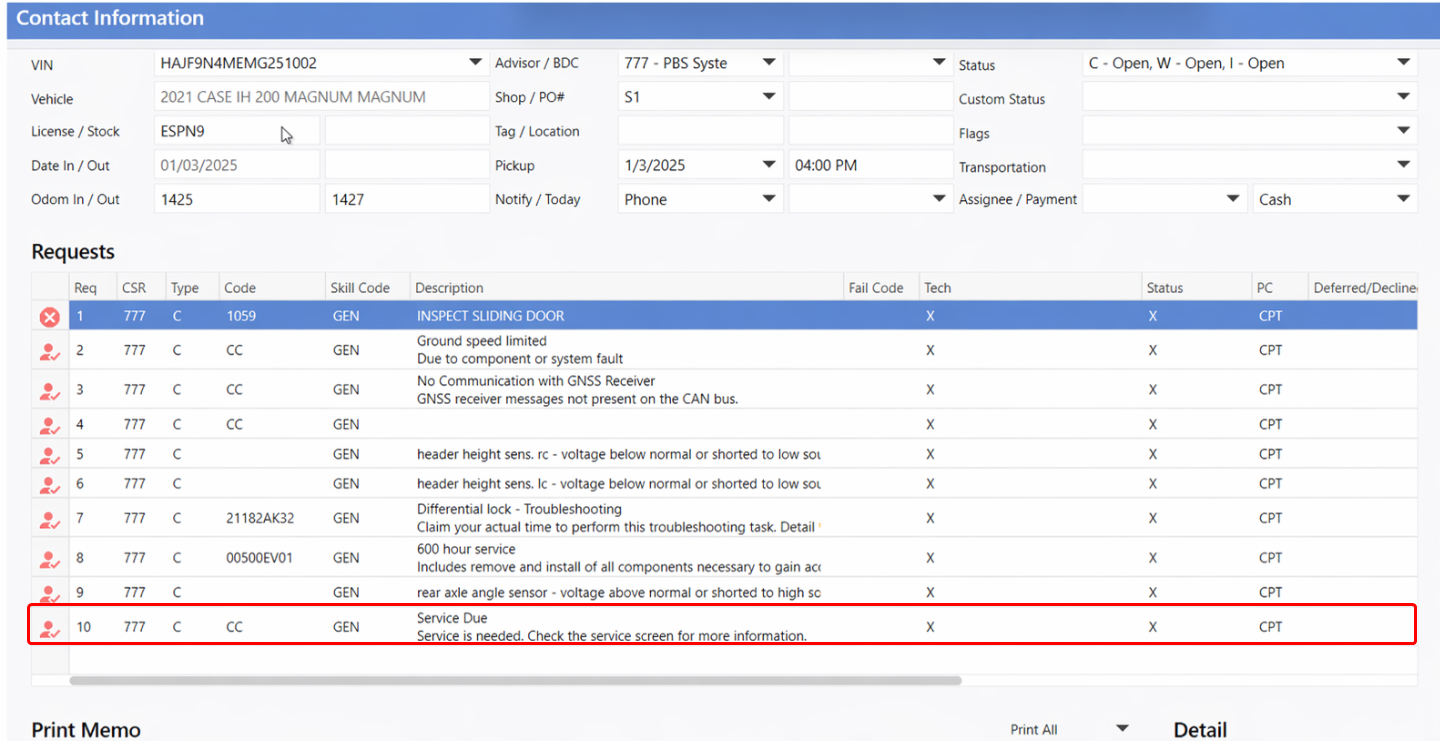
Hours
tab: refers to engine operating hours. Hours can be searched for the past 24 hours, past 7 days, or for a custom date range.
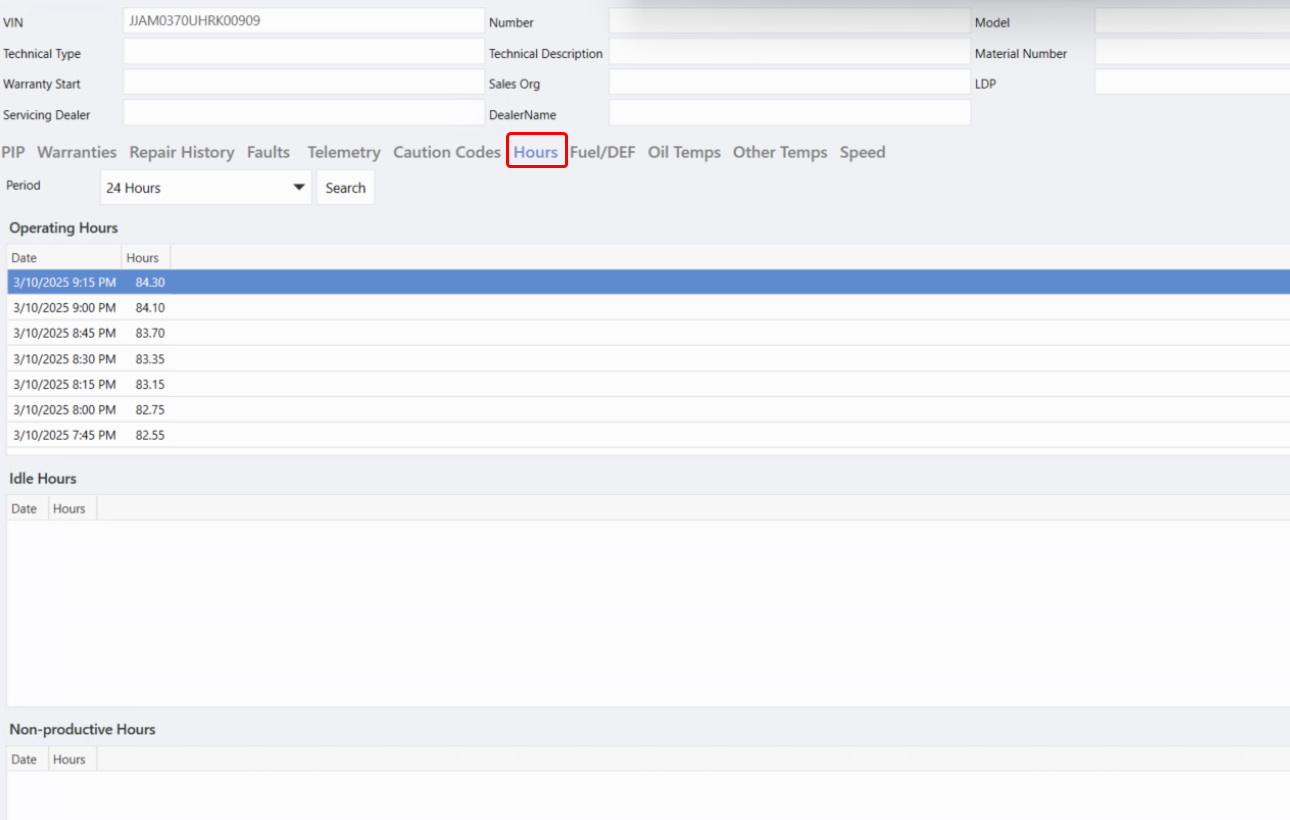
Fuel/DEF
tab: refers to the vehicle's fuel usage, and remaining fuel level, including Diesel Exhaust Fluid (DEF) information for diesel vehicles. Fuel can be searched for the past 24 hours, past 7 days, or for a custom date range.
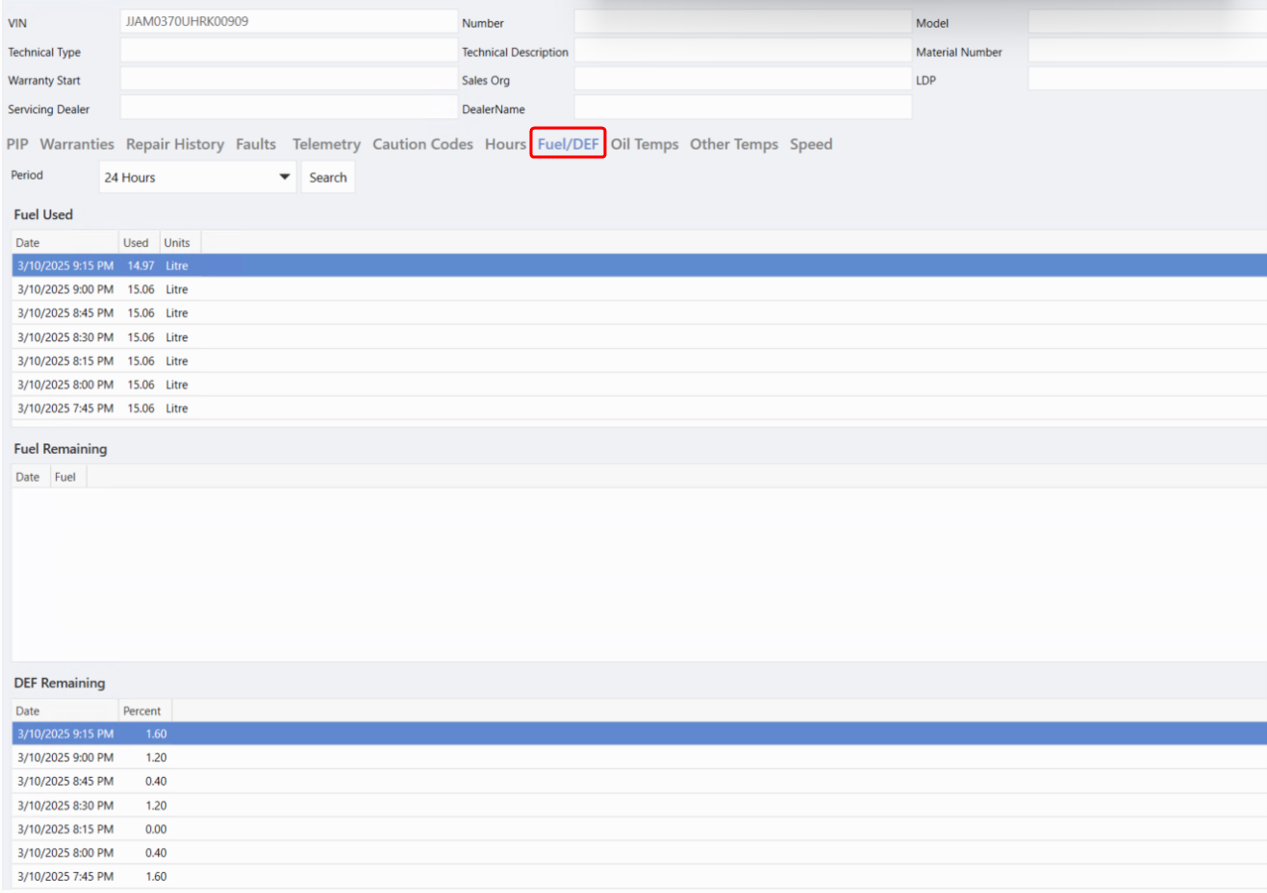
Oil Temps
tab: refers to the engine oil temperature. Oil Temps can be searched for the past 24 hours, past 7 days, or for a custom date range.
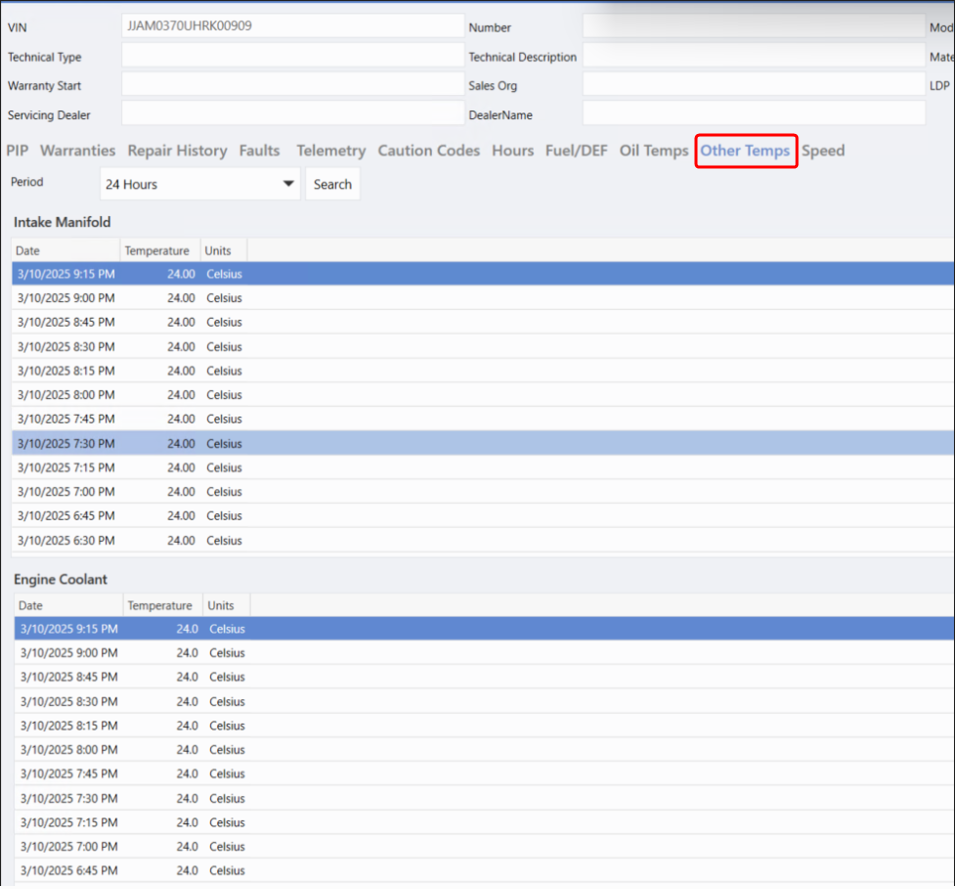
Other Temps
tab: can be searched for the past 24 hours, past 7 days, or for a custom date range.
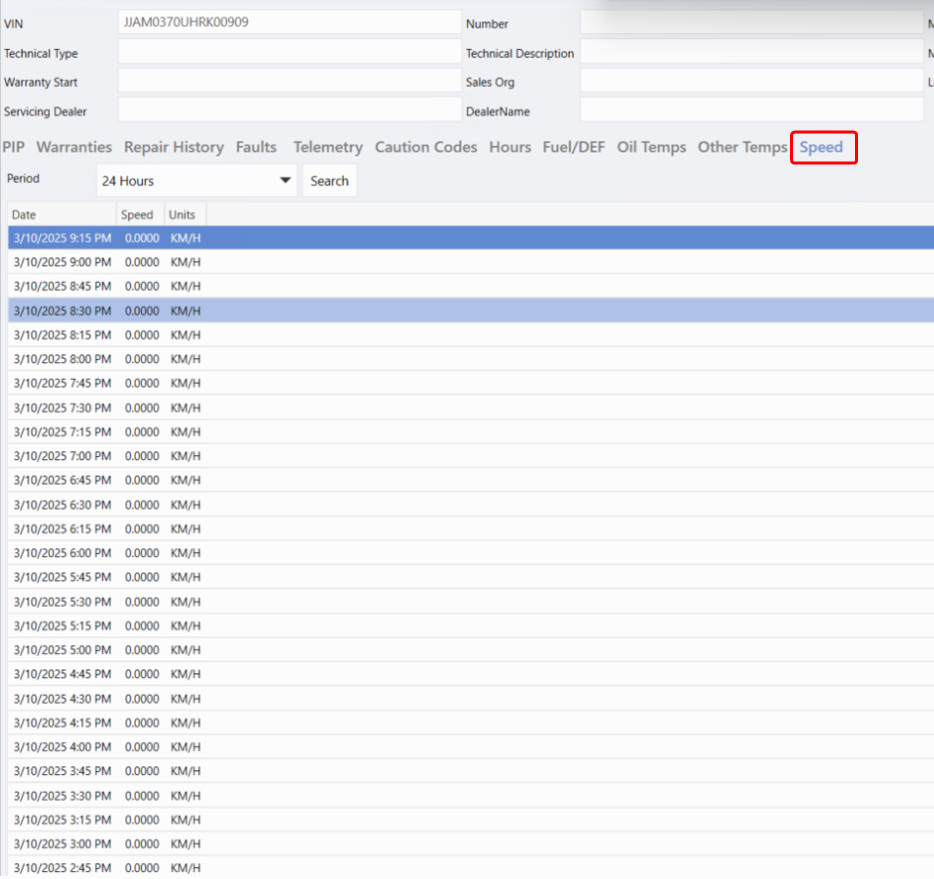
Speed
tab: refers to the vehicle's recorded or current driving speed. Speed can be searched for the past 24 hours, past 7 days, or for a custom date range.
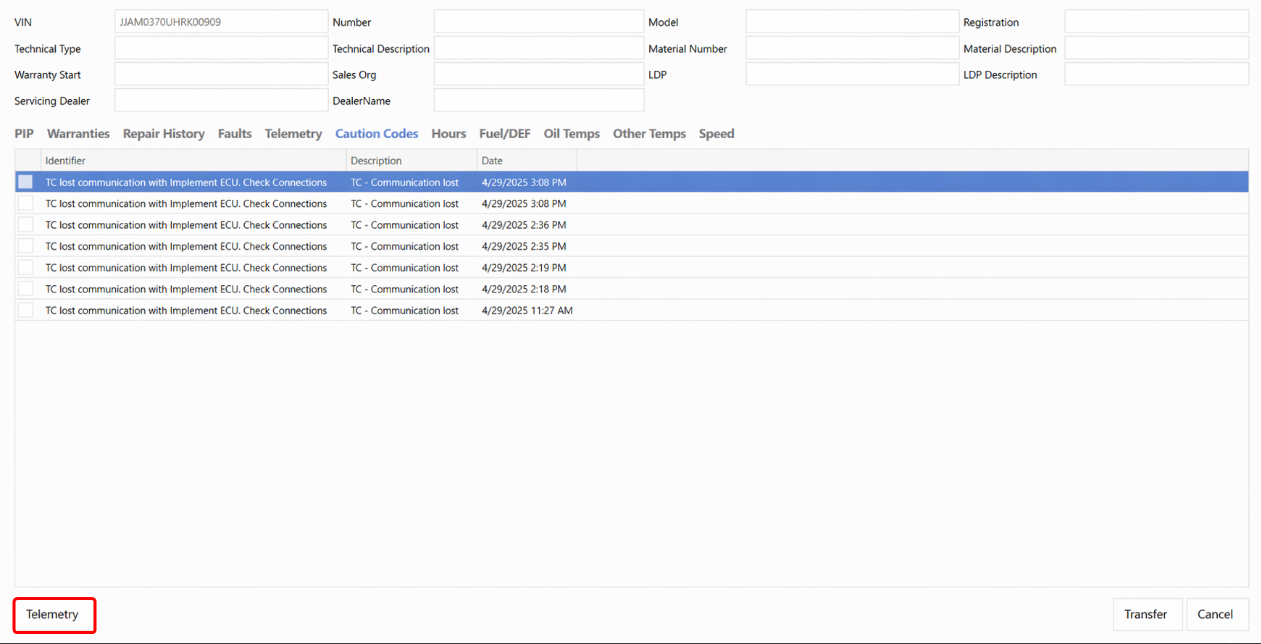
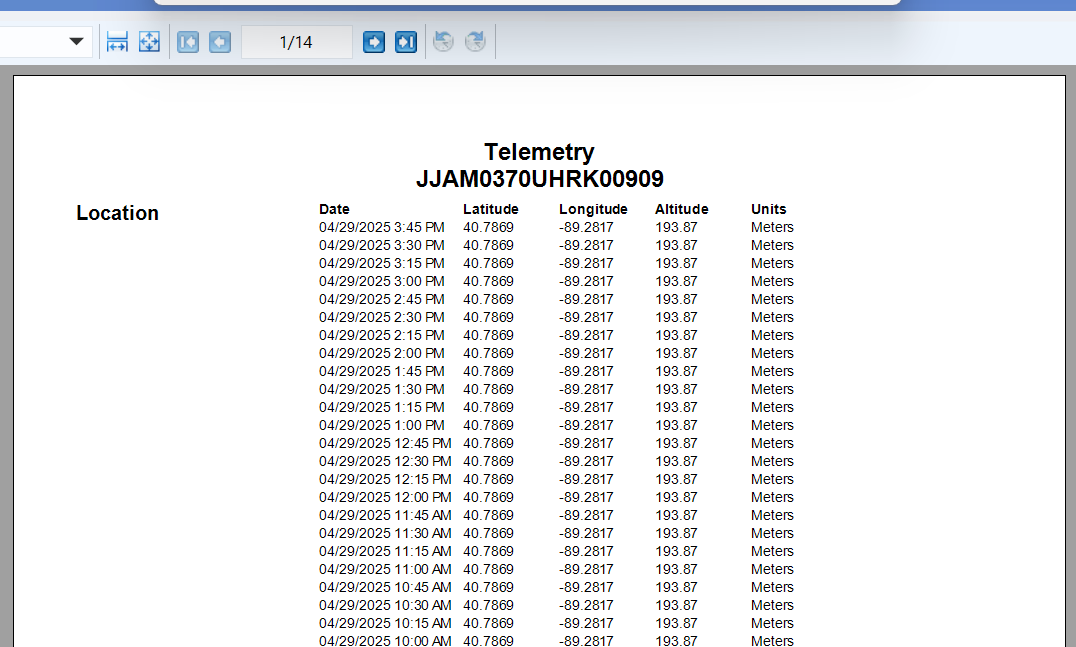
Telemetry Printout
The
Telemetry button
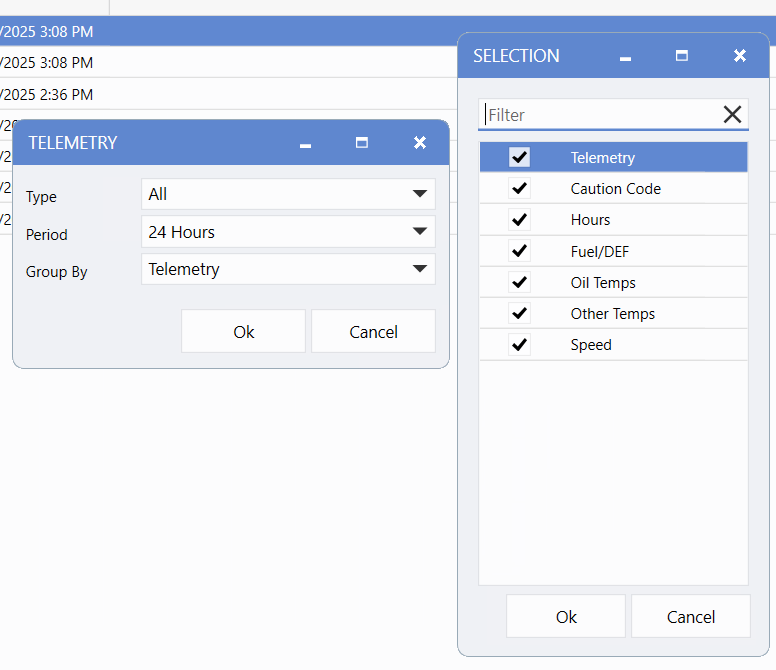
in the bottom left corner of each tab allows Users to printout the telemetry details.
Users can choose which data to print from the selection list.
The report can be viewed, saved, or printed.
SRT - Standard Repair Time (LOP)
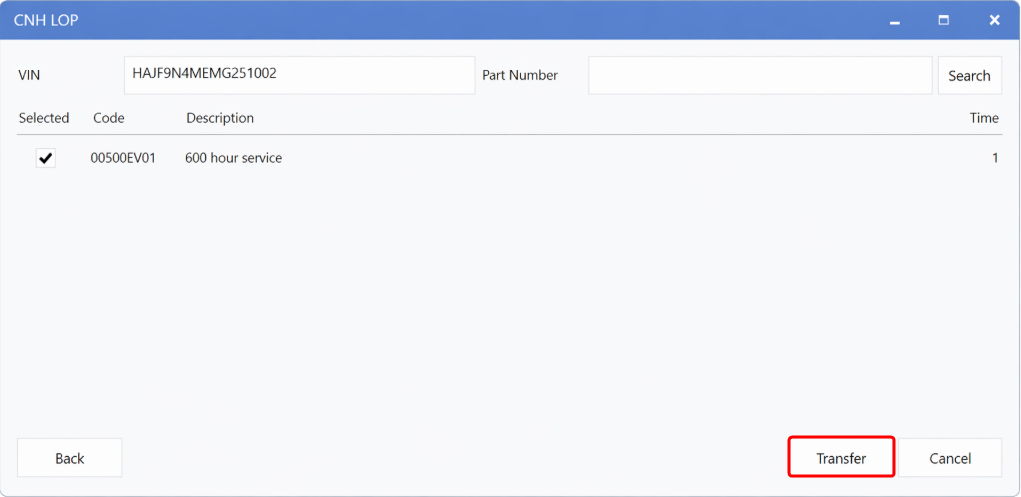
In the CNH LOP window, Users can enter the
VIN
,
Part Number
, or
both
to retrieve SRT information.
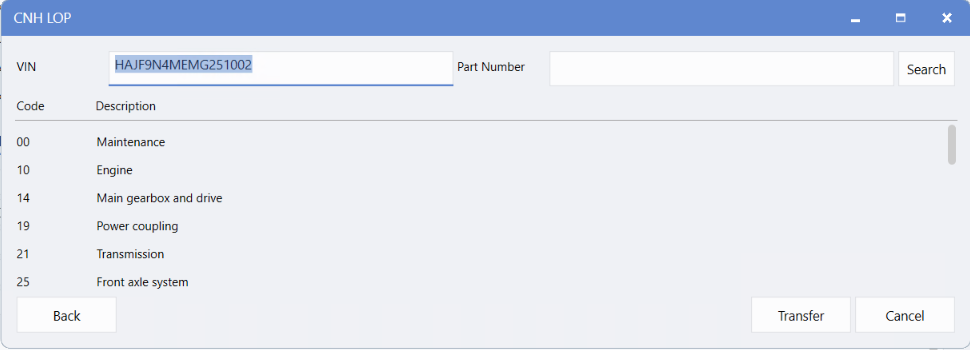
Group ID
is the highest level. Click a Group ID to display its Sub-Group IDs.
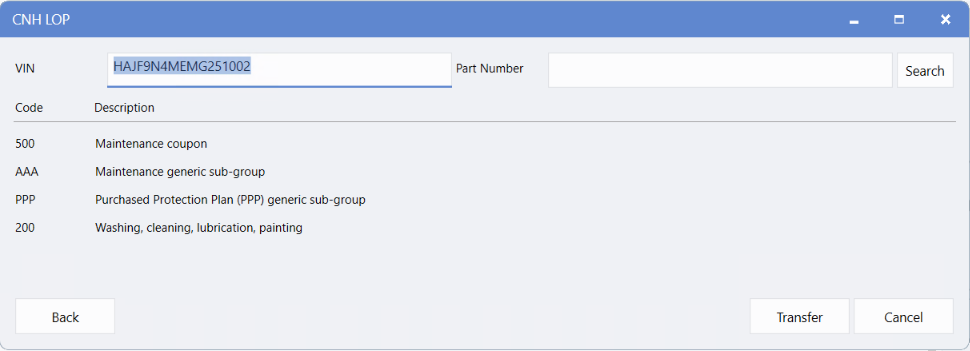
Click a
Sub-Group ID
to view the Sub-Group codes.
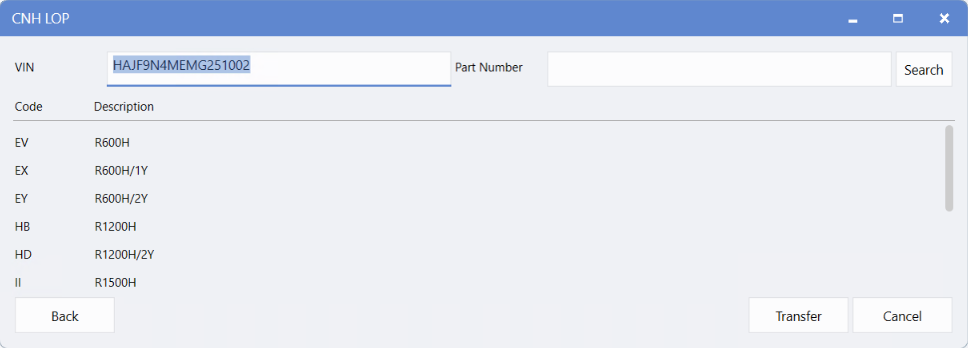
Click a
Sub-Group code
to view the Operation IDs. Users can select an Operation ID and transfer it to Service Orders and Appointments.
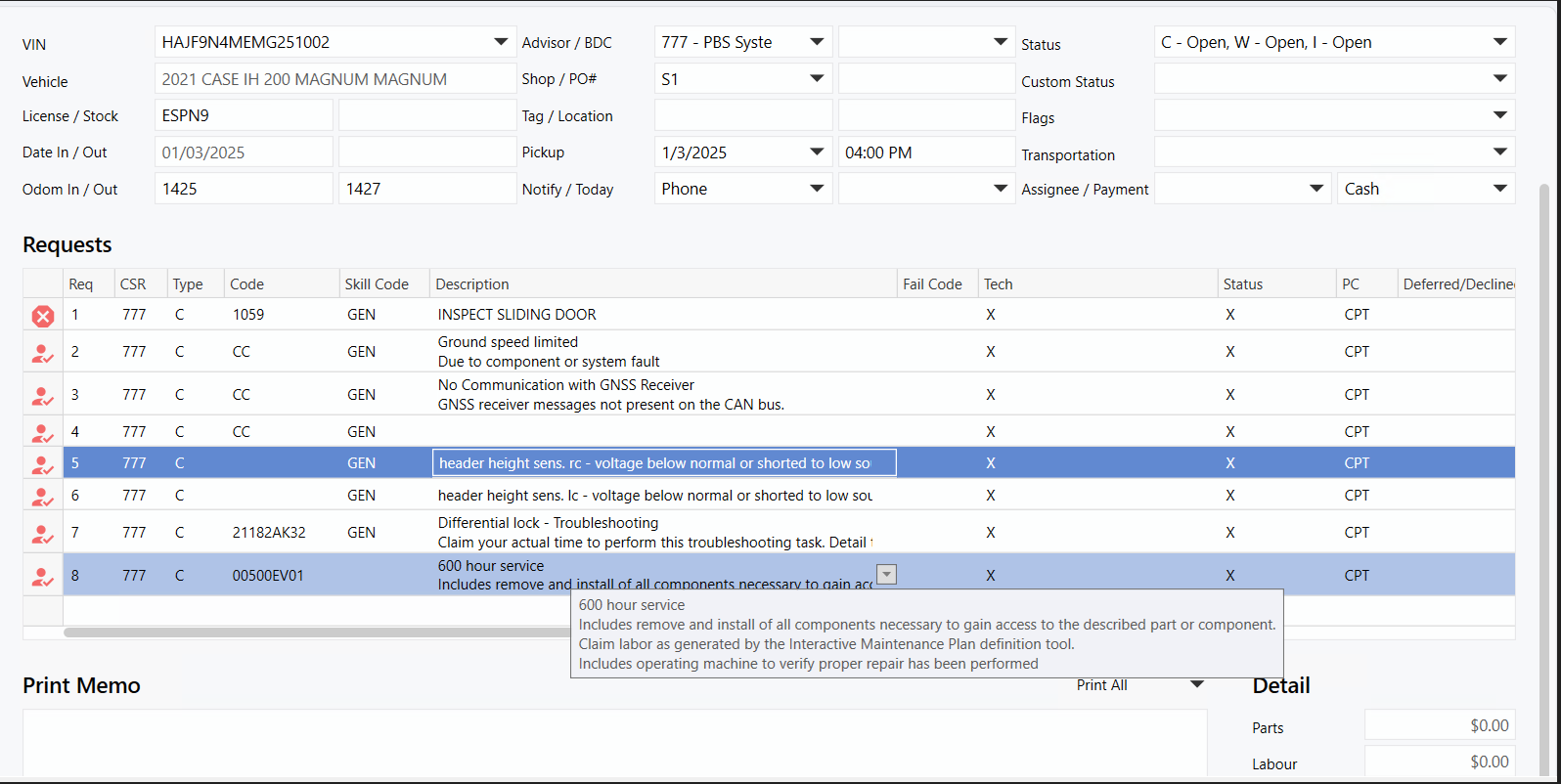
Once an
Operation ID
has been transferred to the Service Order or Appointment, hover over the description to view a list of included tasks.
DEP Bundle 1 CNH User ID Setup document
CNH Dealer Portal User ID Access Required for DEP Bundle 1
The Dealership Administrator can create a new User ID for DMS access to CNHi system interfaces. This User ID should be used exclusively for DMS access and not assigned to an individual employee. One User ID can be used for an entire complex, or separate User IDs can be set up per location, depending on how the Dealership would like to manage the User IDs. Passwords for these User IDs must be reset every 60 days.
The User ID used for the DEP Bundle 1 (Service Domain) interface requires eWarranty access.
The Dealership Administrator can set up this access as follows:
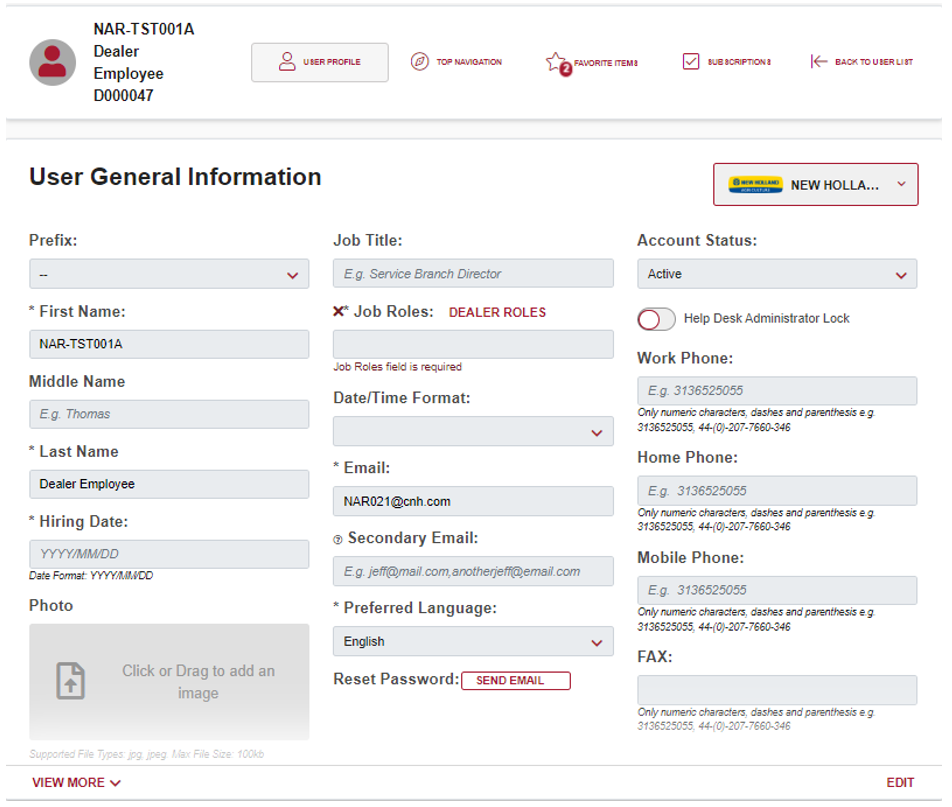
1.
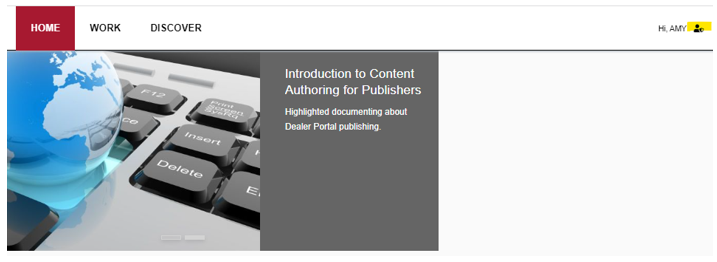
Click shield in upper right corner of the Dealer Portal.
2.
Enter
ID
under Find a User and then click
>
.
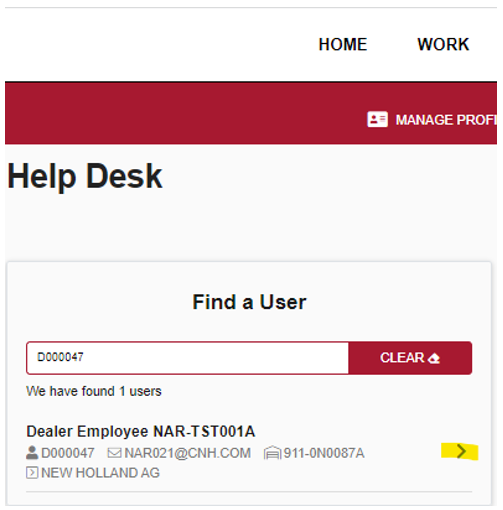
The following screen is returned.
3.
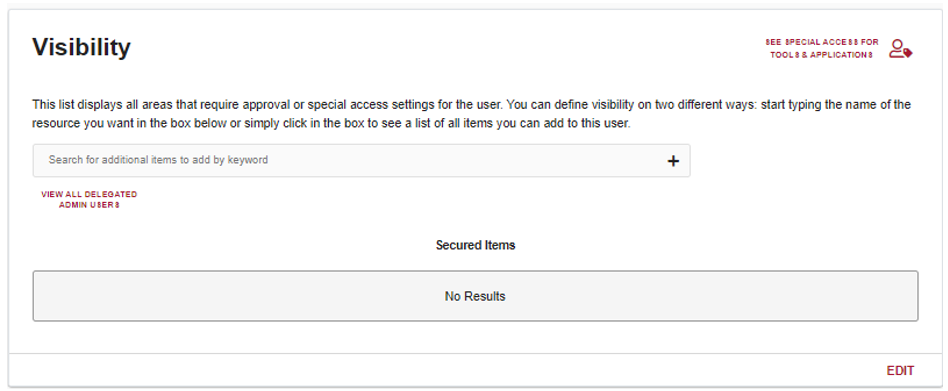
Scroll down to the Visibility section and click
Edit
.
4.
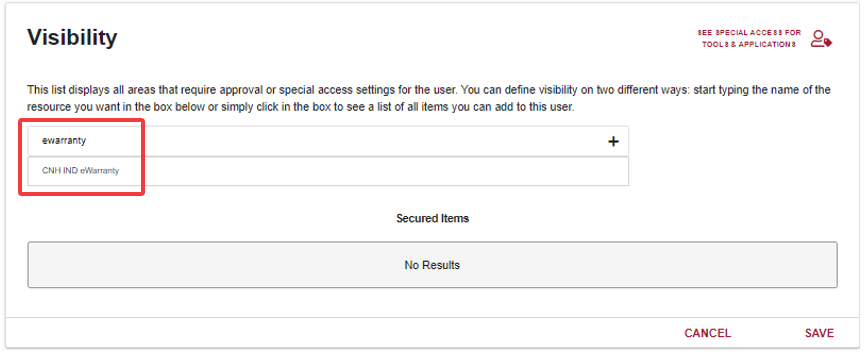
Type "eWarranty", click
CNH Ind Warranty
, and click
Save
.
5.
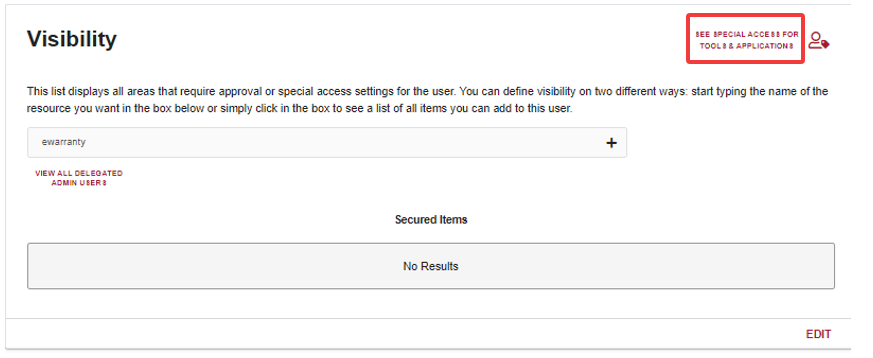
Click
See Special Access for Tools & Applications
at top right of Visibility section.
6.
Click
eWarranty
tab, click the circle under
Single Branch Location
or
All Branch Location
(either will work), and click
Apply
.
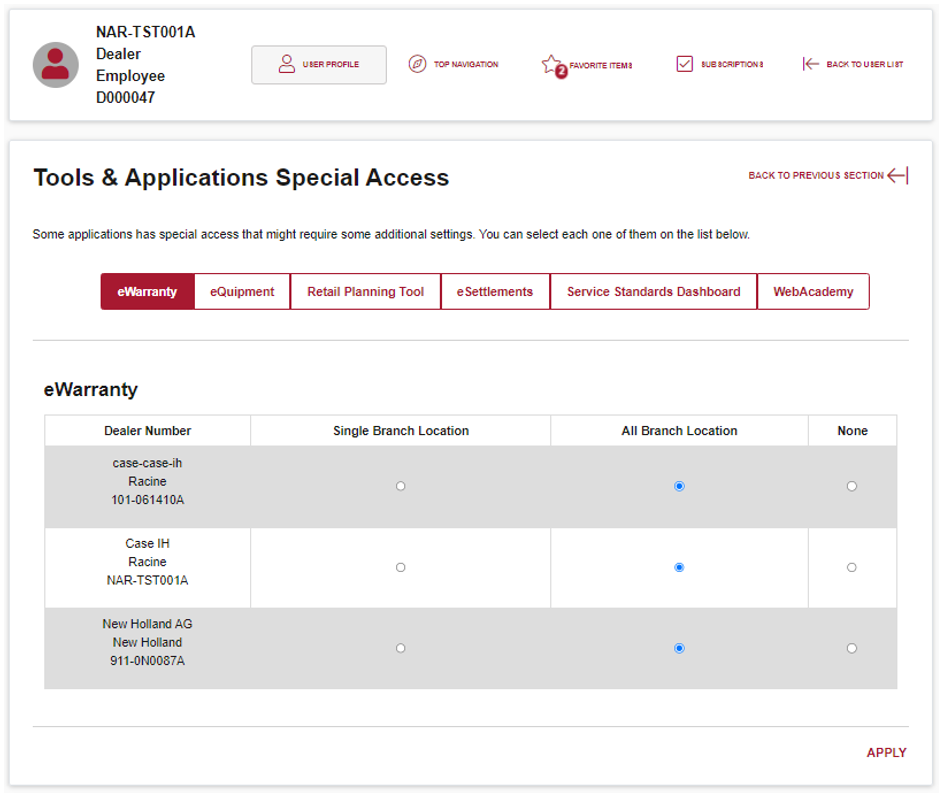
Pilot Dealerships going live with Service integrations - including Service Order data, VIN Inquiry, SRT (LOP), Telemetry, and Faults- were often able to receive SRT data without issue but could not access VIN Inquiry information until Special Access for eWarranty was added to their account in the CNH portal.
|