|
10.23 Workplan Features
KB 3218, Release Note, CRM Development, 10/15/2025
Version 10.23 delivers significant enhancements to the Workplan module, designed to improve usability, streamline daily workflows, and give Users greater flexibility and control.
-
Workplan Calendar Favouriting - Quickly access frequently used calendars to save time and simplify navigation.
-
Document Grouping and Ownership - Organize and manage documents more effectively, with clearer ownership and collaboration tools.
-
Markdown Formatting Support - Create richer, more structured content in Workplan documents for improved readability and communications.
These updates make the Workplan module faster, more intuitive and more powerful - helping your team work smarter and more efficiently in 10.23.
Document Maintenance Permissions & Ownership
New Document Maintenance permissions give Users greater control over Workplan Documents by defining who can create or edit documents. This ensures frequently used communications can be personalized without compromising dealership-wide content such as Guides, Campaigns and Mailings.
New Permissions
Users previously granted
Add or Edit Maintenance Item
permissions will automatically receive access to both new permissions after updating to 10.23 to maintain access consistency.
Document Ownership
-
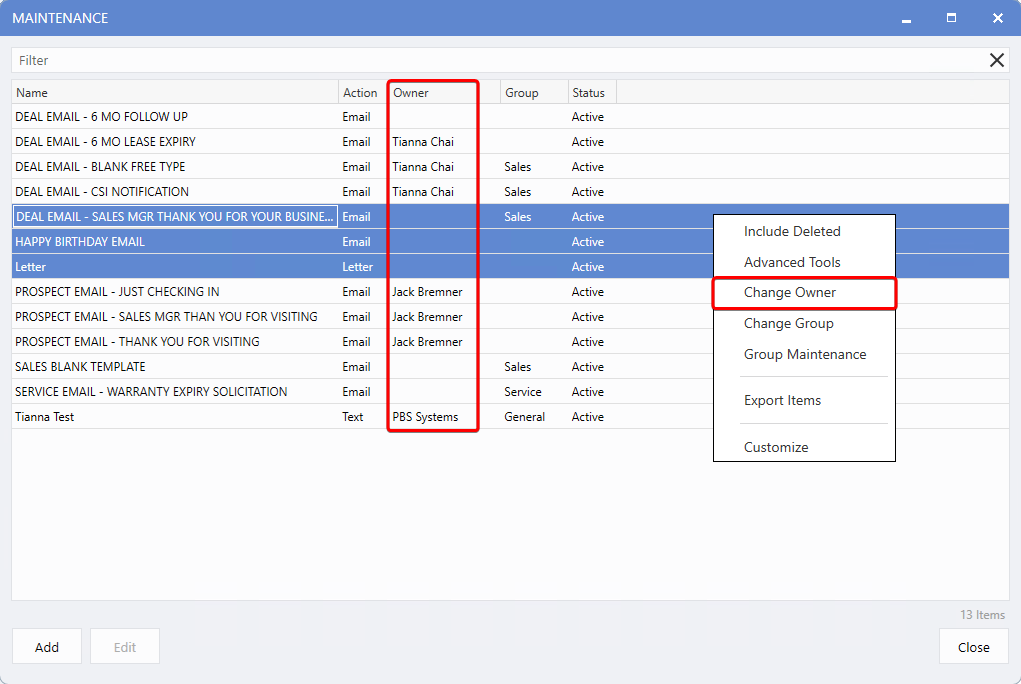
A new Owner column has been added to the Document Maintenance page (add via right-click, Customize if not visible).
-
For documents created after upgrading to 10.23, the Owner is automatically assigned to the creator.
-
Ownership can be reassigned at any time by selecting one or more documents, right-clicking, and choosing
Change Owner.
-
Owners can also be updated within a document's
Edit
window via the
Owner
drop-down menu.
Note:
For shared documents requiring edits by multiple Users with
Edit Owned Documents
permission, leave the Owner field blank so all applicable Users can modify it.
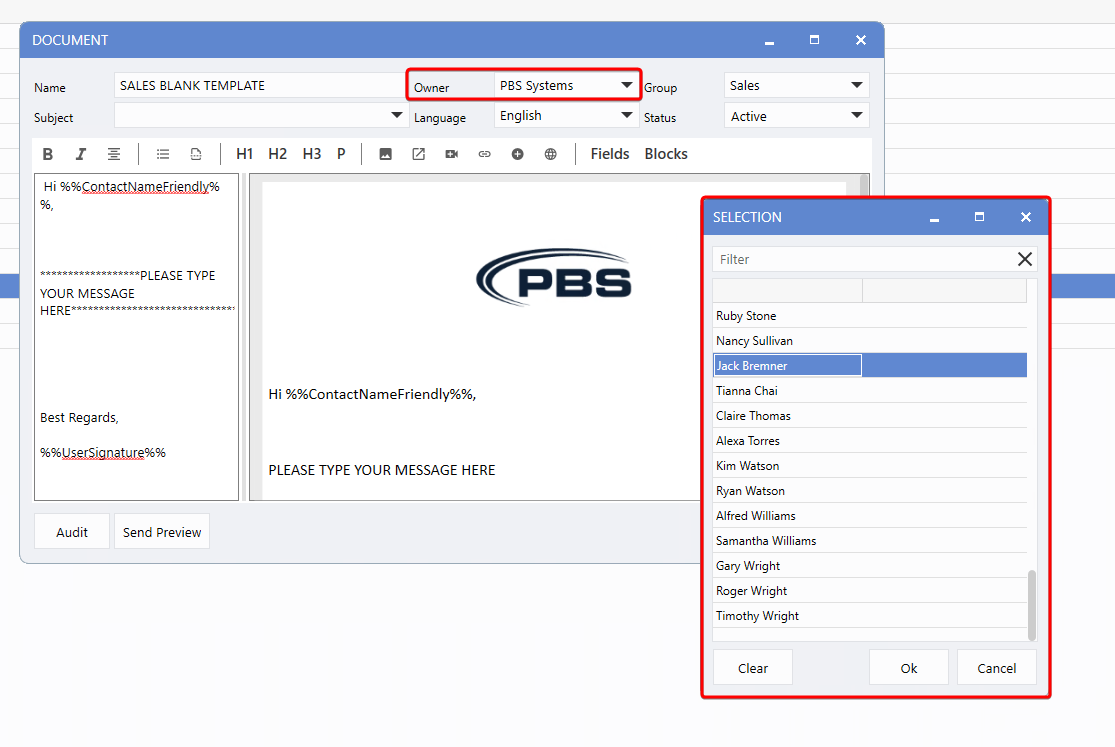
Owners can also be updated within a document's
Edit
window via the
Owner
drop-down menu.
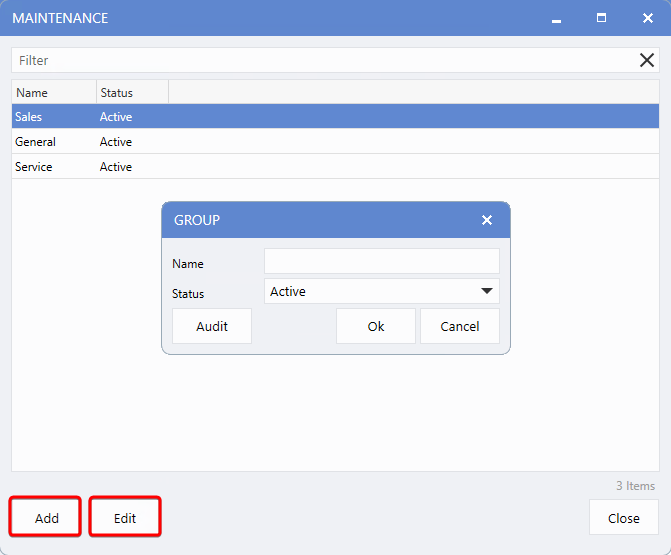
Workplan Document Groups
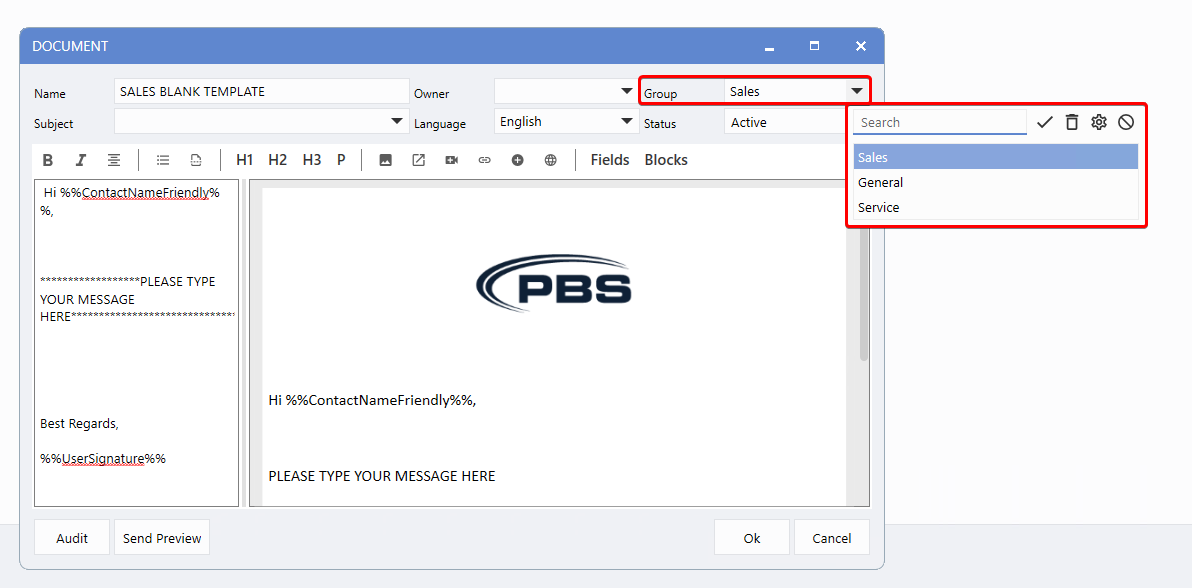
Documents can now be organized into
Groups
for easier management and faster searches. This eliminates the need to prefix document names by department, keeping names shorter, clearer.
To access the Workplan Document Maintenance window, follow the path:
Workplan > Maintenance > Document Maintenance.
Group Features
-
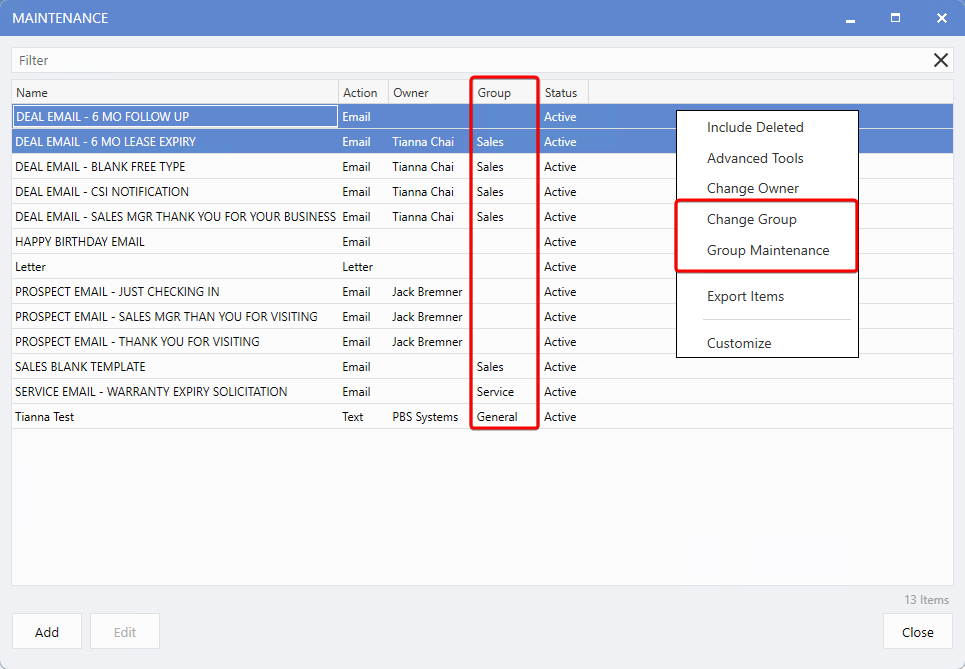
A Group column has been added to the Document Maintenance page (add via right-click,
Customize
if not visible).
-
Right-click one or more documents and choose
Change Group
to assign them in bulk.
Markdown Formatting
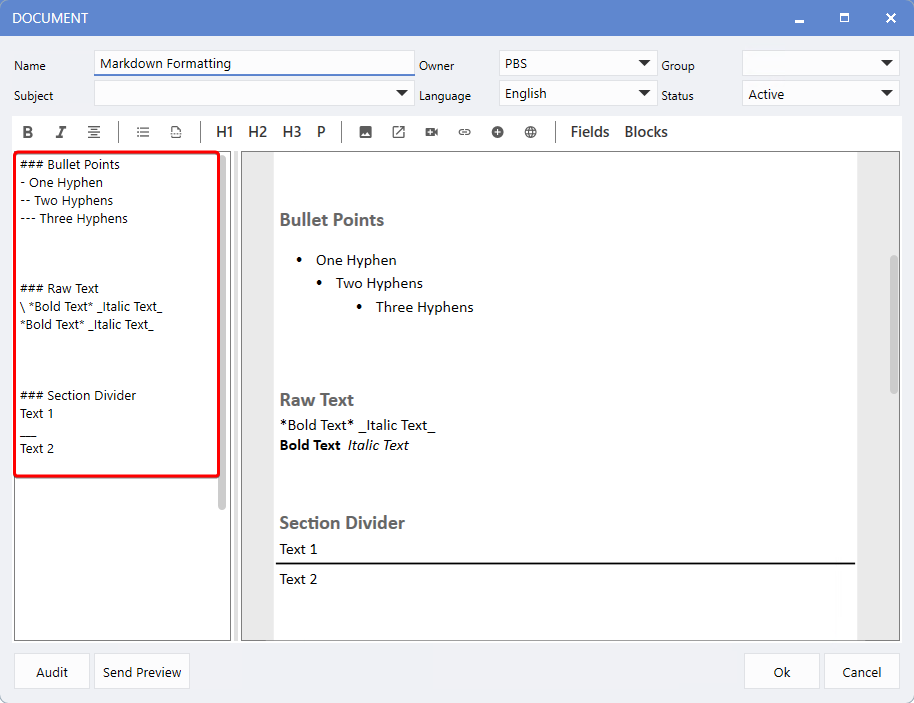
Markdown support has been added to Workplan Documents, allowing richer formatting for clearer, more professional communications.
Bullet Points
Users can now create indented bullet lists to organize information more clearly.
To use, start a line with any number of hyphens (-), or select the bullet point icon from the header of the communication.
Hyphens must be placed at the beginning of the line.
Raw Text
Special formatting characters can now be displayed as plain text.
To use, start a line with " \ ".
In this example, asterisks and underscores are shown as plain text rather than triggering bold or italic formatting:
*Bold Text* _Italic Text_
Bold Text
Italic Text
Section Dividers
Visually separate content by adding horizontal lines.
To create one, add a line with exactly three underscores "__
" on it, or select the page break icon from the header of the communication._
Text 1
Text 2
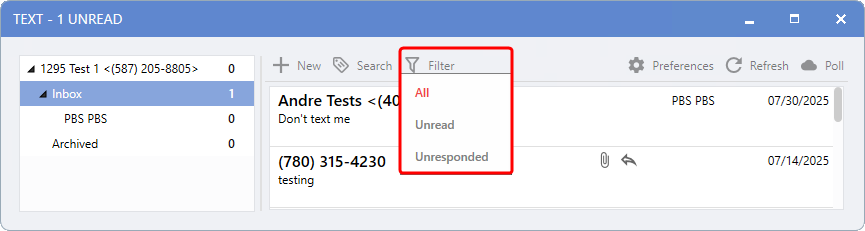
Unread/Unresponded Message Filters
A new filter option allows Users to quickly view
Unread
and
Unresponded
messages across
Text
,
Chats
, and
Emails
. This makes it easier to prioritize urgent communications and prevent missed follow-ups.
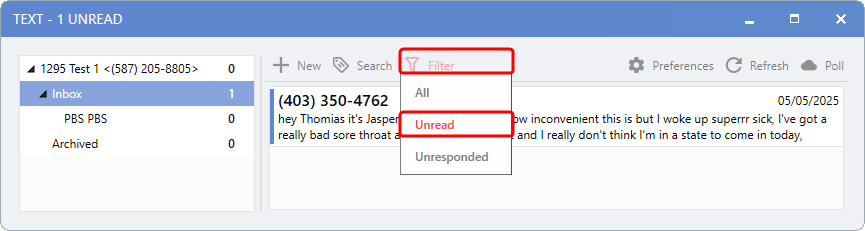
Simply select the desired filter at the top of the message list to apply.
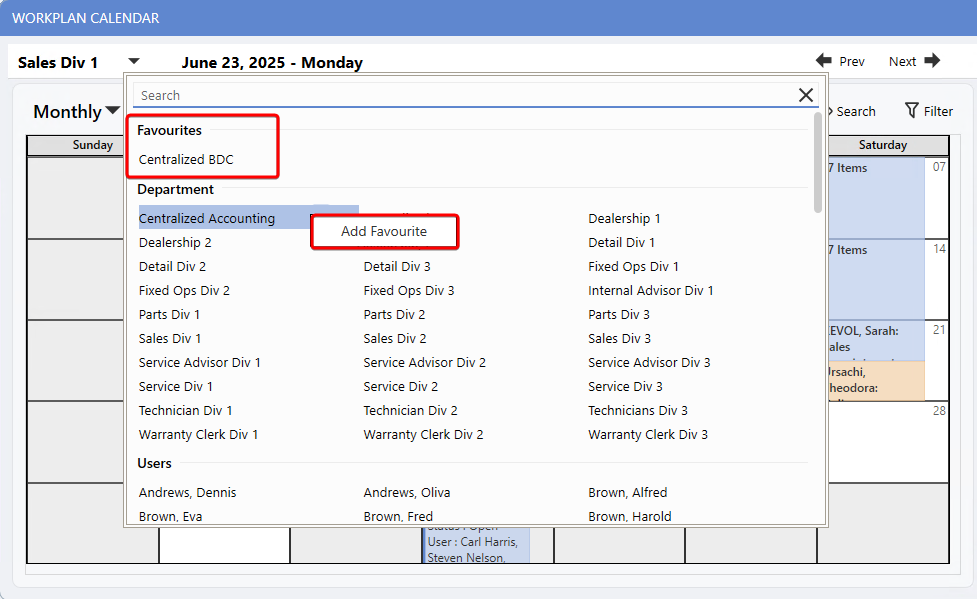
Workplan Calendar Favourites
You can now favourite
Workplan Calendars
- just like Dashboards!
Access permissions remain unchanged: Users will only see the calendars they already have permission to view. For example, department managers will continue to see their department's calendars.
This enhancement is especially useful for Users who manage multiple divisions or calendars, helping streamlining navigation and keeping frequently used calendars just a click away.
To favourite a calendar, right-click and select
Add Favourite.
To remove it, right-click again and choose
Remove Favourite.
To access the Workplan Calendar, follow the path:
Workplan > Workplan Calendar.
|