|
10.23 Parts Additional Features
KB 3219, Release Note, Parts Development, 9/2/2025
This document outlines the additional parts modifications introduced in version 10.23. These enhancements are designed to provide the Parts Department with greater visibility into key data and streamline daily workflows for improved efficiency.
Parts Work Item Features
Selling Parts - Pricing Update
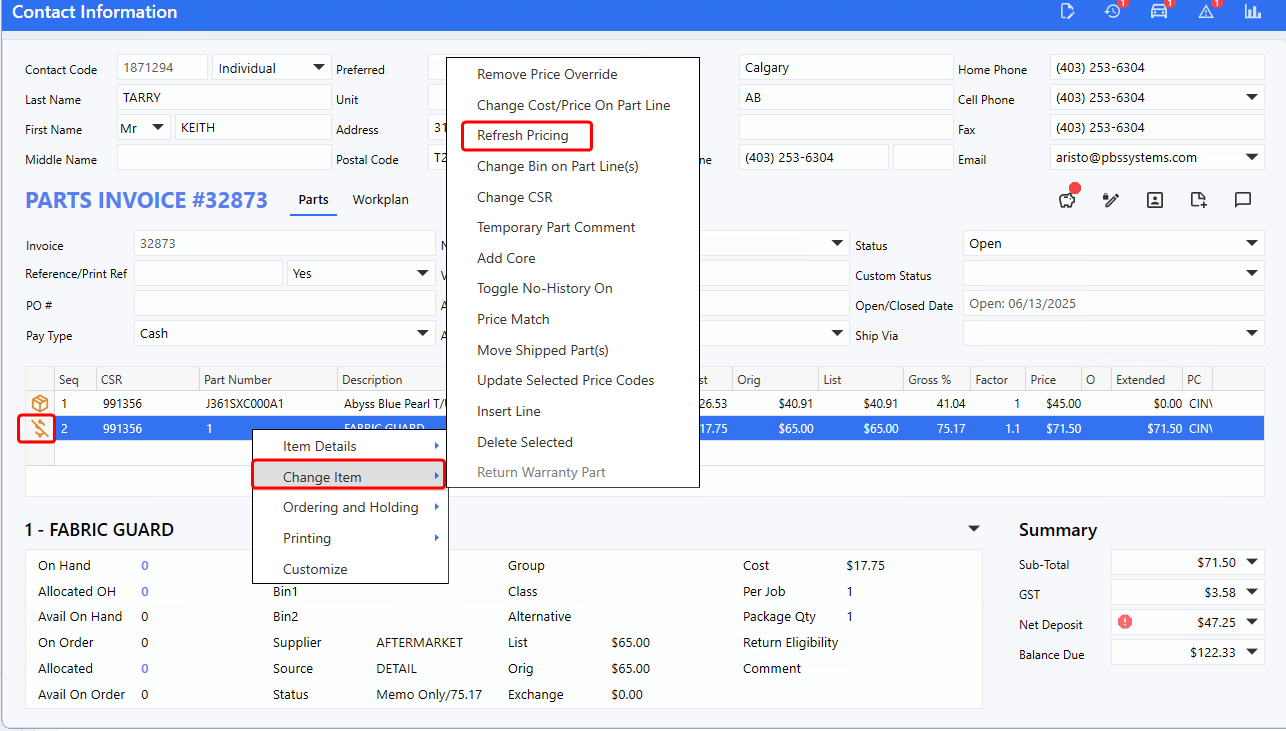
Keeping Parts pricing information accurate is crucial when preparing quotes for Customers. To simplify this process, Users can now update pricing on individual parts flagged with the
Pricing Out of Date warning
using the new right-click
Refresh Pricing
option.
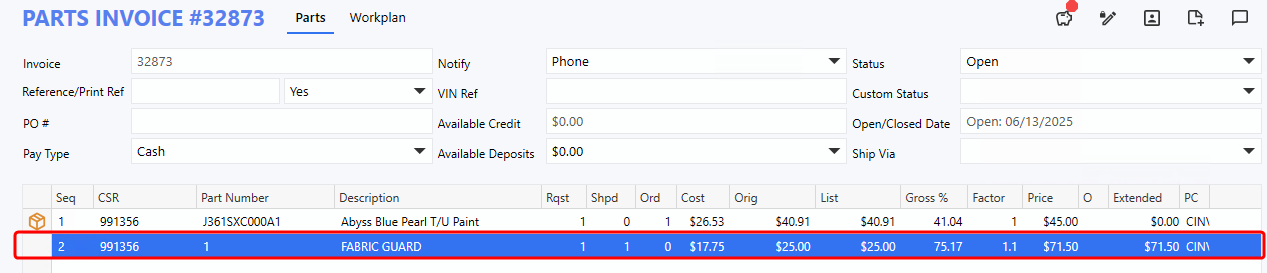
Instead of deleting and re-adding parts, simply refresh the price directly from any Parts Invoice, Quote, Service Appointment, Estimate, or Service Order. Once refreshed, the warning icon will disappear, and the updated price will be applied to the line.
To access this function, follow the path from the Parts tab:
Right-click: Change Item > Refresh Pricing
After refreshing the price:
Alternate Parts - Available On-Hand & Allocated On-Hand Columns
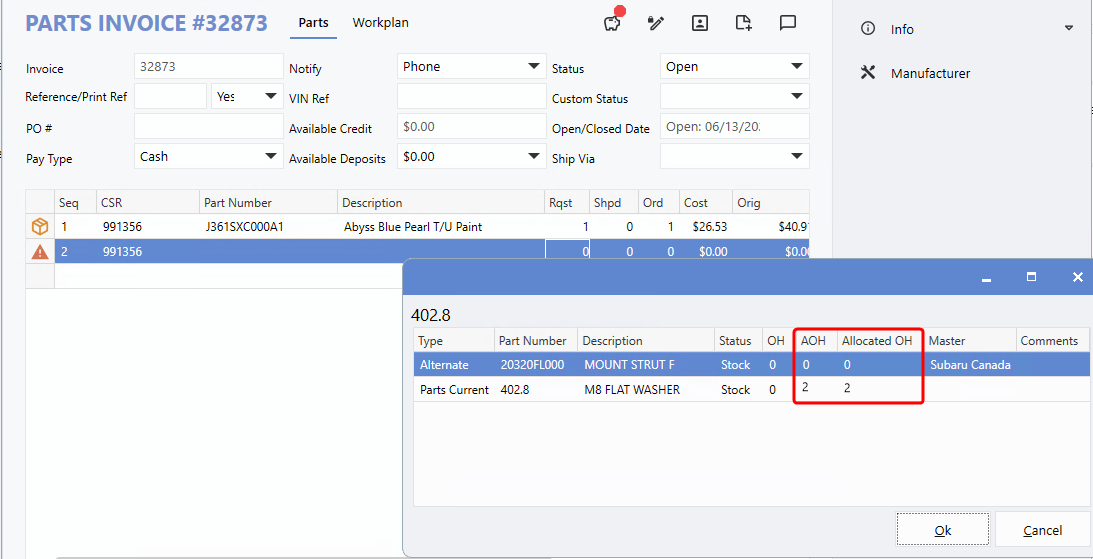
When adding alternate parts to a Parts Invoice or Quote, the Alternate Parts pop-up window now includes two new columns:
AOH (Available On Hand)
and
Allocated OH
. These columns show available stock levels, making it easier for Parts Users to confirm whether there is enough alternate inventory to fulfill the required quantity.
Special Order Parts - Ordering
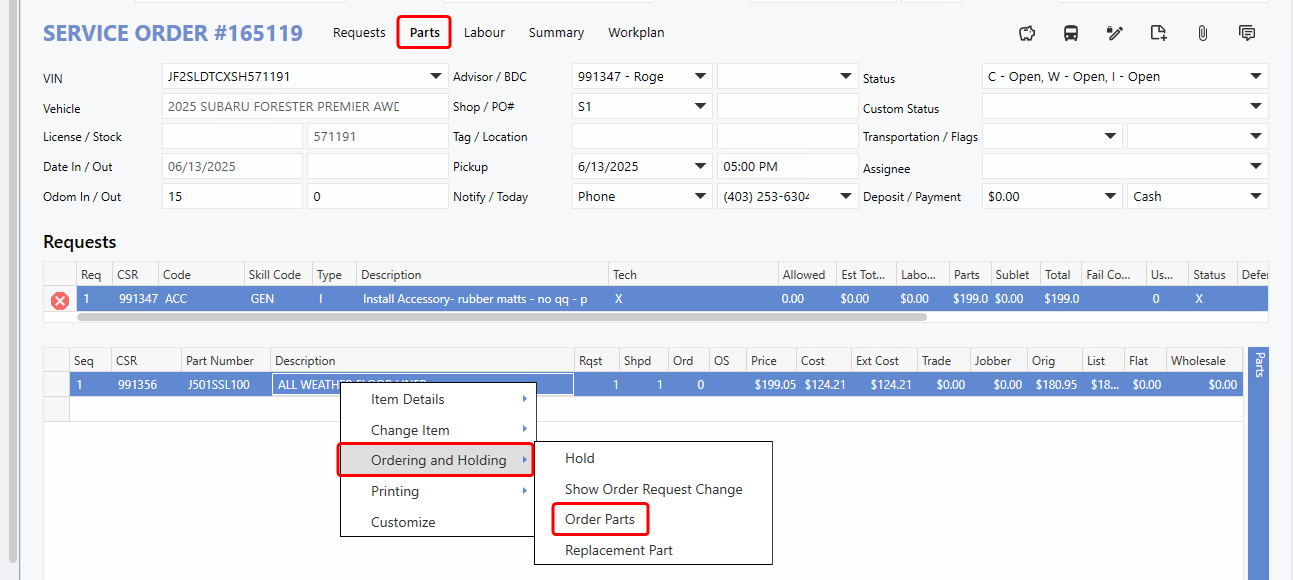
The
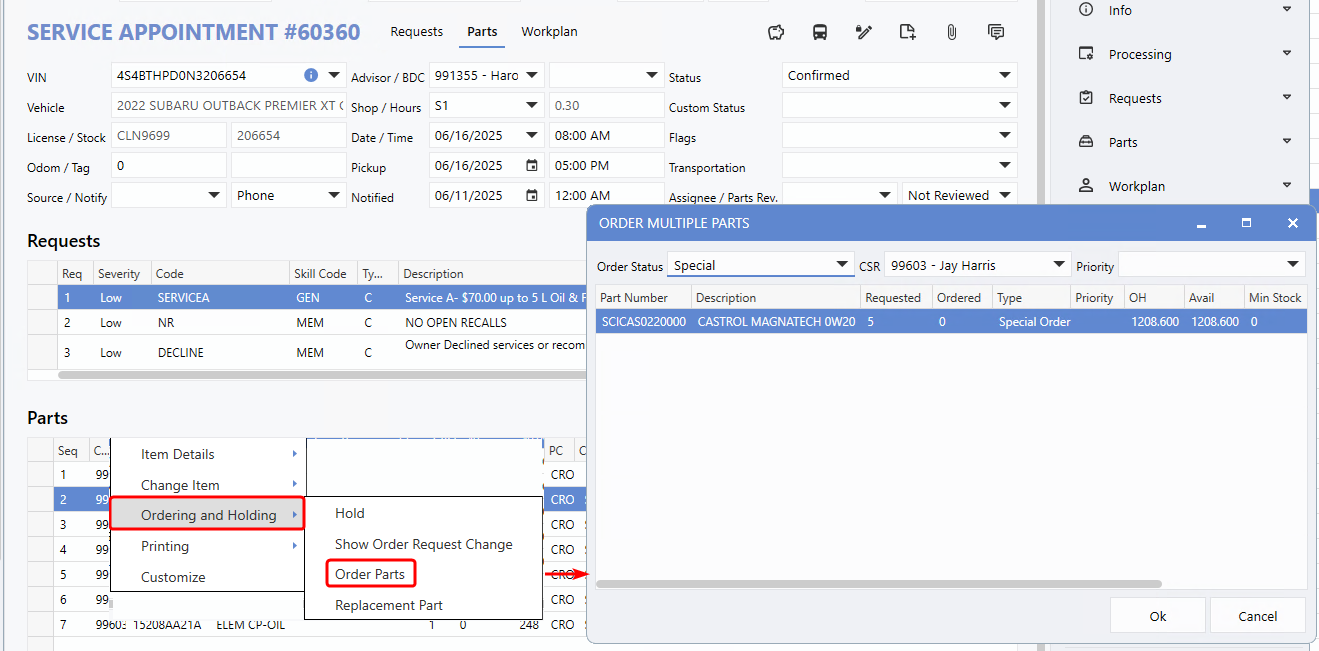
right-click Order Parts option
, previously available only in Parts Invoices, is now supported across all work items - including
Parts Quote
,
Appointments
,
Service Orders
, and
Service Estimates
. This enhancement allows Users to order parts more quickly and conveniently without navigating through the right-hand menu.
Note:
The Order Parts is unavailable (greyed out) when selecting multiple parts at once.
To access this function from within a work item, follow the path: * Parts tab > Right-click: Ordering and Holding > Order Parts*
Example:
In a Service Order, selecting
Order Parts
opens the "Order Required*, working the same way it does in Parts Invoices.
Example:
In Part Quotes, Appointments, or Service Estimates, selecting
Order Parts
opens the "Order Multiple Parts* window - similar to using the option from the right-hand menu - but it will display only the Part line you selected in the grid.
GM Parts Order - Priority in Ship Via
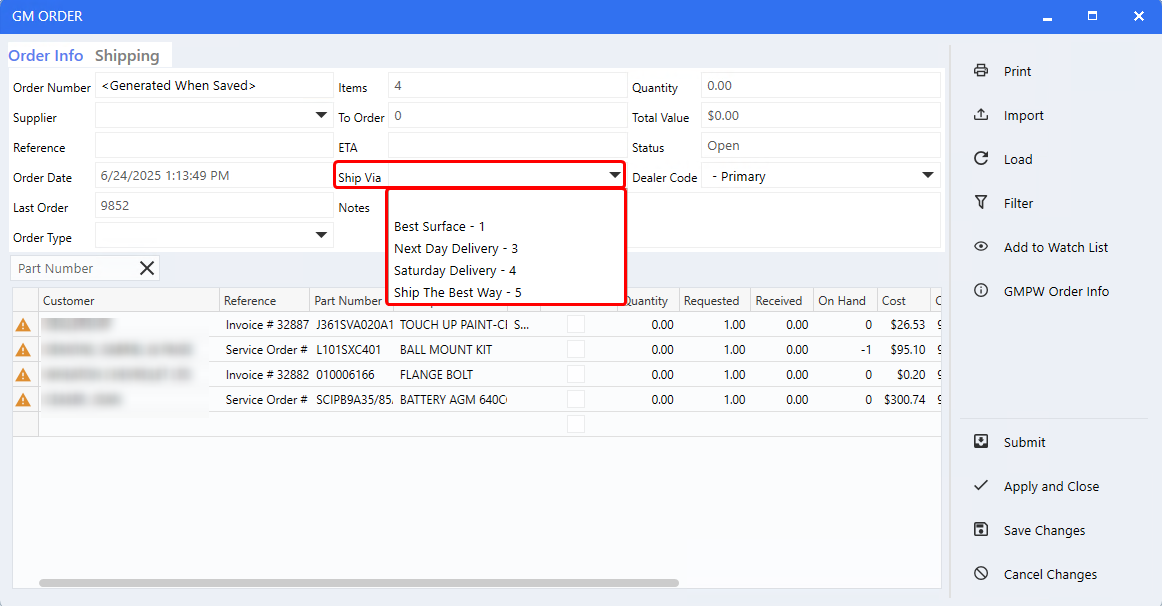
The
GM Parts Order
screen now displays the
priority number
next to the
Ship Via
name, making it easier for Users to choose the correct shipping method consistent with the GM site.
To access this feature, follow the path:
Parts > Parts Ordering > Create Order > GM > Ship Via
Parts Returns - Honda USA
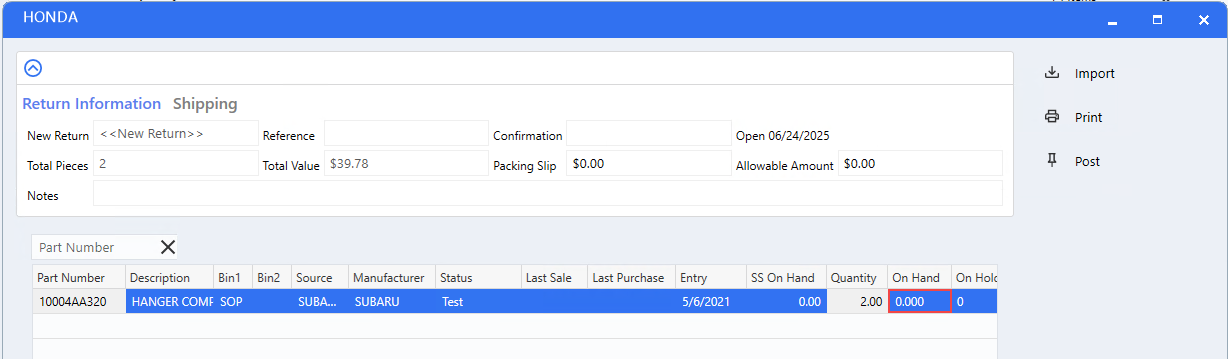
The
Honda USA Parts Return screen
has been simplified, with its layout now matching the Standard Return screen. This update streamlines the workflow by removing unnecessary header fields, making the process more User-friendly.
To access this window, follow the path:
Parts > New Return > Create Return > Honda USA
Dashboard Updates
Special Order - Ship Via & Notified Option
The
right-click customize
option on the Special Orders page (detail view) now allows you to add the
Ship Via column
. This provides better visibility into shipping details and helps plan delivery routes and schedules more efficiently for Customer special orders. You can also use the Ship Via in the
Advanced Filter
to narrow results and refine your search.
To add this column, follow the path: * Special Orders page > Right-click: Customize > Select "Ship Via" > OK*
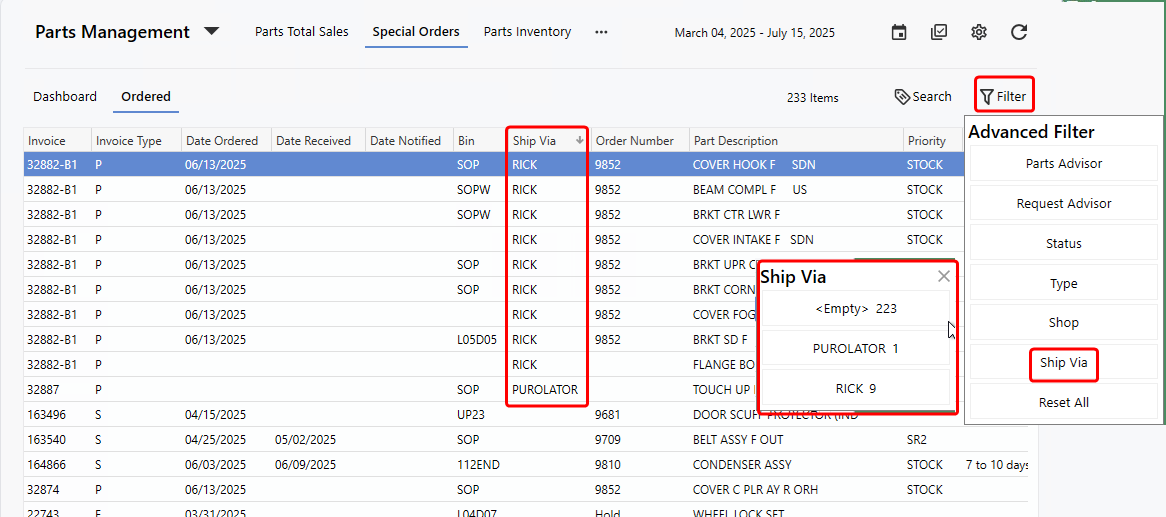
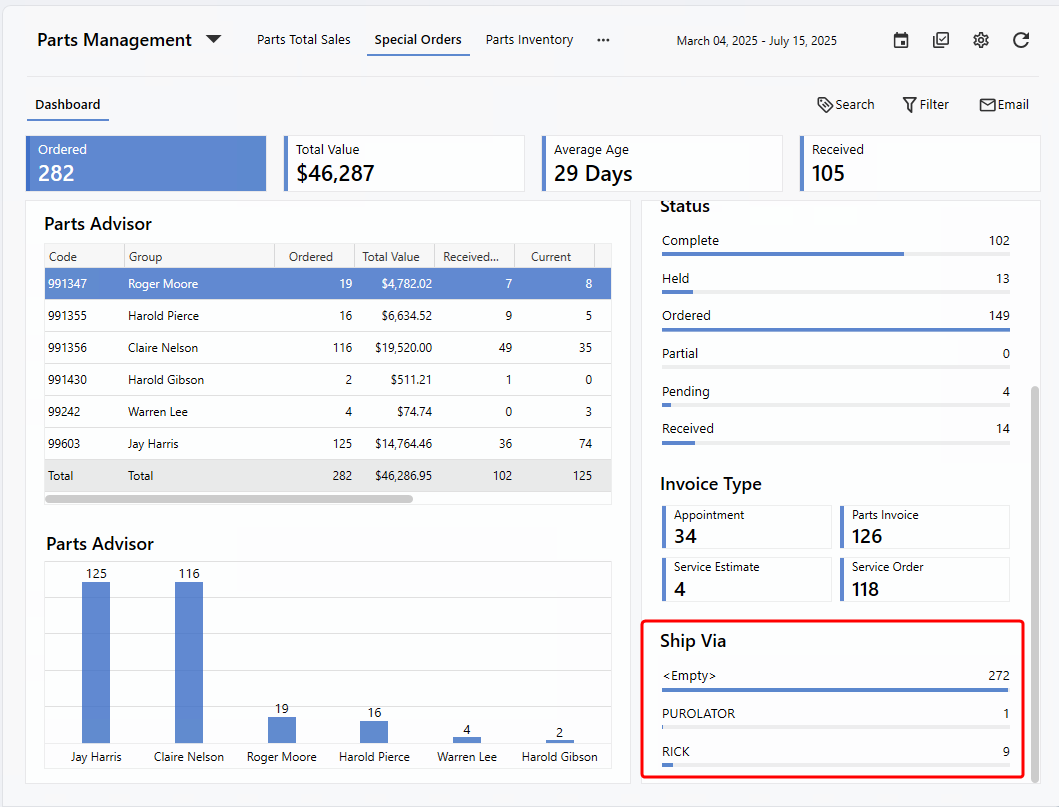
The right-hand panel of the main view now includes a
Ship Via group
providing a clear breakdown of shipping methods and enabling quick filtering of Invoices.
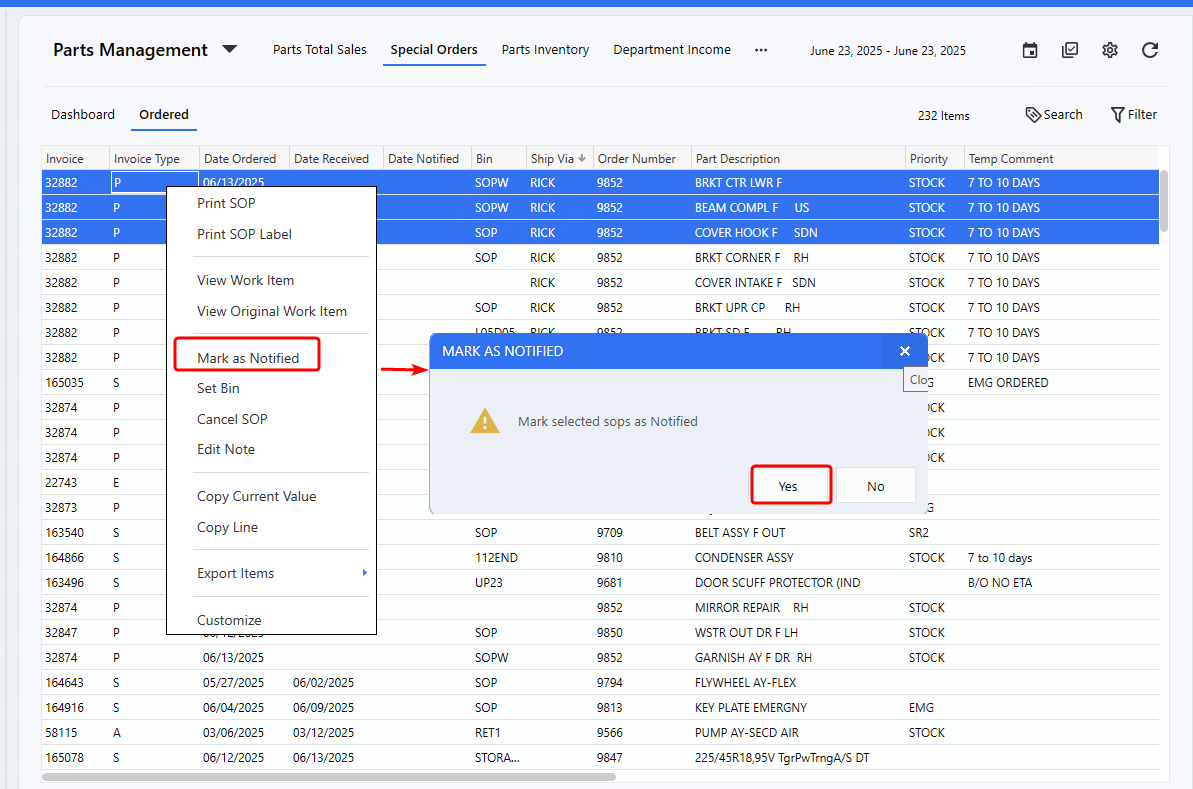
In addition, the new
Mark as Notified
right-click option streamlines workflow by allowing multiple Special Order Parts (SOPs) to be updated at once. This removes the need to open each SOP individually to complete the Notified and Notified By fields, saving time and improving efficiency.
To access this feature, follow the path:
Special Order page > Right-click: Mark as Notified > Yes
Parts Total Sales - PO Column & Cost Relabel
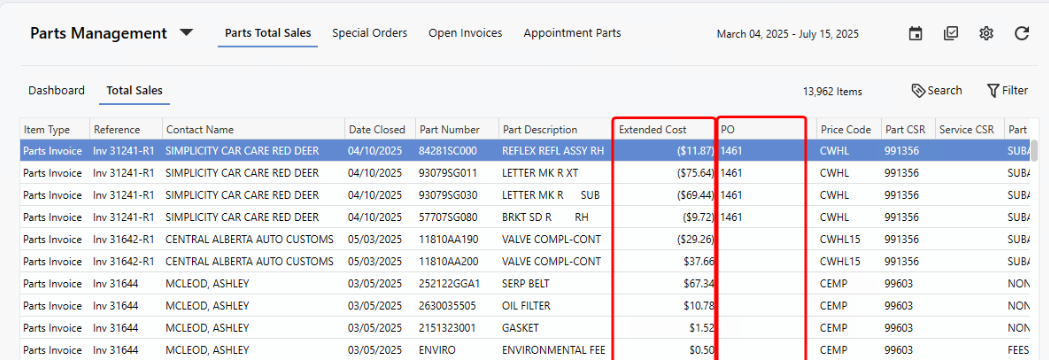
Parts Users can now add a new
PO
column to the Parts Total Sales page using the right-click Customize option. This allows PO numbers to be displayed, searched, and included in reporting.
Additionally, the former "Cost" column has been renamed
Extended Cost
, to better reflect that it shows the total cost of shipped Parts rather than the unit cost, providing clearer and more accurate data.
To add this column, follow the path:
Parts Total Sales page > Right-click: Customize > Select PO > OK
Appointment Parts - VIN Added
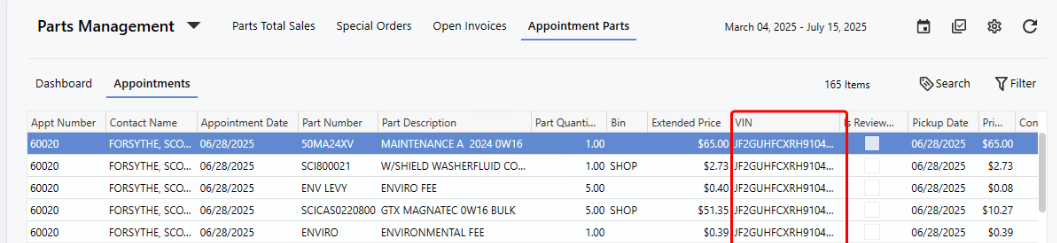
A new
VIN
column can now be added to the Appointment Parts page using the right-click Customize option. This is especially helpful for identifying which Vehicle tires belong to when a Customer has multiple Vehicles with stored tires.
To add this new column, follow the path:
Appointment Parts page > Right-click: Customize > Select "VIN" > OK
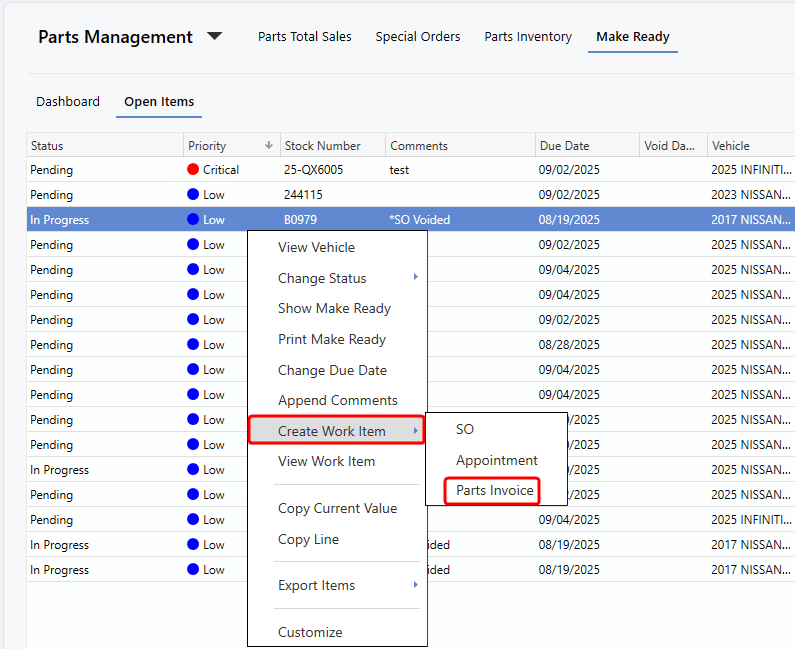
Make Ready - Parts Invoice option added
A Parts Invoice option has been added to the
Create Work Item
submenu, allowing Users to create a Parts Invoice from the detailed view of the Make Ready page. This addition eliminates the need to navigate to other screens, allowing Users to stay on task.
To access this feature, follow the path:
Make Ready page > Right-click: Create Work Item > Parts Invoice
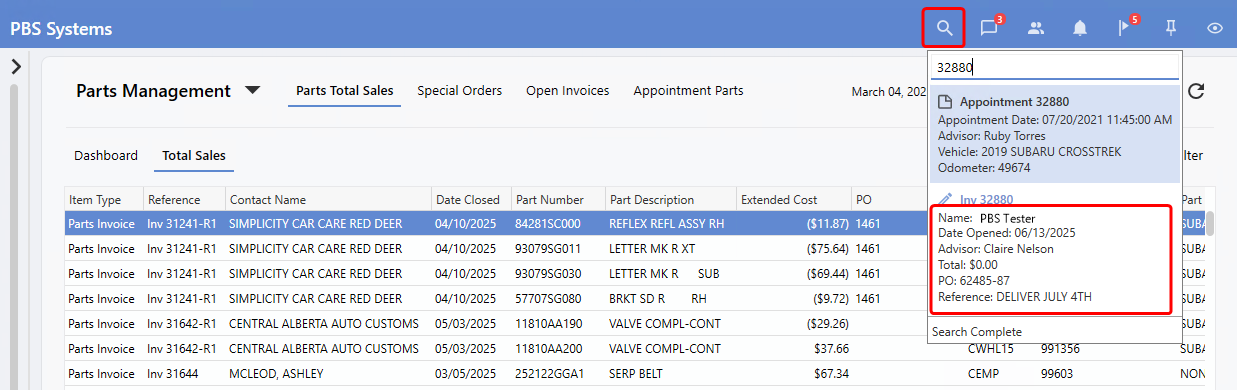
Global Search - Invoice & Quote Detail Update
Users can now view key details for Parts Invoices and Quotes directly within the Global Search, without opening each work item. Newly added fields -
Contact Name
,
Purchase Order #
(when applicable), and
Reference Number
- provide quick access to essential information at a glance, streamlining workflow and enhancing the overall User experience.
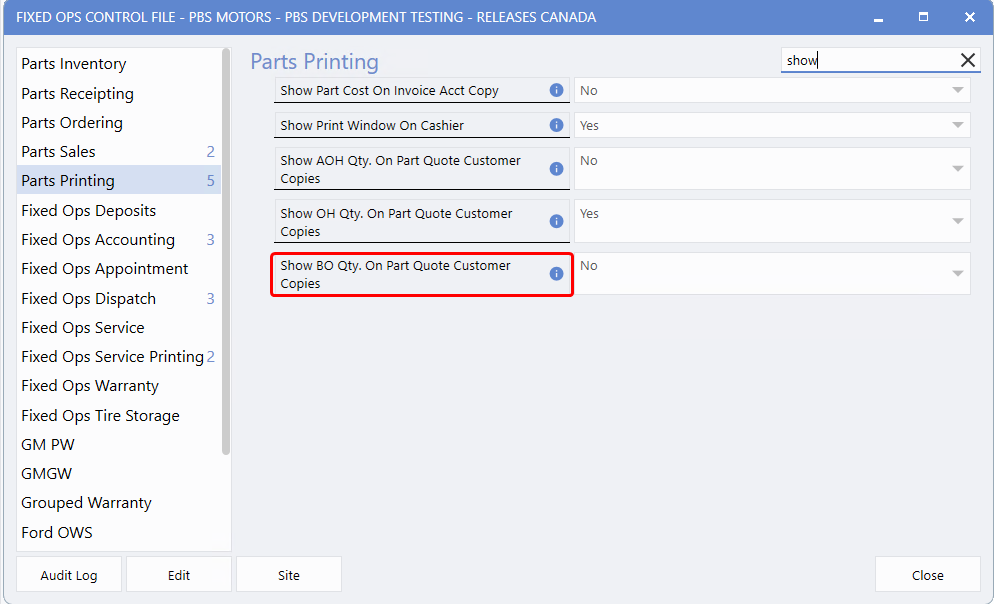
Parts Quotes - Hide BO Qty on Customer Copy
Dealerships can now choose whether to
show the quantity of back ordered (BO) parts
on the Part Quote Customer Copy or not, using a new setting in the Fixed Ops Control File. By
default
, this setting is set to
Yes
, preserving the current behaviour. To hide this information on the Customer-facing printout, simply change the setting to No.
To access this feature, follow the path:
System > Maintenance > Fixed Ops Control File > Parts Printing > Show BO Qty. on Part Quote Customer Copies
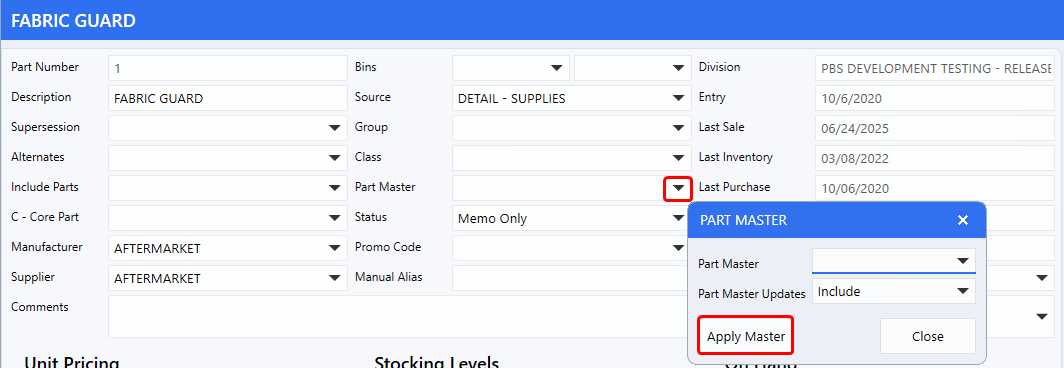
Parts Maintenance - "Apply Master" Added
The new
Apply Master
button lets Users quickly update Part details - such as pricing - when linking them to the Master record. This enhancement simplifies the process and improves efficiency.
To access this feature, follow the path:
Parts > Parts Stats > Search Parts > Part Master drop-down > Part Master Updates: Include > Click on Apply Master.
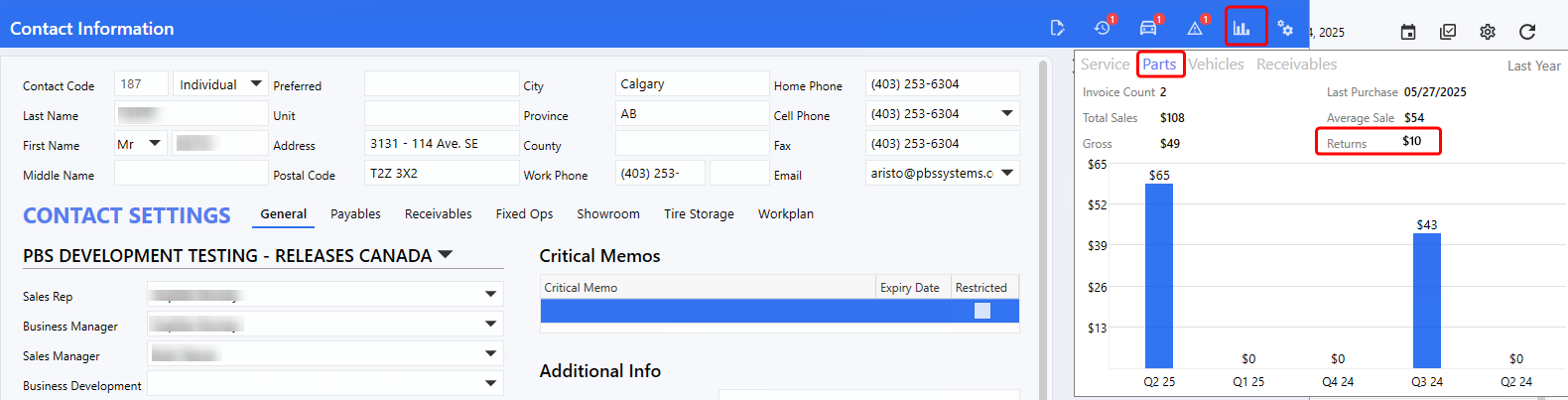
Customer Valuation - Added "Returns" Amount
Parts Advisors can now quickly view the
Returns
value for Part Sales directly in the Customer Valuation screen under the
Parts
tab. This eliminates the need to navigate to Parts Sales History or Parts Customer Sales Analysis, making access to this information faster and more convenient.
To access this feature, follow the path:
Customer Valuation within the work item > Parts tab > Returns
|