|
10.23 Service Additional Features
KB 3220, Release Note, Service Development, 9/4/2025
This document offers a clear and concise overview of the additional Service modifications beginning with version 10.23.0.
Service Order
Inspection - Data Field for Fleet Number Added
Dealerships managing a high volume of fleet vehicles can now streamline their Inspection process by adding the
Fleet Number data field
through layout setups. This new feature automatically pulls the Fleet number from the Vehicle file into the Inspection, eliminating the need for manual entry.
To access this feature, follow the path:
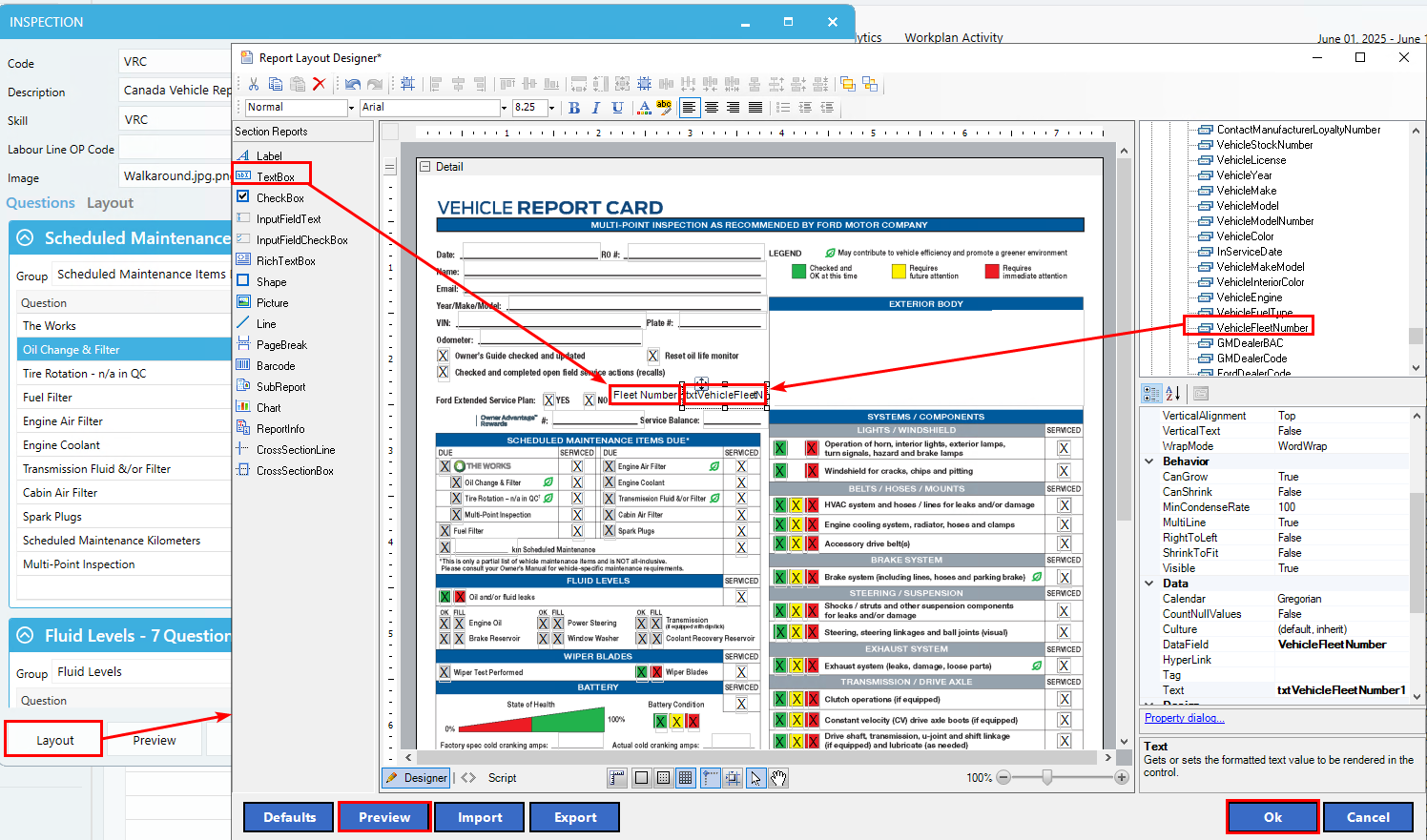
Fixed Ops > Service Order > Maintenance > Advanced Setups > Inspection > Package > Edit Inspection > Layout button
How to add the Fleet Number data field:
1.
In the Designer tool, navigate to
Fields > Bound
in the right-hand panel.
2.
Locate
VehicleFleetNumber
and drag it to the desired location on the Inspection layout.
3.
Use the
TextBox
tool from the left panel to add a label for the data field.
4.
Click the
Preview
button to see how it will appear on the Inspection.
5.
Click
Ok
to save your changes.
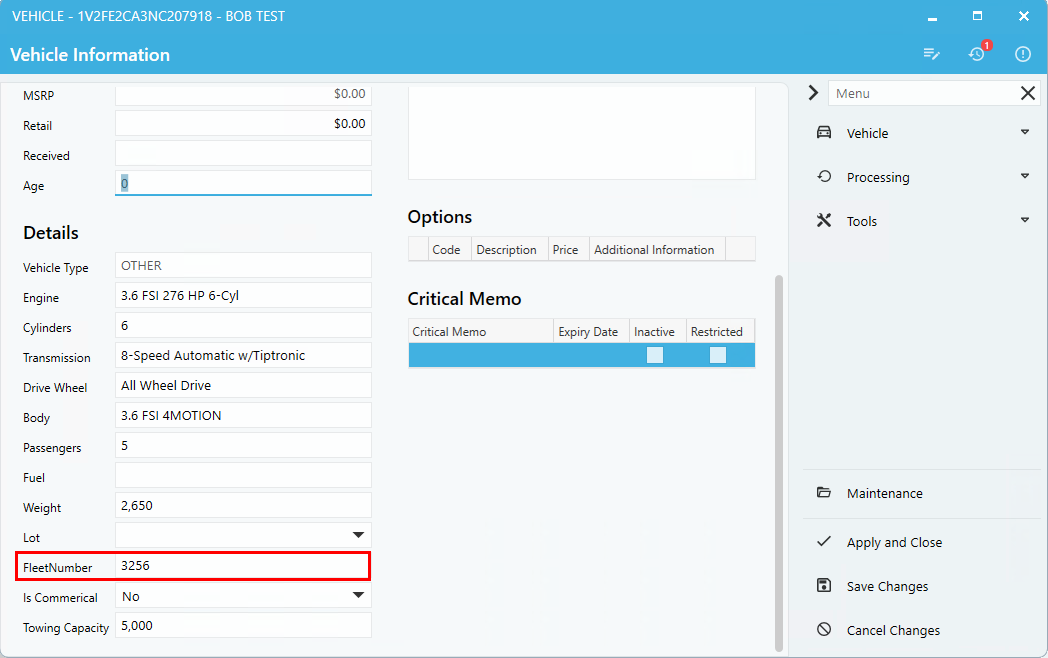
The example below illustrates the Vehicle file with Fleet number "3256" entered.
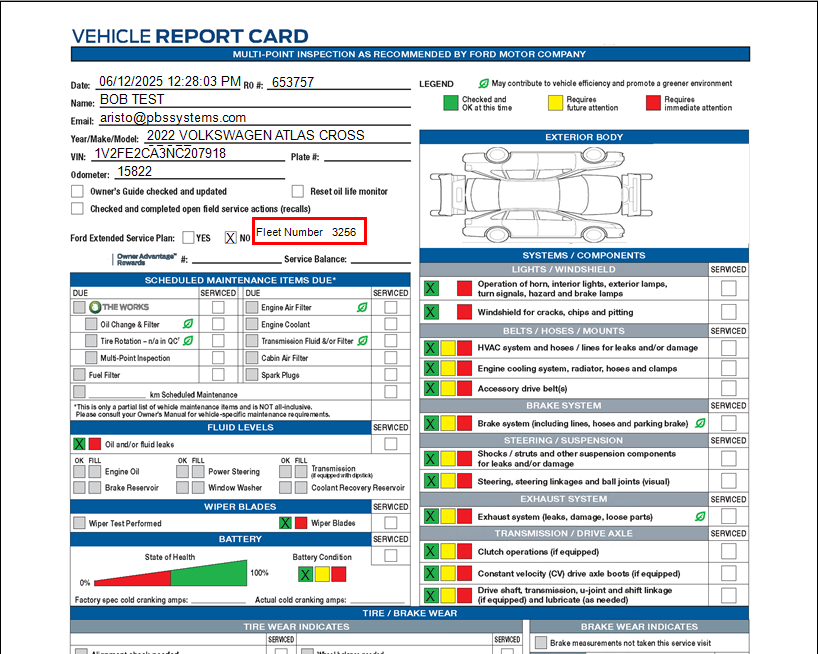
The Inspection below displays Fleet number "3256".
Hunter Integration - Op Code Displays Pass or Fail
We have improved our Hunter integration to further simplify the process for Service Advisors. Now, when a Hunter Inquiry is complete on a Vehicle, the Op Code on the Service Order automatically updates based on the Inspection results.
If Wheel Alignment or Tire Tread Depth
fails
, the Op Code will display:
If either one
passes
, the Op Code will update to:
Example:
Request line 3 on the Service Order updated to
HALIGNPASS
Request line 4 updated to
HTIREFAIL
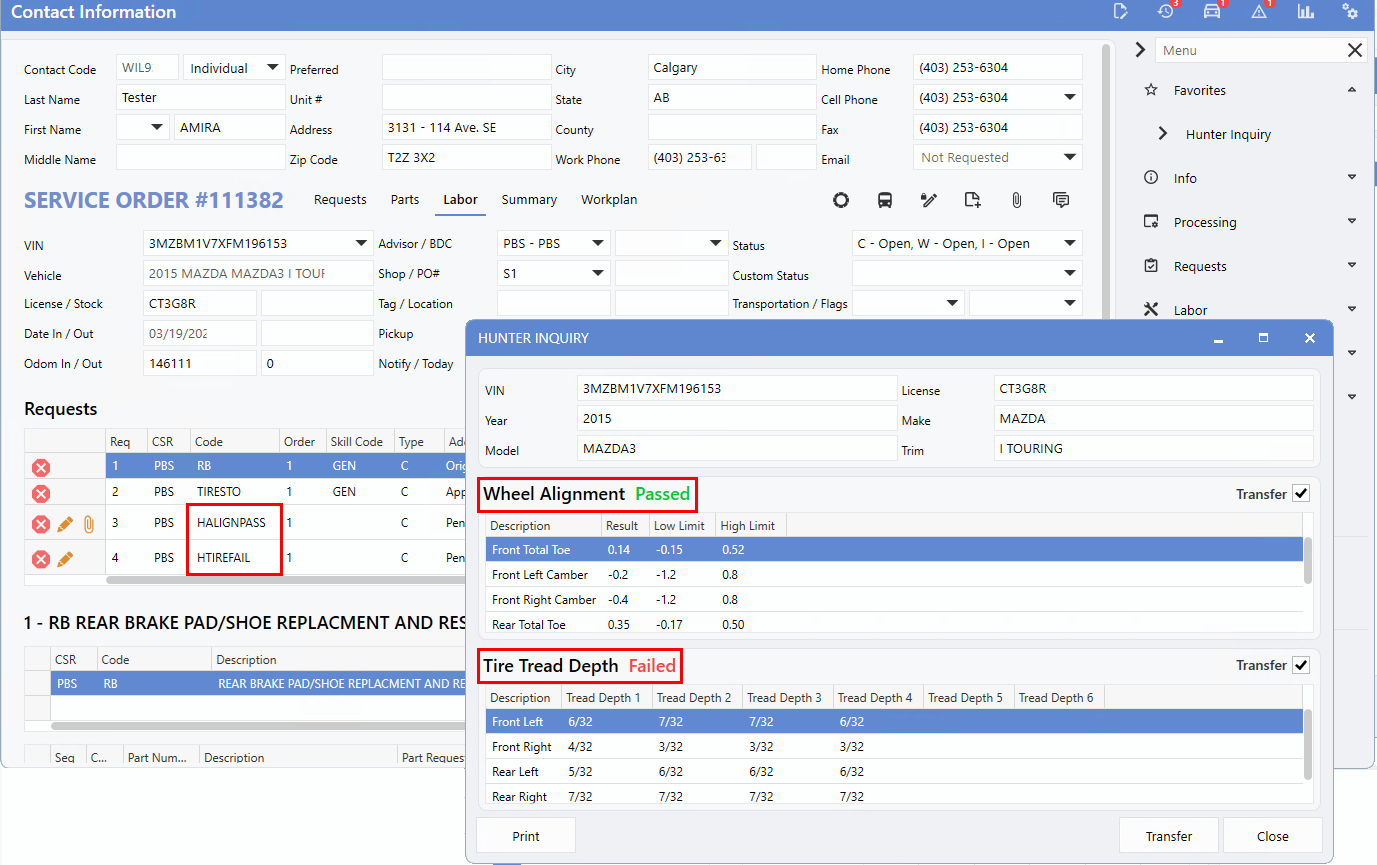
To further streamline the workflow, the
Transfer checkbox
in the Hunter Inquiry window will now be automatically checked if the Vehicle fails the inquiry. If the Vehicle passes, the checkbox will remain unchecked by default.
Enhanced Dashboards
Service Analytics Pages New Media Filters
The
Advanced Filter
feature has been updated across several of our Analytics Dashboards, providing Users with greater flexibility to refine data for more detailed reporting - particularly around attachments and digital Customer notifications.
On the
AWR Analytics
,
Inspection Analytics
and
Mobility Analytics
pages the
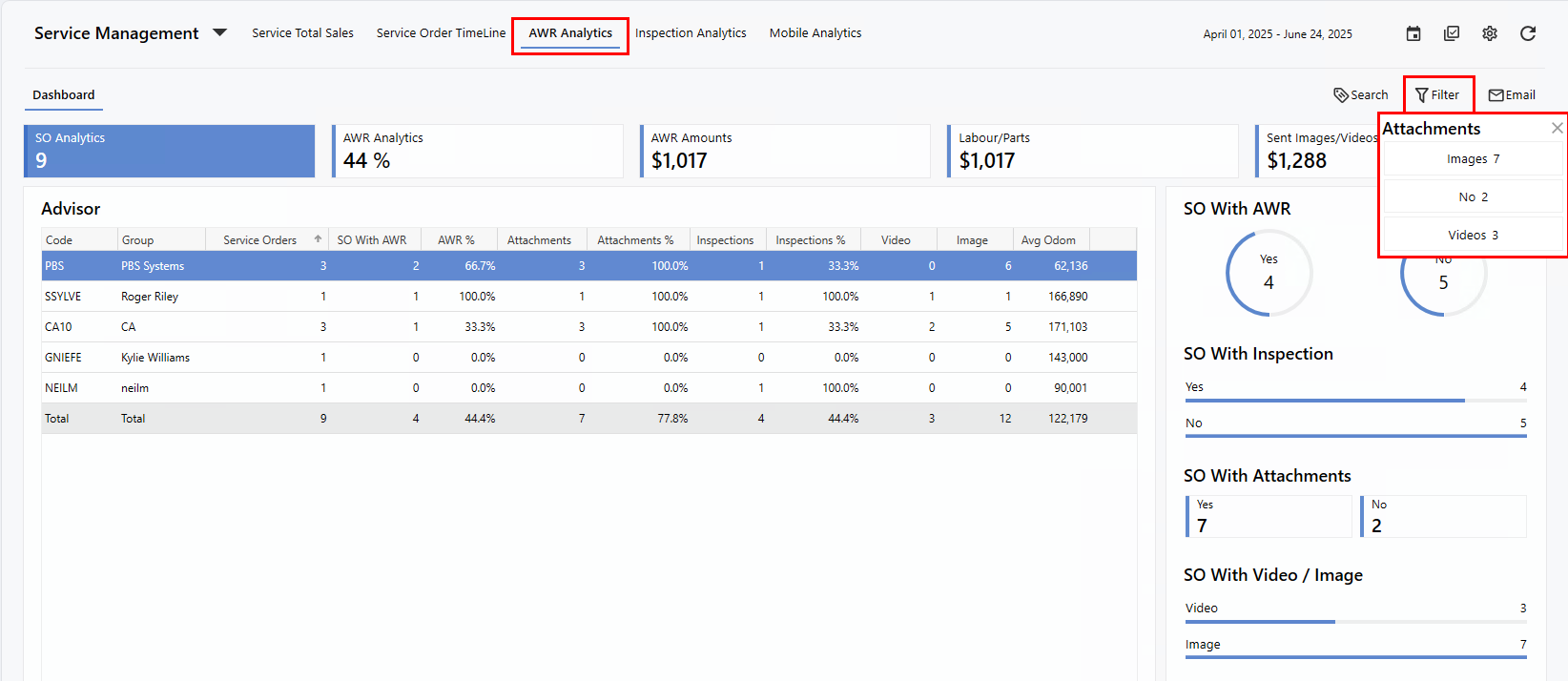
Attachments
filter has been upgraded from a simple 'Yes/No' format to include three options: 'No', 'Video', and 'Image'. This offers a more precise breakdown of Service Orders - whether they have no attachments, or include specific media types.
In addition, a new
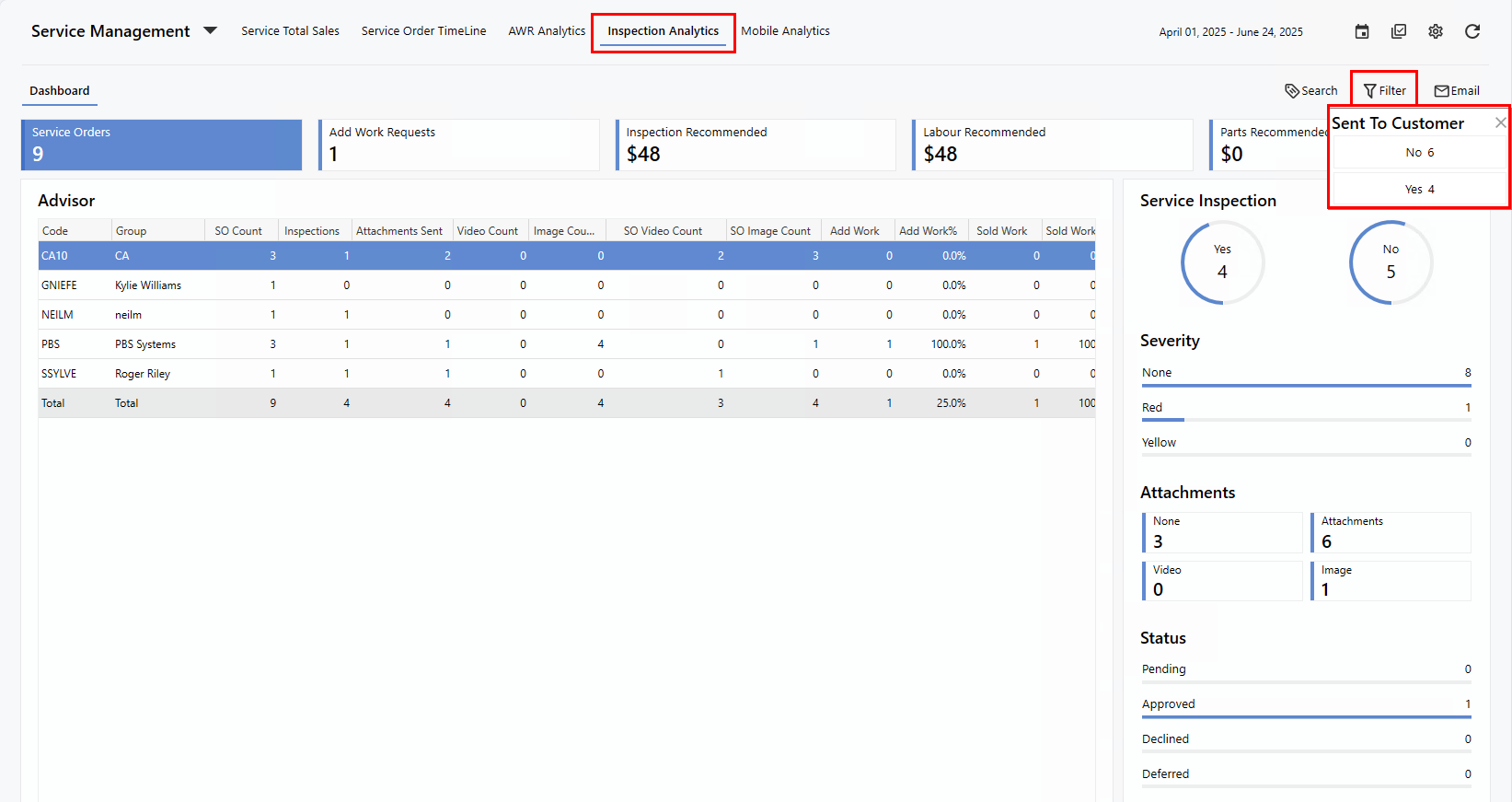
Sent To Customer
filter makes it easy to identify which Service Orders triggered a digital notification to the Customer. Both of these filters are available in the
summary
and
detail
views of the Dashboards.
Example:
Summary view of the AWR Analytics Dashboard with the updated Attachments filter options.
Example:
Summary view of the Inspection Analytics page displaying the new Sent To Customer filter.
Guidance on How Attachment and Sent Counts Are Calculated
-
On both the
AWR Analytics
and
Mobile Analytics
pages, the Attachments and Sent To Customer filters reflect counts based on all Service Orders, regardless of which Service Advisor is assigned.
-
On the
Inspection Analytics
page, the Attachments filter counts attachments added to Inspection lines within a Service Order, again independent of the assigned Service Advisor.
-
On the
AWR Analytics
page, a single Service Order that includes both an image and a video will be counted under both filters. As a result, the total in the Attachments filter may exceed the total number of Service Orders.
-
On the
Mobile Analytics
page, the total shown in the Attachments filter may differ from the Service Advisor summaries. This is because those summaries show the total number of images and videos attached to any Service Order, regardless of who the Service Advisor is. However, the overall total across all drill-downs will match the Attachments filter counts.
-
On the
Inspection Analytics
page, the total in the Attachments filter may be higher than the image count shown at the summary or drill-down level, since those views only reflect Service Orders where the current User is the assigned Service Advisor.
Service Sales & AWR Pages - EMG/APS Columns & Filters
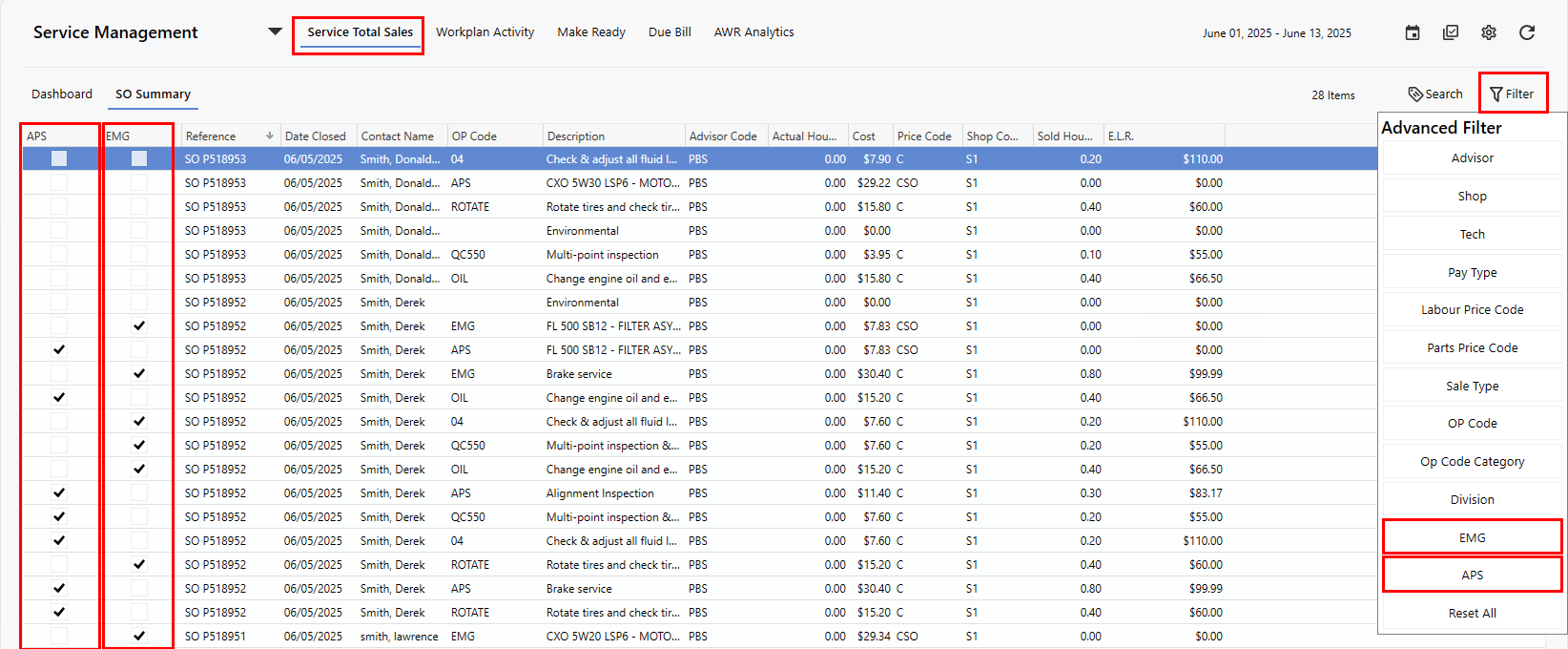
Dealerships now have improved visibility into sales generated from Request lines transferred via EMG or APS, thanks to the newly added columns and filters on the
Service Total Sales
and
AWR Analytics
pages. These enhancements support better tracking and more insightful reporting.
On both Dashboards,
EMG
and
APS
columns can be added to the
detail view
using the right-click customization. A checkmark in these columns indicates that a line was transferred from EMG or APS.
Additionally, the
Advanced Filter
now includes EMG and APS options, enabling Users to refine data with greater precision.
Example:
Service Total Sales Dashboard page
Service Total Sales Page - Nightcap Report Mobile View Update
The
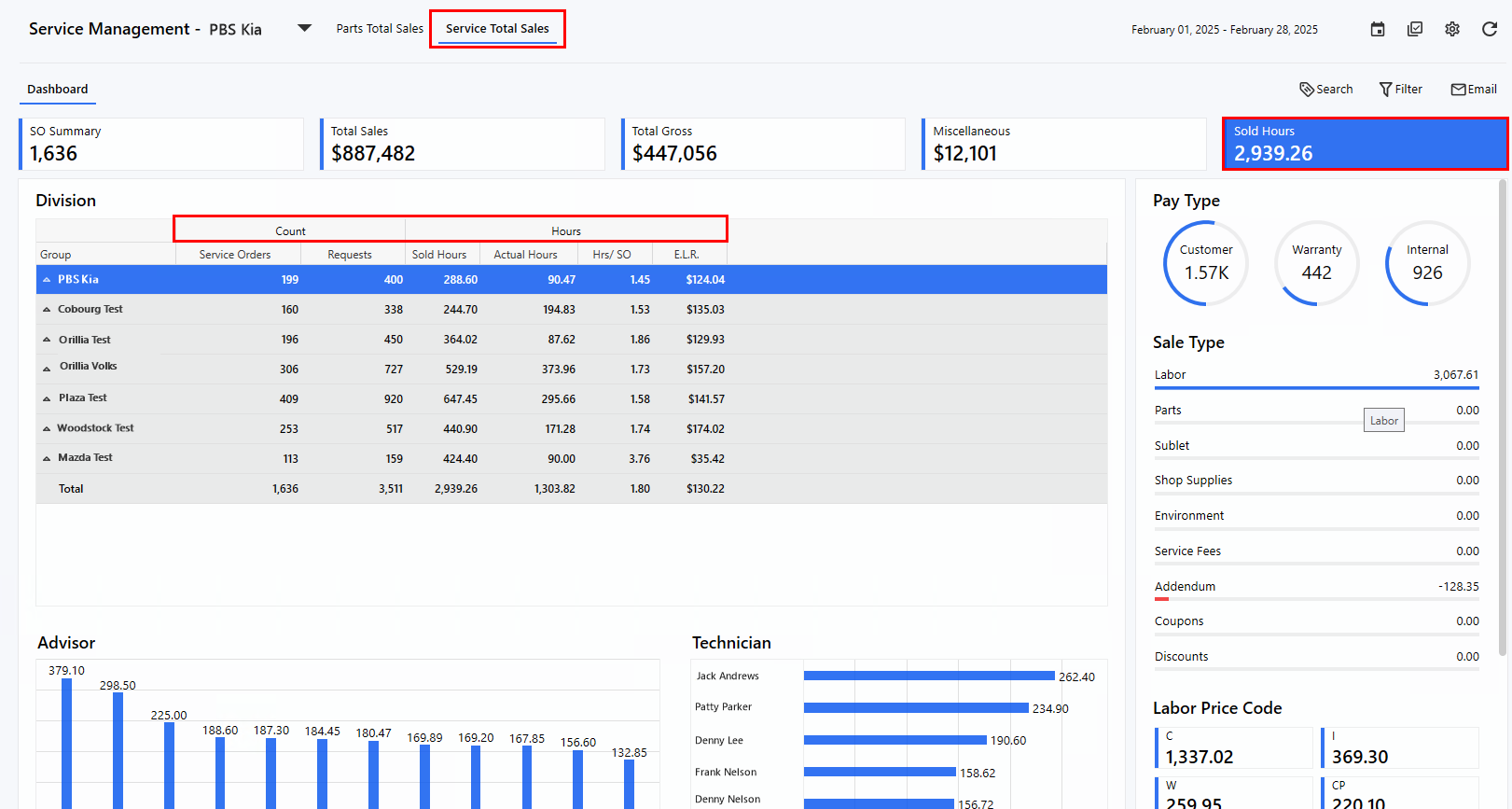
Sold Hours
metric on the Service Total Sales page now features grouped columns -
Count and Hours
- to provide improved clarity and easier interpretation of the data.
The
Nightcap report
has been optimized for a better Mobile experience. Previously, the Sold Hours metric appeared in a single line with six columns, making it difficult to view on smaller screens. The updated layout is now more user-friendly, offering a cleaner and more accessible experience for Mobile Users.
Note:
For best results, always view the report in landscape orientation on Mobile devices.
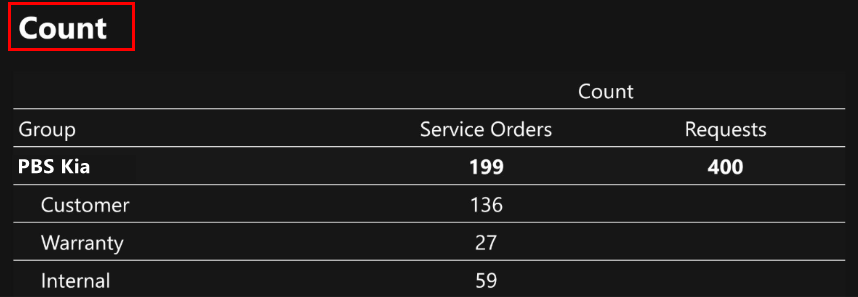
Count
data appears on one line with 2 columns.
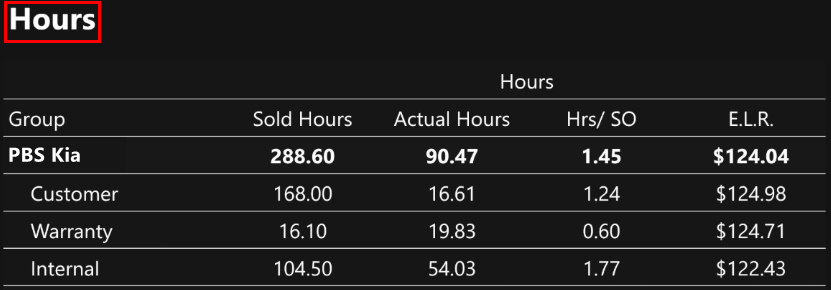
Hours
data is displayed in a separate section, across four clearly organized columns.
New Features in Reports
Labour Price Code - Warranty Receivable and Deductible Columns Added
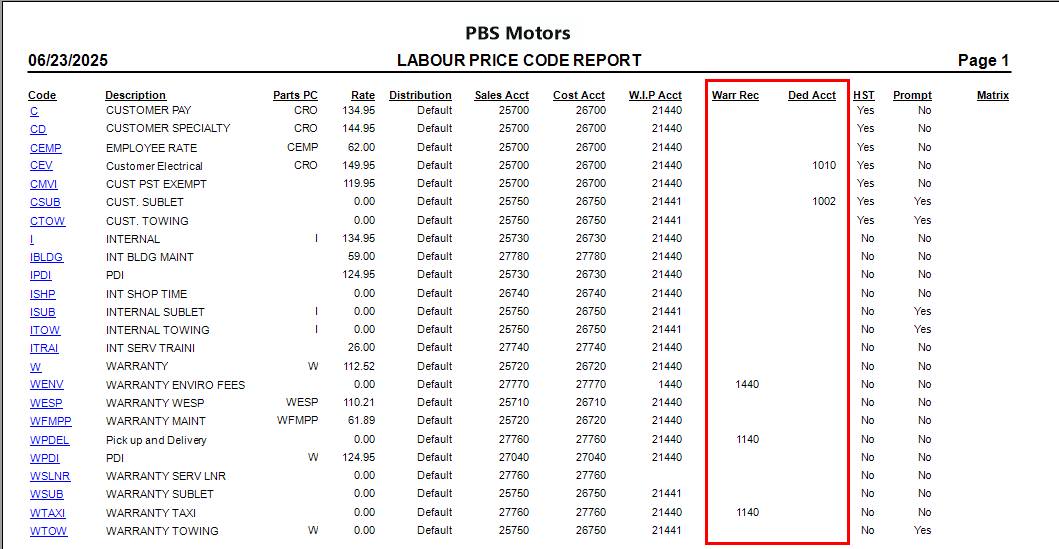
The
Warranty Receivable
and
Deductible
accounts are now included in the Labour Price Code Report when using either the
Detail
or
Detail By Dist
formats. This enhancement gives Dealerships greater visibility into their debit accounts, helping ensure all price codes are accurately allocated to the correct accounts.
To access this feature, follow the path:
Fixed Ops > Service Order > Reports > Management > Labour Price Codes
Gross Profit Report - Exclude Sublets
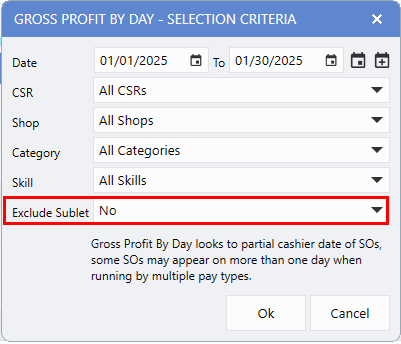
To provide a more accurate view of Labour Sales, Service Managers now have the option to
Exclude Sublets
when generating the Gross Profit report. This setting defaults No, but can be adjusted as needed.
To access this feature, follow the path:
Fixed Ops > Service Order > Reports > Management > Gross Profit
Tech Time Log - Open Punches & Service Order Links Added
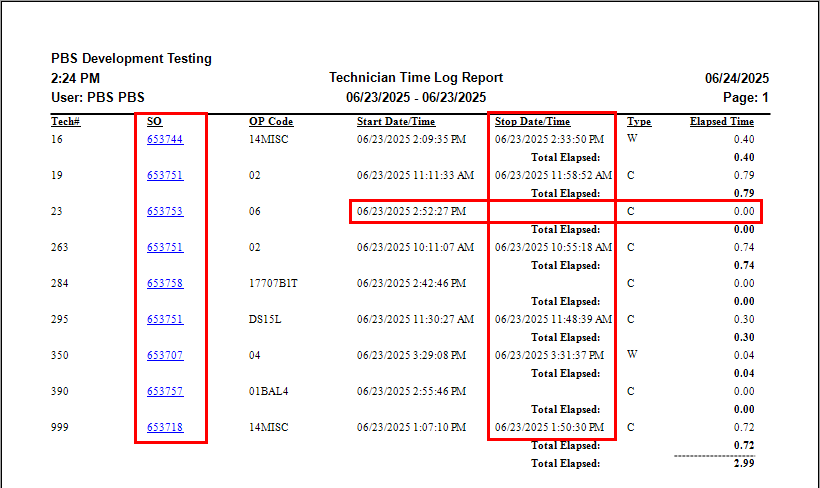
The Technician Time Log report has been enhanced for improved usability. It now includes the ability to track
open time punches
helping identify Technicians who may have forgotten to punch off a job. In addition, a
clickable link
to the
Service Order
has been added, allowing Users to quickly see which Technicians are assigned and easily make any necessary start or stop time adjustments.
To access this feature, follow the path:
Fixed Ops > Dispatch > Reports > Technician Time Log
Example:
Technician Time Log Report includes links to Service Orders and shows an example of an open time punch.
Maintenance Setups Updates
Menu Packages - Default Order Number Option
The software order process ensures all order 1 jobs are completed before moving on to order 2 jobs.
Previously, Menu Packages had no defined order and were automatically placed as the first job on the Service Order, requiring Technicians to start with them unless manually reordered by the Service Advisor.
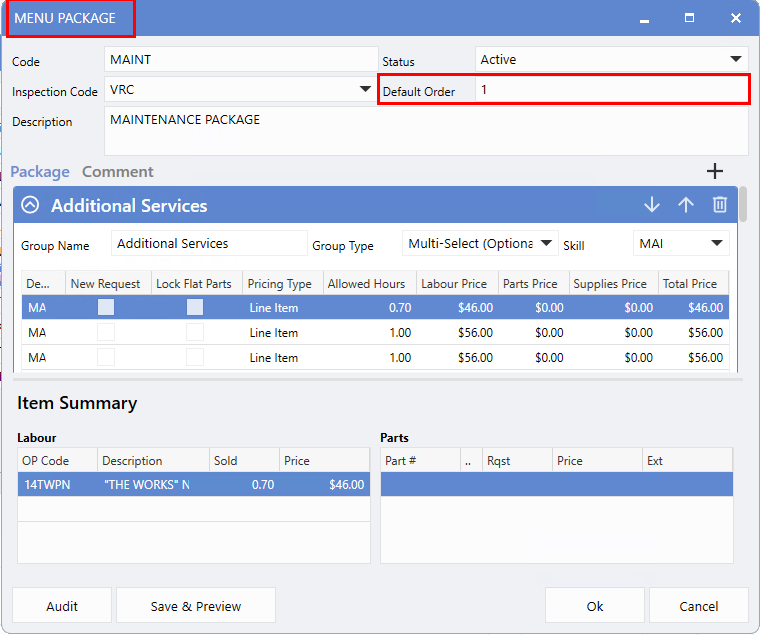
To enhance efficiency, Menu Packages now include a new
Default Order
field - similar to Op Code settings. This allows Dealerships to set a specific order for Menu Packages, which will automatically apply when added to Service Orders, Appointments or Estimates.
Note:
The Menu Package default order takes precedence over Op Code default order.
To access this feature, follow the path:
Fixed Ops > Service Order > Maintenance > Advanced Setups > Menu Packages
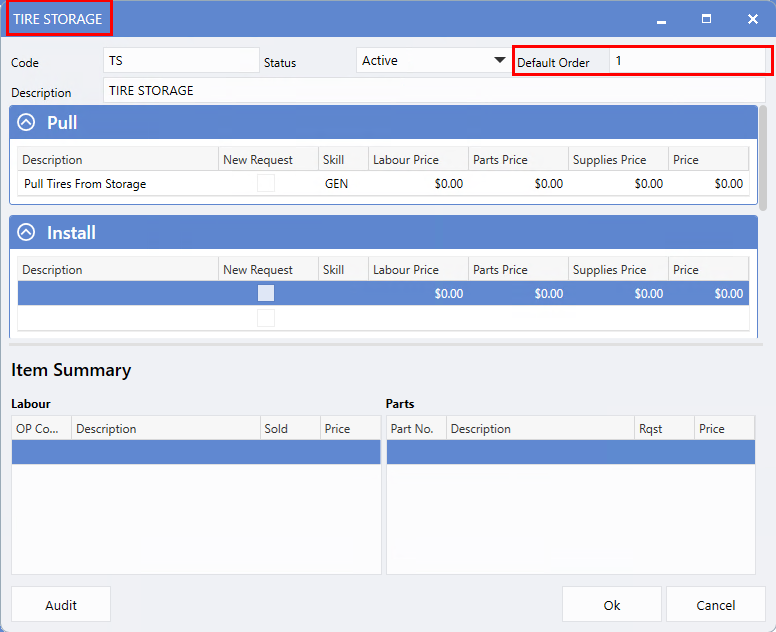
This feature has also been extended to Tire Storage.
To access this feature, follow the path:
Fixed Ops > Service Order > Maintenance > Advanced Setups > Tire Storage Codes
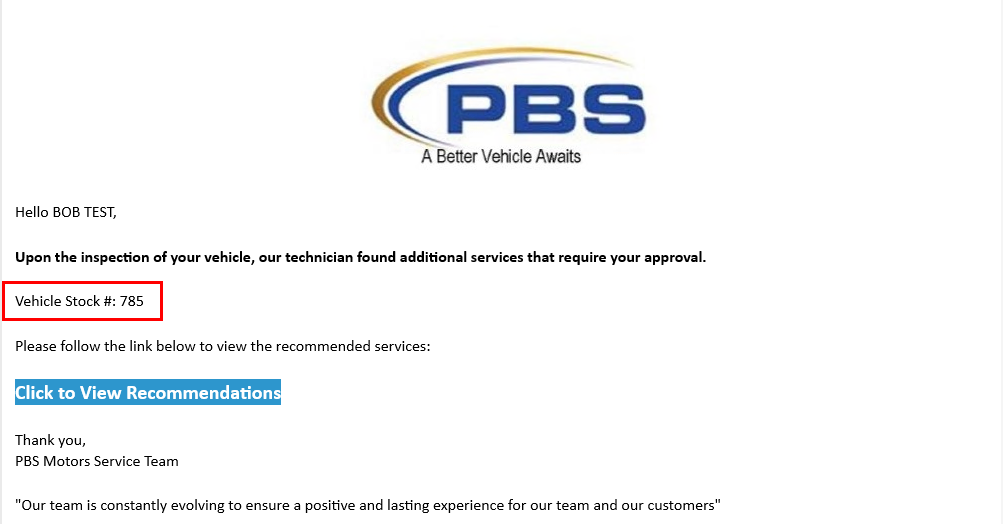
Digital Service & Appointment Notifications - Stock Number Added
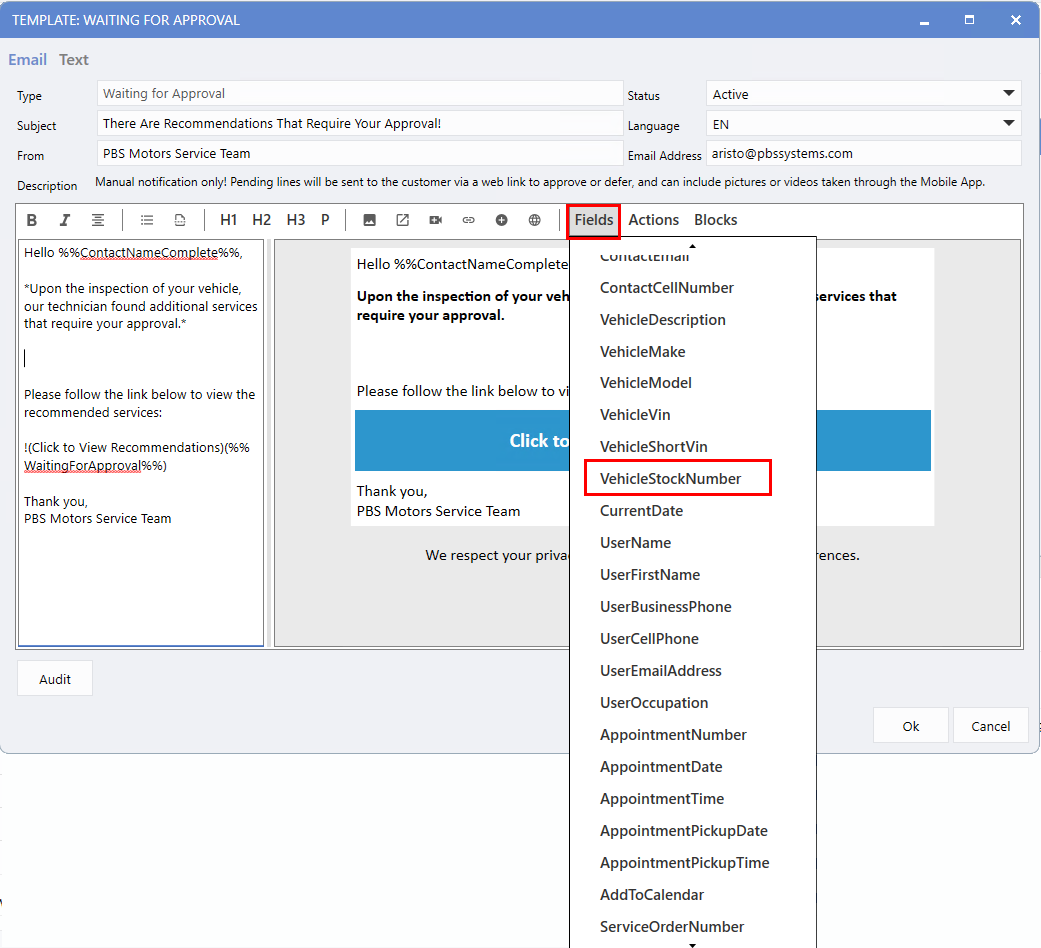
To streamline workflow and boost efficiency, a new
Vehicle Stock Number
data field has been added to Service Order and Appointment notification templates. This enables the stock number to appear directly on digital notifications, saving Service Advisors from having to look it up manually.
To access this feature, follow the path:
Fixed Ops > Maintenance > Service Setups > SO Customer Notifications/ Appt Customer Notifications > Fields tab in Actions bar > Vehicle Stock Number
The example below shows the Vehicle Stock Number field added to the "Waiting for Approval" notification template.
The example below displays the Vehicle Stock Number in the email notification.
|