|
10.23 Deal Disclosure and Forms
KB 3222, Release Note, Sales Development, 8/29/2025
Effective document management is essential to a smooth sales process - but sorting through multiple forms can be time-consuming. To improve efficiency, we've introduced a new document grouping system that allows Users to organize forms into customizable Folders, streamlining access and enhancing productivity.
-
This feature is available in the updated Delivery tab, which now features an improved, more organized layout. Disclosures and forms can be grouped into folders to keep everything neatly arranged and easy to find.
-
The Sales Disclosure layout has also been refined for better readability. Grouping of $0.00 options reduces visual clutter and optimizes space on printed or digital forms.
Managing sales forms is now faster, cleaner and more intuitive than ever. Read on to learn about the new Folders!
Forms Maintenance
Creating Folders
With the new Folders functionality, Dealerships can now create personalized document groupings to better organize their Sales Forms.
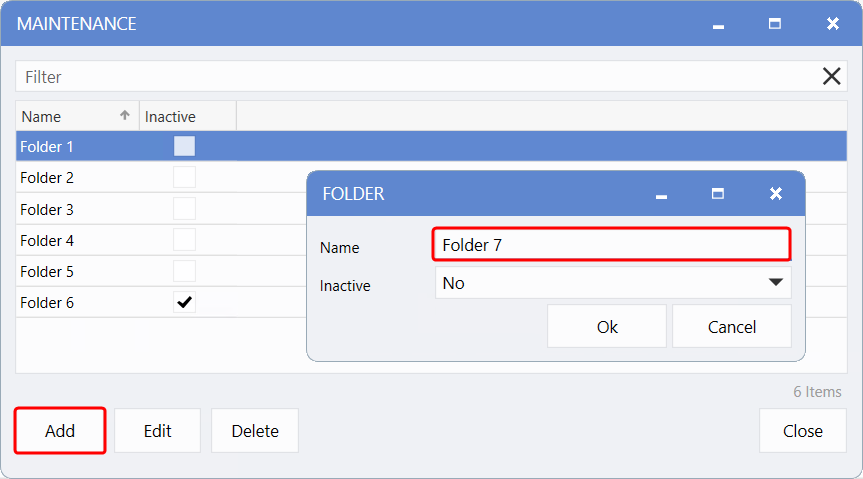
To access, create, and edit the folders, follow the path:
Sales > Deal > Maintenance > Forms > Folders
Click the
Add
button, enter a name in the
Name
field, and click
OK
to save.
Select a folder and click
Edit
, or simply double-click the folder to make changes.
Select the folder and click
Delete
, or double-click to open it and toggle the
Inactive
field to Yes.
Assigning Folders to Sales Forms
Folders can be assigned to Sales Forms in two different ways:
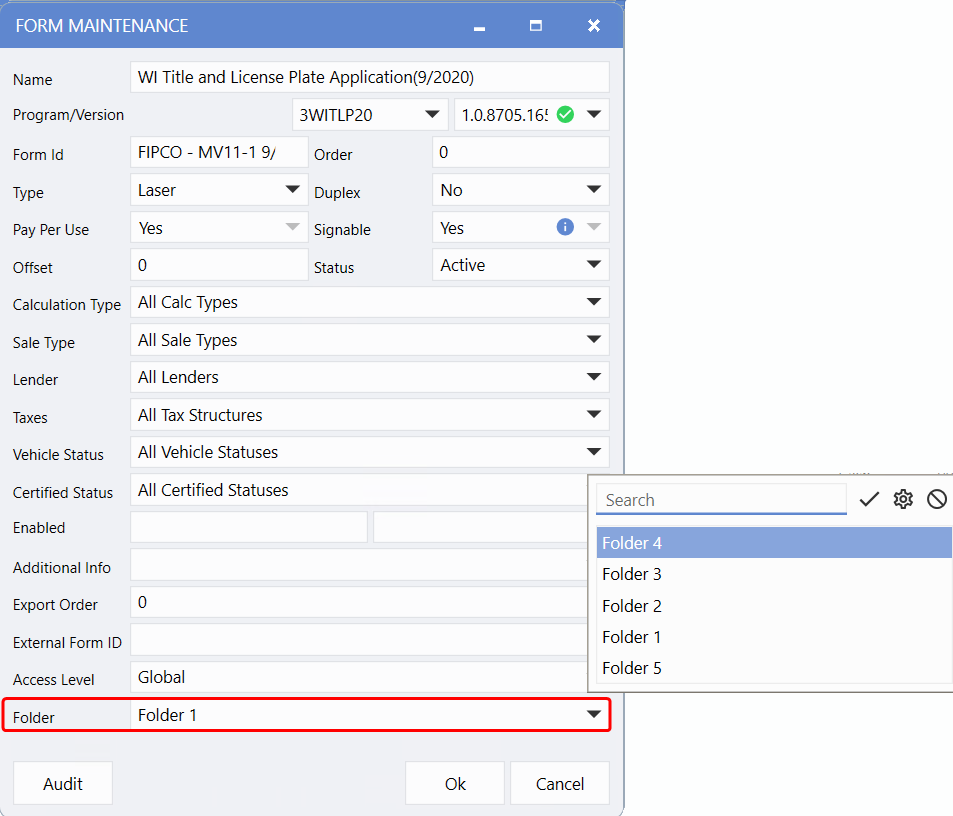
1. Within the Forms Maintenance window
Click on the desired form to open its setup. A new
Folder
field is now available - use the dropdown to select the appropriate folder.
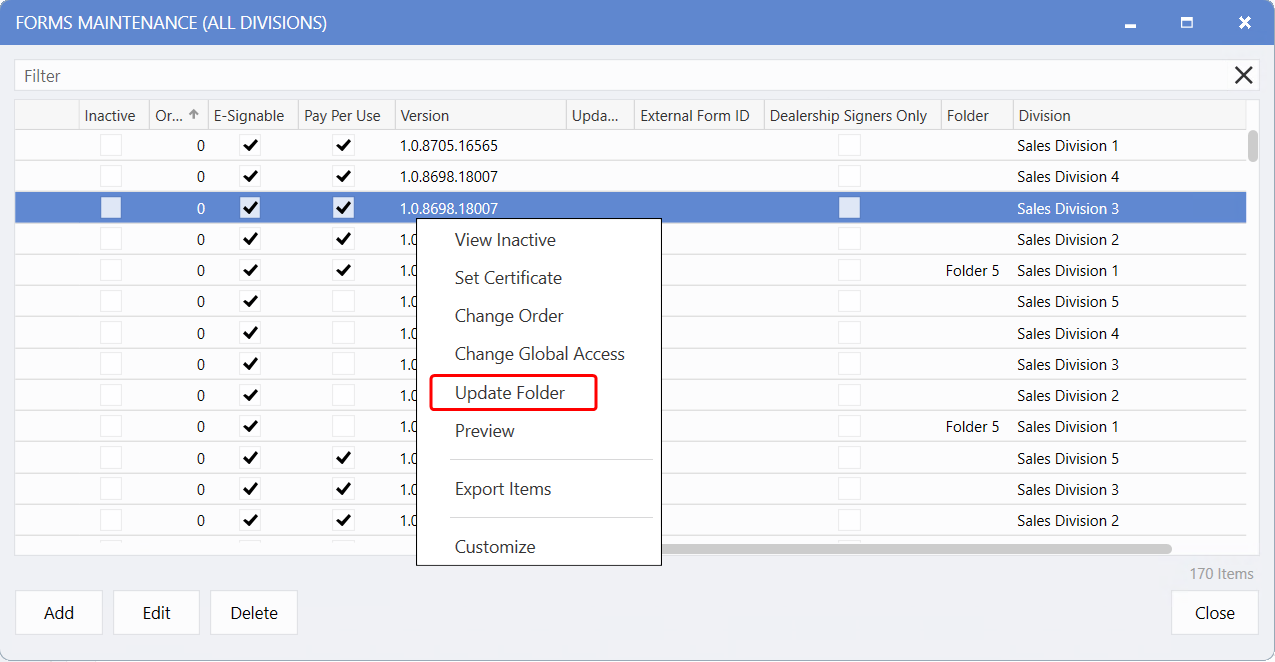
2. From the Forms Maintenance Main Grid
Right-click on one or more selected forms to open the context menu and choose the new
Update Folder
. This provides a quick and efficient way to assign or update folders, including bulk changes.
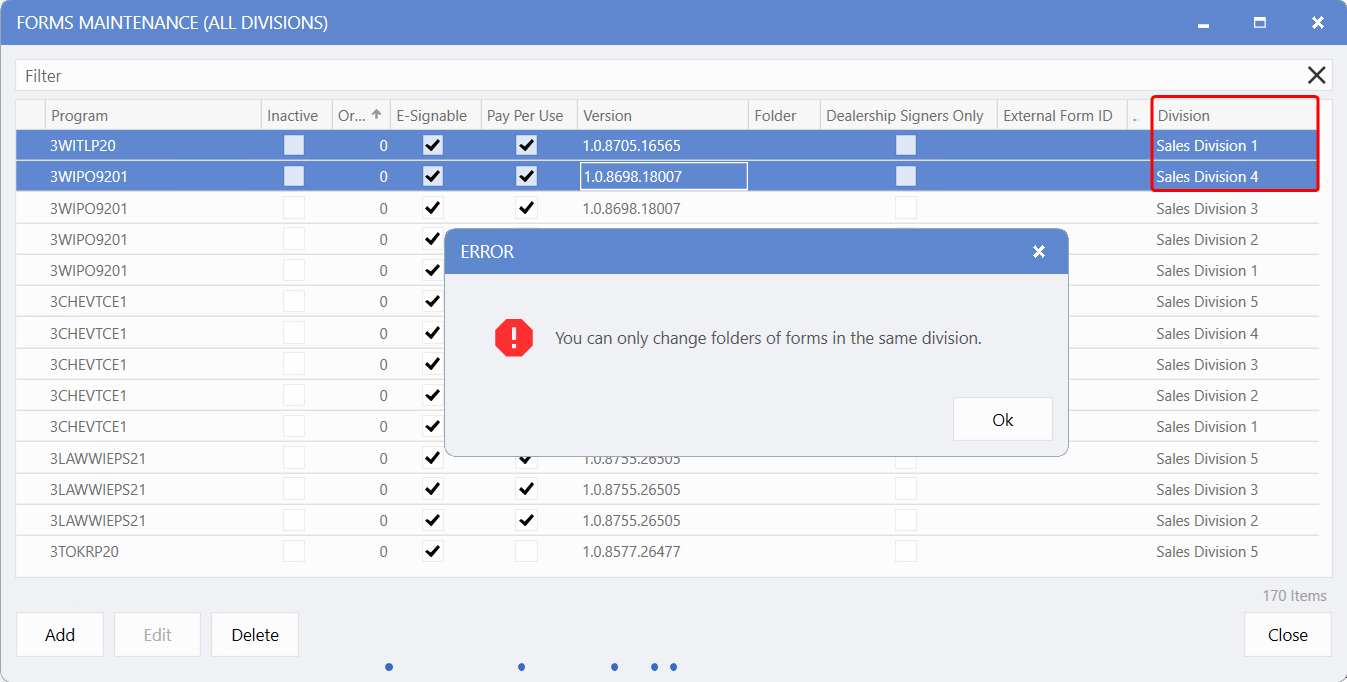
Please note:
Forms - and their associated folders - are division-specific. Folders can only be updated for one division at a time.
Global Access for Forms
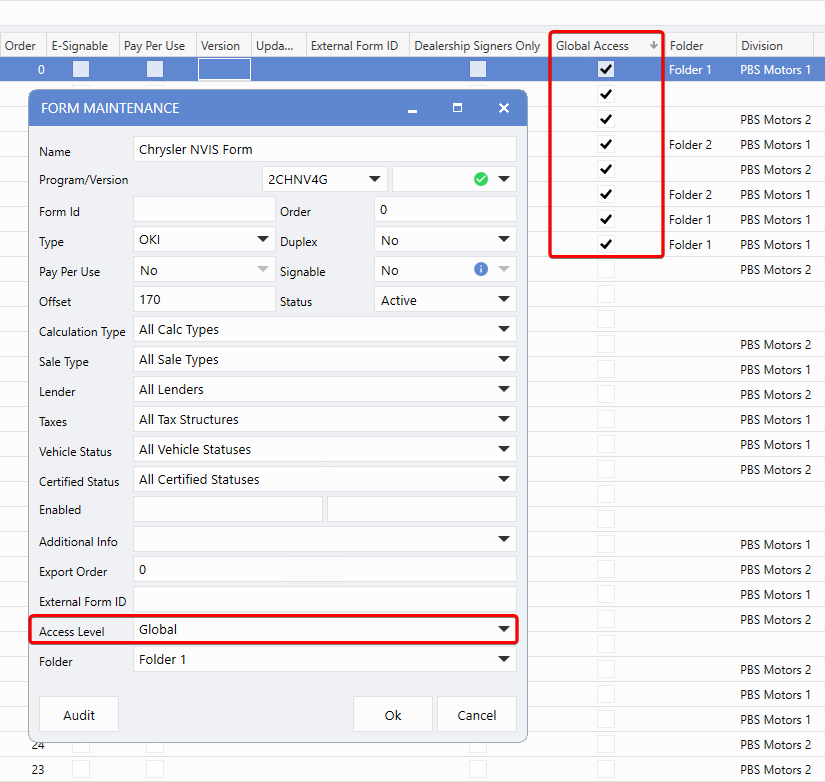
A new
Global Access
option is now available in
Forms Maintenance,
enabling forms to be viewed directly within the Deal - even by Users without access to the Delivery tab.
-
To enable Global Access, click the dropdown arrow next to
Access Level
and select the
Global
Access option.
-
Users must have the
Edit Deal
permission enabled under the
Sales Security
tab to view these forms within the Deal.
A checkmark column has also been added to the Forms grid, making it easy to identify which forms have Global Access enabled.
Accessing and Printing Forms from a Deal
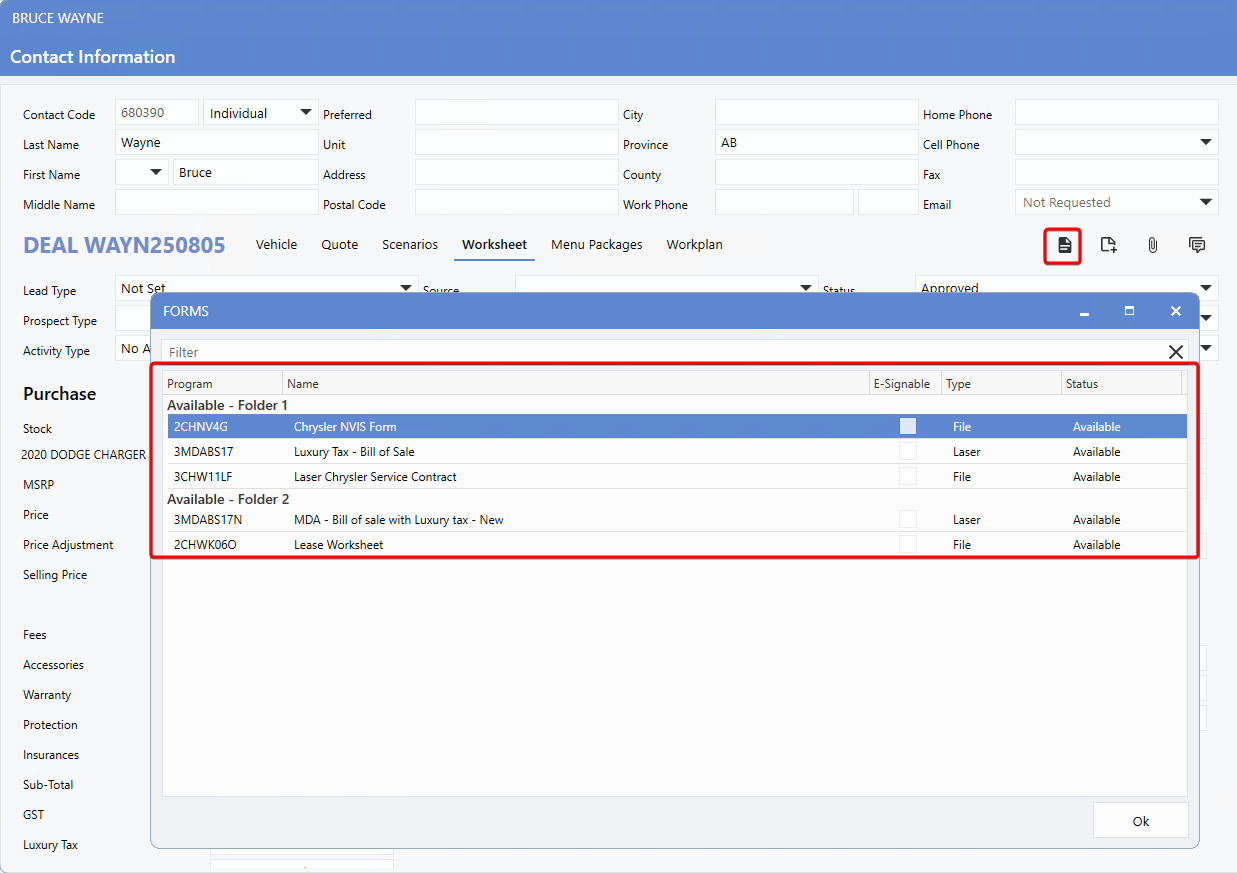
The
Form Icon
at the top of the Deal screen opens the Forms List window, allowing Users, with the necessary permission, to view and print the Forms.
Please note:
The
Forms
icon will only appear if
Global Forms
have been configured in the system.
Once a form is printed from this window, the Delivery tab will automatically update to reflect the change - moving the printed form(s) to the
Completed
section for easy tracking and organization.
Disclosure - Consolidated $0.00 Options
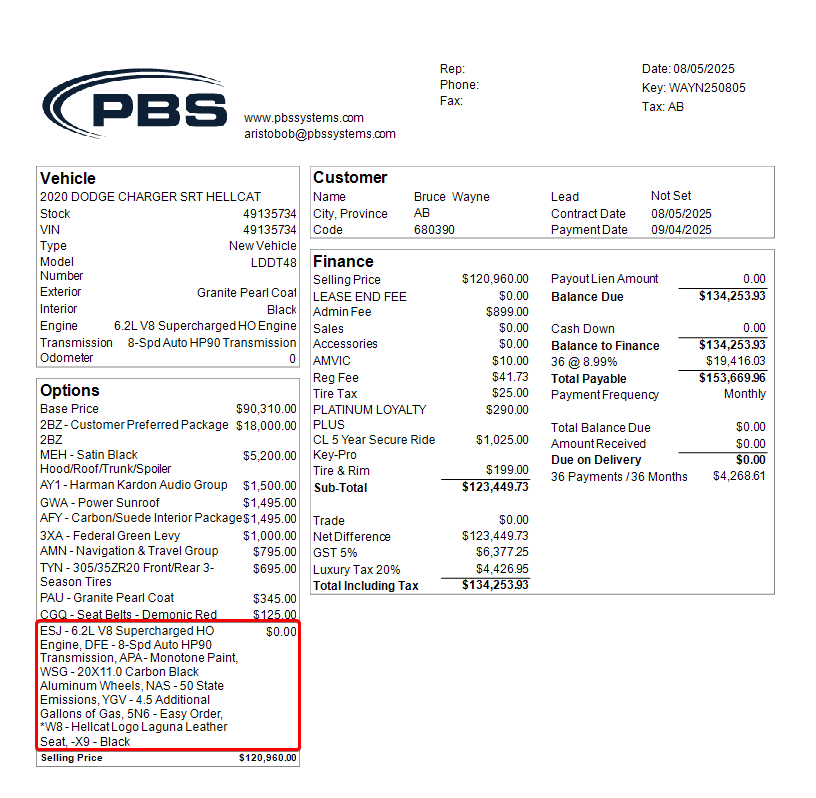
The
Options
section of the
Deal Disclosure
has been enhanced to group all $0.00 items together at the bottom, separated by commas.
This update improves readability and ensures that vehicles with multiple zero-dollar factory options are displayed more efficiently on the
Print Disclosure
document - helping maintain a clean, single-page layout and preventing unnecessary overflowing onto a second page.
|