|
10.23 AP Source Division Dashboard
KB 3226, Release Note, Accounting Development, 11/10/2025
Version 10.23 introduces Source Division visibility across Accounts Payable Invoices, transforming how Divisional Dealerships manage and track Payable. Users can now see the originating Division for each Invoice, improving organization, analysis, and reporting across both Centralized and Divisional accounting structures.
The new Dashboard Page enhances usability with flexible grouping options and advanced filters, streamlining reviews of intercompany postings reducing the time required to identify Sales Division invoices.
To view these changes, follow the path:
Accounting Dashboard > Payables Page
Setups
Prerequisites
Control File
To enable the new functionality that generates intercompany lines based on a transaction's originating division, activate the following
Control File
setting:
Follow the path:
System > Maintenance > Accounting Control File > General Ledger > Use Transactions Division for Intercompany Distribution > Yes
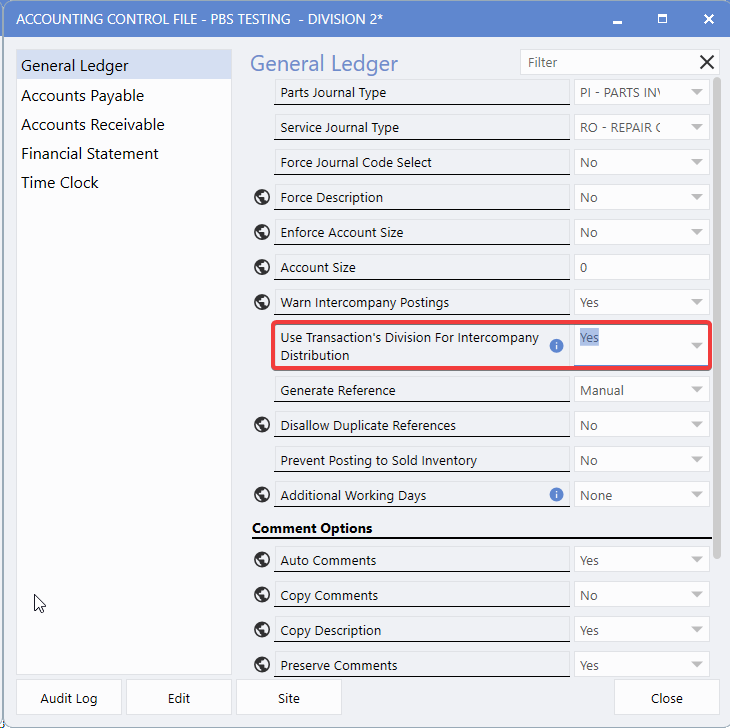
Adding the Payables Page
The Payables page is included on the standard Accounting Dashboard.
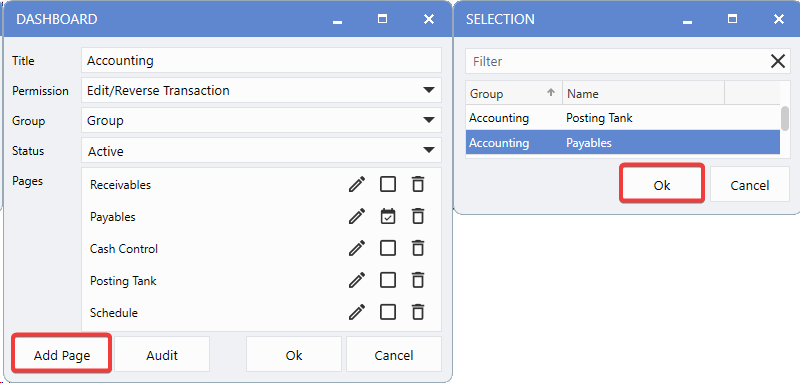
To add it to a custom Dashboard, follow the steps:
1.
Click the
Gear
icon in the top-right corner.
2.
Select
Add Page
and choose Payables from the list.
3.
Click
OK
to confirm add the page.
Configuring Payables Dashboard Settings
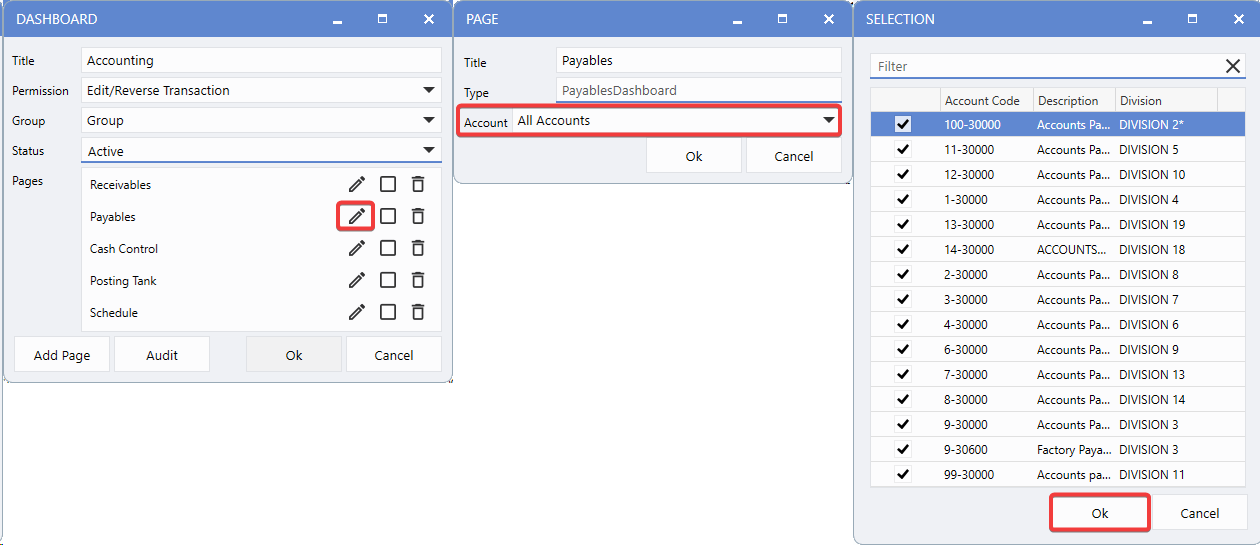
When adding the Payables page to a custom Dashboard, you can configure additional display options:
Steps
1.
Click the
pencil icon
on the
Payables
Dashboard page.
2.
Use the
Account Filter
drop-down to select which Accounts to display.
3.
Click
Ok
to save and apply your configuration.
Night Cap Report Configuration
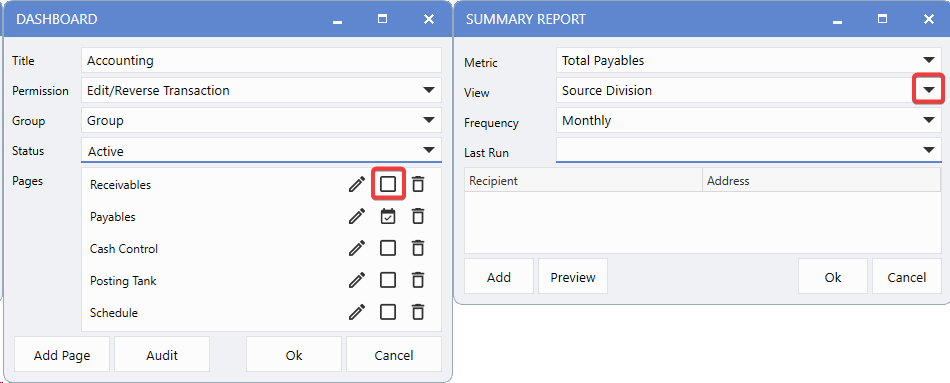
The Night Cap reporting system now includes Source Division details, providing enhanced visibility for divisional tracking and analysis.
Configuring Night Cap Summary Reports:
1.
Go to the
Dashboard
.
2.
Click the
Gear
icon.
3.
Select the
Nightcap Schedule
icon.
4.
In the
View
drop-down, choose Source Division to generate division-based reporting.
5.
Set the
Frequency
(None, Daily, Weekly, Monthly) according to reporting needs.
6.
Define
Last Run
date to establish the reporting schedule baseline.
7.
Enter
Recipient
email addresses for automated report delivery.
8.
Click
Preview
to review the report layout and content before scheduling.
9.
Click
OK
to save the configuration.
Accounts Payable
Metrics
The Payables Dashboard provides key
Metrics
to help monitor outstanding amounts and track invoice aging:
-
Total Payables
- The total value of outstanding payables across all divisions, showing the overall amount owed to Vendors.
-
Invoice Count
- The number of invoices that remain unpaid and require processing or payment.
-
Selected Payment
- The total value of invoices currently selected for payment processing across all Vendors and divisions.
-
Held Invoices
- The number of invoices placed on hold and excluded from payment processing.
-
Average Age
- The average number of days invoices remain outstanding, offering insight into payment timing and overall health of payables.

Views
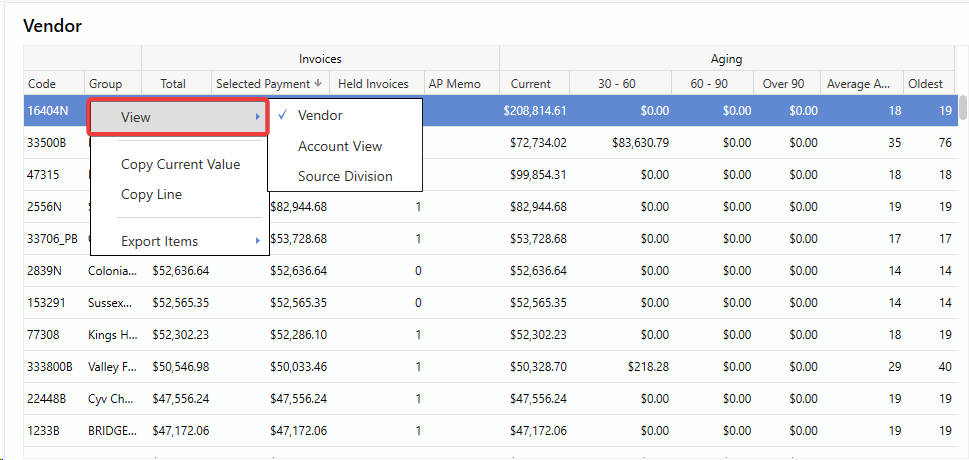
The Payables Dashboard provides three distinct views for organizing and analyzing invoice data:
To change views, follow the path:
Right-Click > View > Select View
-
Vendor View
- Groups invoices by Vendor, with column groupings that display invoice totals, held payments, and aging details.
-
Account View
- Groups invoices by the accounts to which they were posted to.
-
Source Division
- Groups invoices by the division where they originated.
Column Customization Options
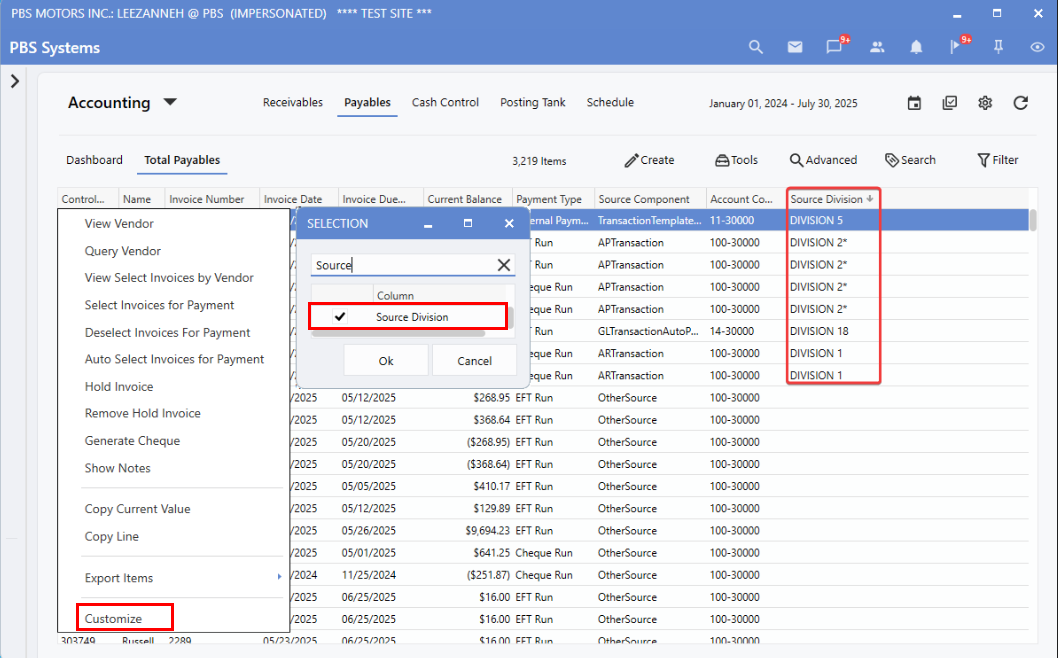
Users can personalize their Dashboards by adding the
Source Division
column, making it easier to identify the originating Division for each invoice at a glance.
To add a new column, follow the path:
Right-Click > Customize > Select Column > Ok
Filtering by Source Division
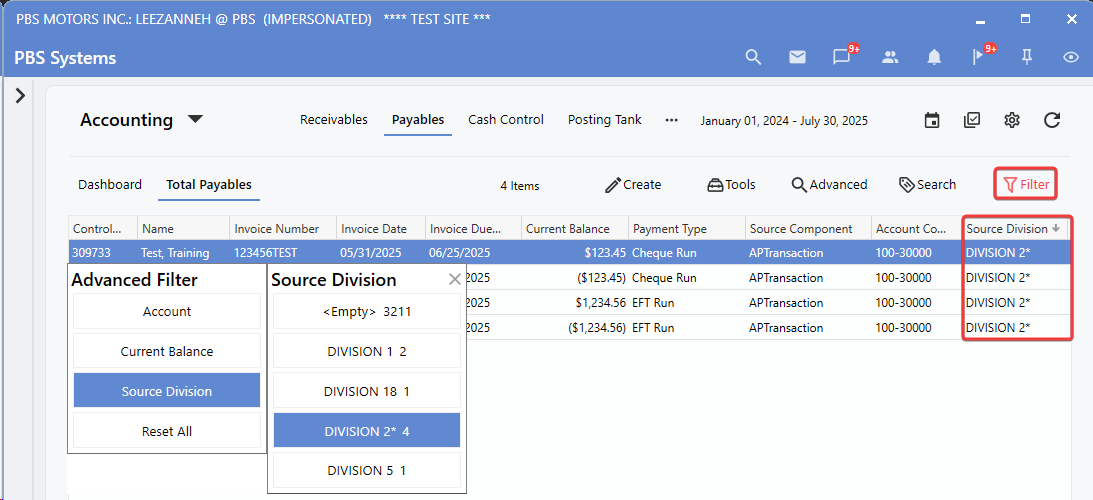
The Source Division filter enables Users to refine payables data by Division, allowing for targeted analysis and more focused review of outstanding invoices.
To filter the Dashboard results, follow the path:
Filter > Source Division > Select Division
Groups
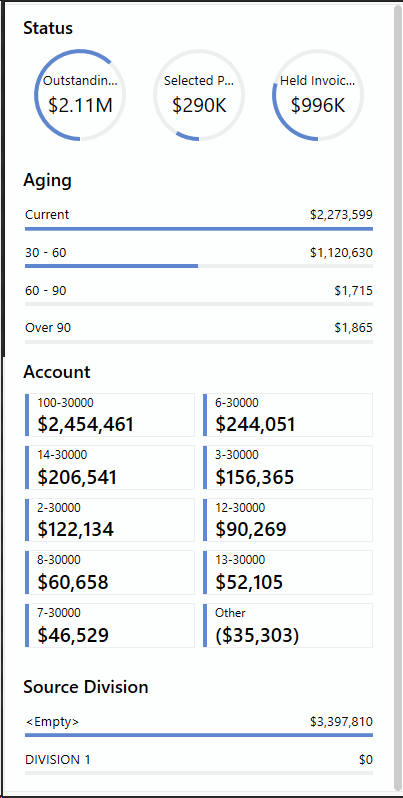
The Payables Dashboard provides flexible grouping options through the right-hand grouping panel:
-
Aging
- Aggregates invoices by age across all Divisions.
-
Account
- Displays the Accounts where invoices have been posted.
-
Source Division
- Groups Invoices by their originating Division for more focused analysis.
-
Source
- Displays Transaction Source details along with Source component information.
Insights
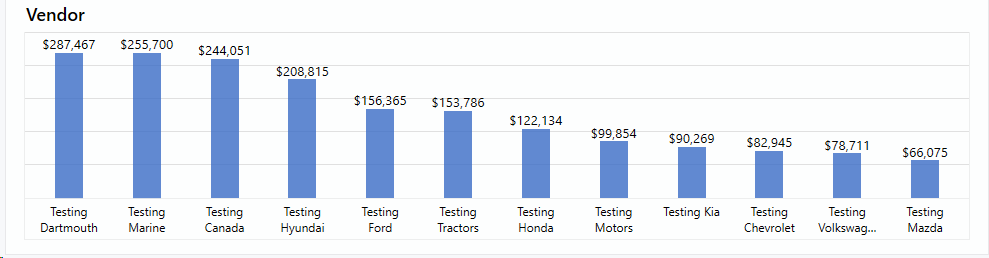
The Vendor section (bar chart) on the Payables Dashboard delivers quick insights into Vendor-related payable trends:
-
Top Vendors by Outstanding Amount
- Identify which Vendors are owed the most, helping prioritize payment processing.
-
Vendor Payment Patterns
- Track trends in outstanding amounts to reveal payment timing habits and opportunities for better cash flow management.
-
Impact of Key Vendors
- Understand how your largest Vendors contribute to overall payables, highlighting financial dependencies.
|