|
10.23 Op Code and Price Code Enhancements
KB 3227, Release Note, Service Development, 8/28/2025
Version 10.23 introduces major enhancements to Price Code and Op Code Maintenance, giving Dealerships smarter tools to simplify workflows and boost operational efficiency.
Check out this document for a full look at the new features and how they can help your team work even better.
Pay Type/ Price Code Enhancements
Pay Type & Price Code Prompts Moved to Flyout
When changing pay types and price codes on Request lines, Users are normally promoted to confirm actions such as:
To streamline this process, a new setting has been added to the
Fixed Ops Control File
for Dealerships that typically answer "Yes" to these prompts. With this setting enabled, the pay type and associated price codes update automatically, and an informational flyout appears to confirm the changes - eliminating unnecessary clicks and reducing the risk errors caused by answering "No."
When the
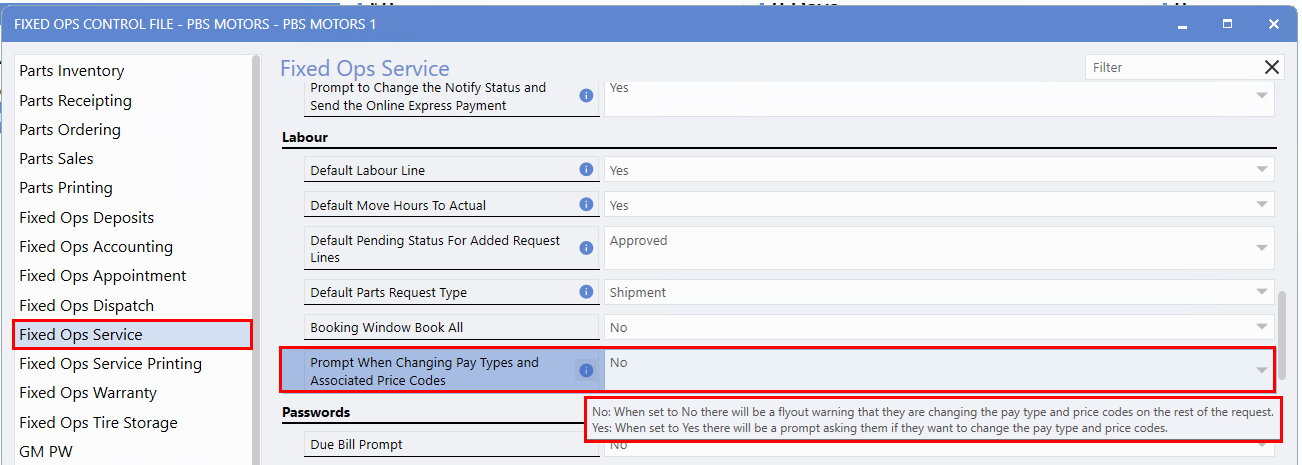
Prompt When Changing Pay Type and Associated Price Codes
option is set to
No
:
When set to
Yes
:
Note:
Default setting
is
No
.
To access this feature, follow the path:
System > Maintenance > Fixed Ops Control File > Fixed Ops Service > Prompt When Changing Pay Type and Associated Price Codes
Example:
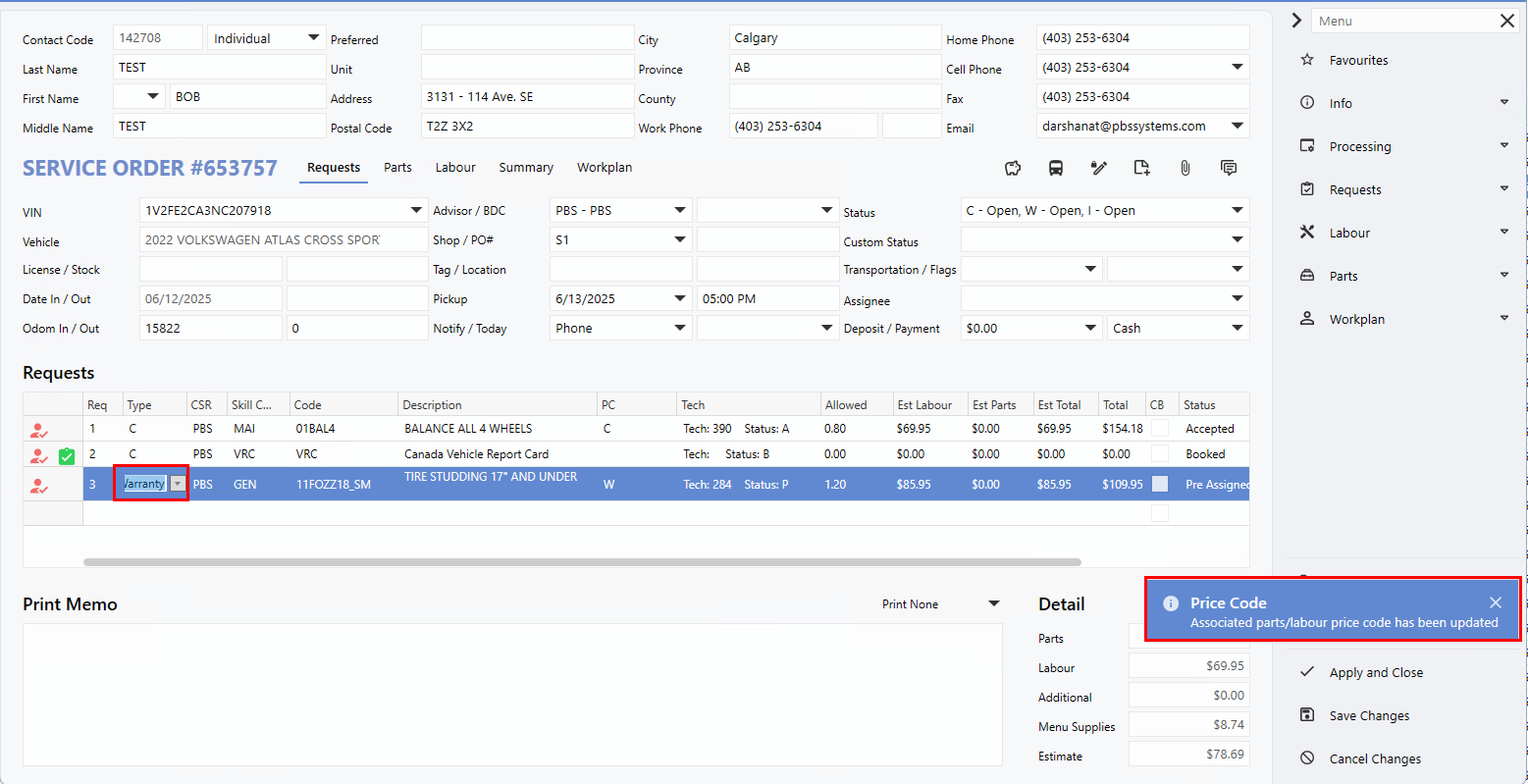
In the example below, the setting is configured to No. When the Pay Type is changed from C (Customer) to W (Warranty), the informational flyout appears from the right.
Sublet Code Now Available in Labour Price Codes
Dealerships that use custom Sublet price codes - beyond the system defaults - for third-party POs (e.g.,Body Shop, Car Wash, or Detail services) can now set a
default Sublet code
directly within the
Labour Price Code setup
. This ensures the correct Sublet code is automatically applied, posts to the appropriate GL account, and reduces manual corrections.
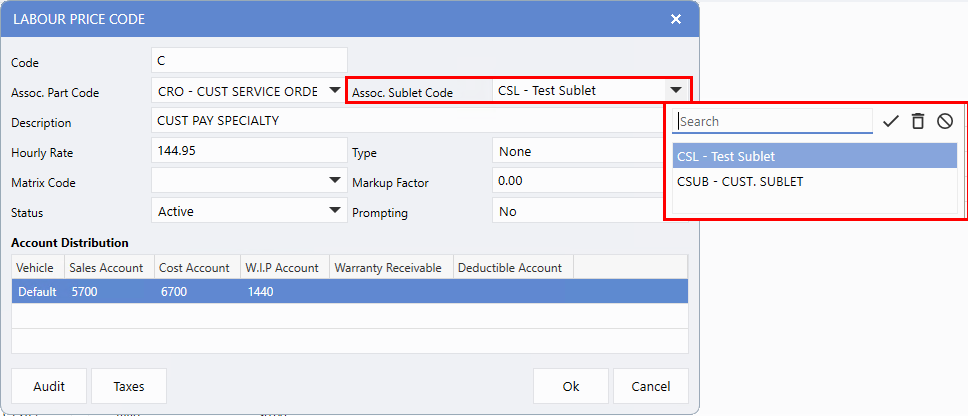
A new field,
Assoc. Sublet Code
, has been added. The drop-down menu displays only relevant Sublet codes based on the type of Labour Price Code. For example, a Customer Pay Labour Price Code will show only Sublet codes of type C. Once assigned, this default Sublet code automatically populates on the Sublet line on the Service Order, whether the Sublet is added manually or linked to a PO. This feature works similarly to the Associated Parts Price Code setup.
To access this feature, follow the path:
Fixed Ops > Service Order > Maintenance > Service Setups > Labour Price Codes > Select Code > Assoc. Sublet Code
Op Code Maintenance Features
Names Added to Service Fees Column
To improve visibility, the
Service Fees
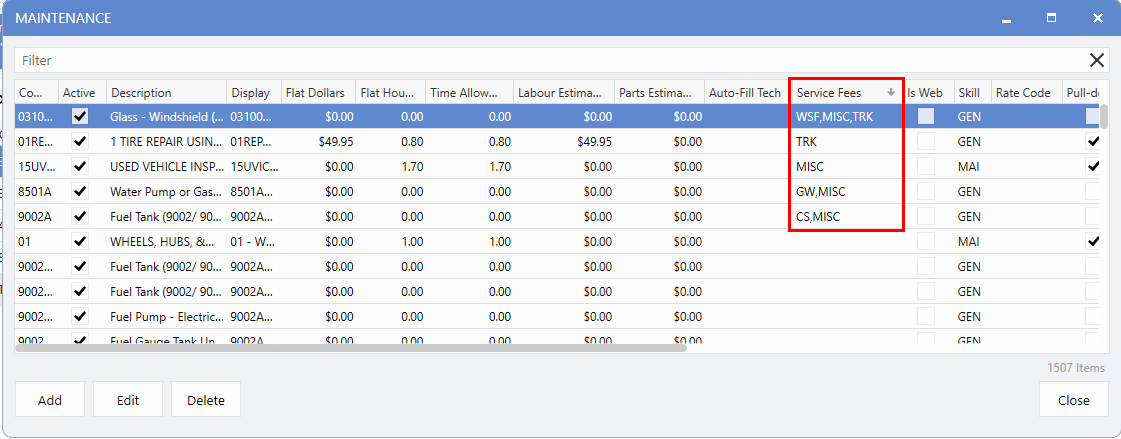
column has been updated from a simple checkbox to display the
name
of the attached
Service Fee(s)
. This lets the User quickly see which Op Codes include Service Fees without opening each individual Op Code, making review and management much easier.
To access this feature, follow the path:
Fixed Ops > Service Order > Maintenance > Service Setups > OP Codes
In the example below, Op Codes with multiple Service Fees display the names separated by commas.
Default Pay Type Option Added
The right-click menu in the Op Code Maintenance screen now includes a
Default Pay Type
option, enabling Users to update the default pay type for multiple Op Codes at once. This enhancement streamlines the process and significantly reduces the time required to make updates.
To access this feature, follow the path:
Fixed Ops > Service Order > Maintenance > Service Setups > OP Codes > Select Op Codes > Right-click > Set > Default Pay Type
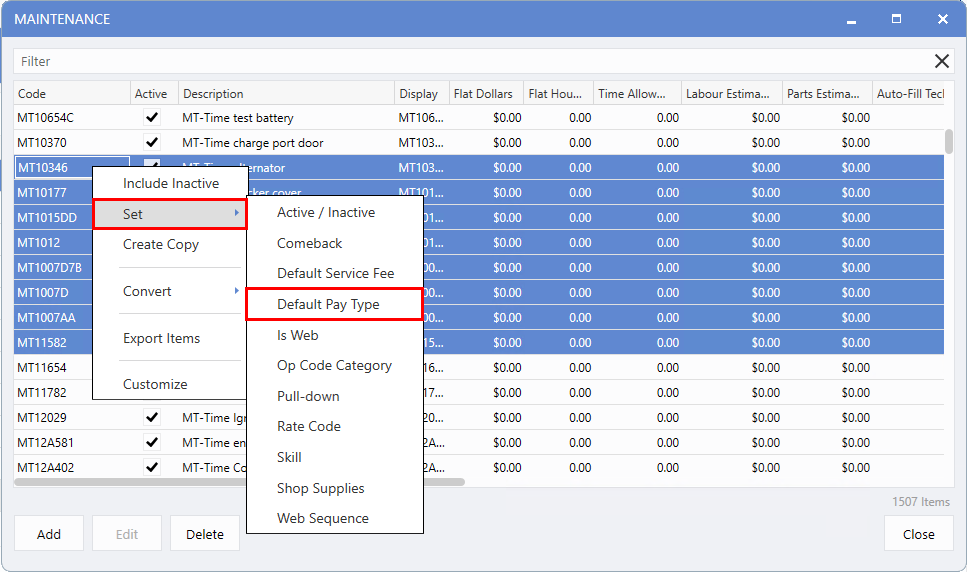
When you select this option:
1.
You'll be prompted to choose a shop.
2.
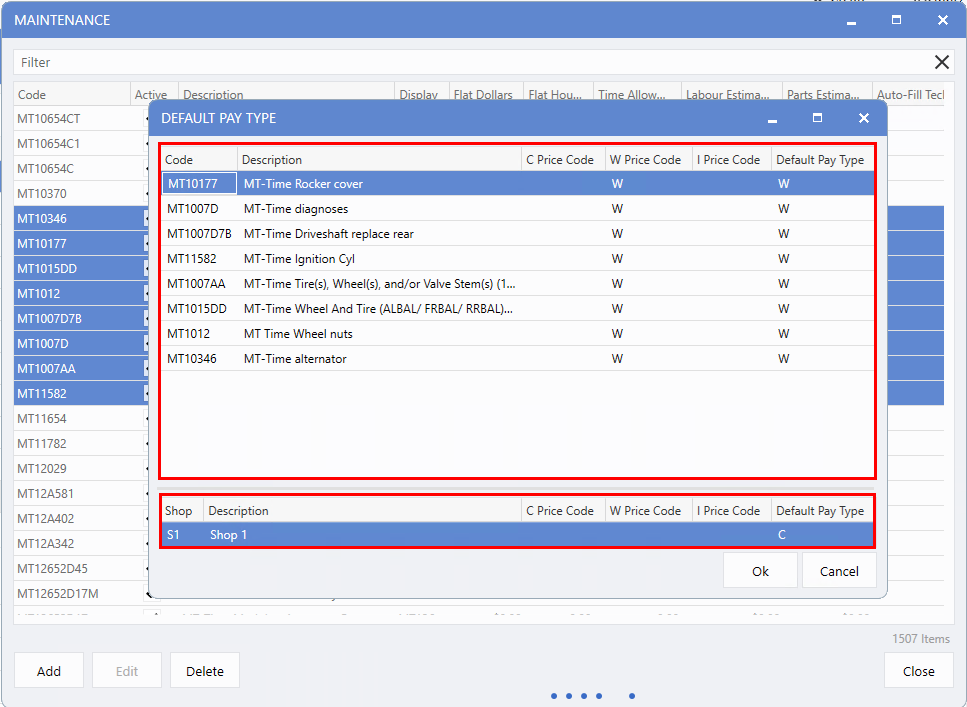
A new window appears with the
top section
showing the selected Op Codes and their current pay types, and the
bottom section
displaying the new pay type to be applied.
3.
Click "Ok" to confirm and apply the update.
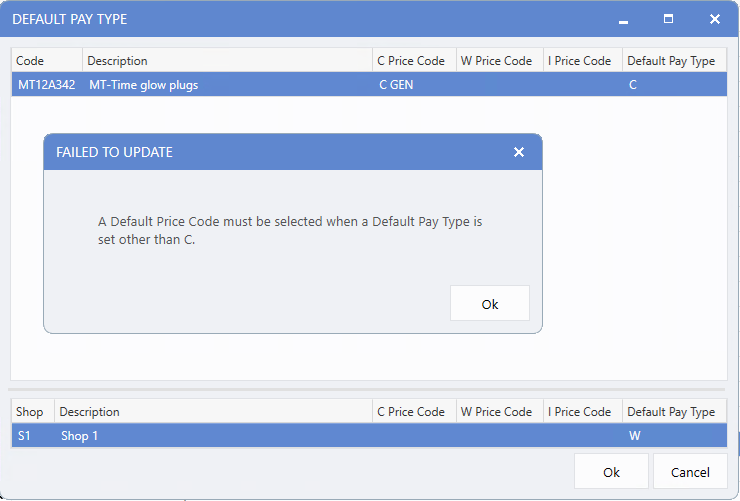
If the default pay type is set to W (Warranty) or I (Internal) without an associated default price code, a
Failed to Update
message will appear.
Op Code Average Allowed Hours Utility
Many Dealerships manage a large volume of Op Codes, some of which may lack defined Allowed Hours or have not been reviewed in a long time.
To simplify this process, a new utility -
Op Code Average Allowed Hours
- has been added to the left main menu. This tool calculates the Average Time for each Op Codes over the past two years and allows Dealerships to update the Allowed Hours accordingly. By keeping Allowed Hours accurate, Service Departments can schedule Appointments more effectively, improving efficiency and profitability.
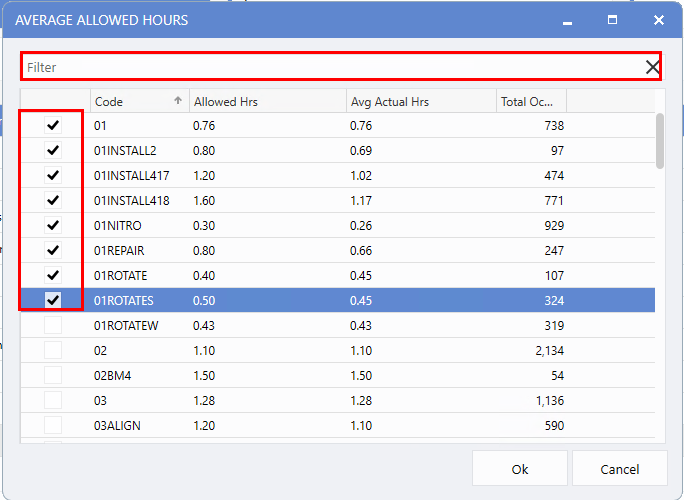
To use the utility:
1.
Select the desired Op Codes using the checkboxes (filters are available to quickly find specific codes).
2.
Click "Ok" to run the utility.
3.
A confirmation message will appear when the Allowed Hours have been successfully updated.
To access this feature:
Fixed Ops > Service Order > Utility > Op Code Average Allowed Hours Utility
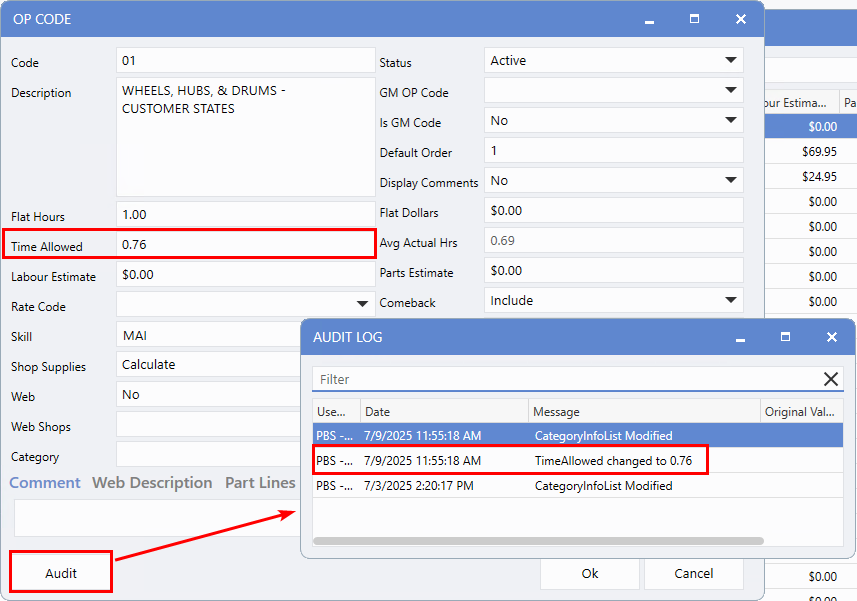
All updates are tracked in the Op Code Audit Log for easy reference.
* Control File Settings *
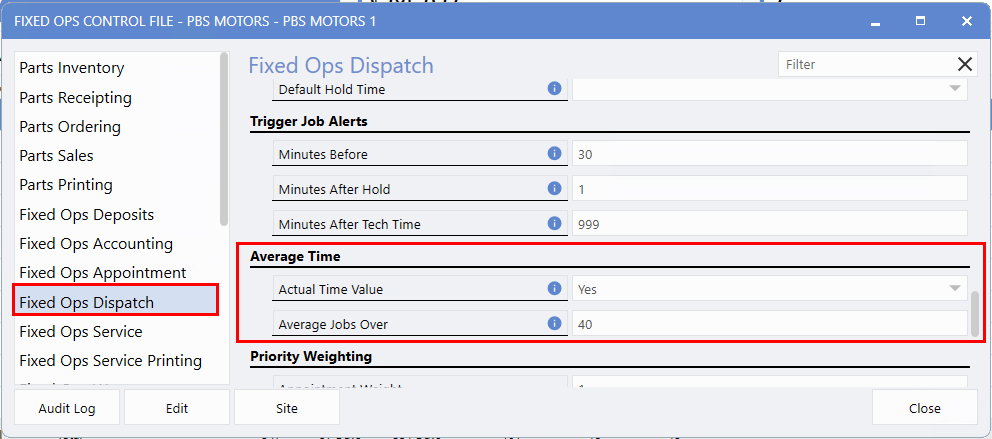
The
Average Time settings
in the Fixed Ops Control File determine how averages are calculated within the utility. If these settings are not configured, Users will be prompted to set them accessing the utility.
To access the settings, follow the path:
System > Maintenance > Fixed Op Control File > Fixed Ops Dispatch >Actual Time Value | Average Jobs Over
Search Service Work Items by Op Code Category
The
Op Code search window
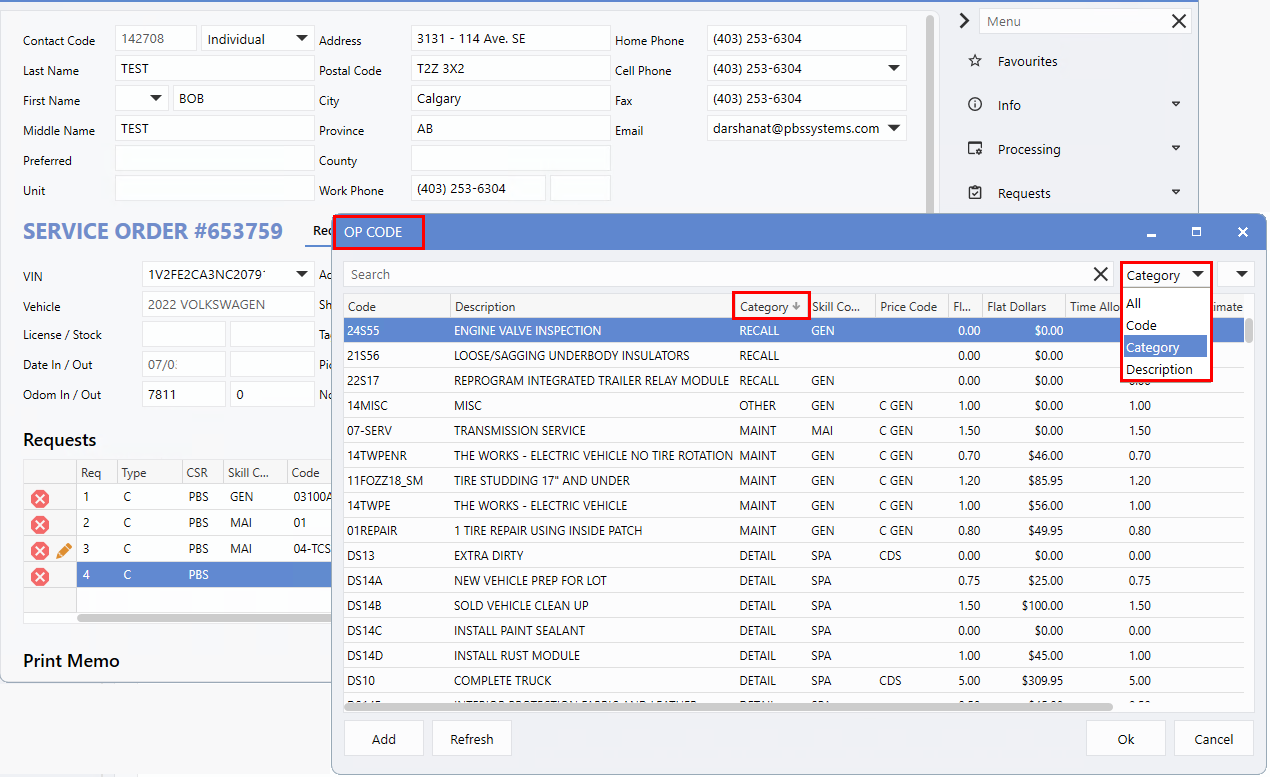
in Service Order, Appointment, and Estimate screens has been enhanced to make adding Op Codes to Request and Labour lines faster and more efficient. Advisors can now search by
Category
, making it easier to locate the correct Op Code and reducing search time.
To display Category information:
-
Right-click in the search window, select Customize, and add the
Category column
.
-
Use the
drop-down
menu on the right side to filter by
Category
. The default
All
option searches across Code, Description, and Category.
The system also remembers the
User's last-used filter
, so the same search preference is applied each time the window is opened.
To access this feature, follow the path:
Service Order > Request/Labour Line > Code field
|