|
10.23 - Detail Accounting Notes
KB 3229, Release Note, Accounting Development, 9/11/2026
In Version 10.23, we've introduced powerful new tools that revolutionize how Accounting teams communicate and collaborate:
-
Schedule Notes - for complete oversight of transaction activity.
-
Detail Notes - for precise, line-level transaction details.
This enhancement centralizes all Accounting discussions within the software - no more endless email chains or scattered documentation - while giving Users the flexibility to capture the exact level of detail they need.
Bonus: Key reference information now appears directly in Dashboard views, reducing screen-hopping and saving valuable time.
Continue reading to explore these exciting new features!
Schedule Dashboard - Summary View
Schedule Note Column
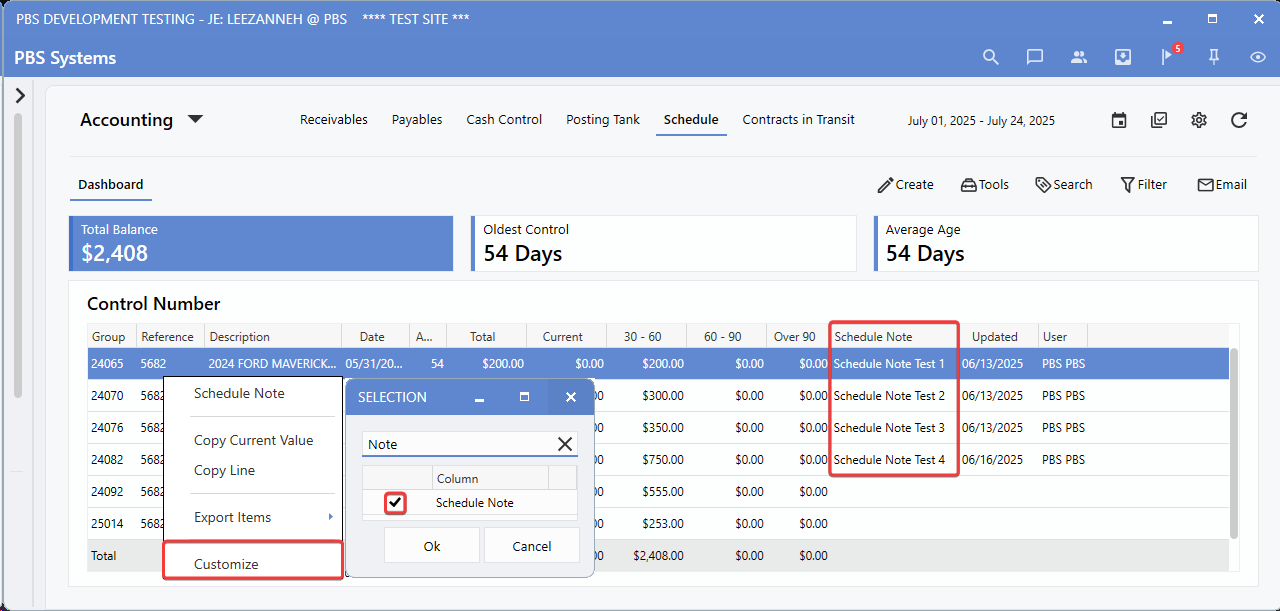
The Schedule Dashboard Summary now features a dedicated
Schedule Note column
highlighting which Controls have Notes and surfacing key insights directly in the page view. This eliminates the the need to click in and out of records just to understand a Control's status. At a glance, Users can see which controls require attention and access the details instantly - without breaking focus from their main task.
To view these changes, follow the path:
Schedule Dashboard > Right-click > Customize > Schedule Note
Schedule Notes Management
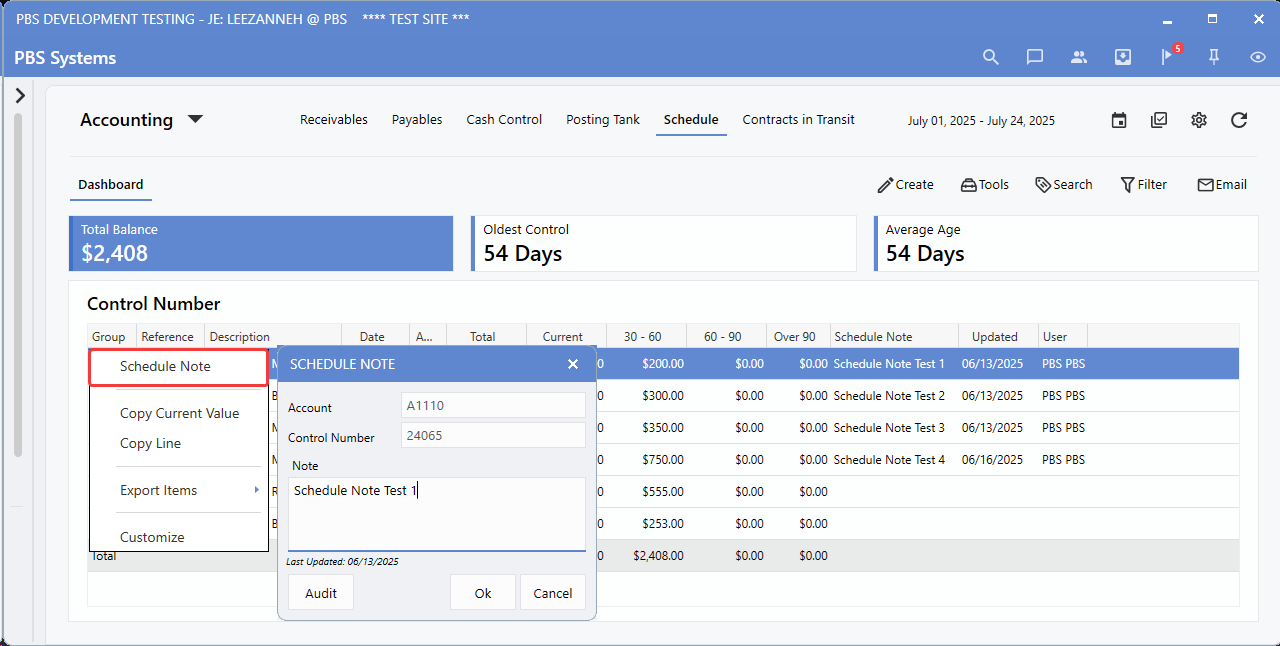
Users can manage Schedule Notes with quick right-click actions that integrate seamlessly into existing workflows. When a Control needs documentation or follow-up, they can capture the details instantly - without breaking focus or leaving their screen.
To access this functionality, follow the path:
Schedule Dashboard > Right-Click Control line > Schedule Note
Schedule Dashboard - Detail View
Detail View Notes
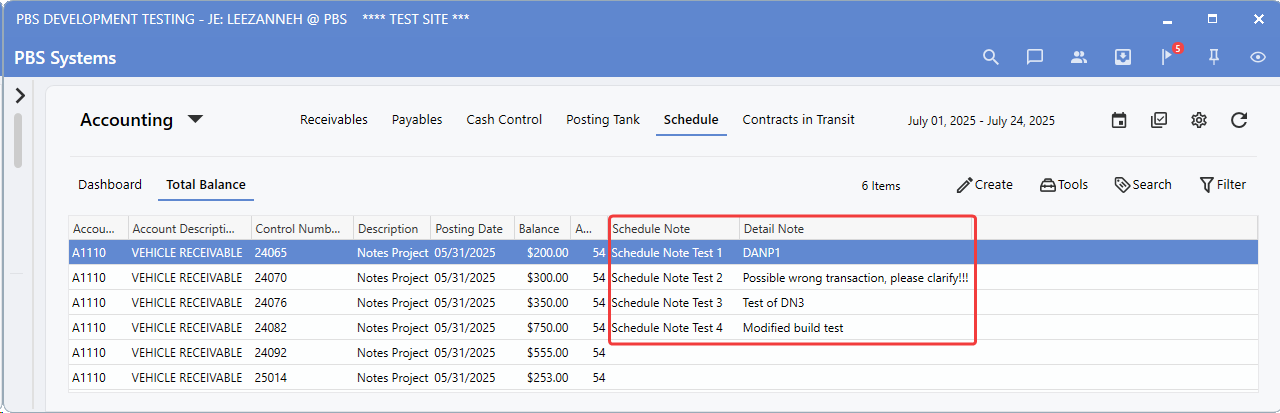
The enhanced Detail view delivers a complete documentation workspace, combining Control-level Notes and transaction-specific details in a seamless dual-column layout. This design gives Accounting teams the flexibility to document at both the big-picture and granular levels - capturing broad policy decisions and compliance requirements at the Control level, while adding precise commentary for complex entries and unique situations.
To view these changes, follow the path:
Schedule Detail View > Right-Click > Customize > Detail Note and Schedule Note
Detail & Schedule Notes
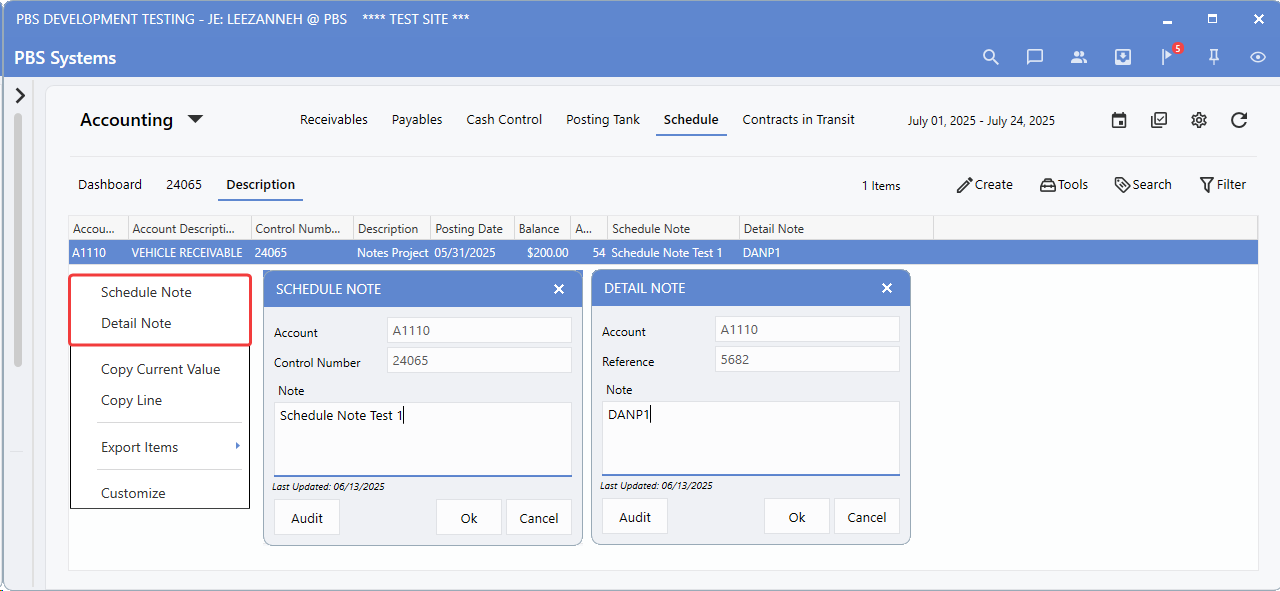
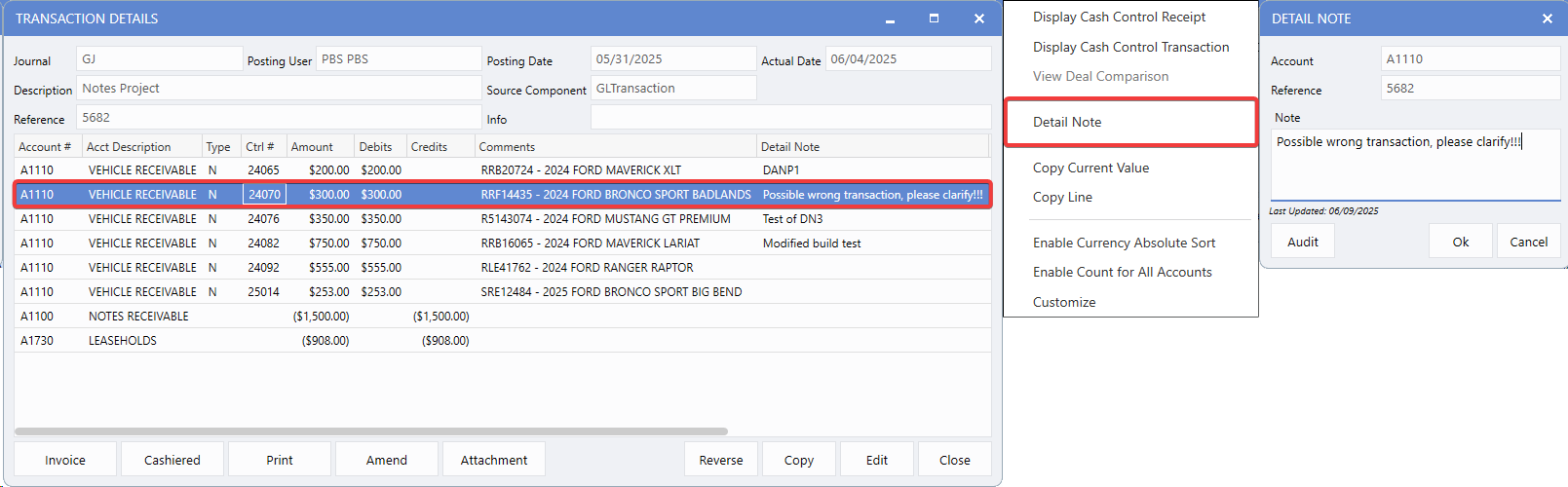
In the Detail view, right-click functionality gives Users instant access to the documentation tools they need - adding Notes to an entire Control or commenting on a specific Transaction line. This streamlined approach eliminates unnecessary navigation, taking Users directly to the right spot for their documentation. Once added, the system automatically links each Note to the correct account and reference information, ensuring it stays tied to the proper transaction context.
To access this functionality, follow the path:
Schedule Dashboard > Detail View > Right-Click Transaction Line > Schedule Note or Detail Note
Reporting
Reporting with Notes Integration
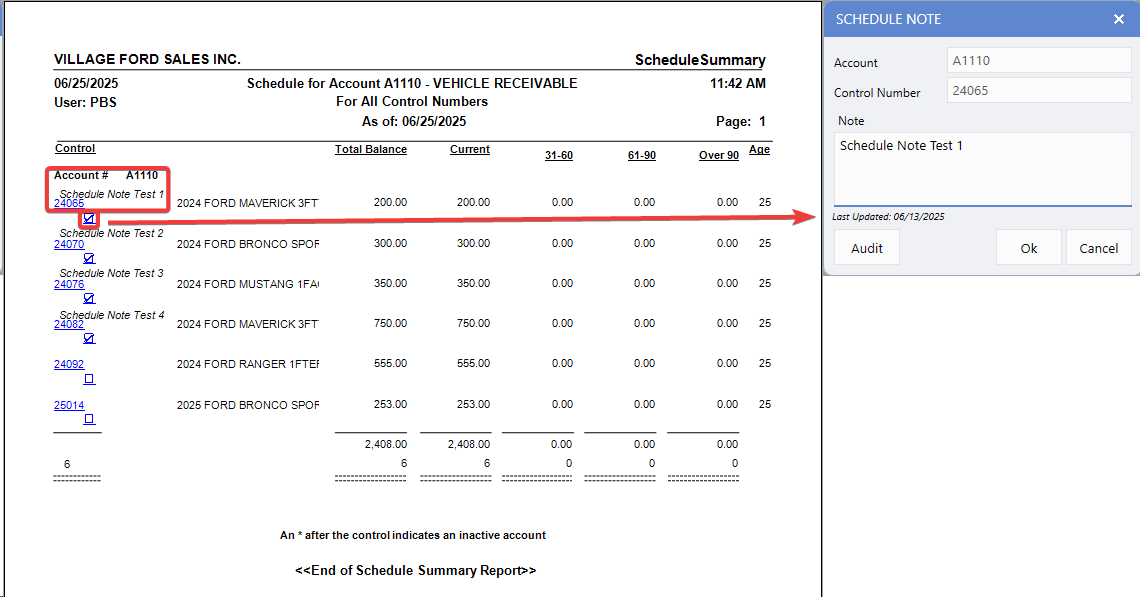
Schedule Reports have evolved from simple data displays into a powerful communication hub, transforming how teams share insights and collaborate on account analysis.
Notes are now fully integrated into the reporting structure - Schedule Notes appear prominently beneath the Schedule Account number in the report header, making critical control-level commentary impossible to overlook. Clickable editing icons provide instant access to add, update, or expand documentation on the spot.
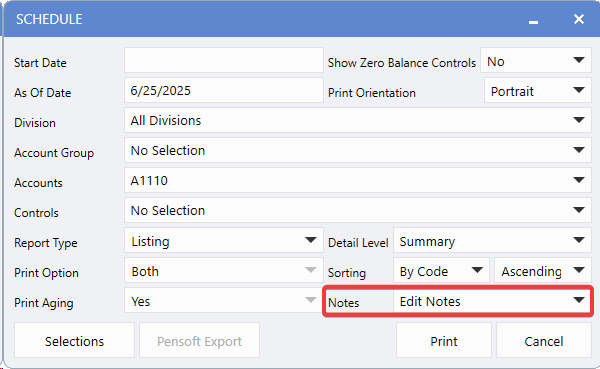
How to use this feature:
1.
Open any Schedule Report
2.
Select the account you want to work with
3.
Open the Notes dropdown
4.
Click Edit Notes to add or update documentation.
To access this functionality, follow the path:
Accounting > General Ledger > Reports > Schedule > Select Account > Notes dropdown > Edit Notes
Advanced Detail Report Notes
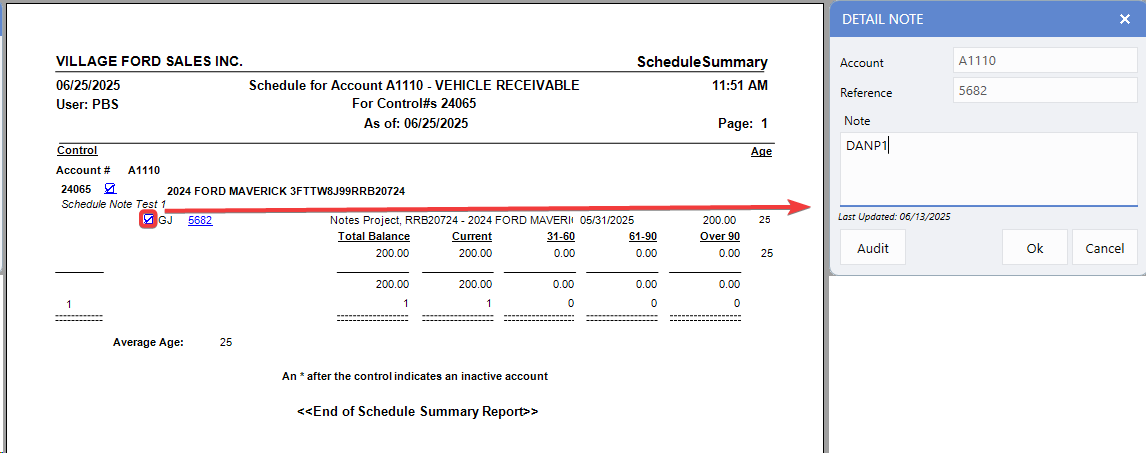
The Schedule Report Detail View takes Notes integration to the level, extending it into transaction-level reporting to create a layered documentation structure that reflects how accounting teams actually work.
Schedule Notes remain prominently displayed under the account header for essential control-level context, while Detail Notes icons appear right next to Journal Codes - placing transaction-specific commentary exactly where it's needed.
-
Control-level Notes capture major decisions, policy interpretations, and compliance considerations.
-
Transaction-level notes record unique circumstances, unusual entries, and follow-up actions.
Both are accessible through dedicated clickable icons, eliminating the navigation hassles that once made documentation feel like a separate task.
To use this feature: Open any Schedule Report, drill down to the Detail View, and see both note types seamlessly integrated into your transaction reporting.
To access this functionality, follow the path:
Accounting > General Ledger > Reports > Schedule > Select Account > Notes dropdown > Edit Notes >Drill-down to Detail View
Query Functions
Query Schedule Notes
The
Detail Note column
now appears by default in Query functions, recognizing that account investigations often spark questions, observations, and findings that should be captured immediately while the context is fresh. By removing setup steps, this feature eliminates friction between research and documentation, ensuring prior findings are instantly available when Users revisit an account.
Right-click functionality allows quick note additions or edits without breaking the flow of analysis, making it easy to record insights exactly when they're most relevant.
To access this functionality, follow the path:
Query Schedule > Add Account > Go
Query Transactions Detail Notes
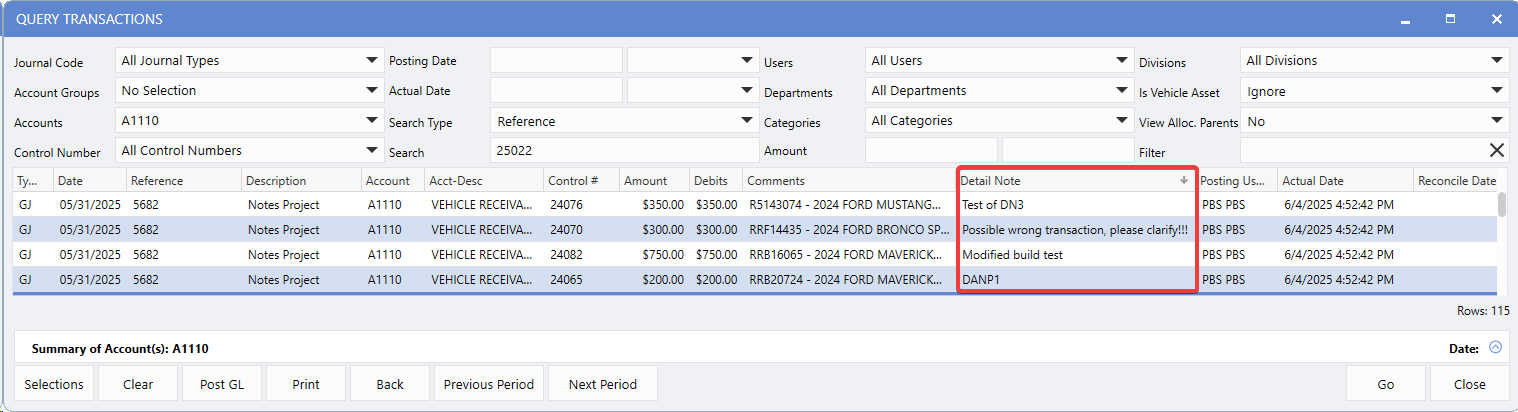
The
Detail Note column
is now built into Query Transaction, allowing Users to capture findings, questions, and observations directly within their investigation workflow - no separate task required. Since transaction research often yields the most valuable insights, Users can now document them immediately while reviewing unusual entries or tracing complex transactions.
These notes are permanently linked to the specific transaction line, creating a searchable knowledge base that preserves analytical work for future investigations and enhances team collaboration.
To access this functionality, follow the path:
Query Transaction > Add Account > Go > Drill-down to Transaction Detail
|