|
10.23 Parts Source Maintenance Improvements
KB 3230, Release Note, Parts Development, 8/11/2025
Get ready for a game-changing upgrade in Parts Source Maintenance with version 10.23! We've introduced powerful enhancements that simplify setup and take reporting to the next level.
Streamlined Navigation: New tabs have been added to the Source Maintenance window, organizing setup options into clear, easy-to-navigate categories. This means a more intuitive experience and faster access to the settings you need.
Smarter Setup: Eliminate repetitive work with the new Copy function, which allows you to duplicate existing Sources in just a few clicks - saving time and improving efficiency.
Enhanced Reporting: The all-new Source Report feature lets you generate customized reports using specific criteria, giving you more focused insights into your Parts Sources.
Let's dive into these exciting improvements and see how they can boost your workflow!
Source Maintenance Setups
Tab Enhancements
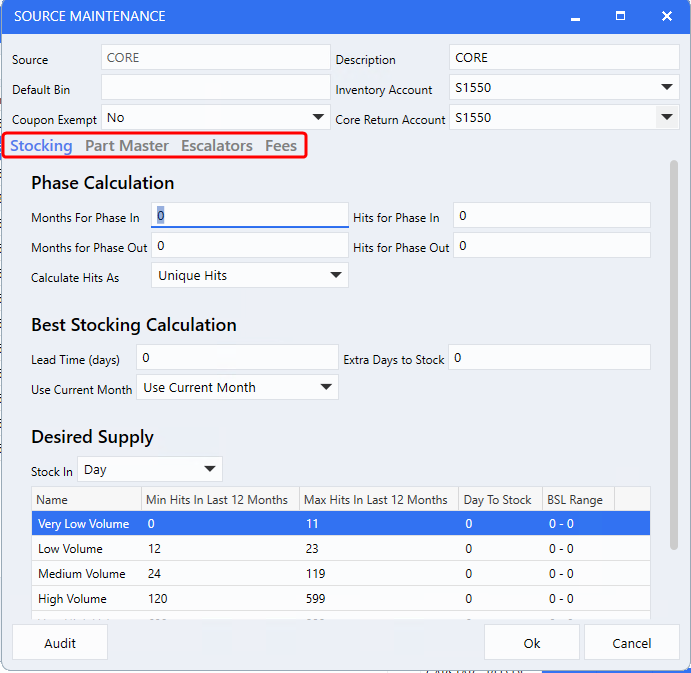
When creating a new Source or editing an existing one, Users will now see an improved layout in the settings window. New tabs -
Stocking, Part Master, Escalators,
and
Fees
- have been introduced to organize options more effectively.
This tabbed structure eliminates excessive scrolling and makes navigation quicker and more intuitive. Simply click on any tab to access and configure the relevant settings.
To access the window, follow the path:
Parts > Parts Stats > Maintenance > Advanced > Source
Source Duplication Feature
Dealerships can now copy Source settings in just a few clicks - eliminating the need for manual re-entry and significantly reducing setup time.
From the
Source Maintenance window
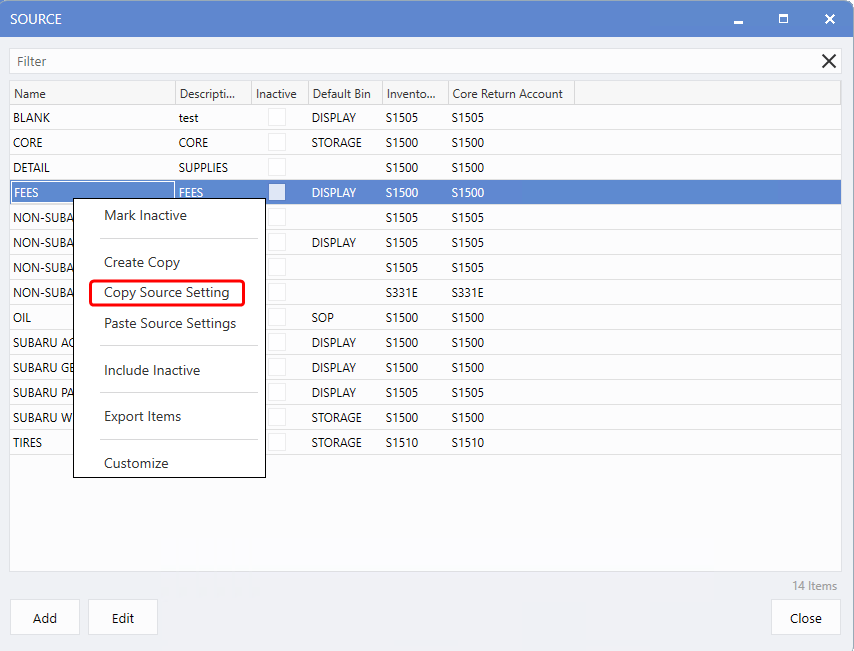
, select the Source you'd like to copy,
right-click
, and choose
Copy Source Settings
. This will save that Source's configuration.
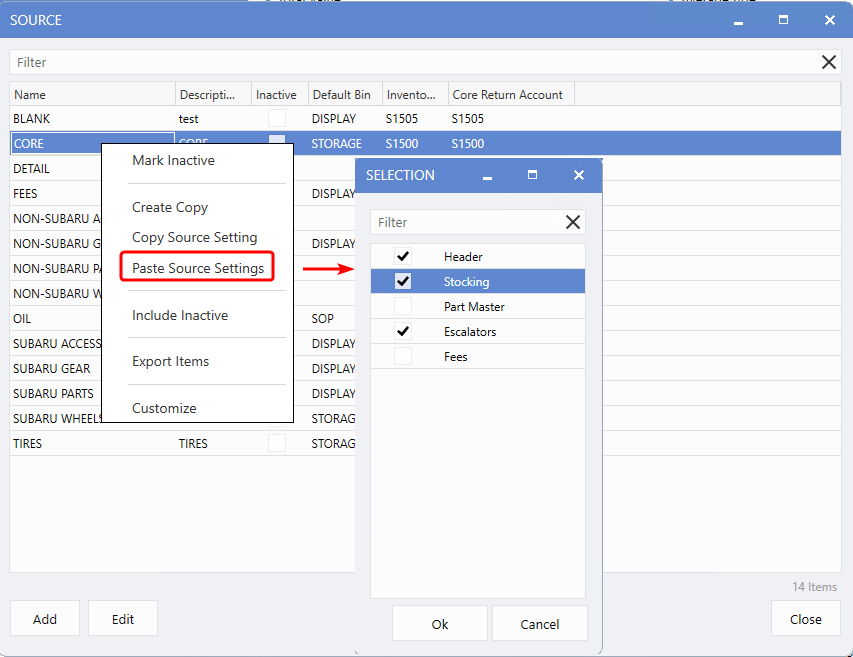
To apply the saved settings to another Source, select the target Source,
right-click
, and choose
Paste Source Settings
. A prompt will appear, allowing you to choose which settings to apply. Click OK to complete the process.
Note:
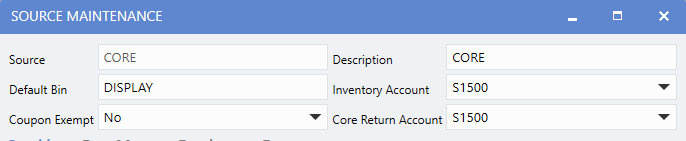
When pasting
header
settings, only the Default Bin, Inventory Account, and Core Return Account are transferred. The Source Name and Description remain unchanged to avoid duplicates.
Source Reporting
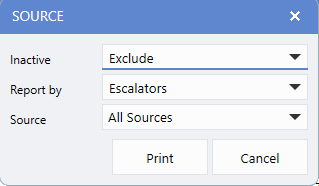
Parts Users can now generate detailed reports using the new
Source Report
feature, designed to provide greater insight and flexibility.
Customize your report with the following filter options:
Inactive
- Choose to Include or Exclude inactive sources.
Report By
- Select the type of report:
Escalators, Stocking, Part Master,
or
Fees
.
Source
- Select specific Sources from a list, with right-click options for quick select/deselect.
Click
Print
button to generate a clean, User-friendly report that's easy to read and work with.
To access this report, follow the path:
Parts > Parts Stats > Reports > Management > Source Report
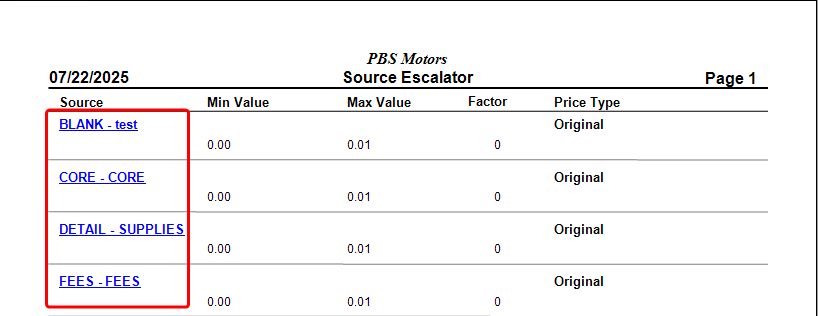
If you notice any discrepancies, simply click the
Source hyperlink
to jump directly to the Source record and make the necessary updates.
|