|
10.23 Cross-Divisional Service Charges
KB 3232, Release Note, Accounting Development, 10/17/2025
10.23 delivers a breakthrough enhancement that empowers Dealerships to seamlessly manage Service Charges across multiple Divisions while delivering professional, consolidated Customer Statements that raise the standard for billing excellence.
By simplifying complex billing and streamlining administrative workflows, this feature supports payment clarity, reduces Customer inquiries, eliminates confusion, and turns what was once a time-consuming burden into a competitive advantage - enhancing enterprise operations and showcasing your commitment to Customer service excellence.
Setups
Prerequisites
How To Use
Apply Service Charges
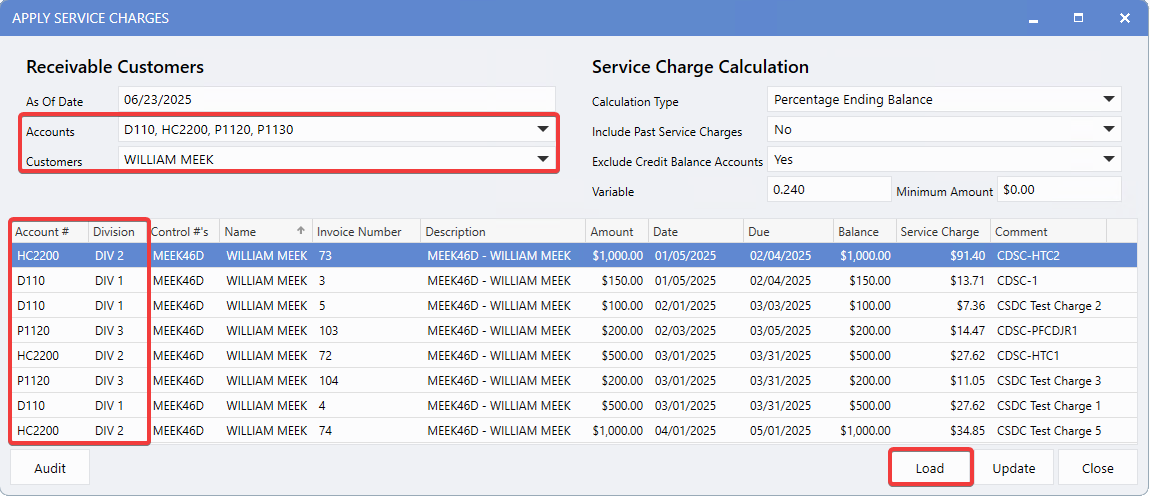
The Apply Service Charges feature has been enhanced to support multi-Division processing. Users can now select multiple Divisions at once, allowing all related Invoices to load into a single window while still preserving Division-specific Service Charge calculations based on the Customer's record.
The updated window also includes improved
Account
and
Division
columns for clearer visibility and easier management.
To view these changes, follow the path:
Accounting > Accounts Receivable > Apply Service Charges
Steps
1.
From the left-main menu, select
Apply Service Charges
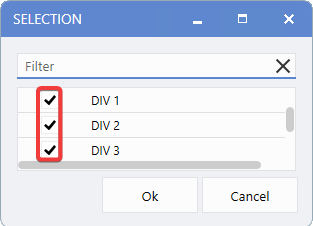
. A
Division Selection
window will prompt you to choose one or more Divisions.
2.
Select
the desired Accounts and Customer.
3.
Click
Load
to display all Invoices for the selected Divisions.
4. Review
the enhanced display with Account and Division columns for added clarity.
5.
Click
Update
to apply Service Charges to the Customer account.
Generate Statements
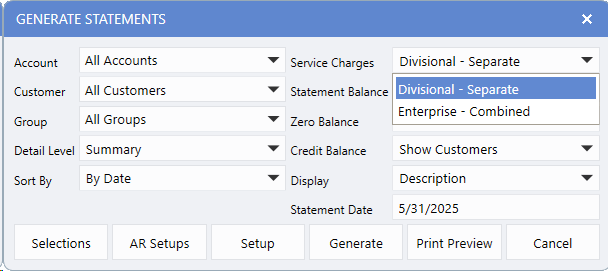
The Generate Statements function now includes a
Service Charges
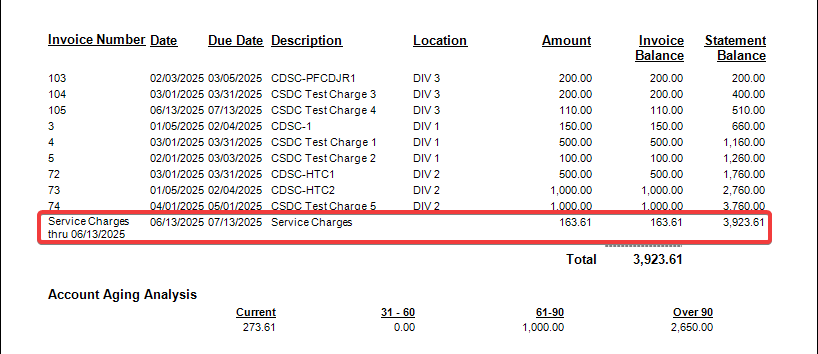
field that gives Users flexibility in how Service Charges are displayed on Customer Statements. You can choose to show Service Charges as either:
To view these changes, follow the path:
Accounting > Accounts Receivable > Generate Statements
Display Options
The
Service Charges
field provides two flexible display formats for Customer Statements:
-
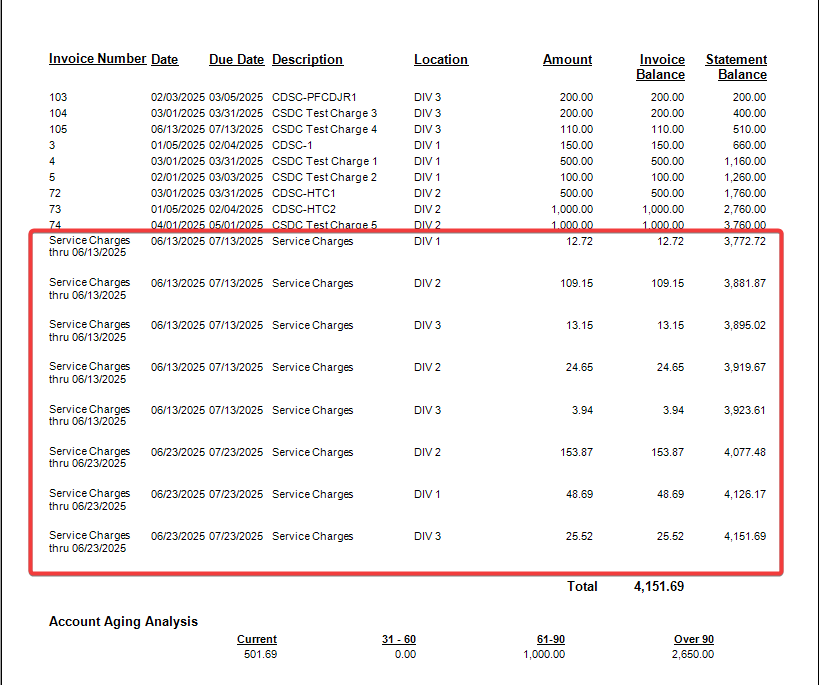
Divisional - Separate:
Displays a detailed breakdown of Service Charges by Division (existing format).
-
Enterprise - Combined:
Consolidates all Service Charges into a single line item for a simplified presentation.
Note:
The Service Charges field is only available when multiple Divisions are selected and the Summary detail level is chosen for the statement.
Steps
1.
From the left-main menu, select
Generate Statements
. A Division selection window will appear prompting you to choose multiple Divisions.
2.
In the
Service Charges
field, select either Enterprise - Combined or Divisional - Separate.
3.
Configure
the remaining statement parameters as needed.
4.
Click
Print Preview
to generate the statement.
Statement Examples
Divisional - Separate View
Enterprise - Combined View
|