|
10.23 Query Bank Reconciliation
KB 3235, Release Note, Bank Reconciliation, 6/17/2026
Transform your month-end close with new Bank Reconciliation tools in Version 10.23!
Version 10.23 introduces powerful new Bank Reconciliation capabilities that give your Dealership greater control, efficiency, and independence in managing banking processes - without delays or support dependencies.
Key Enhancements:
-
Flexible Adjustments: Edit statement dates, reverse committed reconciliations, and restore previous reconciliations - while preserving all cleared transactions.
-
Non-Disruptive Access: Review reconciliations without entering the Bank Account screen, preventing data locks that could interfere with concurrent processes like cheque runs.
-
Complete Oversight: Benefit from detailed audit trails, seamless Bank Account integration, and versatile export options for total visibility and compliance.
These enhancements accelerate your month-end close, reduce operational bottlenecks, and ensure smooth, accurate financial operations.
Setups
User Permissions
The following existing system permissions are required to use the features described below. Users must have Reconcile Accounts access to view Query Bank Reconciliation.
To set up User permissions, navigate to,
Employee > User Maintenance > Select User Record > Accounting Security Tab
How To Use
Accessing Query Bank Reconciliation
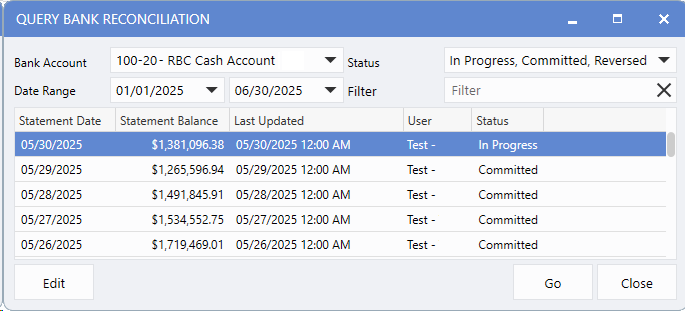
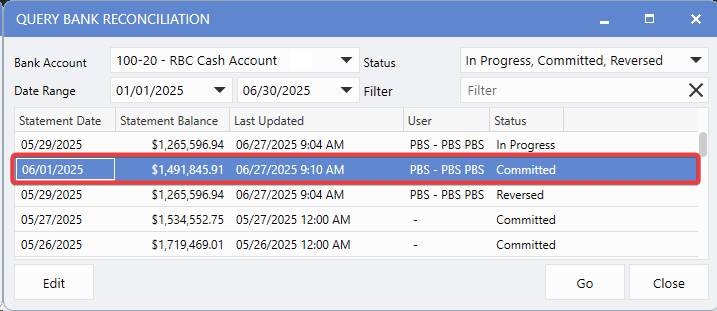
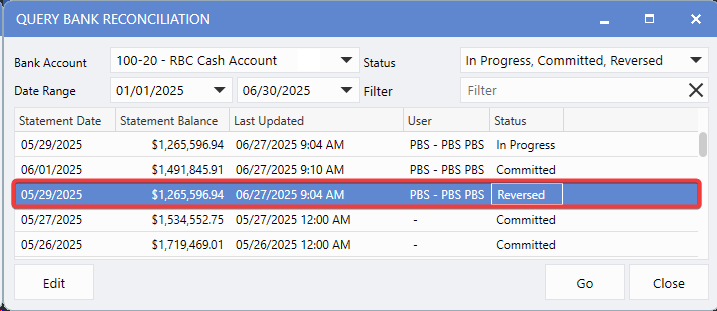
The Query Bank Reconciliation window offers a centralized view all Bank Reconciliations for any bank account within a selected date range, functioning much like other query screens in the system.
To view this window, follow the path:
Accounting > Bank Manager > Query Bank Reconciliation
1.
Open
Query Bank Reconciliation.
2.
Select the
Bank Account
you want to review.
3.
Set your desired
Date Range
.
4.
Apply the
Status
filter to include In Progress, Committed, or Reversed Reconciliations.
Viewing Bank Reconciliation Details
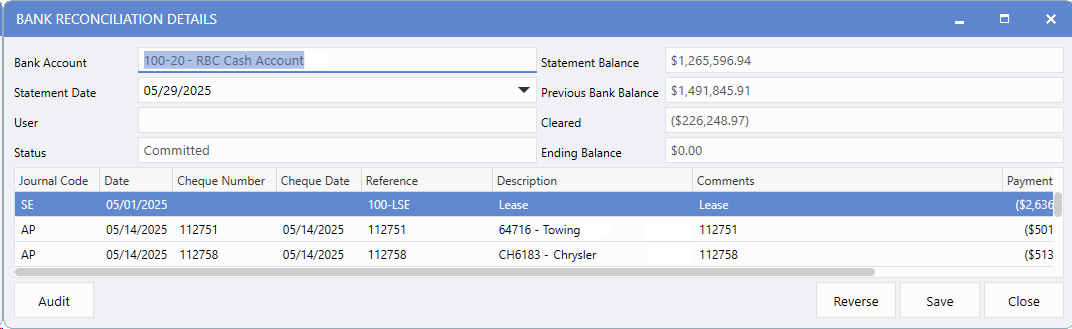
The Bank Reconciliation Details window provides a complete, read-only view of a specific reconciliation, including all cleared transactions, statement details, and reconciliation status. This allows Users to quickly review historical reconciliation data without making changes.
Accessing Details:
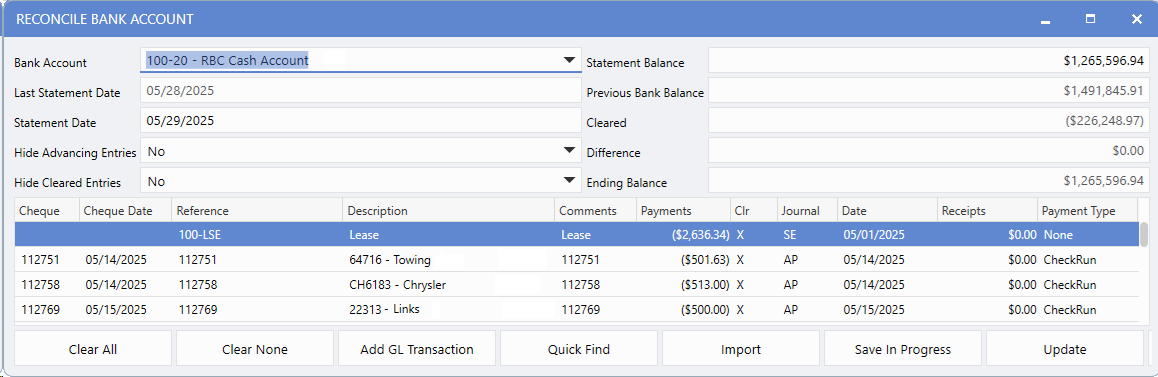
Behaviour by Reconciliation Status:
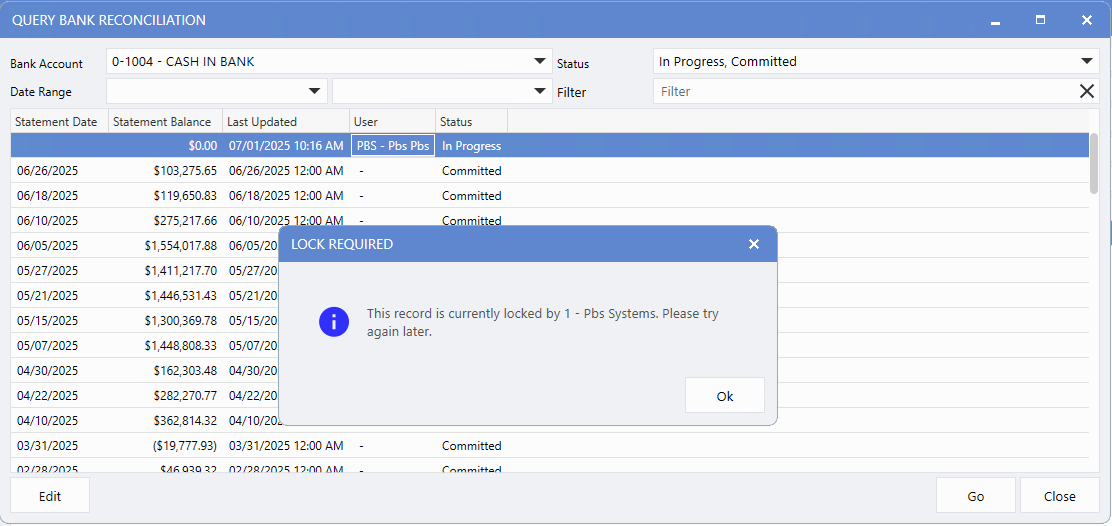
Note:
If another User is actively reconciling the same bank account in Reconcile Account, a data lock message will appear.
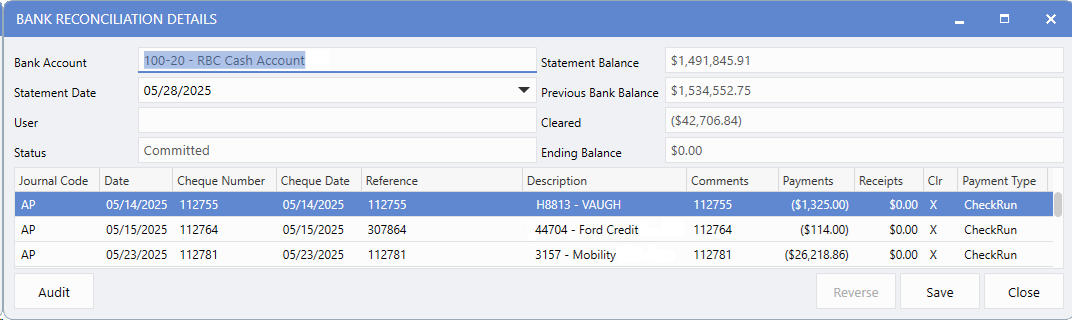
Editing Statement Dates
Users can now update statement dates directly from the Bank Reconciliation Details window when errors are identified after a reconciliation is completed. This removes the need to contact support for date corrections during month-end processing.
To edit a statement date:
1.
In Bank Reconciliation, open the Bank Reconciliation details window for a
Committed
reconciliation.
2.
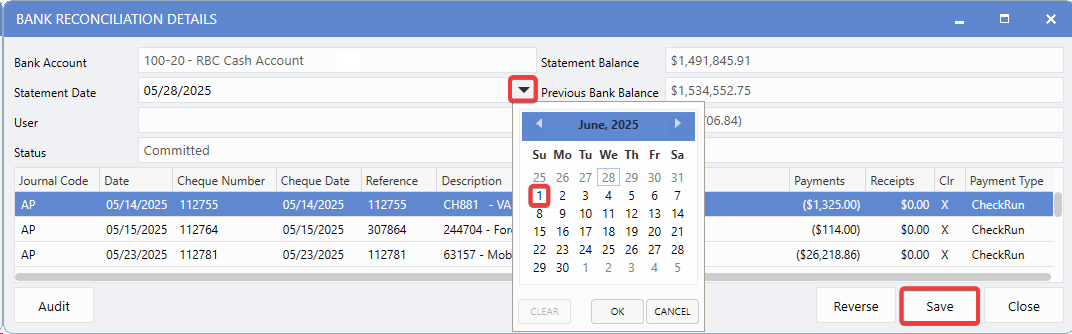
Click in the
Statement Date
field to enable editing.
3.
Enter the corrected
Statement Date
.
4.
Click
Save
to apply the change.
5.
The system will
validate
that the new date does not overlap with existing reconciliation dates.
Reversing Bank Reconciliations
The reverse function enables Users to undo a Committed Bank Reconciliation when an error is discovered. to protect data integrity, this feature is limited to the
most recent reconciliation
and eliminates the need for support assistance.
To reverse a reconciliation:
1.
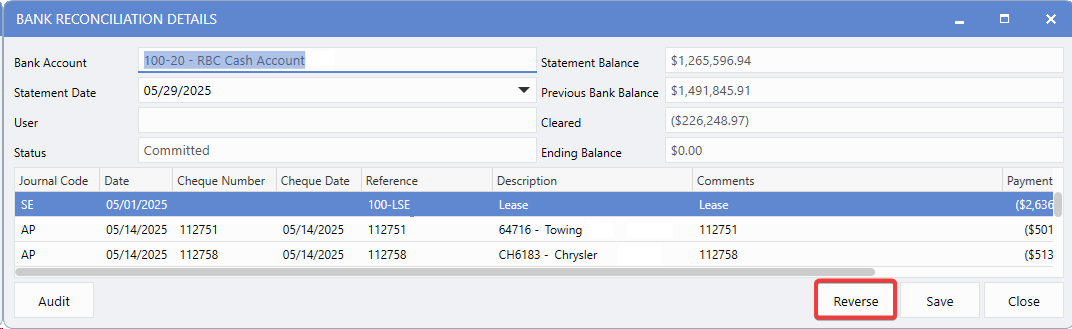
Open the Bank Reconciliation Details window for the
most recent Committed
reconciliation.
2.
Click
Reverse
.
3.
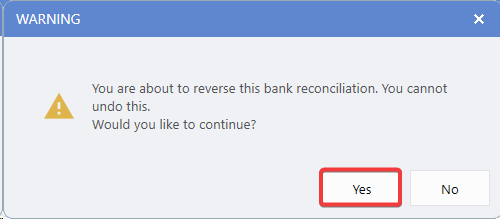
Review the
Warning Message
noting that the action cannot be undone.
4.
Click
Yes
to confirm.
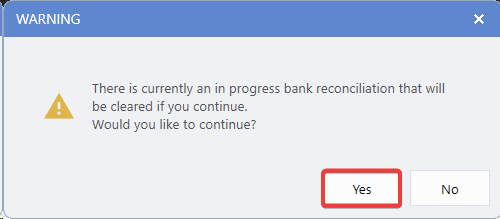
Note
If an In-Progress Bank Reconciliation exists, you will see a warning message that it will be replaced. The existing reconciliation will be cleared and overwritten.
5.
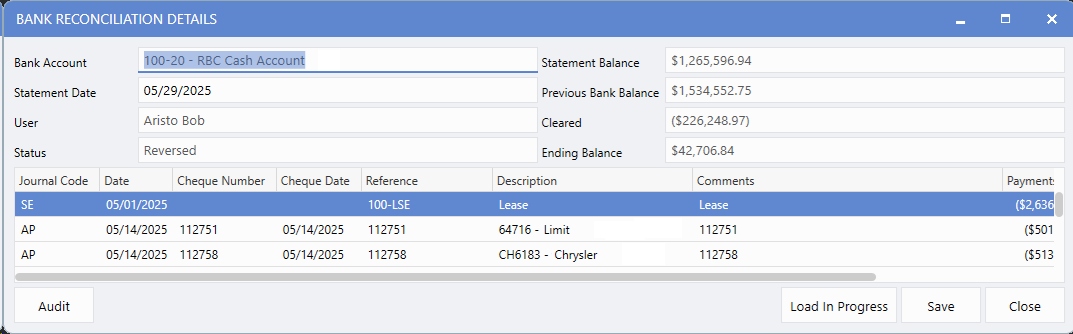
The reconciliation status will update to
Reversed
, and the transactions will be available for re-reconciliation.
Loading Reversed Reconciliations
After reversing a reconciliation, Users can restore it to In-Progress status with all previously cleared transactions preserved. This eliminates the need to re-select the same transactions that were already reconciled correctly, saving time and reducing errors.
To restore a reversed reconciliation:
1.
Open the Bank Reconciliation Details window for a
Reversed
reconciliation.
2.
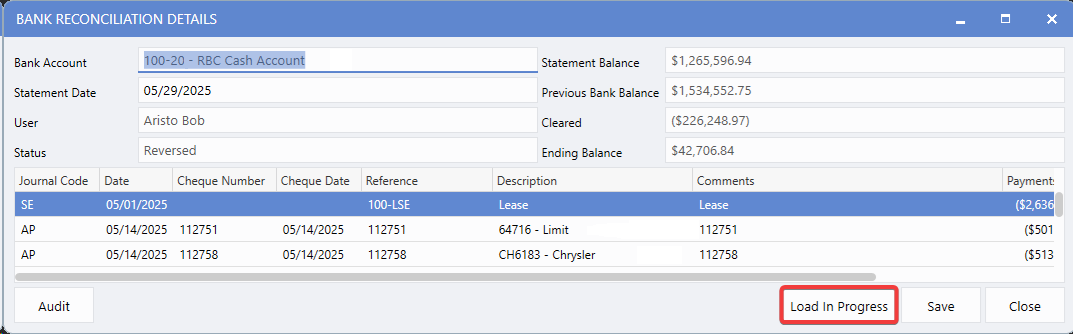
Click
Load In Progress
.
3.
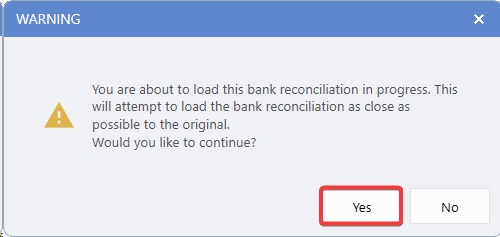
Review the
Warning Message
about replacing any existing In-Progress reconciliation.
4.
Click
Yes
to proceed.
Note
If an In-Progress Bank Reconciliation already exists, a warning message will appear. The current in-progress reconciliation will be cleared and replaced.
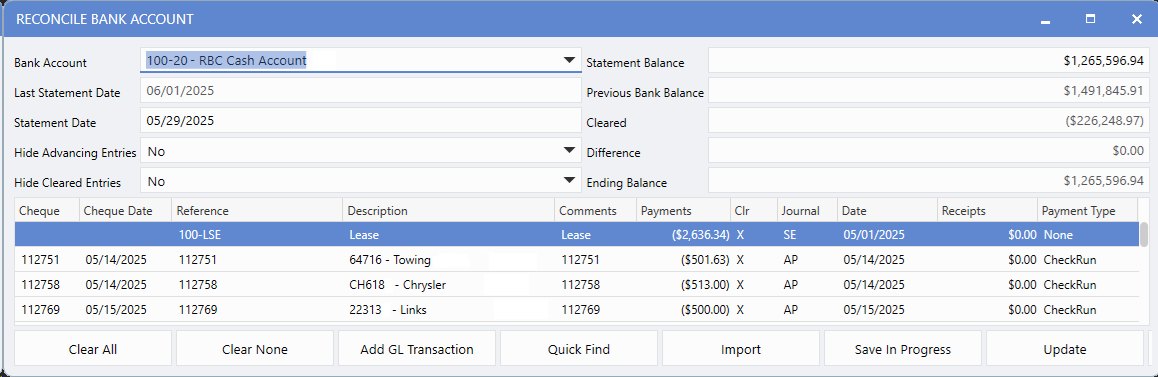
5.
The system restores the reconciliation with the same cleared transactions and updates the statement amount and date from the reversed reconciliation.
Viewing Audit Information
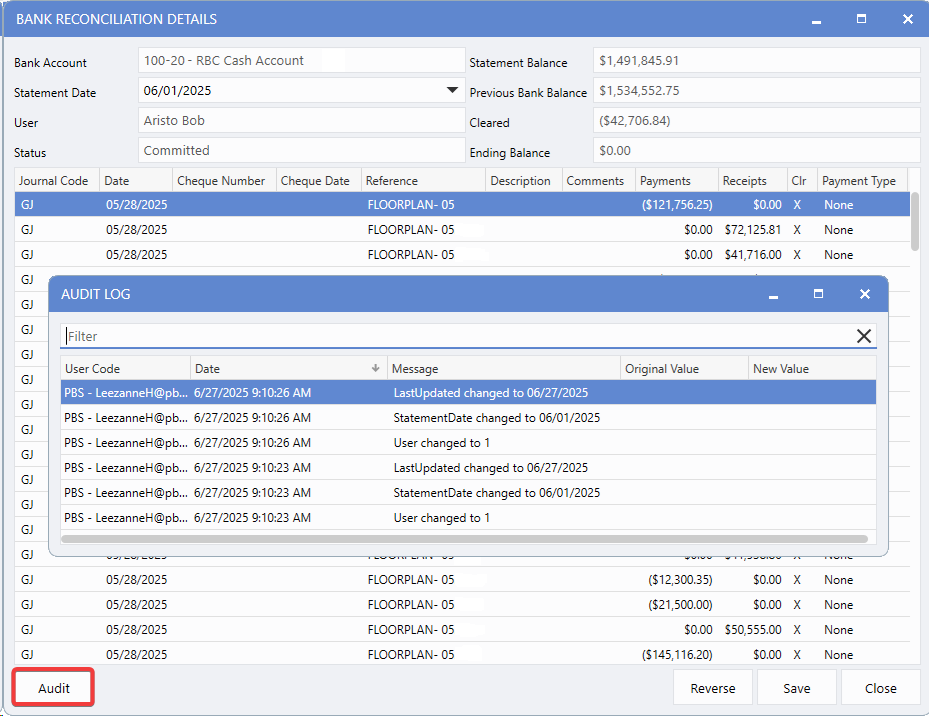
Enhanced audit trails record all changes to Bank Reconciliations - including date edits and status update - ensuring complete accountability and traceability of reconciliation activity.
From the Bank Reconciliation Details window, click the
Audit
to view a detailed history of changes. Audit data is available for both Active and Reversed Reconciliations.
Data Export
The export feature lets Users extract reconciliation and transaction data for external reporting or analysis, following the same format and functionality as other query screens in the system.
To access export options,
Right-Click
within the Query Bank Reconciliation or Bank Reconciliation Details grid and choose
Export
.
Query Bank Reconciliation

Bank Reconciliation Details

Bank Account Maintenance Changes
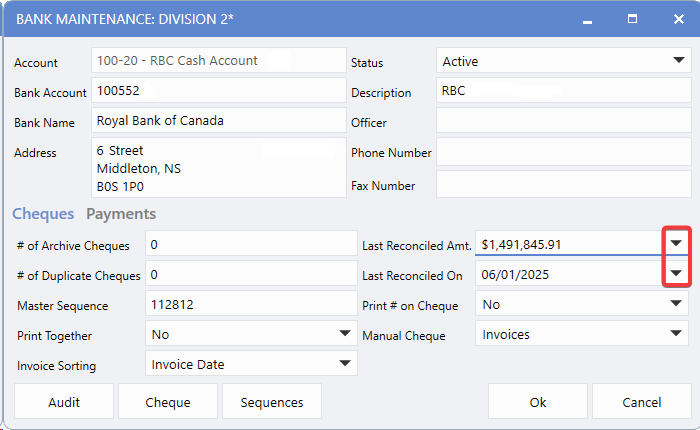
The Bank Maintenance window now features automated reconciliation tracking with two key fields:
Last Reconciled Amount
and
Last Reconciled On
. These fields automatically update with data from the most recent committed reconciliation, eliminating manual entry and reducing the risk of errors.
To view these changes, navigate to:
Accounting > Bank Manager > Bank Maintenance > Bank Account
Setting Up New Bank Accounts
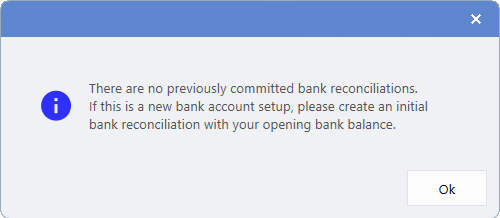
For new Bank Accounts with no committed reconciliation history, the Last Reconciled Amount and Last Reconciled On fields will be blank. If Users attempt to click the drop-down buttons next to these fields, a warning will indicate that no reconciliation data is available.
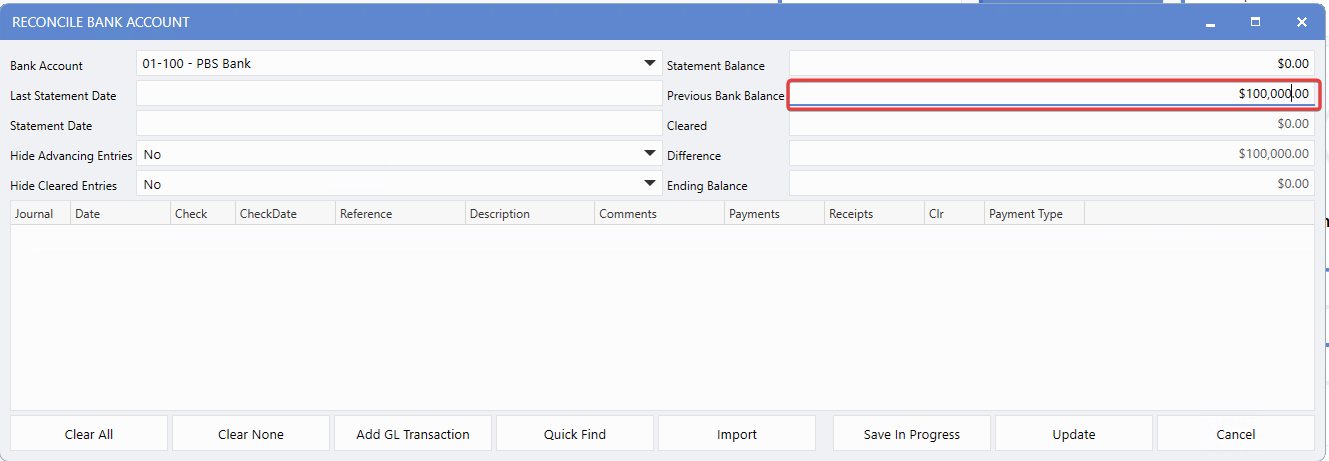
To establish the initial bank balance, Users can free-type the amount in the Previous Bank Balance field during the first reconciliation process. This sets the baseline for all future reconciliations.
|