|
10.23 Mitchell G/L Import
KB 3236, Release Note, Accounting Development, 10/16/2026
Version 10.23 introduces the all-new Mitchell G/L Import integration, transforming workflows by automatically importing Repair Order data from Mitchell Repair Centre directly into V10's General Ledger.
For Dealerships with a collision repair center, this update eliminates tedious manual entry, reduces costly errors, and accelerates month-end closing. With fully customizable account mapping and automated posting, your accounting team gains both efficiency and accuracy - freeing them to focus on higher-value work.
This enhancement streamlines operations while delivering the precision and control your accounting team needs to stay in command. Read on to discover how the Mitchell G/L Import integration can improve your workflow!
Setups
Prerequisites
-
Dealer must have an active Mitchell RepairCentre subscription with assigned ShopID.
-
Dealer must have an available Mitchell RepairCentre export file.
-
Important: If a Dealer wishes to begin using this feature, they will need to contact their representative at Mitchell who will initiate the process
.
For PBS Support. Internal Use Only:
Specific setups within Mitchell are needed to obtain the export files. See
KB 3494 Mitchell Setups for G/L Import
for details.
Control Flag Settings
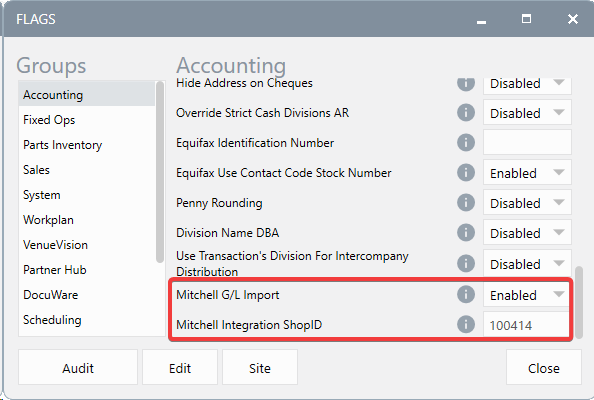
The Mitchell integration requires two
Control
Flag settings, both found under the
Accounting
Tab within the Control Flags.
Please Note:
Contact the Informatics Team to have these Flags enabled.
Informatics@pbssystems.com
-
Mitchell G/L Import:
Grants access to upload Mitchell G/L imports to the Posting Tank.
-
Mitchell Integration ShopID:
Validates imports by matching the shop ID provided by Mitchell, ensuring that files are uploaded to the correct shop.
Note:
For Informatics Team Only:
1.
Follow the path:
System > Tools > Control Flags > Accounting
.
2.
Enable the
Mitchell G/L Import
flag to allow access to the Mitchell G/L import upload.
3.
Enter the Dealership's Mitchell Repair Centre ShopID into the
Mitchell Integration ShopID
field. This provides error protection by ensuring only the correct files are imported to the correct shop.
User Permissions
Two User permissions are required to access the Mitchell G/L Import functionality.
To configure these settings, navigate to:
Employee > User Maintenance > User Record > Accounting Security
.
Mitchell G/L Import - Setup & Processing
The Mitchell G/L Import establishes a direct integration between the Mitchell RepairCentre and V10. This feature automates the transfer of financial data from Repair Orders in Mitchell into your Dealership's General Ledger, reducing manual entry and increasing efficiency.
To setup this feature, follow the path:
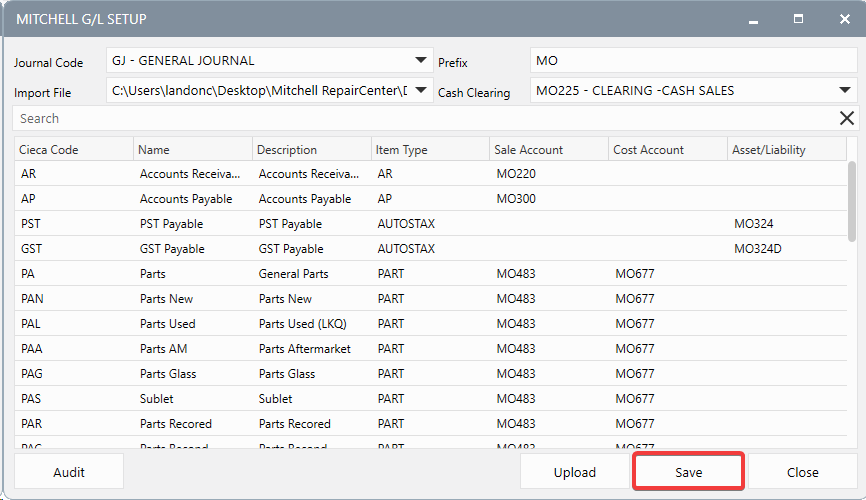
Accounting > General Ledger > Maintenance > Accounting Setups > Mitchell G/L Setup
.
Setup Steps:
1.
Select the appropriate
Accounting Division
(If applicable).
2.
In the header of the Mitchell G/L window, specify the
Journal Code
.
3.
If prefixes are used in the PBS Chart of Accounts (COA), enter the Accounting
Prefix
(system converts all characters to uppercase).
4.
Select a
Cash Clearing
account.

5.
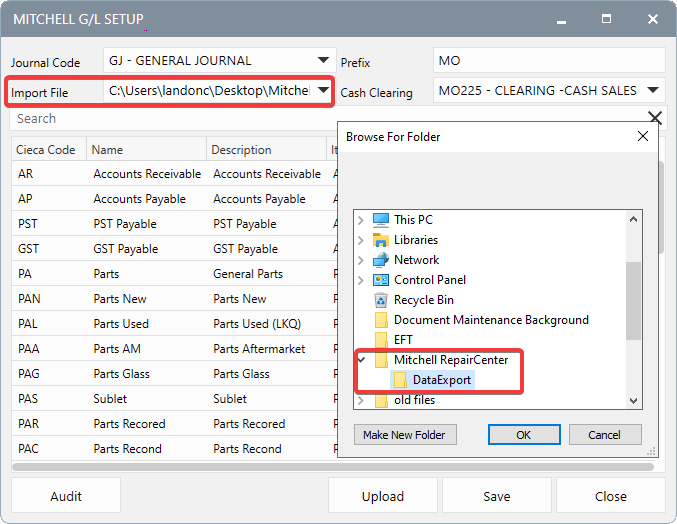
Set the
Import File
Path to the Mitchell RepairCentre export location.
6.
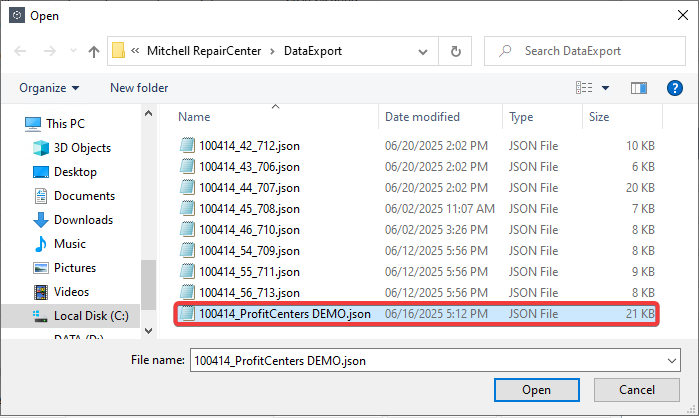
Click
Upload
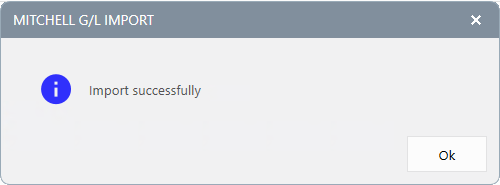
to import your ProfitCenters file from Mitchell. A confirmation message will appear when successful.
7.
Review
the imported Accounts (with Prefix applied).
8.
Edit
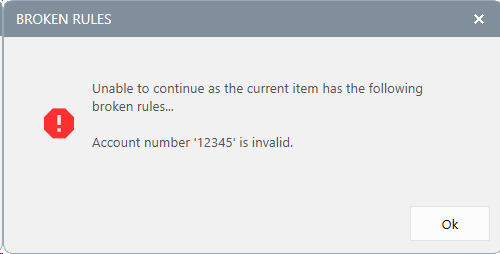
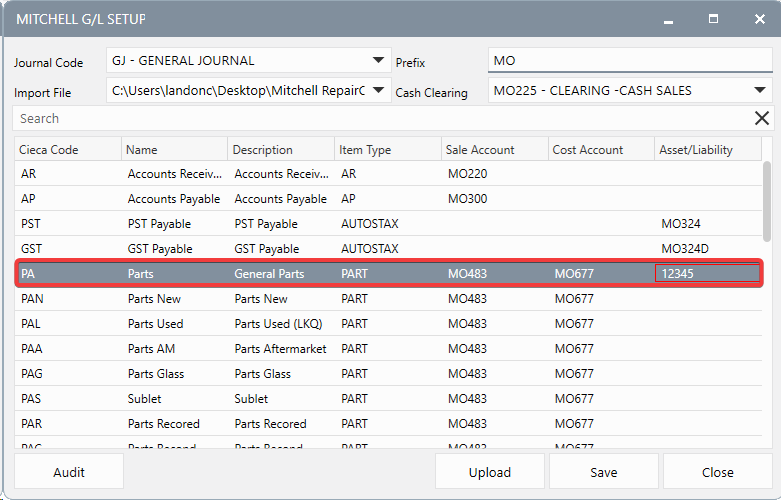
Accounts as needed (add new Sale, Cost, Asset, or Liability where required).
9.
Click
Save
to apply updates.
Repair Order Processing
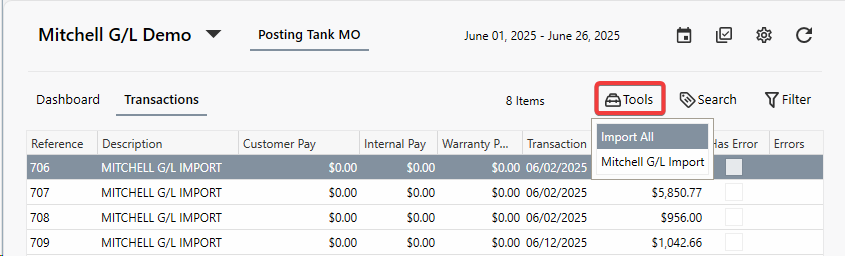
This process imports JSON-formatted Repair Order (RO) files from Mitchell into V10., making them available for posting through the Posting Tank.
Navigation Paths:
Setups
1.
Select the appropriate
Accounting Division
(If applicable).
2.
Choose one or more JSON-formatted
Repair Order
files for import.
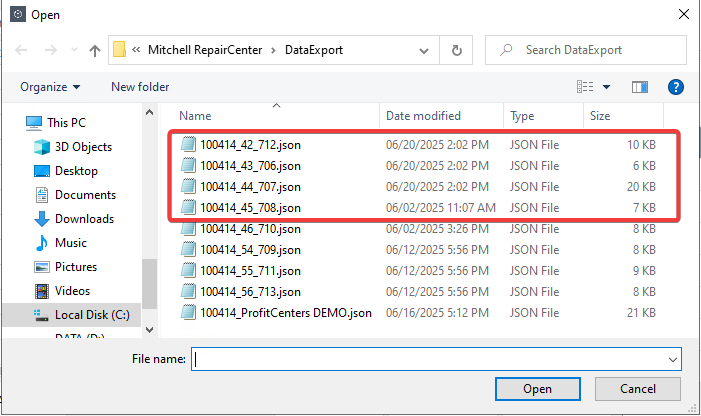
3,
Upon successful import, a confirmation message will appear.
4.
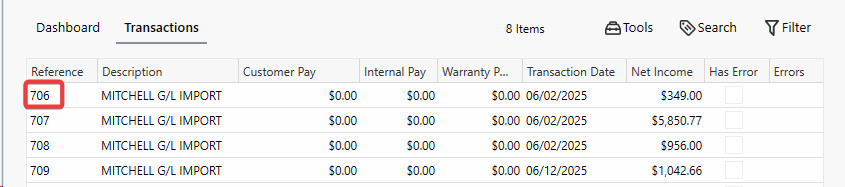
Review imported transactions in the
Posting Tank
.
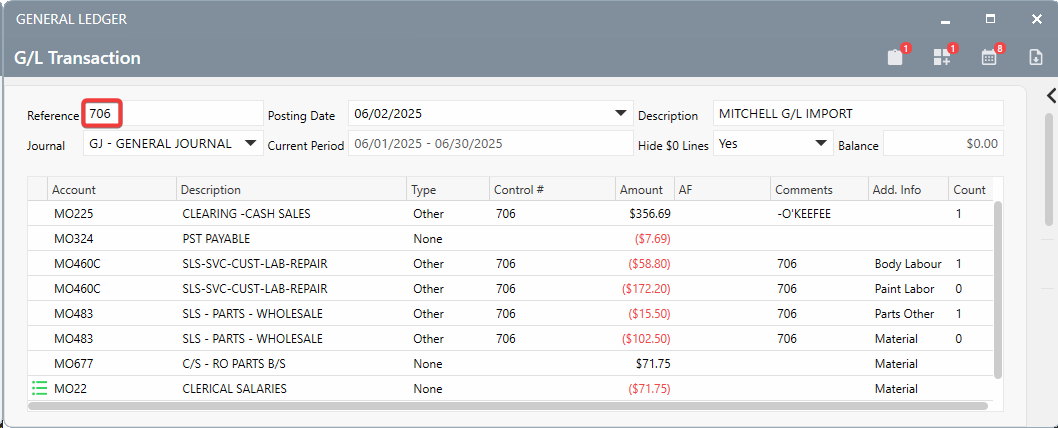
5.
Users can double-click a transaction to view its details.
Automatic Posting
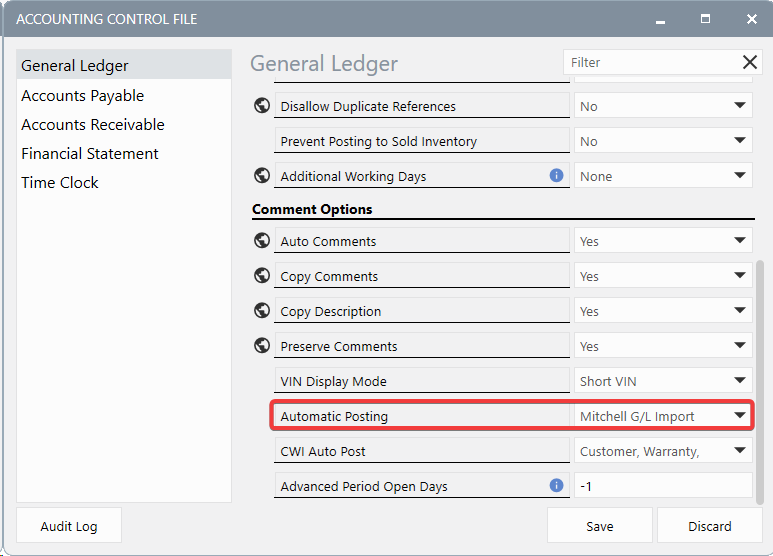
With
Automatic Posting
enabled, error-free Repair Order files can be posted directly to the General Ledger without manual review, streamlining and supporting clean transactions.
Note:
When Automatic Posting is active, successfully posted RO files are automatically removed from the User's import folder.
To set up Automatic Posting, follow the path:
System > Maintenance > Accounting Control File > General Ledger Tab > Automatic Posting
.
Querying Imported Transactions
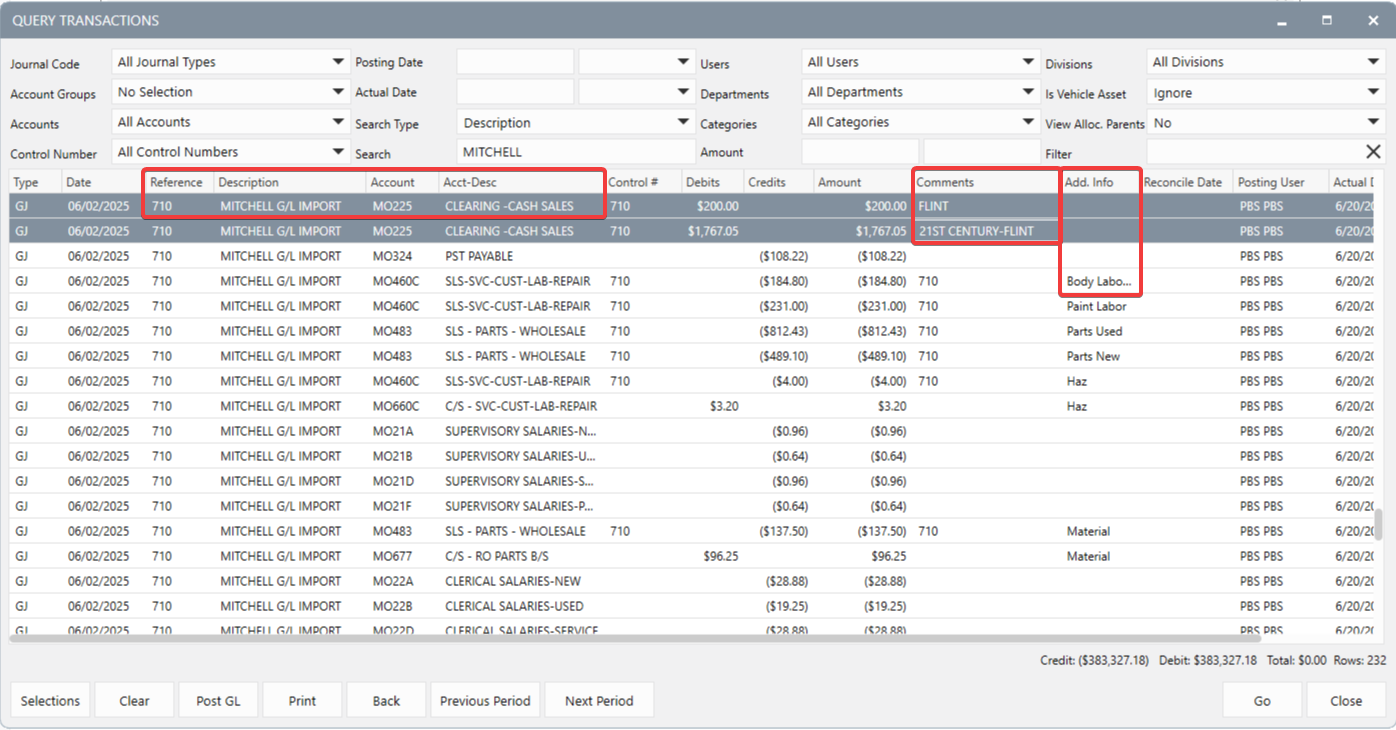
Imported Mitchell entries integrate directly into Query Transaction, making them easy to identify and trace.
Key Identifiers
-
Reference:
Displays the last 3 digits of the Mitchell Import file name.
-
Description:
All entries display MITCHELL G/L IMPORT.
-
Account Codes:
Based on your Mitchell account mapping.
-
Comments:
Shows payment source - Customer Pay (Customer Last Name) or Third Party Pay (Third Party Name).
-
Additional Info:
Displays repair type details and labour categories (e.g., Body Labour, Paint Labour, Materials, Parts Other).
To view these postings, follow the path:
Accounting > General Ledger > Query Transaction
.
Troubleshooting Errors
1. If an RO import contains a CIECA code that has not been configured in the Mitchell G/L Setup, the import will fail. A warning will appear indicating that a required CIECA code is missing along with what the missing CIECA code is. To resolve this, the missing CIECA code must be manually added to the Mitchell G/L setup using the
Edit
button.
2. If an RO import includes quotation marks in a description, the import will fail because the JSON file becomes invalid. To resolve this, open the affected RO in Mitchell, locate the description containing quotation marks, and remove them. After saving the changes, re-export the RO to generate a new JSON file for import into PBS.
Note
: For any errors related to the Mitchell side of the configuration, please reach out to
DMSNotifications@mitchell.com
|