|
10.23 Make Ready Features
KB 3237, Release Note, Service Development, 10/17/2025
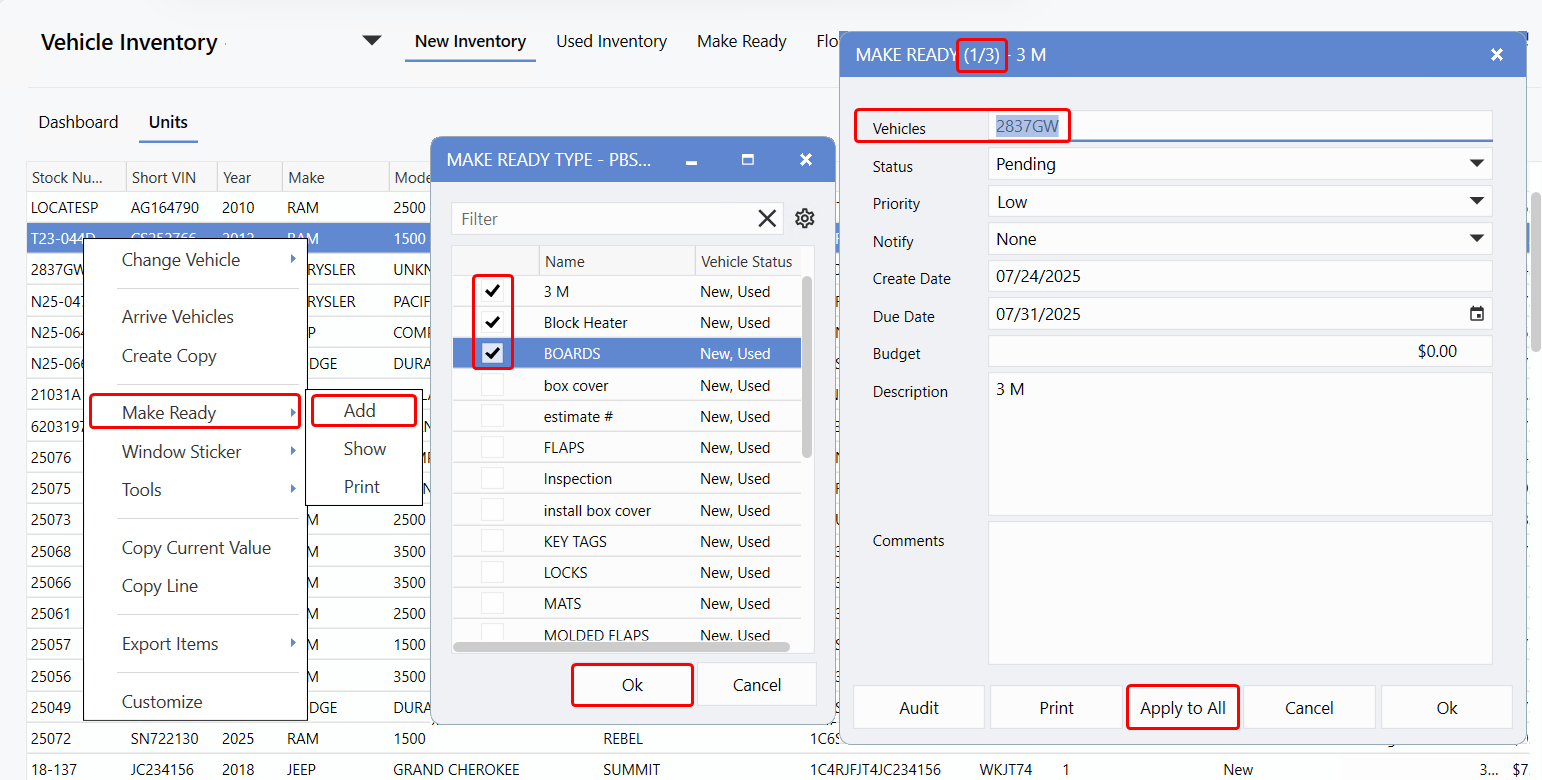
We're excited to announce new enhancements to the Make Ready process in version 10.23 - designed to simplify your workflow and strengthen team collaboration!
The Make Ready process plays a vital role in Sales, ensuring every vehicle - new or used - is properly prepped before reaching the showroom or the lot. It also serves as a critical communication bridge between departments, keeping operations smooth and on schedule.
With this release, we've streamlined the experience by adding:
-
Configurable defaults for faster setup
-
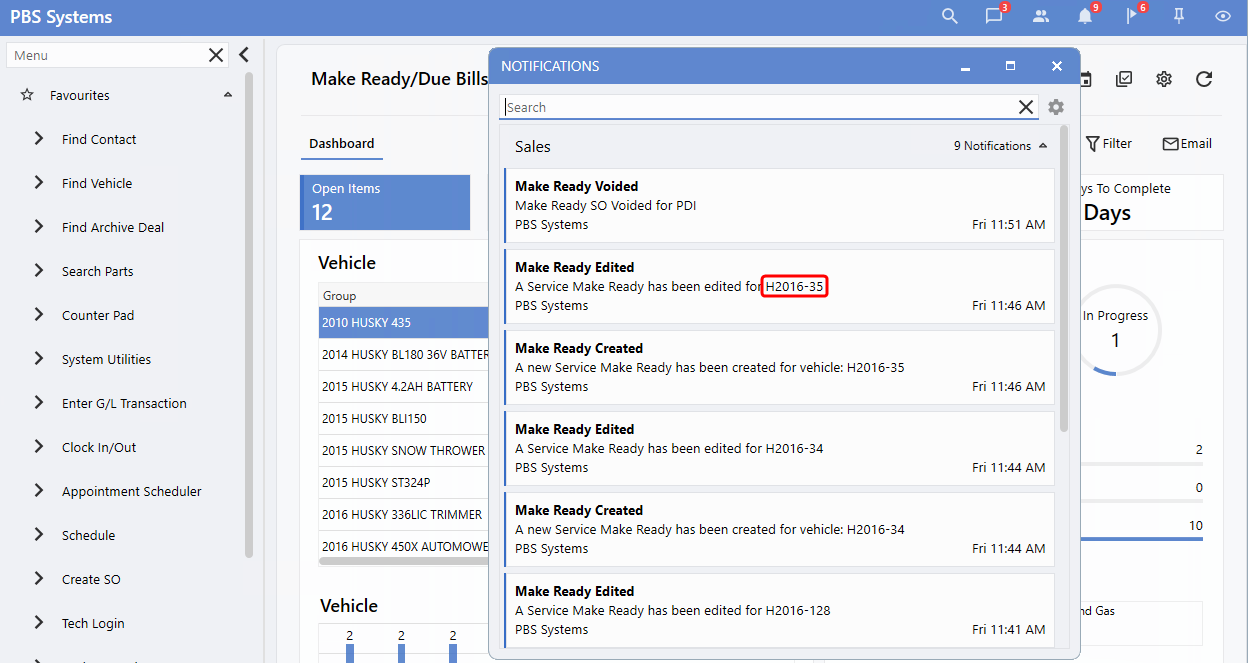
Smarter notifications to keep everyone in sync
-
Enhanced dashboard visibility for better oversight
These updates reduce manual effort, boost efficiency, and make cross-team coordination easier than ever.
Explore the details below to see how version 10.23 can support your daily operations.
Setups
Sales Control File
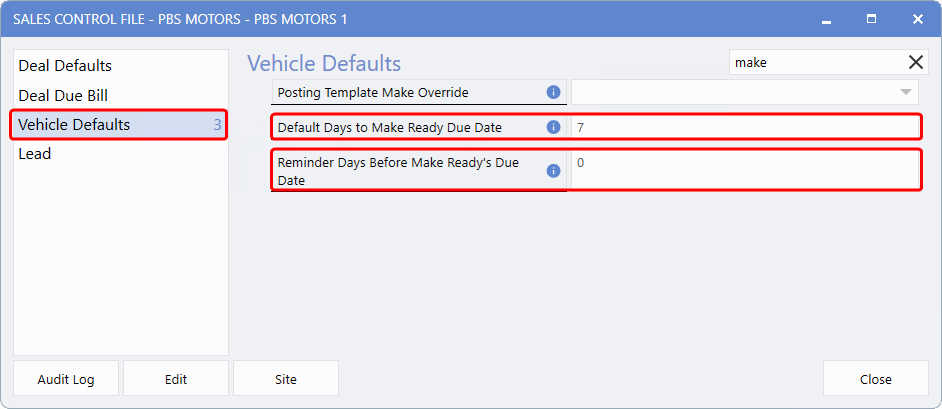
We've added two new Default Fields to the
Vehicle Defaults
section of the Sales Control File. These fields give Users greater control over Make Ready timelines by automatically setting due dates and reminders.
-
Default Days to Make Ready Due Date
- Automatically applies a default due date to all new Make Ready items. Users can adjust the date manually if required.
-
Reminder Days Before Make Ready Due Date
- Lets Users define how many days in advance they want to receive a reminder before a Make Ready task is due.
These enhancements help streamline scheduling and ensure tasks stay on track.
To access the control file, follow the path:
System > Maintenance > Sales Control File
Make Ready Type Maintenance
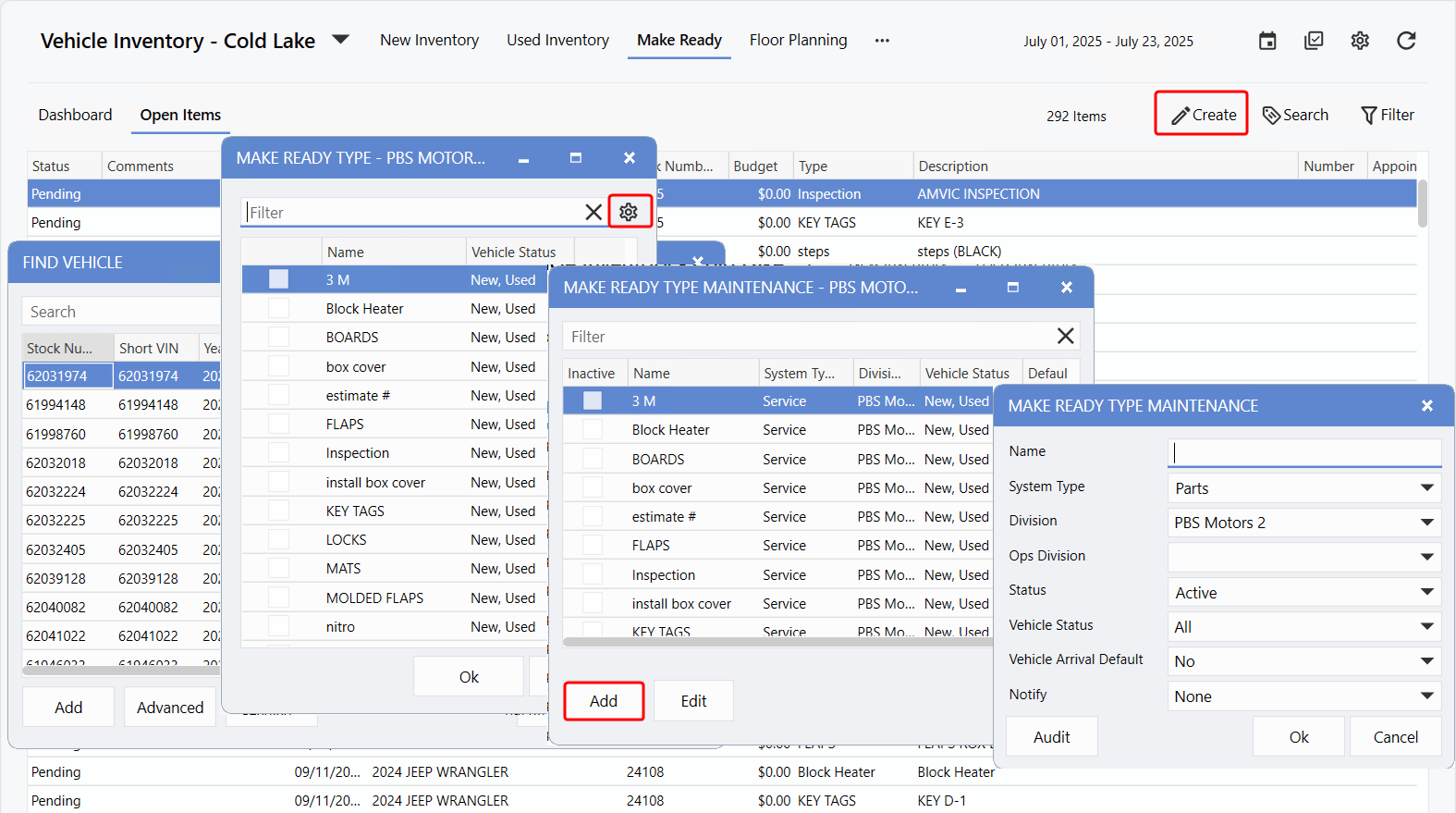
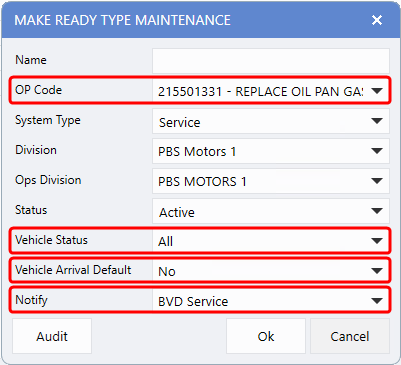
We've added four new fields to the
Make Ready Type Maintenance Window
giving you greater flexibility when defining a Make Ready Type:
-
OP Code
- Select an Operation Code from a preset list by clicking the arrow in the field. This option is only available when the
System Type
is set to
Service
.
-
Vehicle Status
- Choose whether the Make Ready applies to
New
or
Used
vehicles. Selecting
None
or
All
will apply to both.
-
Vehicle Arrival Default
- Specify whether the Make Ready should be automatically applied to newly arrived vehicles. This triggers once the
Arrive Vehicle
process is completed.
-
Notify
- Assign a
Department
or
User
to be notified whenever the Make Ready Type is assigned to a vehicle.
These new options make it easier to tailor Make Ready processes to your Dealership's workflow.
Make Ready Window
Notifications Settings - Calendar Icon
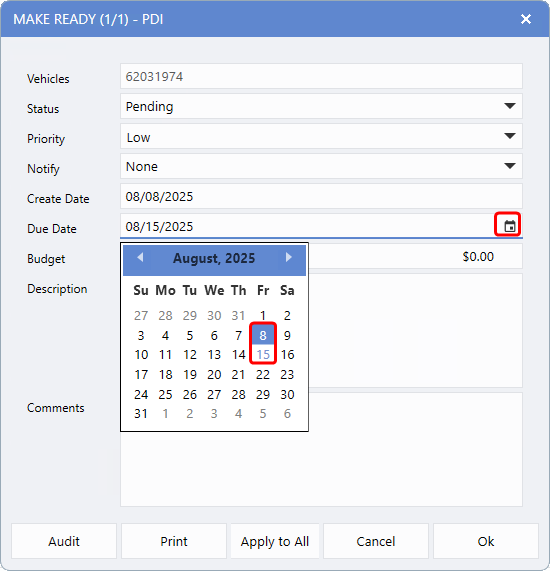
Setting a Due Date is now easier with the new
Calendar icon
in the Make Ready window. Located directly within the Due Date field, this feature lets Users pick a date from a calendar view instead of typing it manually.
The system will automatically highlight two key dates on the calendar:
-
Default Due Date - Based on the number of days set in Vehicle Defaults, shown with a faint-coloured square.
-
Current Date - Clearly marked with a solid-coloured square.
Users can either select a new due date from the calendar or enter one manually in the field.
To access this feature, follow the path:
Vehicle File > Make Ready tab > Add button > Calendar Icon
Dynamic Fields
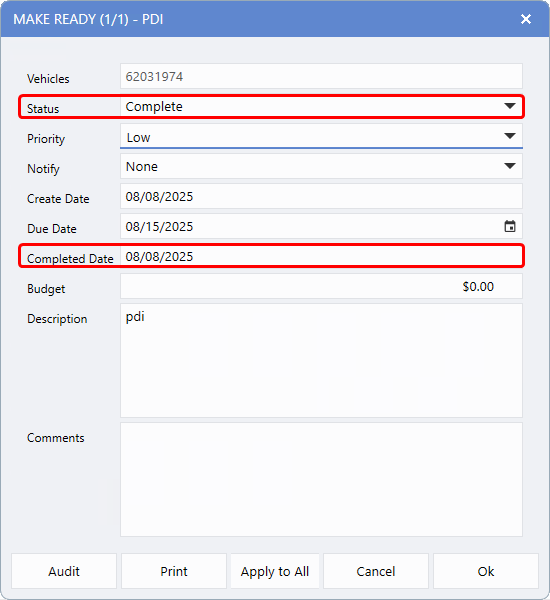
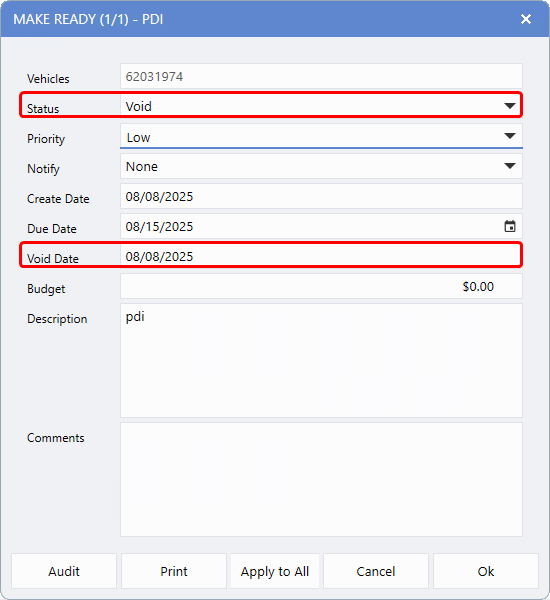
A new field now appears directly below the
Due Date
field whenever the status is set to either
Completed
or
Void
. The field will display as
Completed Date
or
Void Date, depending on the status selected.
|