|
10.23 Daily Inventory Preview Report
KB 3245, Release Note, Parts Development, 8/12/2025
Version 10.23 is here - and it's a game-changer for GM Dealerships!
Introducing the Daily Inventory Preview - a powerful new tool designed to give your Dealership real-time insight into daily Parts sales. With this feature you can:
-
Track and monitor sales throughout the day.
-
Review inventory status in real time.
-
Quickly identify items to restock and place orders when needed.
By keeping inventory data accurate and up-to-date, this report helps you stay ahead on parts availability - improving efficiency and boosting profitability in your Parts Department.
Read on to learn more about how this feature can benefit your team!
Daily Inventory Preview Report
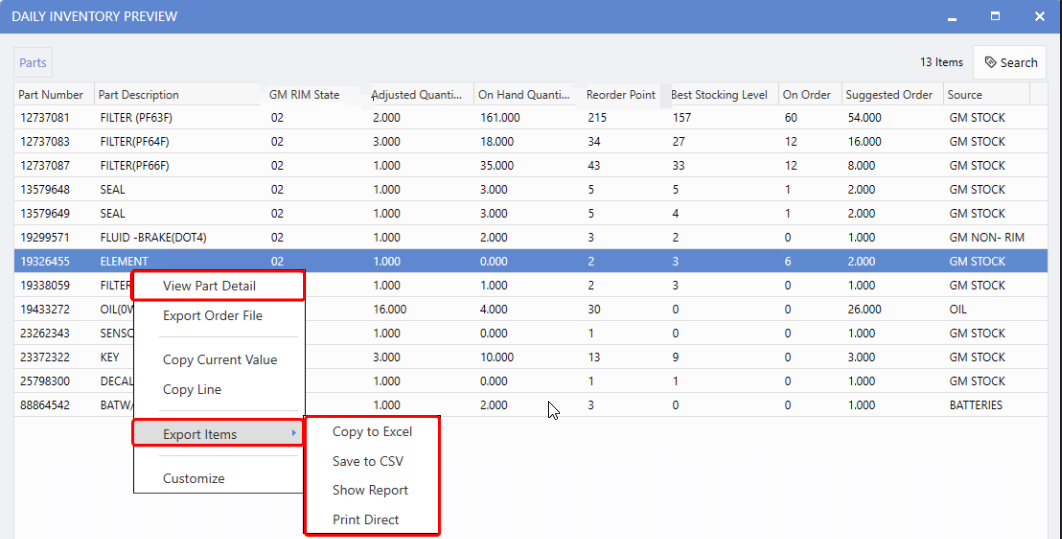
When Users open the Daily Inventory Preview report, they're greeted with a clean grid view of the current day's Parts sales. This snapshot provides an at-a-glance overview of items sold and remaining stock, helping teams make quick, informed decisions. The report also simplifies ordering by displaying GM RIM State and Reorder Point values directly within the view - removing the need to jump between the report and Parts Inquiry. Columns can be sorted and rearranged, allowing Users to customize the layout to fit their workflow.
For deeper insights, the
right-click menu
offers a quick option to open Part Stats for detailed
part information
. From this same menu, Users can also copy, save,or print the report with just a few clicks.
Note:
By default, the report shows only GM-managed parts. Non-GM parts will also appear if the
IsManaged flag
is enabled.
GM Dealerships only
To access this report, follow the path:
Parts > Parts Ordering > Reports > Daily Inventory Preview
Exporting and Importing an Order File
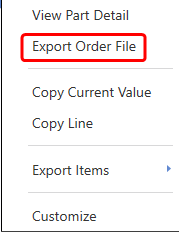
Users can also create an Order File directly from the grid view. Simply highlight the desired quantities, right-click and select
Export Order File
. A prompt will appear, allowing you to choose where to save the file.
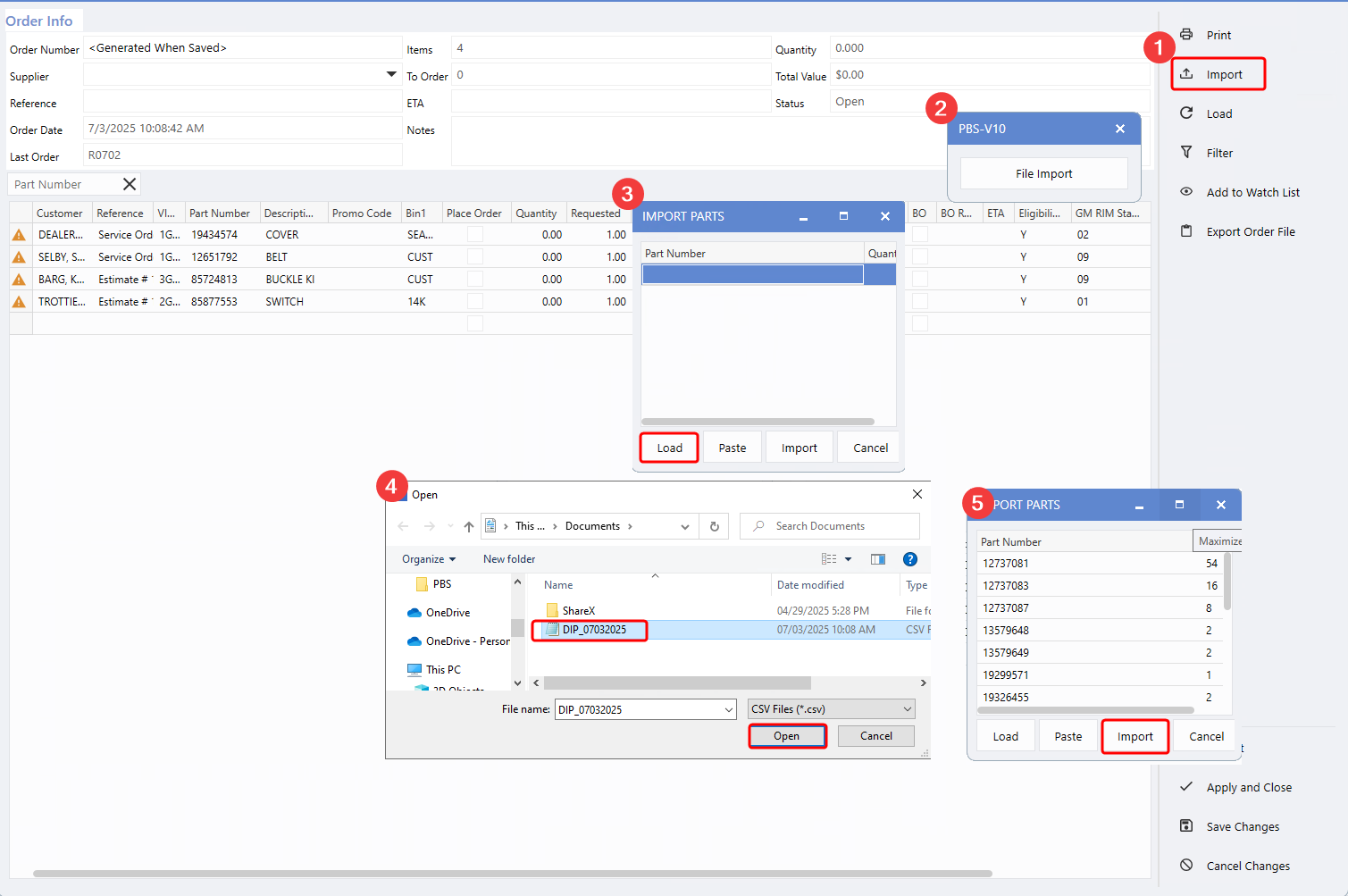
When creating an Order, use the
Import
option from the right-hand menu to access the saved file. Follow the on-screen prompts to load the file and import the Parts into the Order.
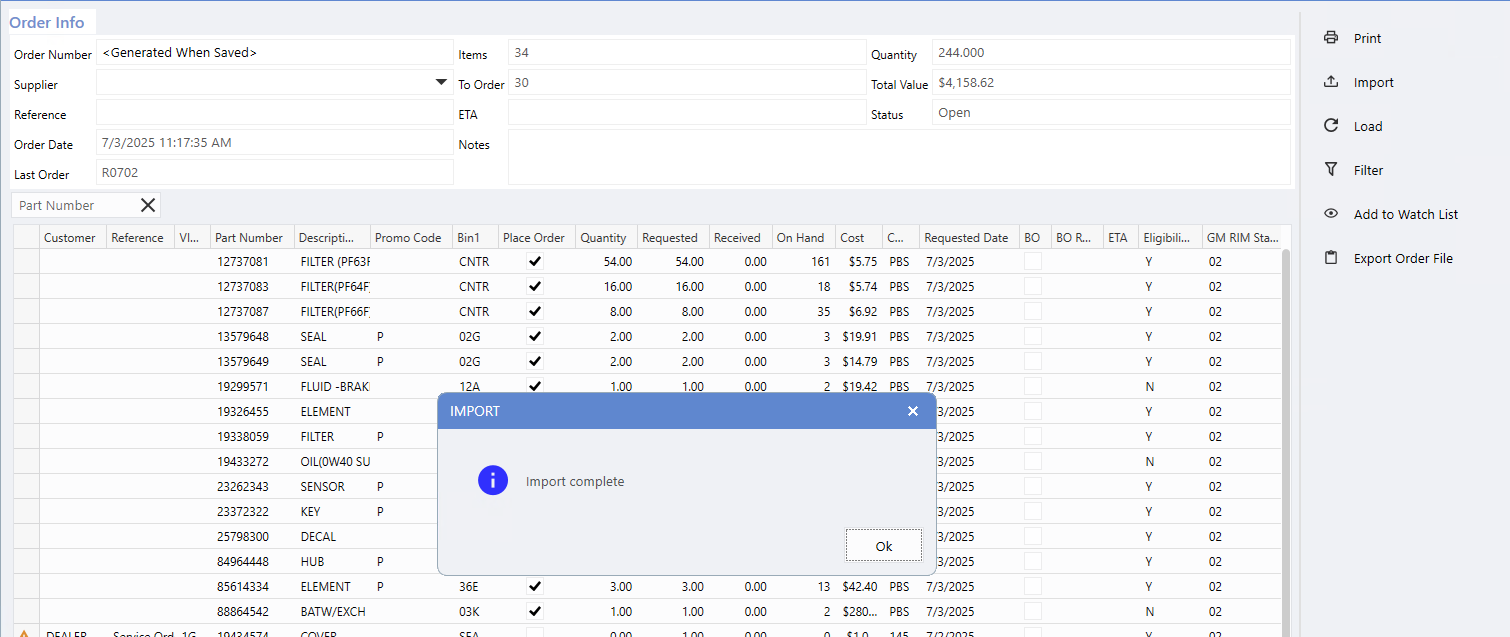
After the import is complete, a confirmation message will appear. The Parts data exported from the Daily Inventory Preview grid will then be ready for use in the Order window.
To access this function, follow the path:
Parts > Parts Ordering > Create Order > Import > File Import > Load > Select File > Import
|