|
10.23 Sales Additional Features
KB 3247, Release Note, Sales Development, 10/31/2025
This document highlights the supplementary sales changes that became available starting from version 10.23.0.
Generating Stock Numbers Using the Short VIN
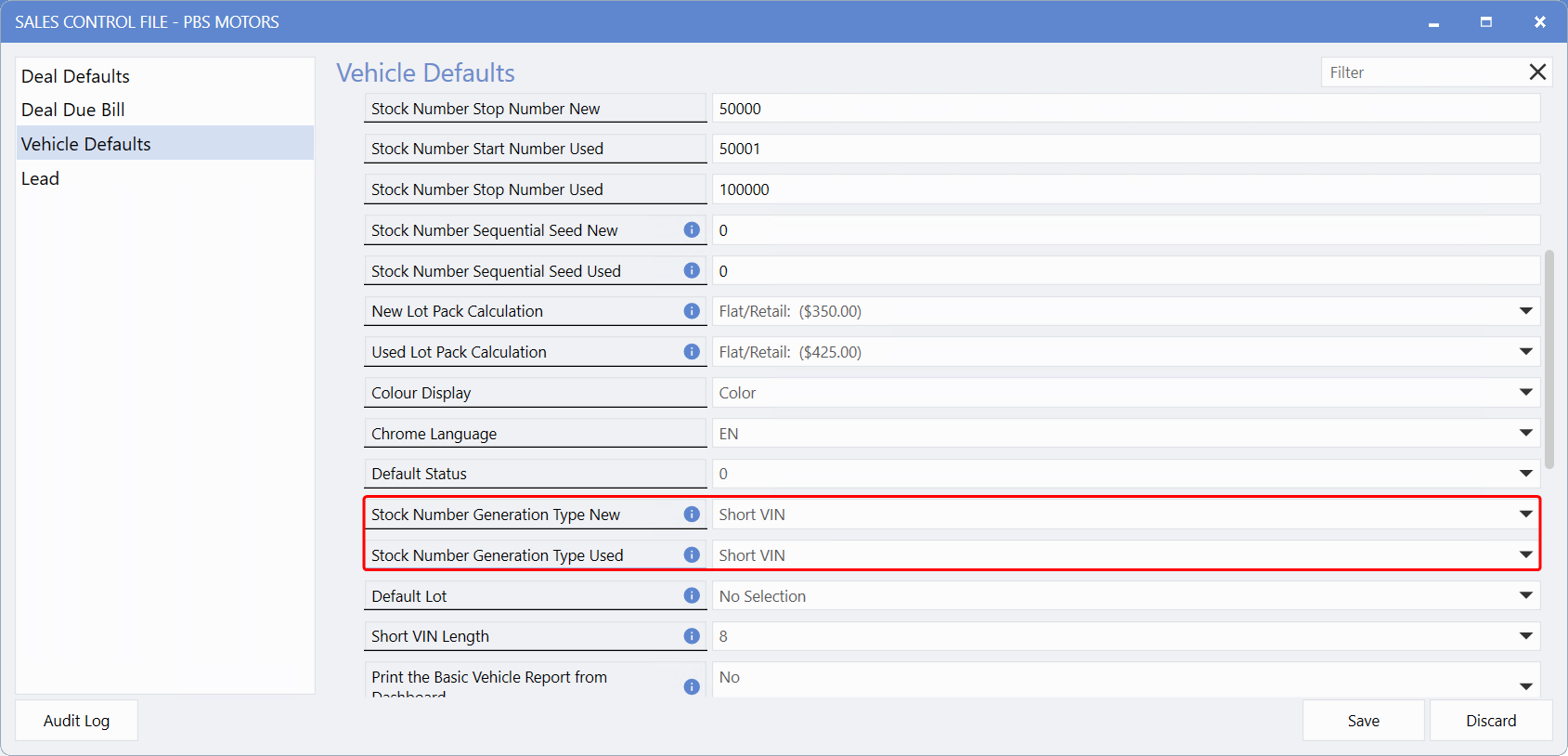
The
Stock Number Generation Type (New and Used)
options in the
Sales Control File
have been enhanced to support stock number creation using
Short VIN
.
When set to Short VIN, the system generates the stock number by combining:
This enhancement allows the system to use the last digits of the VIN (commonly 6 or 8) when creating a vehicle or processing it through the Arrive Vehicle workflow.
To access this feature, follow the path:
Systems > Maintenance > Sales Control File > Vehicle Defaults
Example
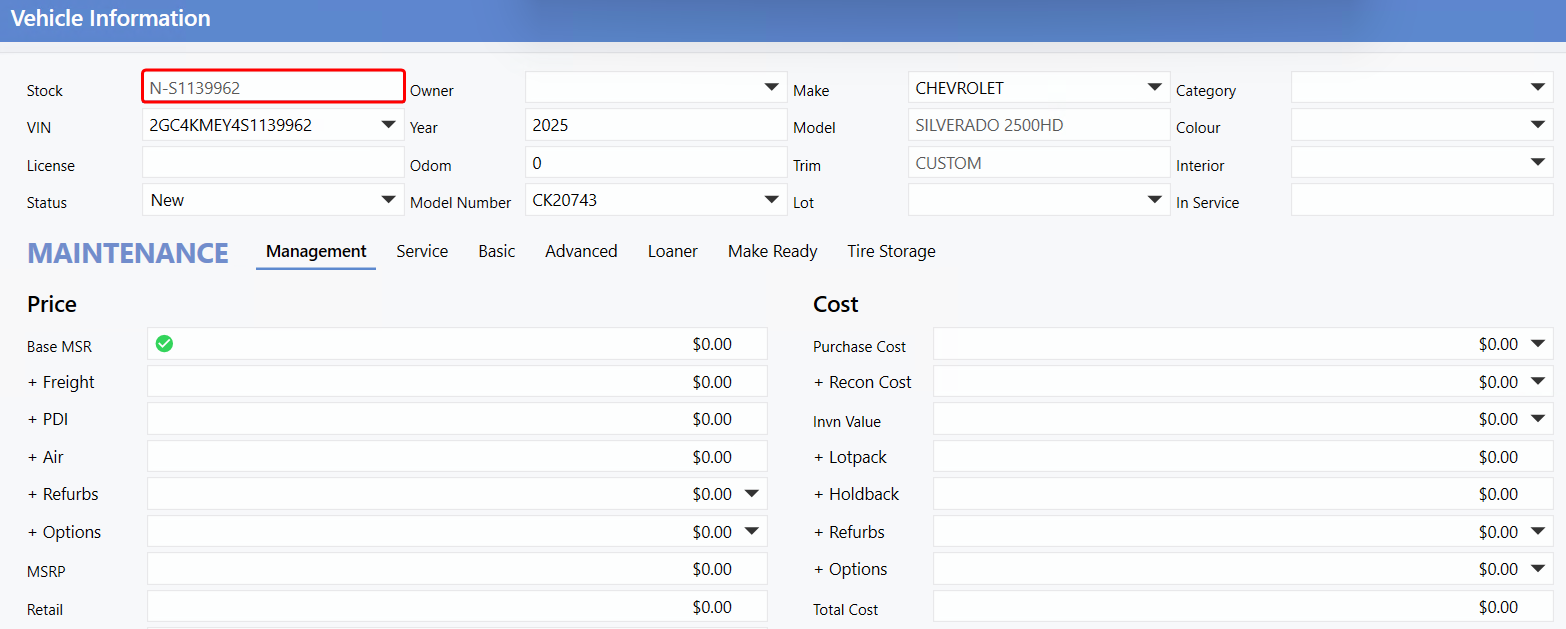
In the example below, a
New
Vehicle is configured as follows in the Control File:
As a result, the generated Stock Number begins with N- and ends with the last 8 digits of the VIN, as shown in the Vehicle File image.
Deal Document Permissions
Sales Representatives are often the first point of contact for Customers and are responsible for collecting key documents such as drivers licenses, vehicle registration certificates, and other supporting paperwork. They may also need to upload these items or print Deal attachments for Customers.
Previously, completing these tasks required Worksheet Access. Since the paperclip (attachment) icon was only available within the Worksheet, many Sales Reps were unable to manage Deal attachments.
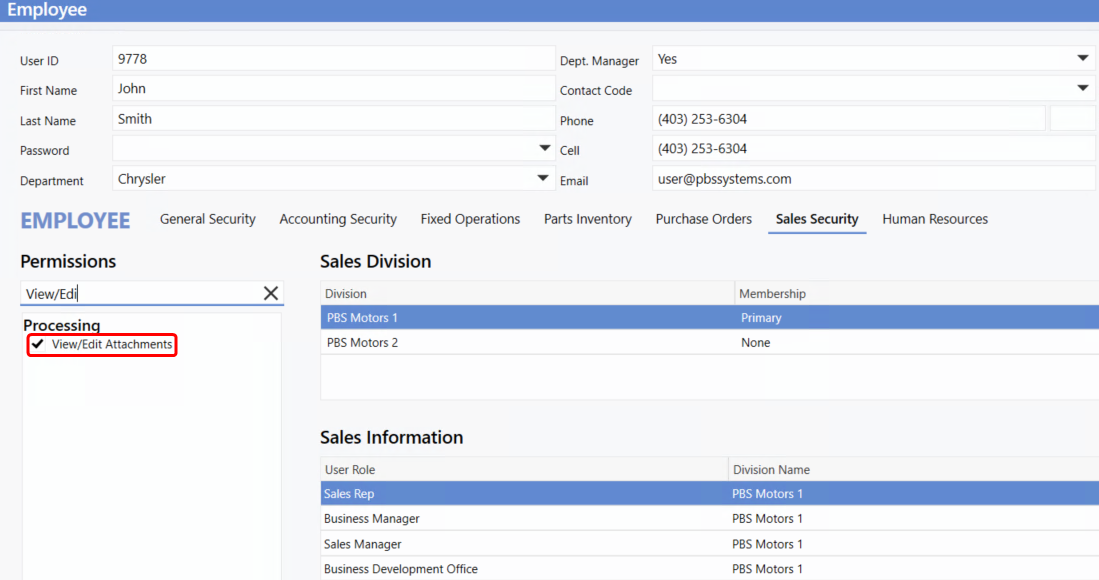
To resolve this, a new permission -
View/Edit Attachments
- has been introduced. This allows Users without Worksheet access to use the paperclip icon to view, upload and manage Deal attachments.
Note:
Upon upgrading to Version 10.23, all Users who currently have Worksheet Access permission will receive the View/Edit Attachments permission.
To access this feature, follow the path:
Employee > User Maintenance > Users >
select a user
> Sales Security Tab / Processing Section > View/Edit Attachments
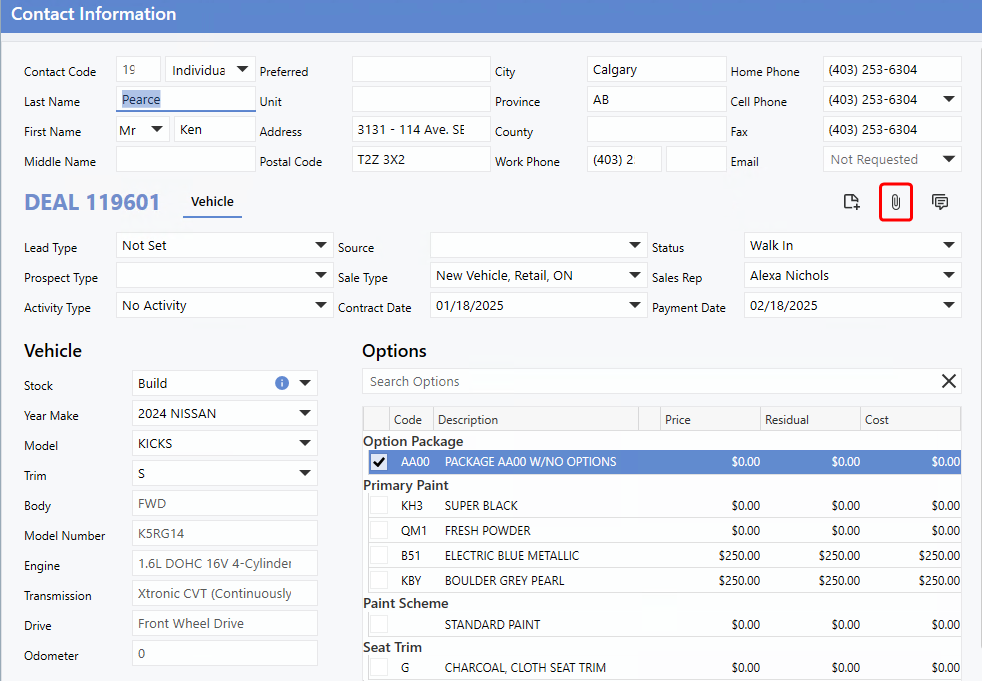
With this new permission, the
paperclip icon
is now available on additional Deal tabs, including the Vehicle tab.
Sales Reports - Restructured Criteria Window
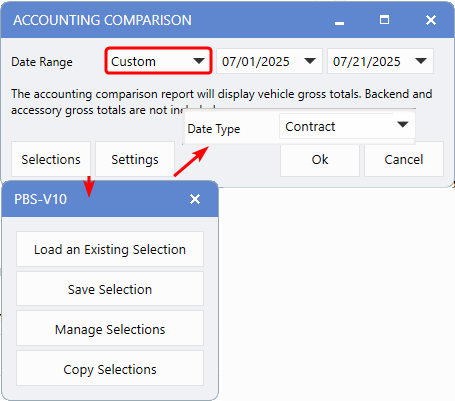
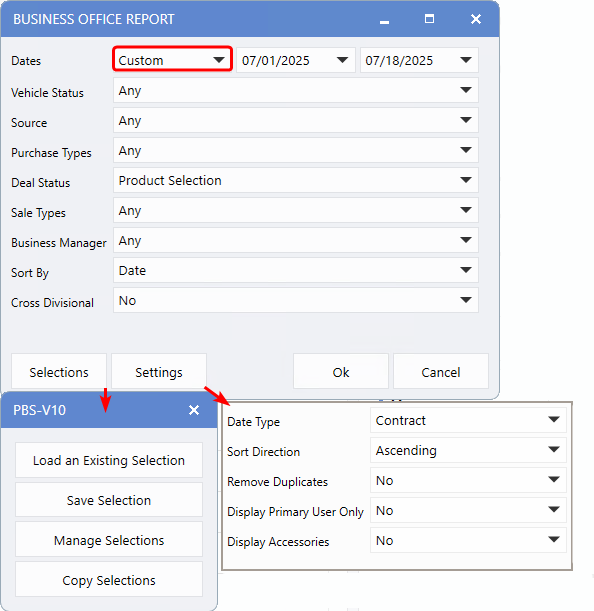
The Criteria window in Sales Reports has been redesigned with a cleaner, more organized layout. Related settings are now logically grouped with clearer labels, making it easier for Users to navigate and configure reports. This update modernizes the V10 experience and aligns the look and feel with other modules.
Key Updates
Reports Affected:
-
Accounting comparision
-
Business Office Report
-
Commission Report
-
Gross Profit
-
Insurance Profit Report
-
Deal Status Report
-
Penetration Report
-
Ranking Report
-
Due Bill
-
Lead Management Report
-
Forms Usage
-
Wishlist
To access these Reports, follow the path:
Sales > Deal > Reports >
Example:
Accounting Comparison Report
Note:
The Accounting Comparison Report requires the Control flag to be enabled. Please contact PBS Support to have this activated.
Example:
Business Office Report
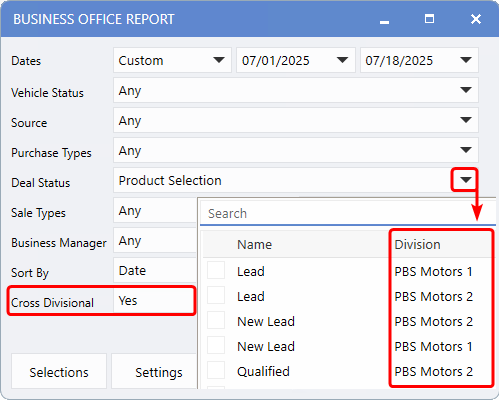
For Divisional Dealerships, setting the Cross Divisional field to 'Yes' adds an extra column showing the Division name in the window.
|