|
10.23 Accounting Additional Features
KB 3252, Release Note, Accounting Development, 10/6/2025
Version 10.23 delivers significant enhancements to core Accounting functions, designed to improve User experience, streamline operations, and strengthen administrative control. These updates remove common workflow bottlenecks while preserving the robust capabilities accounting teams depend on for accurate financial management - introducing more intuitive interfaces, flexible data entry options, and enhanced audit features for greater efficiency and confidence.
General Ledger & Transaction Processing
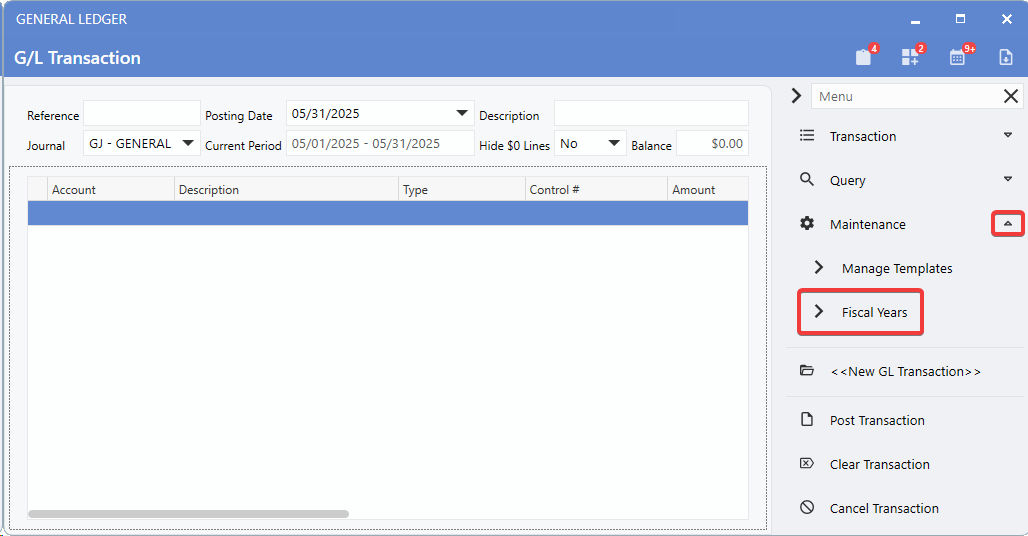
Fiscal Years Menu
Transaction entry screens now feature updated menu terminology for clearer, more intuitive navigation. In all accounting transaction modules,the
right-side menu
label has been changed from Period Maintenance to
Fiscal Years
, ensuring consistent naming that accurately reflects its purpose. This update eliminates confusion, aligns terminology with accounting standards, and makes accessing fiscal year maintenance more straightforward for Users.
To view these changes, follow the path:
-
Accounting > General Ledger > Enter G/L Transaction > Maintenance (right-side menu) > Fiscal Years
-
Accounting > Accounts Payable > Enter A/P Transaction > Maintenance (right-side menu) > Fiscal Years
-
Accounting > Accounts Receivable > Enter A/R Transaction > Maintenance (right-side menu) > Fiscal Years
Auto Fill Control Override
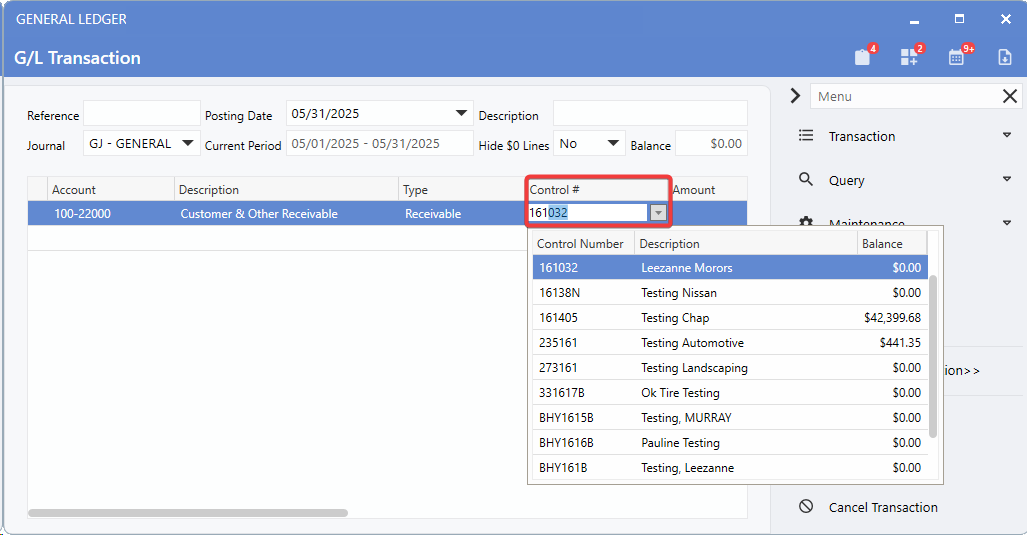
Users now have full control over auto-filled drop-down selections in the
Control Number Field
, with the option to override system suggestions and keep manually entered values. This improvement removes the previous limitation where the system defaulted to the first matching entry, allowing precise selection when multiple similar matches exist. Accounting professionals can now ensure accurate data entry without unwanted system overrides.
To view these changes, follow the path:
-
Accounting > General Ledger > Enter G/L Transaction > Control # Field
-
Accounting > Accounts Payable > Enter A/P Transaction > Control # Field
-
Accounting > Accounts Receivable > Enter A/R Transaction > Control # Field
Cash Control
Smart Client: New User Session Setup
Users with Cash Control Maintenance permissions can now pre-configure sessions for other Users before their first Smart Client login. This enhancement removes the setup burden for new Users, ensures consistent Till configurations across the organization, and allows Administrators to define session settings, tills, and printer setups in advance - so new team members can start working immediately.
To view these changes, follow the path:
Accounting > Cash Control > Maintenance > Session option > Add
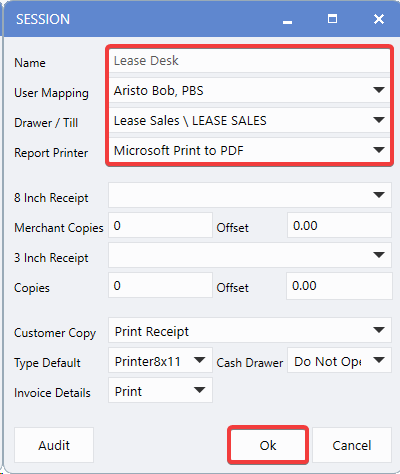
Assigned Users will automatically inherit the
Pre-Configured Session
settings upon their first Smart Client login, bypassing all initial setup prompts.
Cash Control Adjustment Column
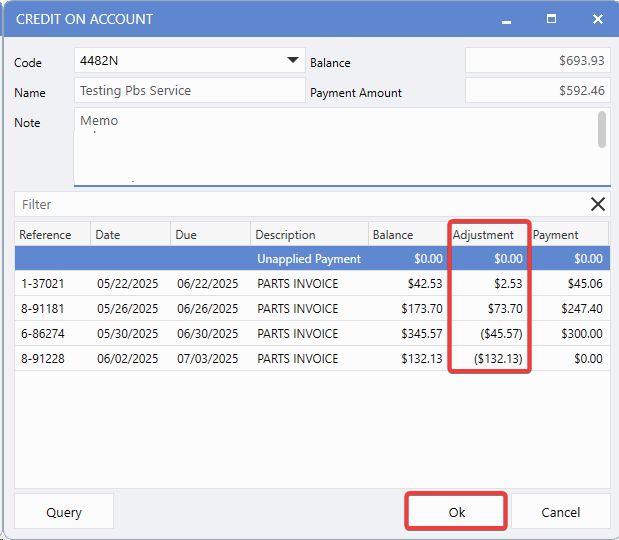
Users can now make both positive and negative adjustments directly in Cash Control with the enhanced
Adjustment
column (previously labeled as Discount). This enhancement eliminates previous sign restrictions on Credit and Debit Invoices, provides flexible adjustment capabilities for all transaction types, and maintains automatic payment calculations, so Users can efficiently manage invoice adjustments without worrying about calculation errors or system limitations.
To view these changes, follow the path:
Cash Control > Credit on Account > Adjustment Column
Accounts Payable
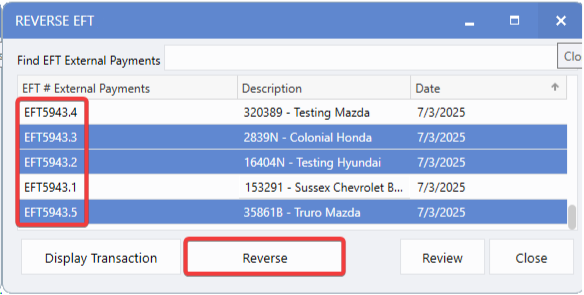
AP EFT Multi-Select Reversal Control
The
Reverse
function for External Payments and EFTs now supports multi-selection, giving Users greater control over payment reversals. Instead of automatically reversing entire files, Users can select specific payments to reverse - reducing the risk of unintended reversals when multiple payment files share the same name.
To view these changes, follow the path:
Accounting > Accounts Payable > Utilities > Reverse EFT/External Payment > Select Payments
Financial Statements
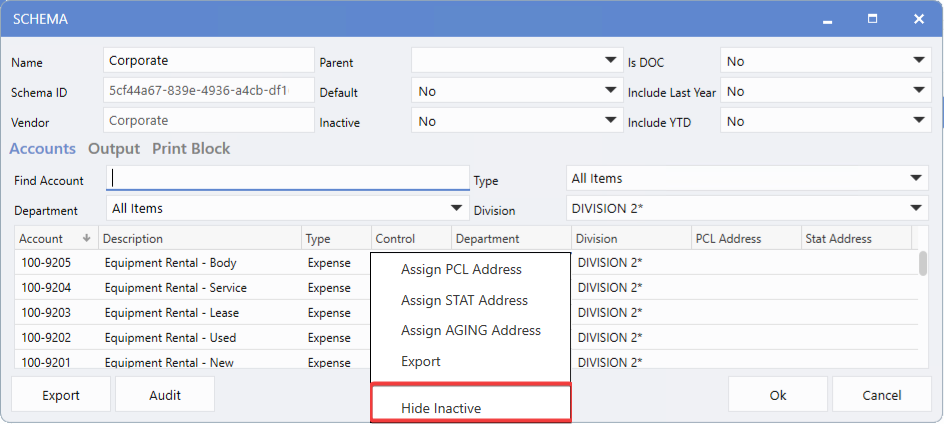
Schema Maintenance: Hide Inactive Accounts
Financial Statement Schema Maintenance now includes a
hide Inactive Accounts
option in the account selection list. This enhancement streamlines Account Mapping by letting Users to focus on Active Accounts, while still allowing full Account visibility when needed for complete Schema management.
To view these changes, follow the path:
Accounting > Financial Statements > Maintenance > Schema List > Account List > Right-click > Hide Inactive
Note:
Your preference is saved across all schemas and future sessions.
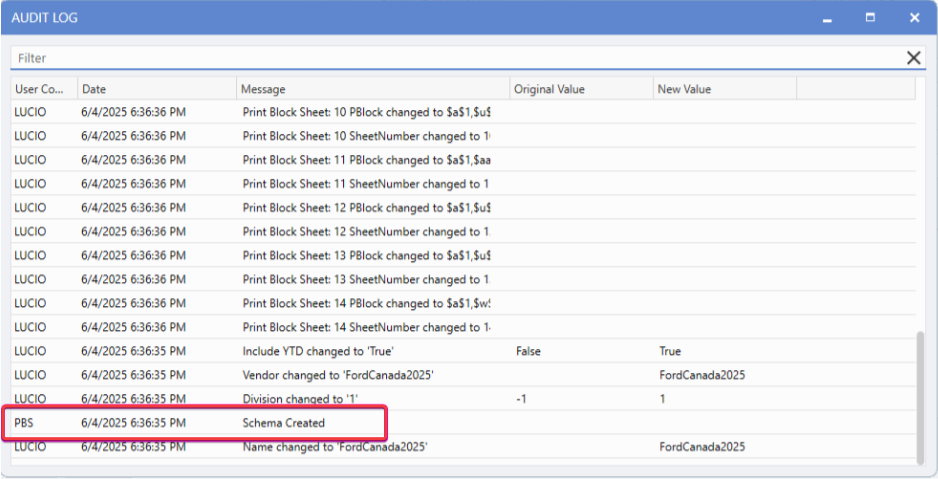
Schema Audit Log
Financial Statement Schema Maintenance now includes full audit logging for all
schema modifications
, providing detailed change records for complete transparency. This enhancement captures User IDs, timestamps, and before/after values for key schema elements, ensuring visibility and accountability.
To view these changes, follow the path:
Accounting > Financial Statements > Maintenance > Schema List > Account List > Audit Log
Tracked Changes Include:
-
Schema Header:
Name, Parent, Default status, Inactive flag, DOC settings, and year inclusion options.
-
Account Mapping:
PCL and Stat address assignments with change notifications.
-
Output Configuration:
Import file settings, country/year selections, and text file parameters.
-
Stat Data Settings:
Sheet numbers and unlocked cell modifications.
-
Print Blocks:
Sheet-specific print block address changes.
Reporting
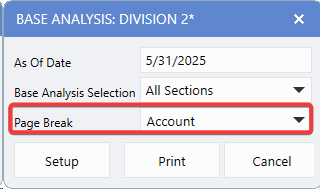
Base Analysis Report: Page Breaks
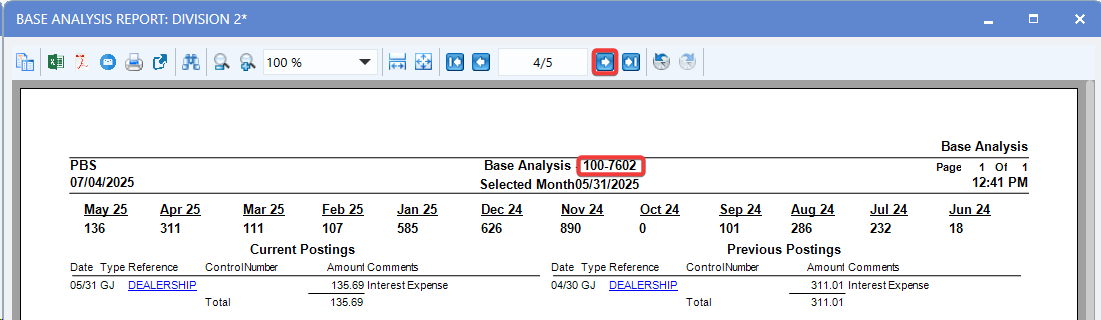
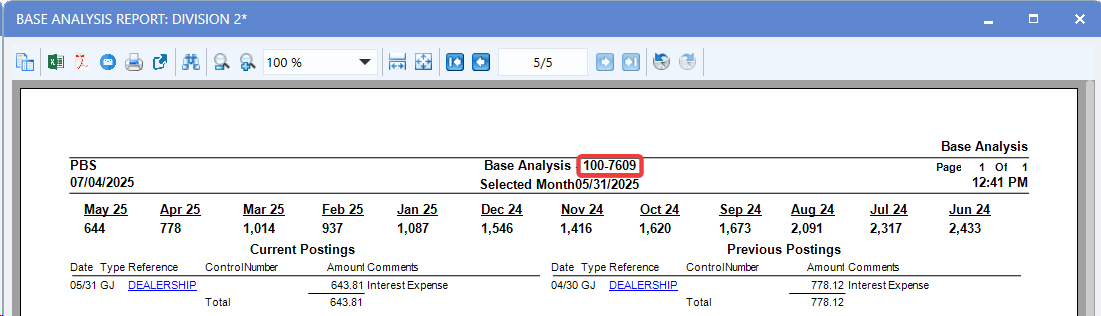
The Base Analysis Report now includes a
Page Break option
giving Users control over how account information is split across pages. This flexibility allows for either consolidated summaries or detailed account-by-account breakdowns, depending on reporting needs.
To view these changes, follow the path:
Accounting > General Ledger > Reports > Analysis Reports > Base Analysis > Page Break
Excel Export with Separate Tabs
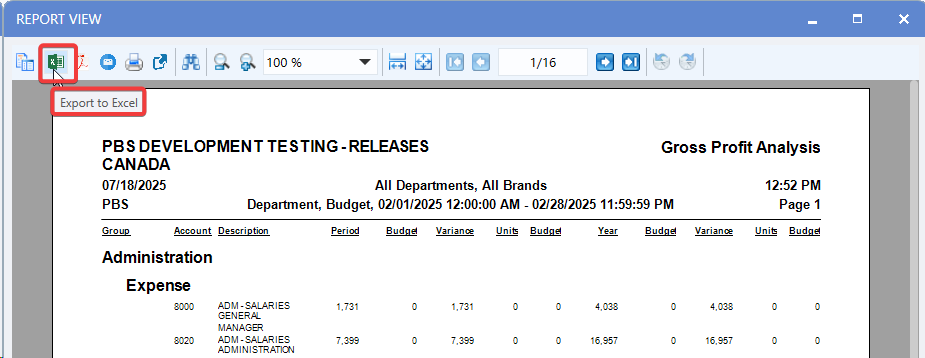
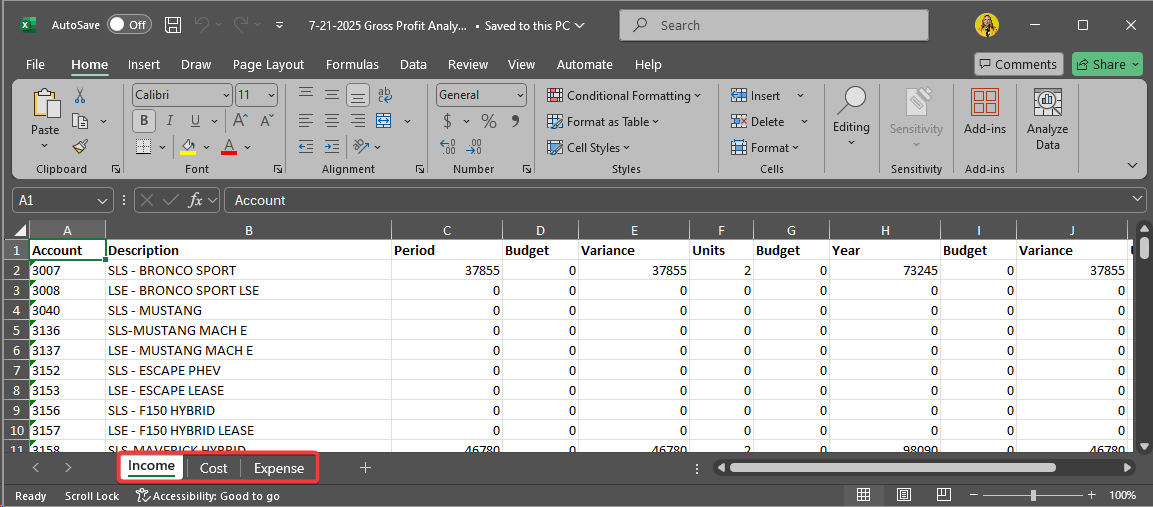
General Ledger reports now export to Excel with separate tabs for each Report Grouping, delivering cleaner organization and easier analysis. This enhancement applies to the Balance Sheet, Income Statement, and Gross Profit Analysis reports, with each data category placed on its own dedicated worksheet.
To view these changes, follow the path:
-
Accounting > General Ledger > Reports > Balance Sheet / Income Statement > Print > Export to Excel
-
Accounting > General Ledger > Reports > Analysis Reports > Gross Profit Analysis > Print > Export to Excel
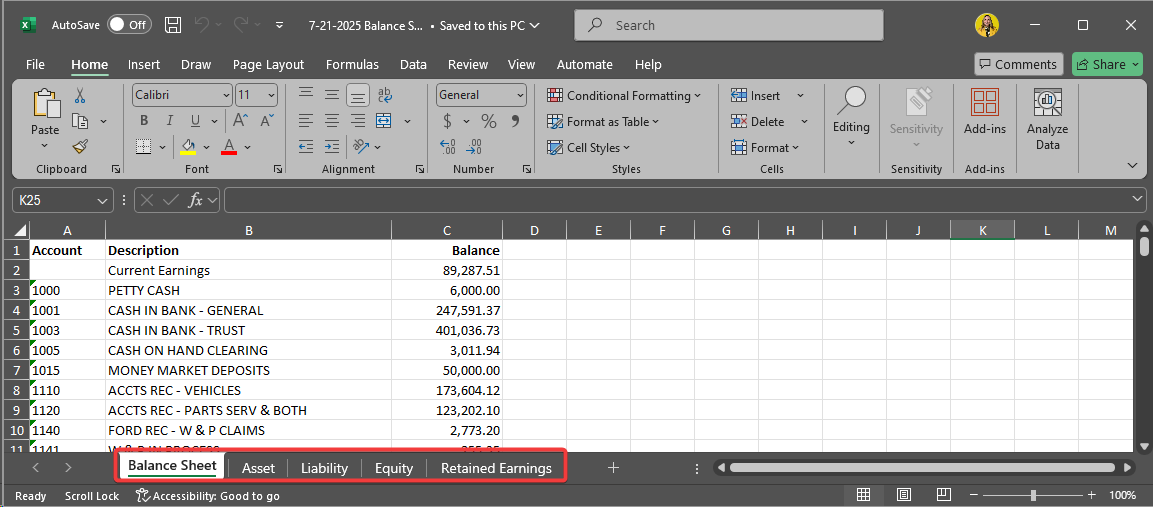
Balance Sheet - Excel Format
-
Summary Tab:
Provides complete balance sheet overview.
-
Separate Tabs:
Dedicated sheets for Assets, Liabilities, Equity, and Retained Earnings.
Income Statement - Excel Format
-
Department Report Type:
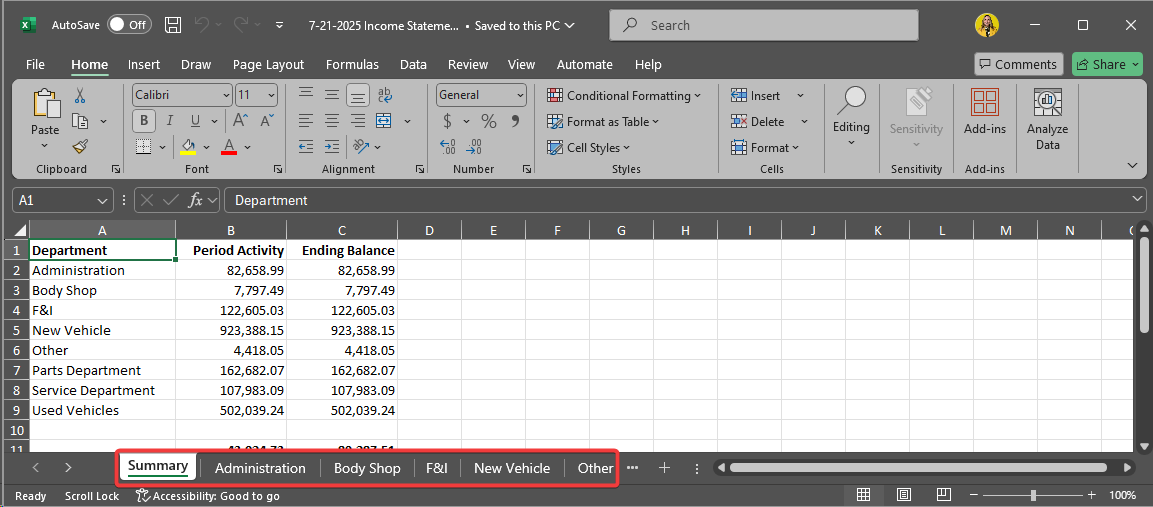
Generates individual tabs for each Department, including an Account Type column and accurate net profit calculations.
-
Account Report Type:
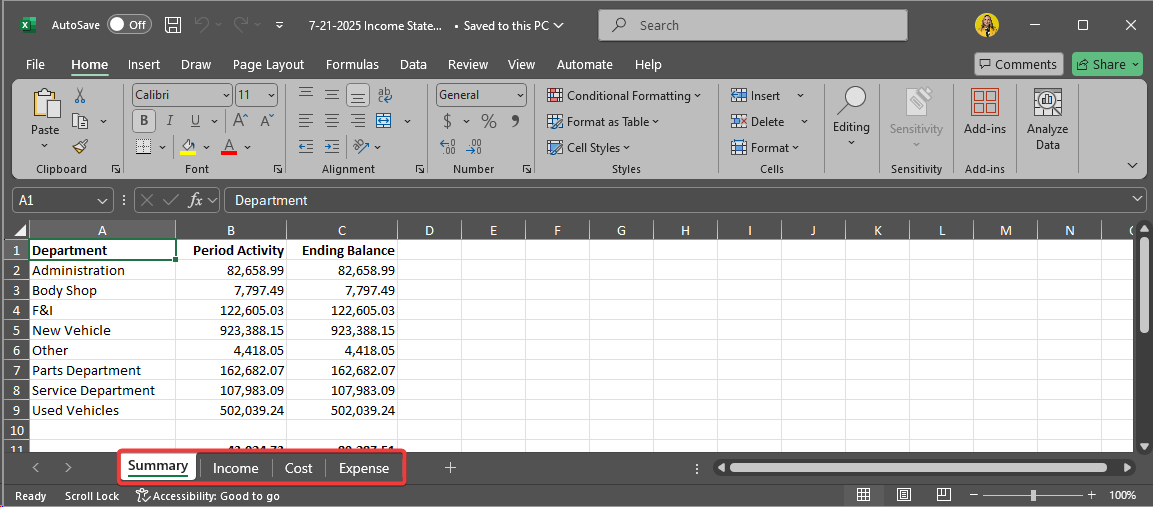
Creates separate tabs for Income, Cost, and Expense account types.
-
Summary Tab:
Displays consolidated totals across all departments.
Account Report Type
Department Report Type
Gross Profit Analysis - Excel Format
-
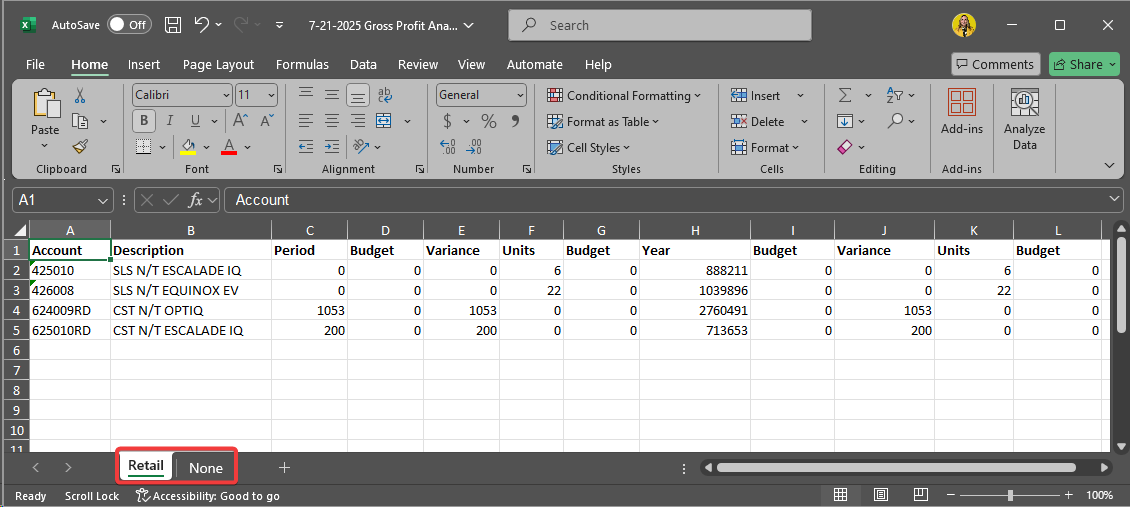
Category Report Type:
Creates individual tabs for each category.
-
Department Report Type:
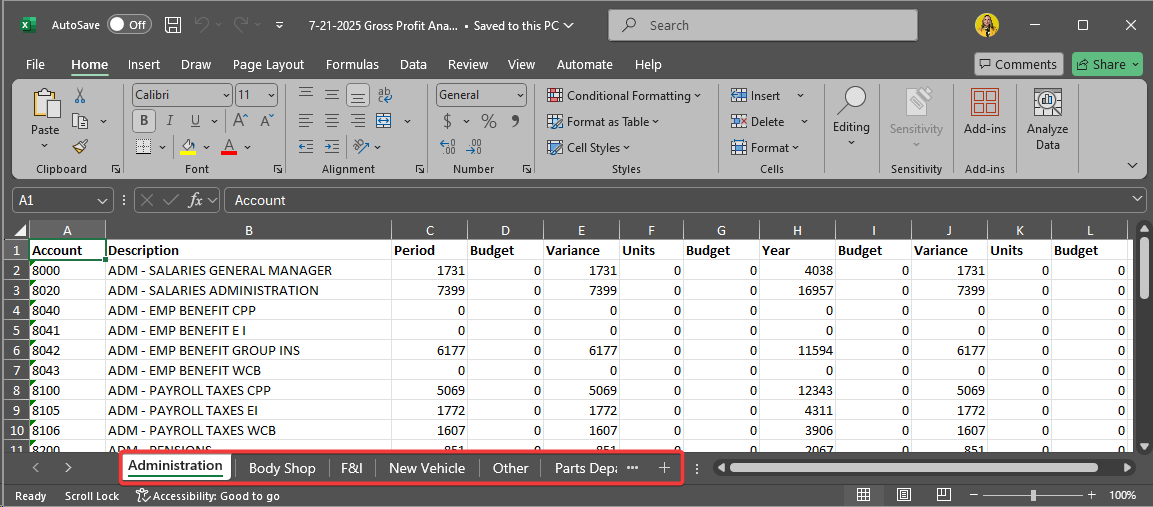
Generates separate tabs for each department, sorted by Account Type.
-
Account Report Type:
Produces individual tabs for Income, Cost, and Expense account types.
Category Report Type
Department Report Type
Account Report Type
|