|
10.23 Service Fees Enhancements
KB 3253, Release Note, Service Development, 9/8/2025
Version 10.23 introduces a powerful enhancement to the Service Fees feature with the addition of a new Percentage fee type in setup options! This gives Dealerships greater flexibility to configure percentage-based fees - ideal for specific scenarios just like Shop Supplies - right alongside traditional flat fees.
Here's what's new:
-
Percentage Fees can now be applied at the Request level for both Parts and Labour.
-
Flat Fees remain applied at the Invoice level, giving you the best of both worlds with even more control and customization.
And there's more!
We've upgraded the entire Service Fee experience with a cleaner, more intuitive layout across related windows. Expect:
-
Newly added columns for greater visibility
-
Enhanced usability for quicker navigation
-
Improved Audit Logs for better tracking and transparency
Managing Service Fees in a Service Order has never been this easy - or efficient.
Explore the full update below!
Service Fee Setups
Maintenance Window
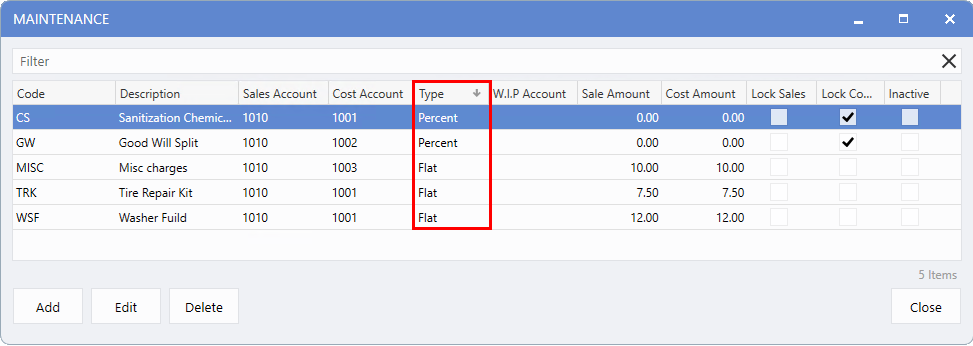
To improve visibility, a new
Type
column is now available through right-click customization on the Service Fee Maintenance screen, allowing Users to quickly distinguish between
Flat
and
Percentage Fees
.
To access this feature, follow the path:
Fixed Ops > Service Order > Maintenance > Advanced Setups > Service Fees
Service Fee Setup Window
From the Maintenance screen, click
Add
to create a new Service Fee or
Edit
to modify an existing one.
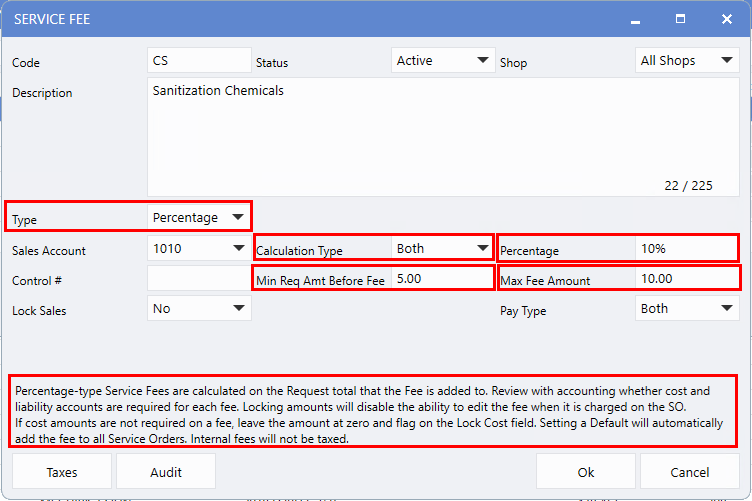
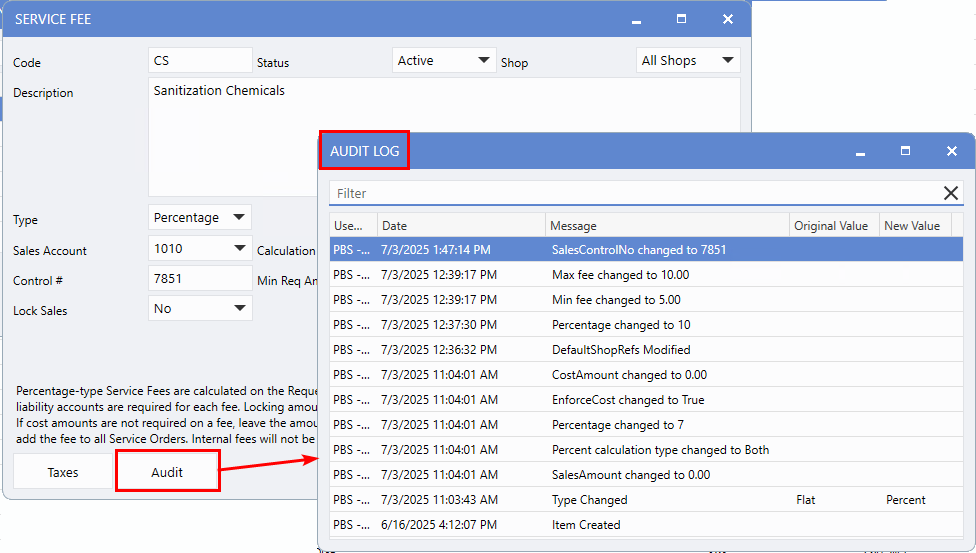
The Service Fee setup window has been redesigned to include a new
Type
field, allowing Users to choose between
Flat
and
Percentage
fee types. Once a type is selected, the setup dynamically displays only the relevant fields for that selection - streamlining the configuration process. To support the new Percentage option, we've also introduced several additional fields specifically tailored for percentage-based fee setup:
-
Calculation Type
: Users can specify whether the fee applies to Parts, Labour, or Both.
-
Percentage
: A percentage value is required (zero is not allowed). Entering zero triggers a warning and prevents the fee from being saved.
-
Min Req Amt Before Fee
: The fee will only apply once the pre-tax request amount meets or exceeds this minimum threshold.
-
Max Fee Amount
: Sets the maximum dollar amount the fee can be applied to.
Note
: If both Min and Max are set to zero, the fee is treated as having no threshold. If the fee is locked, then the percentage amount set up will apply.
The
disclaimer
at the bottom offers helpful guidance for setting up Percentage type fees, ensuring Users configure them accurately.
The following fields function the same as with a Flat Fee:
-
Lock Sales
: When enabled, Users cannot edit the fee Sales amount. When disabled, Users can adjust the Sales amount within the defined Min and Max range.
-
Pay Type
: Determines whether the fee applies to Customer, Internal, or Both.
-
Shops
: If the fees apply to all shops, this field will display 'All Shops'.
-
Description
: This field has been updated with a character limit. If the entered text exceeds this limit, a warning message will appear.
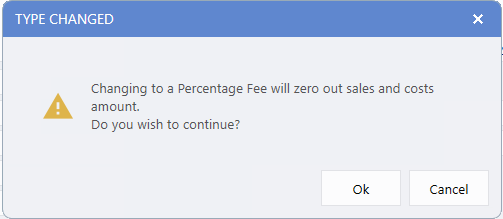
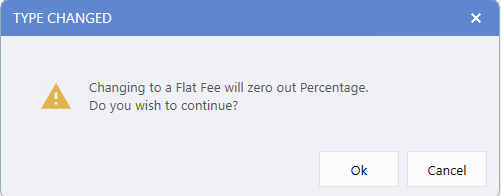
Fee Type Switching Behaviour:
Service Fee Audit Log
The Audit Log window has been enhanced to offer improved visibility into changes made within Service Fee setups. Users can now easily track updates to the following:
This improves accuracy and simplifies monitoring of Service Fee adjustments.
Op Code Maintenance - New Service Fee Columns
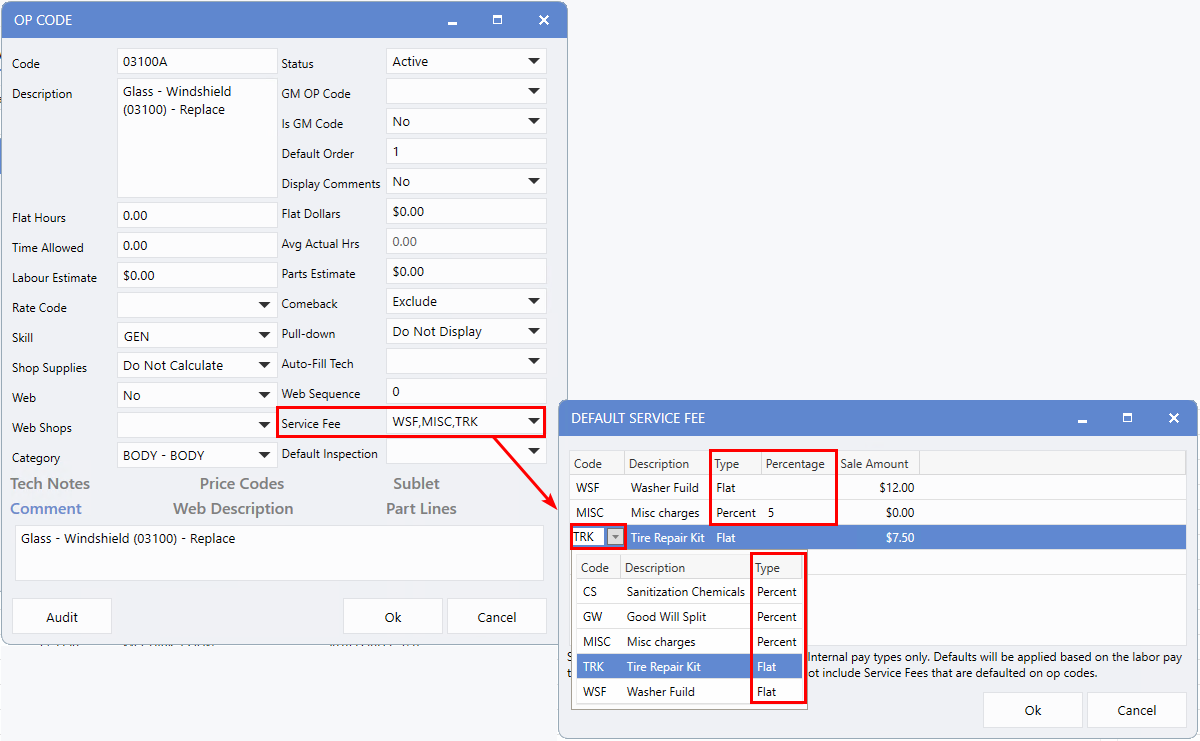
The introduction of the Percentage fee type enhances Op Code setup flexibility, allowing for more tailored Service Fee configurations.
To support this update, two new columns have been added to the Default Service Fee window:
Additionally, the
Code
drop-down now includes the
fee type
for greater clarity and ease of selection.
To access this feature, follow the path:
Fixed Ops > Service Order > Maintenance > Service Setups > OP Codes
Service Order
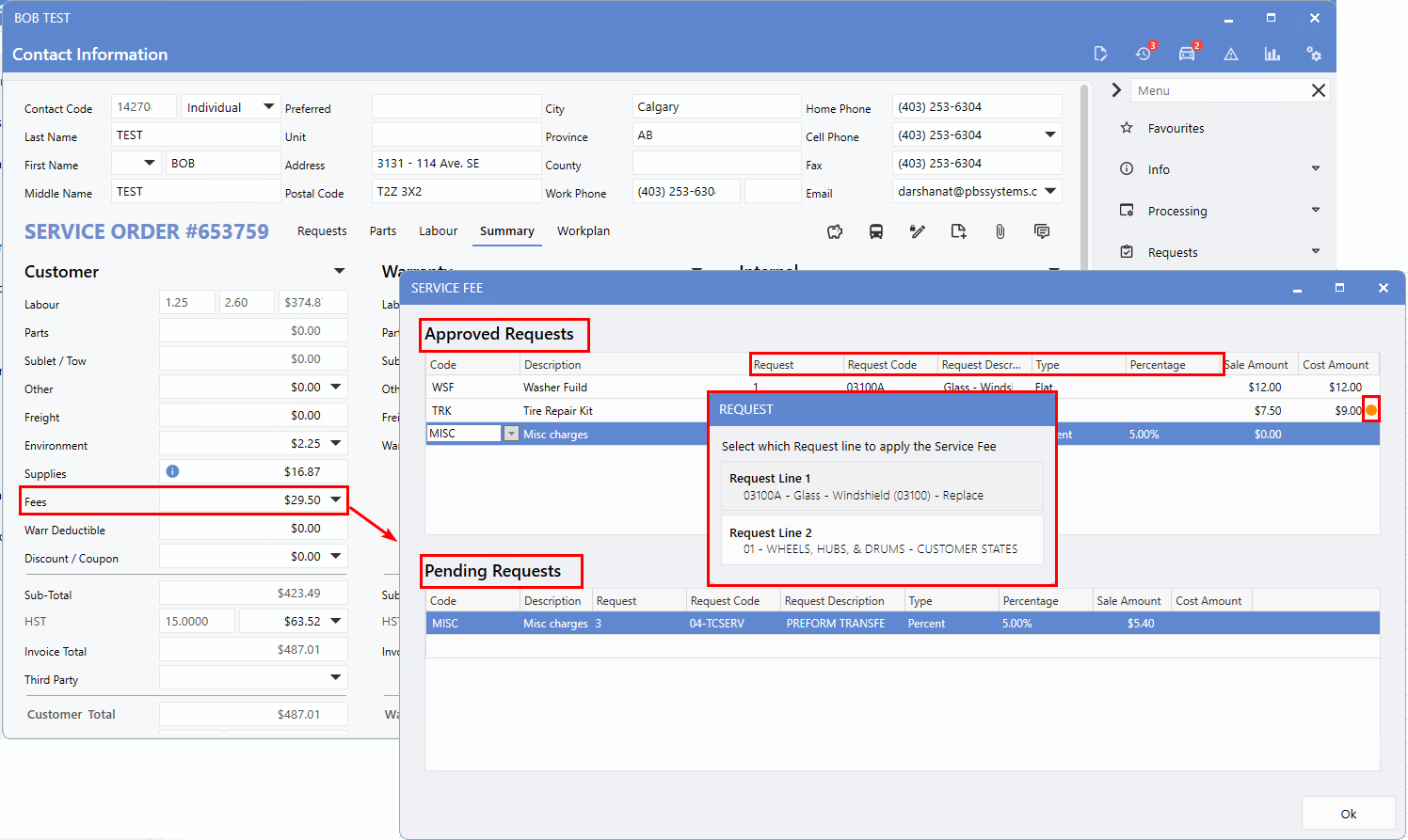
Let's review a Service Order to see the updates.
Note:
Flat Fees apply to the entire Service Order, while Percentage Fees are calculated based on the total amount shown on the Request line.
Updated Service Fees Window - Split View for Better Visibility and Control
When accessing the Service Fees window, Users will now see a split layout:
This design makes it easier to review, manage, and apply Service Fees efficiently. The same view appears for both Customer and Internal portions of the Service Order.
Enhanced Column Visibility
Additional columns have been added for improved clarity, giving:
When a fee amount is manually changed, an
orange indicator
appears to highlight the modification. Hovering over it reveals a brief explanation, noting that a manual override has been applied.
Approved Requests Section
Only Approved Request lines are available in this section.
Pending Requests Section
This section displays only Pending Requests from the Service Order. If no Pending lines are present, the section will appear in a read-only state. Deferred and Declined requests are excluded from this view for clarity and focus.
Service Order Audit Log - Expanded Information
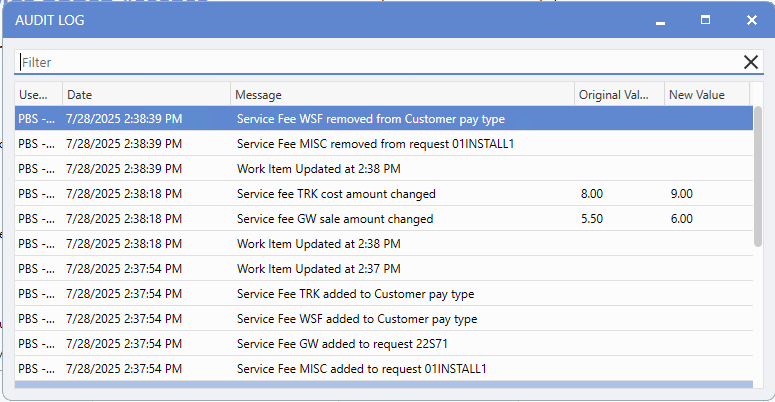
We've enhanced the Service Order Audit Log to deliver comprehensive tracking of all Service Fee changes. It now tracks all additions, removals, and changes to Sales and Cost amounts, as well as which Op Code and Pay Type Service Fees were added or removed - capturing every update whenever the Service Order is saved.
To access this feature, follow the path:
Service Order > Info (Right menu) > Audit Log
Fixed Ops Control File
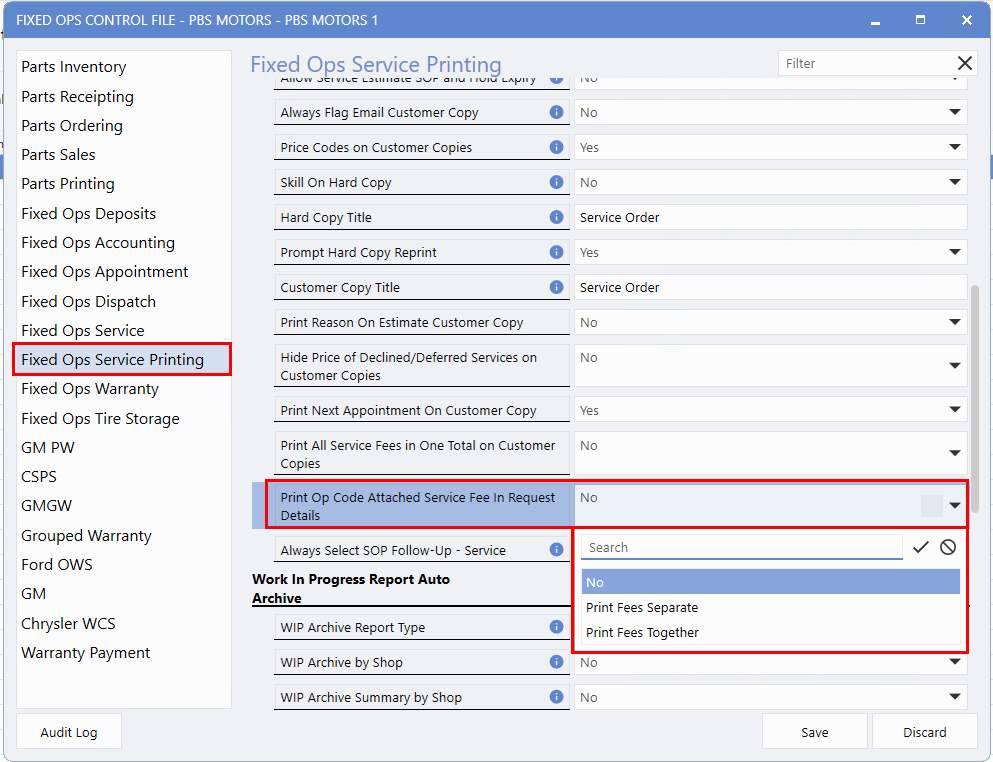
The
Print Op Code Attached Service Fee In Request Details
setting in the Fixed Ops Control File has been updated. Dealerships can now choose whether to print the op code linked to the Service Fee within the Request Details, print fees separately, or print together - offering greater flexibility in reporting.
To access this feature, follow the path:
System > Maintenance > Fixed Ops Control File > Fixed Ops Service Printing > Print Op Code Attached Service Fee In Request Details
|