|
10.23 Enhanced Vehicle Pricing
KB 3257, Release Note, Sales Development, 4/7/2026
Win your customers' trust with more transparent pricing, made possible with Version 10.23!
This update gives Dealerships greater flexibility and control over how Fees are displayed, ensuring clear, consistent presentation across key Sales documents. It also supports compliance with disclosure regulations such as AMVIC and OMVIC.
A new Disclosure field has been added to guarantee that accurate, standardized wording appears in the footer of applicable documents - helping you maintain regulatory alignment with ease.
The enhanced pricing system simplifies your workflow while improving transparency in Vehicle pricing. It's now easier than ever to keep your customers fully informed about every aspect of their purchase!
Deal Fees to include/exclude in the Vehicle File
Setups
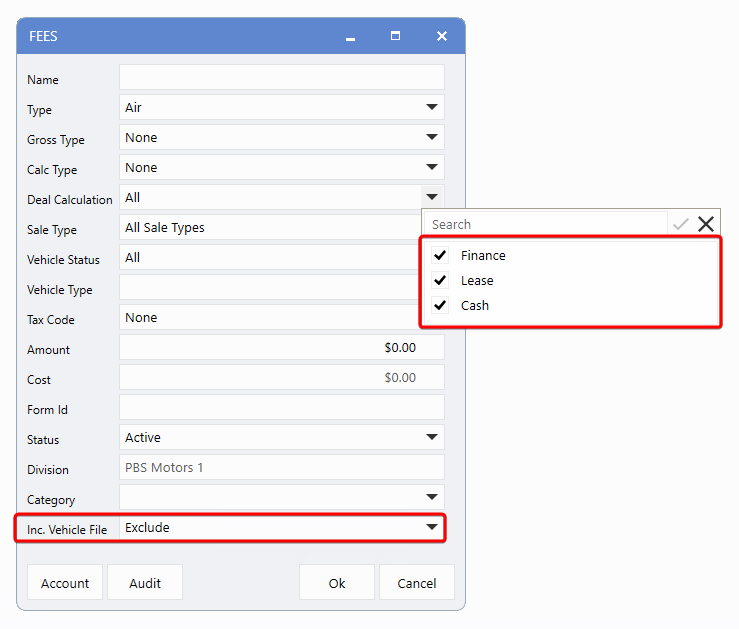
The Fees settings window now features a new field called,
Inc. Vehicle File
, allowing Users to specify whether a Fee should be
Included
or
Excluded
from a disclosure. By
default
, this setting is set to
Exclude
.
If
Include
is selected, all three Deal Calculation types - Finance, Lease, and Cash - must also be selected to ensure proper disclosure.
Note
: In the Vehicle file, fees will only appear based on the assigned Vehicle Status and Vehicle Type. For example, if a Fee is configured for Used status, it will only be displayed when the Vehicle Status is set to Used.
To access this feature, follow the path:
Sales > Deal > Maintenance > Deal Setups > Fees
Fees Maintenance Window
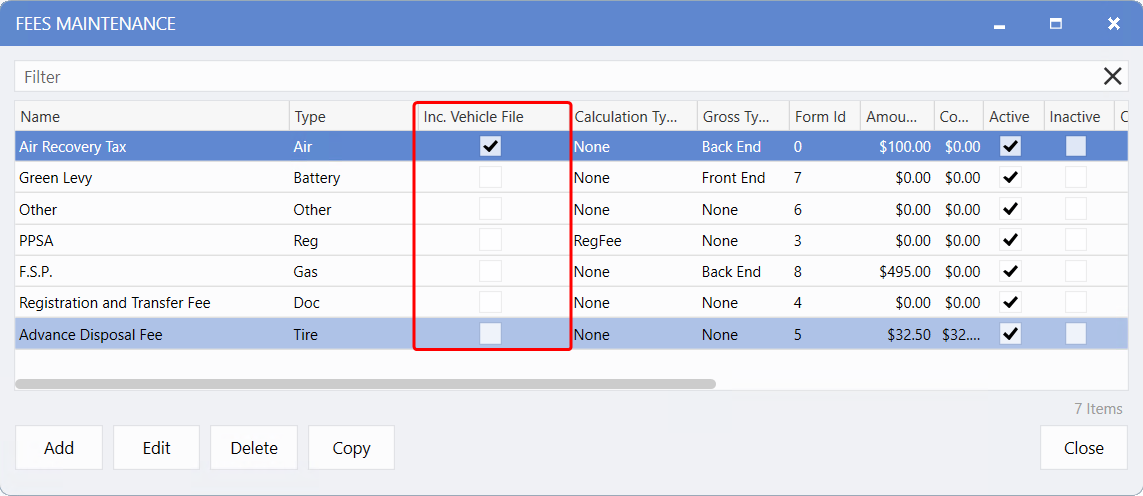
A new column has been added to the Fees Maintenance window, allowing Users to easily see which Fees are
Included
or
Excluded
from the Vehicle File.
To enable this column, simply
right-click
anywhere in the window, select Customize, and add
Inc. Vehicle File
from the list of available columns.
New Permission - Modify Vehicle Fees
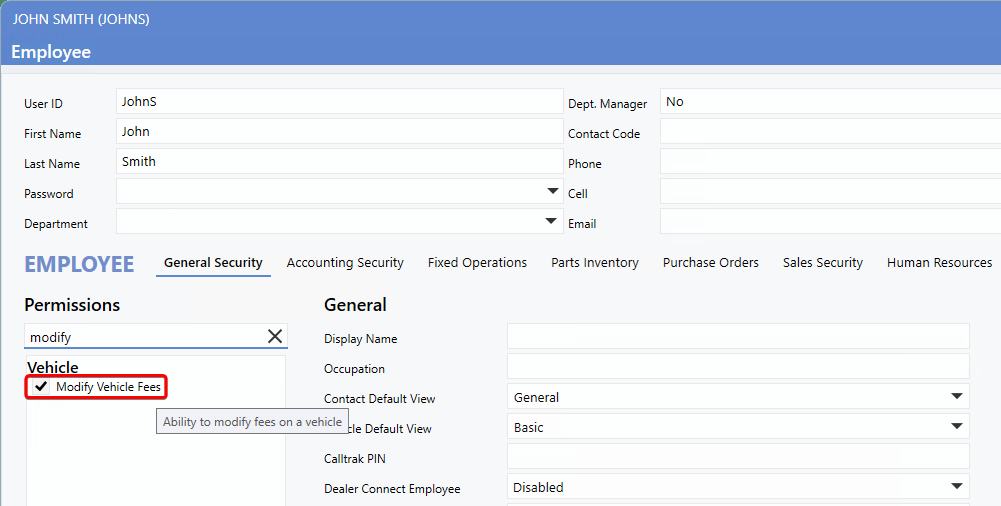
A new permission setting has been added to User Maintenance, allowing Dealerships to control which Users can modify Vehicle Fees.
Note:
After updating to version 10.23, any User with the existing
Modify Fees
permission (found under the
Sales Security tab
) will automatically be granted the new
Modify Vehicle Fees
permission.
To access this feature, follow the path:
Employee > User Maintenance > Users > Select User > General Security > Vehicle Section > Modify Vehicle Fees
Vehicle File
New Fields
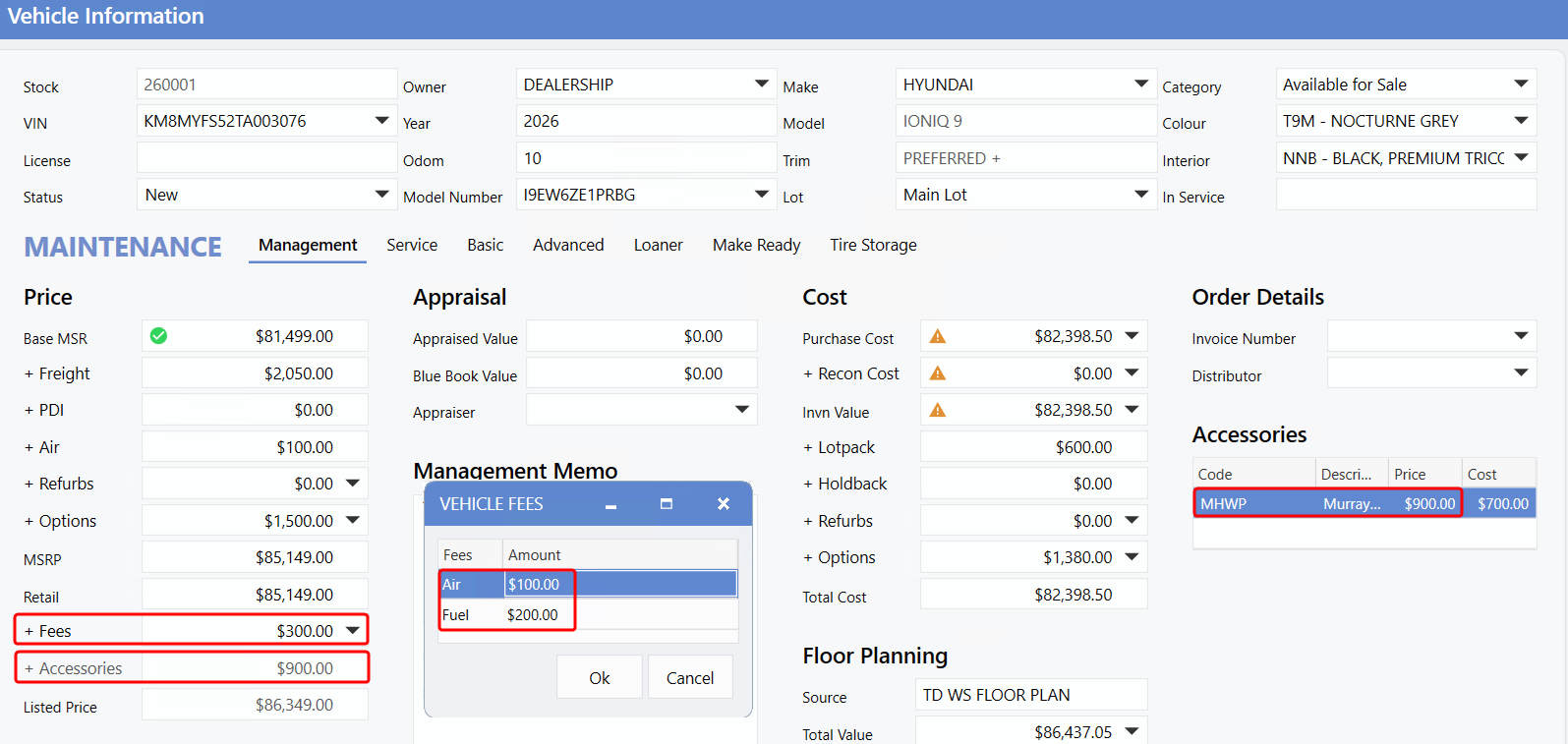
The Vehicle file has been updated to improve pricing transparency. The
Management tab
now displays the
Fees, Accessories
, and
Listed Price
fields at the bottom of the Price section, making it easier to identify registered Vehicle Fees and quick spot any discrepancies or missing charges.
To access this feature, follow the path:
System > Vehicles > Create/Find Vehicle > Management Tab
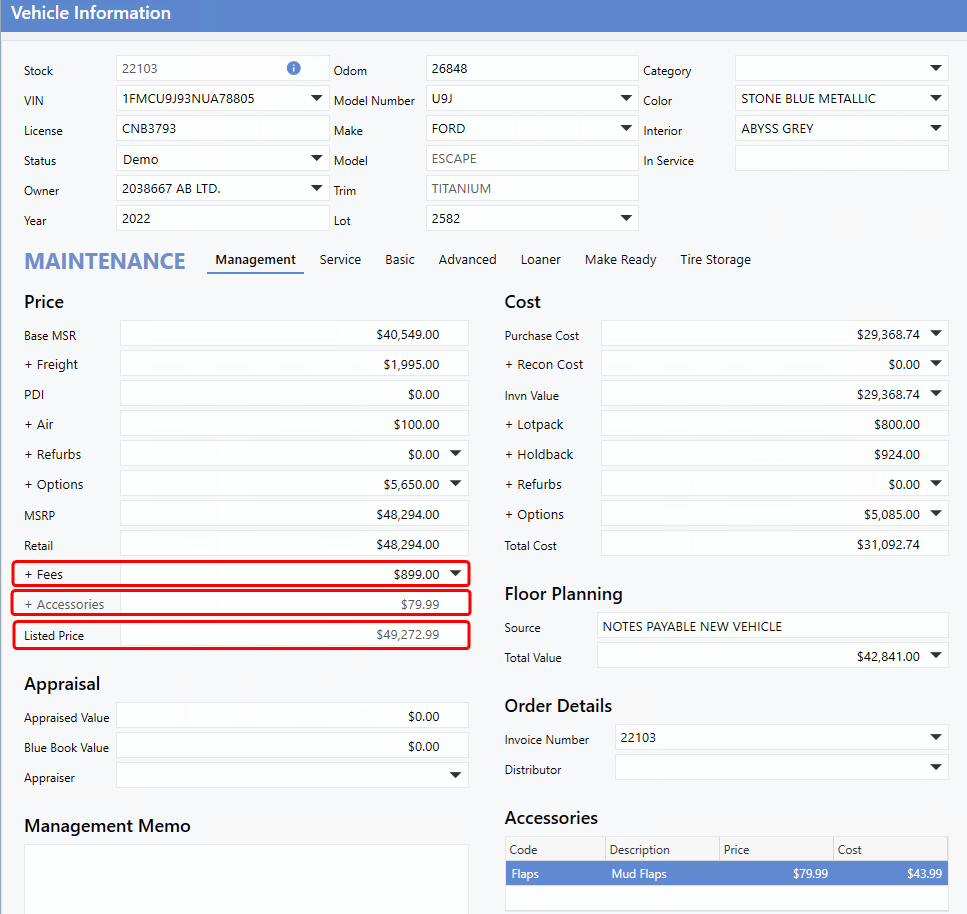
Accessories are still added as before; however, a new field now summaries their value in the
Price
section - contributing to a more accurate
Listed Price
.
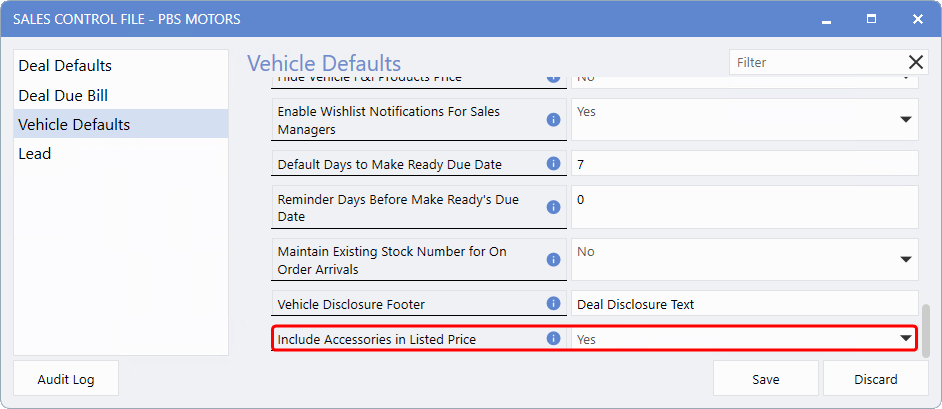
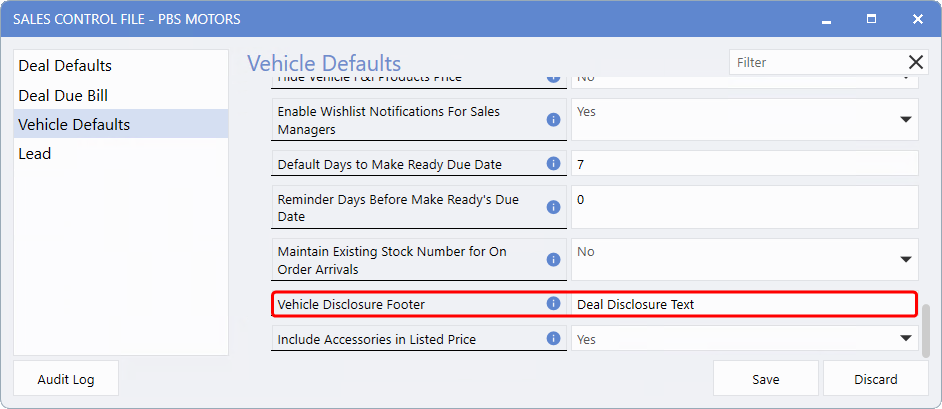
To activate this feature, ensure the
Include Accessories in Listed Price
option is set to
Yes
in the
Sales Control File
.
To access this feature, follow the path:
System > Maintenance > Sales Control File > Vehicle Defaults
Internet Marketing Price
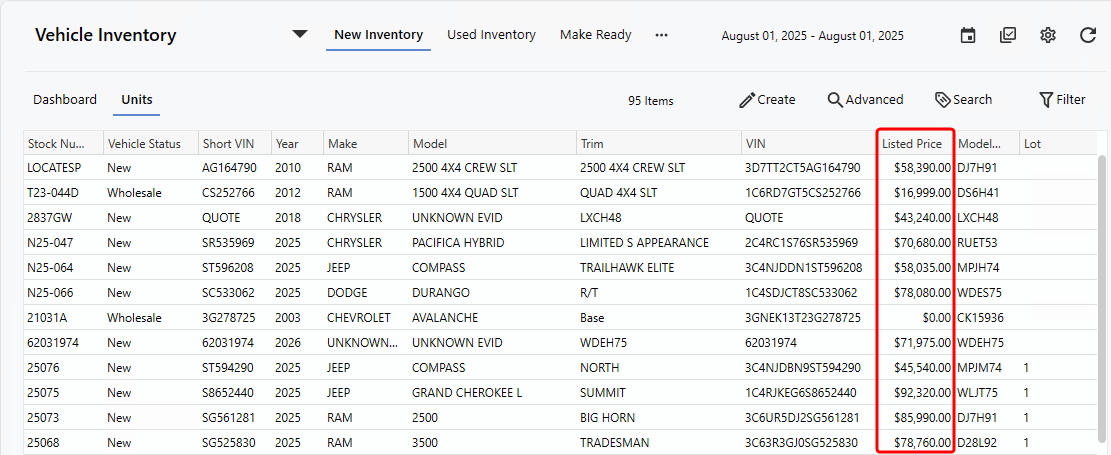
The
Inventory Dashboard
has been enhanced to support visibility of the
Listed Price
. Users can now right-click within the Dashboard, select
Customize
, and add the Listed Price column for quick access.
Vehicle Arrival Fee Setup
Note
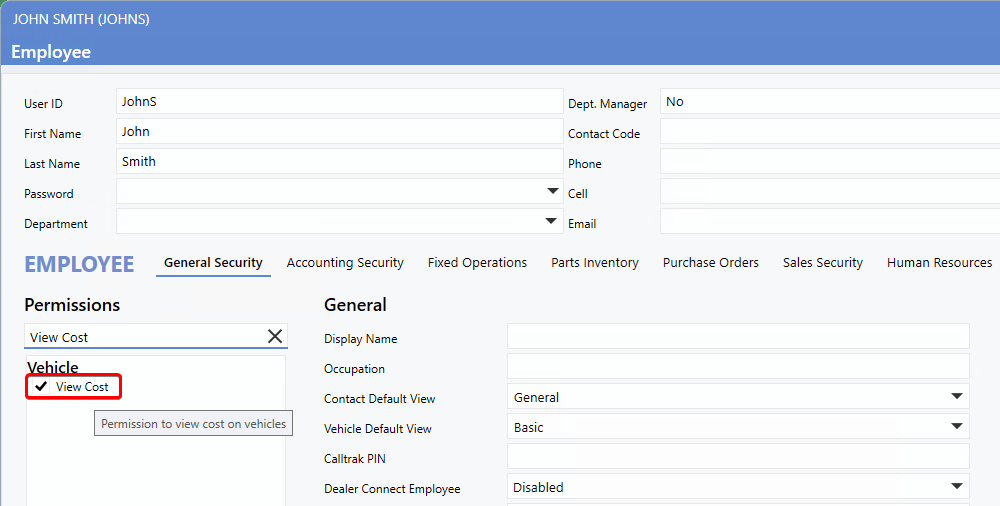
: To view Fee
Cost
, Users must have the
View Cost
permission enabled under the
General Security
tab in the User record.
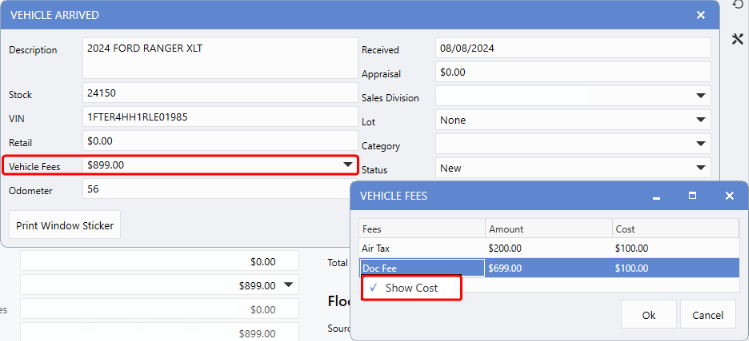
To access Fees in the Vehicle file, open the
Arrive Vehicle
window. Click the black arrow in the new
Vehicle Fees
field and select the applicable Fee(s).
Both the
Amount
and
Cost
can be modified from the Vehicle Fees window or directly within the Vehicle file once the Vehicle is marked as Arrived. As with other Cost-related views, you can right-click to Show/Hide Cost as needed.
Deal
View Fees & Accessories
When a Deal is created for a Vehicle with associated Fees and/or Accessories, all relevant details are automatically pulled from the Vehicle File. This ensures accuracy and eliminates the need for manual data entry, saving time and reducing errors.
Example
In the example below, the Vehicle File shows
Air
and
Fuel
fees totaling
$300.00
in the
Fees field
, with an additional
$900.00
coming from
Accessories
.
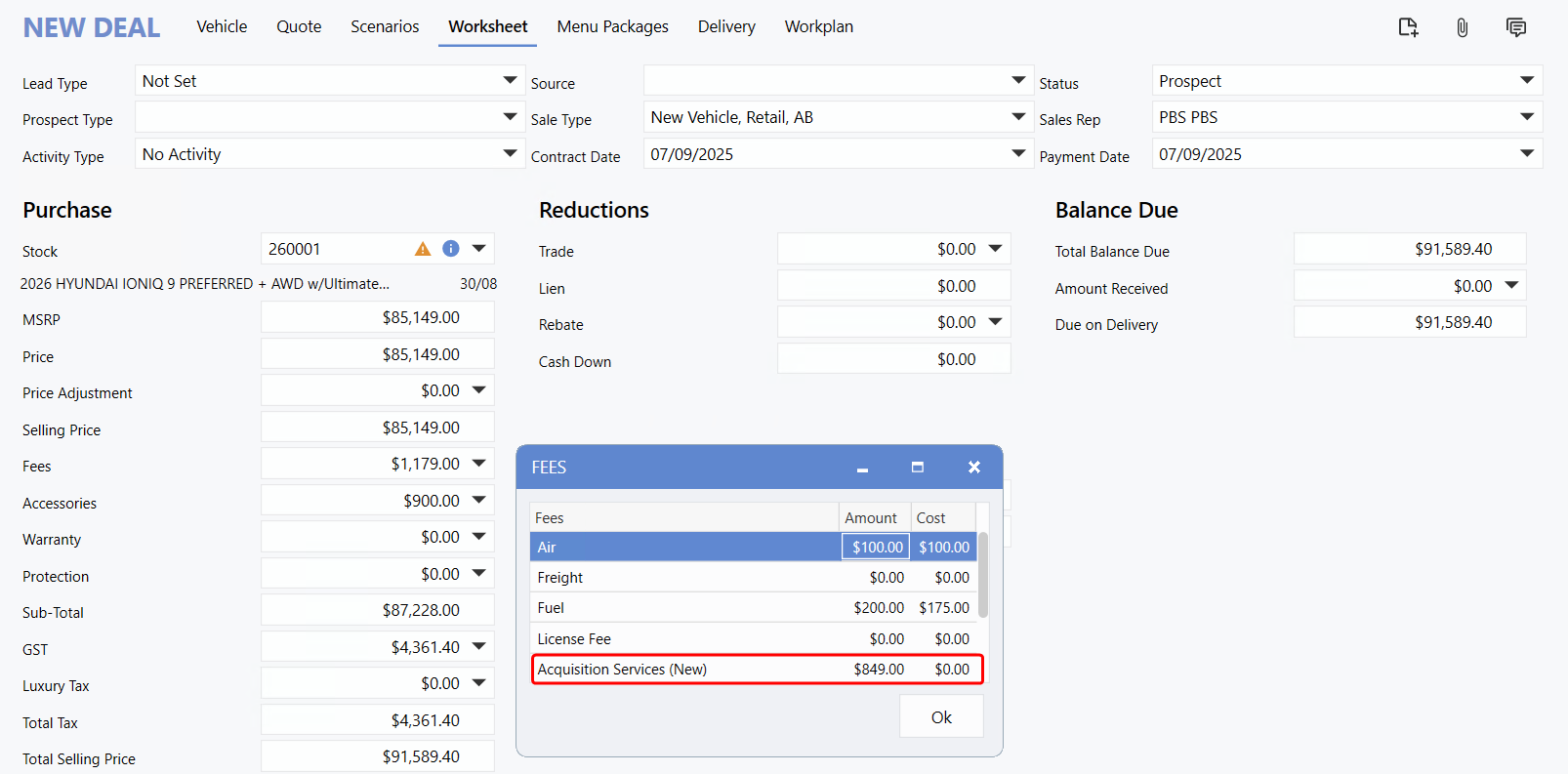
The Deal automatically displays the Air and Fuel Fees, along with the Accessory charge, as transferred from the Vehicle file. However, the Acquisition Services Fee of $849.00 is pulled from the
Deal Fees
instead.
This is because it is marked as "Excluded" in the Incl. Vehicle File" field within the Fee settings window.
Vehicle Disclosure Footer
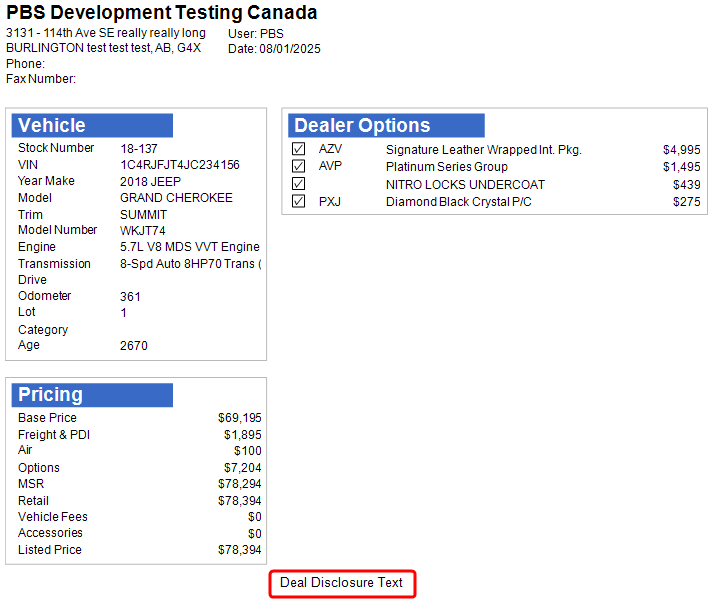
Dealerships can now add custom footer text to the Vehicle Disclosure through the Vehicle Defaults section in the Sales Control File. This free-text field - similar to the one used for Deal Disclosure - allows for tailored messaging or disclaimers to support better communication and regulatory compliance.
The Vehicle Disclosure footer will appear at the bottom of the following reports:
To access this feature, follow the path:
System > Maintenance > Sales Control File > Vehicle Defaults > Vehicle Disclosure Footer
Example:
The example below shows the Vehicle Disclosure Footer displayed on the
Basic Vehicle Report.
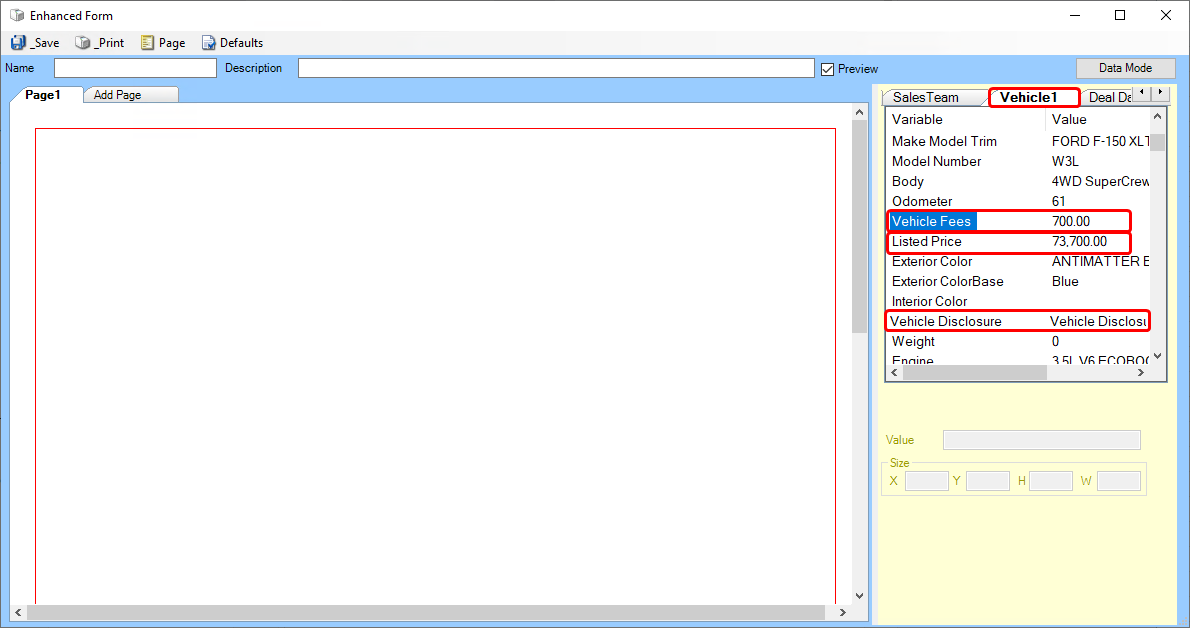
The
Custom Forms
feature has been updated to support new fields, including
Vehicle Disclosure,
Listed Price
, and
Vehicle Fees.
To access this feature, follow the path:
Deal > Right-hand menu > Custom Forms
|