|
10.23 Product Profit Report
KB 3275, Release Note, Sales Development, 1/5/2026
Version 10.23 introduces the new Product Profit Report - a powerful tool designed to give Users detailed visibility into revenue and gross profit across product categories. This report enables authorized Users to analyze profit trends, assess deal performance, and make informed data-driven decisions.
It offers a clear high-level view of gross profit by product and deal, with flexible filtering options tailored for different roles such as Sales Reps, Sales Managers, and Business Managers.
With its intuitive design and robust insights, the Product Profit Report makes it easy to track and report on sold products - highlighting exactly where gross is being captured at both the individual organizational level.
Upgrade to 10.23 to unlock the full potential of Product Profit Reporting and elevate your performance analysis.
Criteria Window
Accessing the Product Profit Report
Users can access the
Product Profit Report
from the left-hand navigation menu.
Note:
Access is limited to Users with
Gross Access
permission.
Follow the path:
Sales > Deal > Reports > Product Profits
Using the Report
Upon opening the Product Profit report, Users will:
1.
Be prompted to select a division (if applicable).
2.
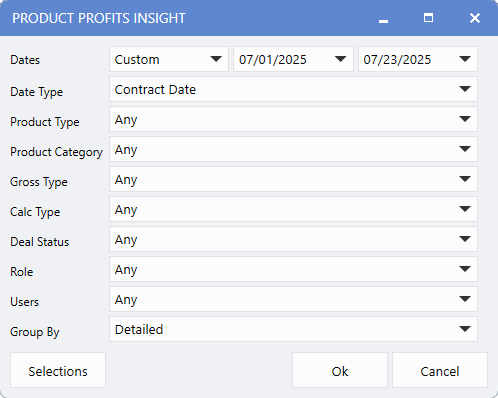
Proceed to the criteria screen, where report filters can be customized.
Criteria Window Fields
-
Date Type:
Select the type of Date by which to run the report.
-
Product Type:
Choose one or more Product Types to include. If left blank, all types will be included by default.
-
Product Categories:
Select one or more Categories to filter which products appear in the report.
-
Gross Type:
Include one or more Gross Types in the results.
-
Calc Type:
Choose one or more Calculation Types to include.
-
Deal Status:
Filter by one or more Deal Statuses (includes all sold status and above).
-
User Role:
Select one or more User Roles to include in the report.
-
Users:
Choose one or more Users from the list generated based on the selected
User Roles
.
-
Group By:
Define how the report is grouped. The default is "Detailed View", but this can be changed after the report is generated using the dropdown in the top-left corner.
-
Selections:
Use the Selections button at the bottom to be Load, Save, Manage, or Copy your save criteria sets.
Report View
The main report view highlights key details for sold items, including
Gross Type, Gross Amount, and Product Type
across the top columns. This layout offers a clear, high-level snapshot of revenue sources, enabling Users to quickly identify where gross profit is being generated.
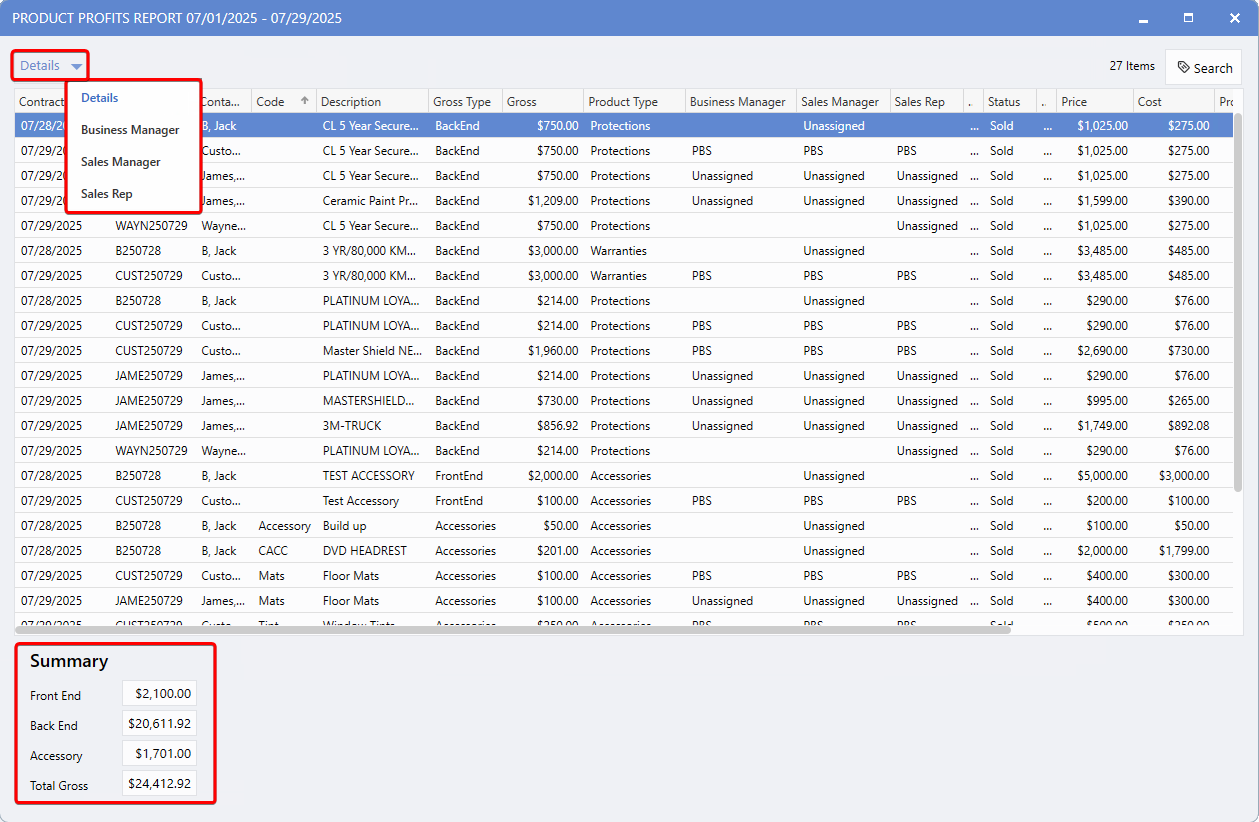
A
View selector
is available via the drop down arrow at the top-left corner of the report, allowing Users to switch between different view modes.
Available Views:
Displays item-level information for each sale, including customer, product, employee, and pricing details. This view offers a comprehensive breakdown of individual transactions.
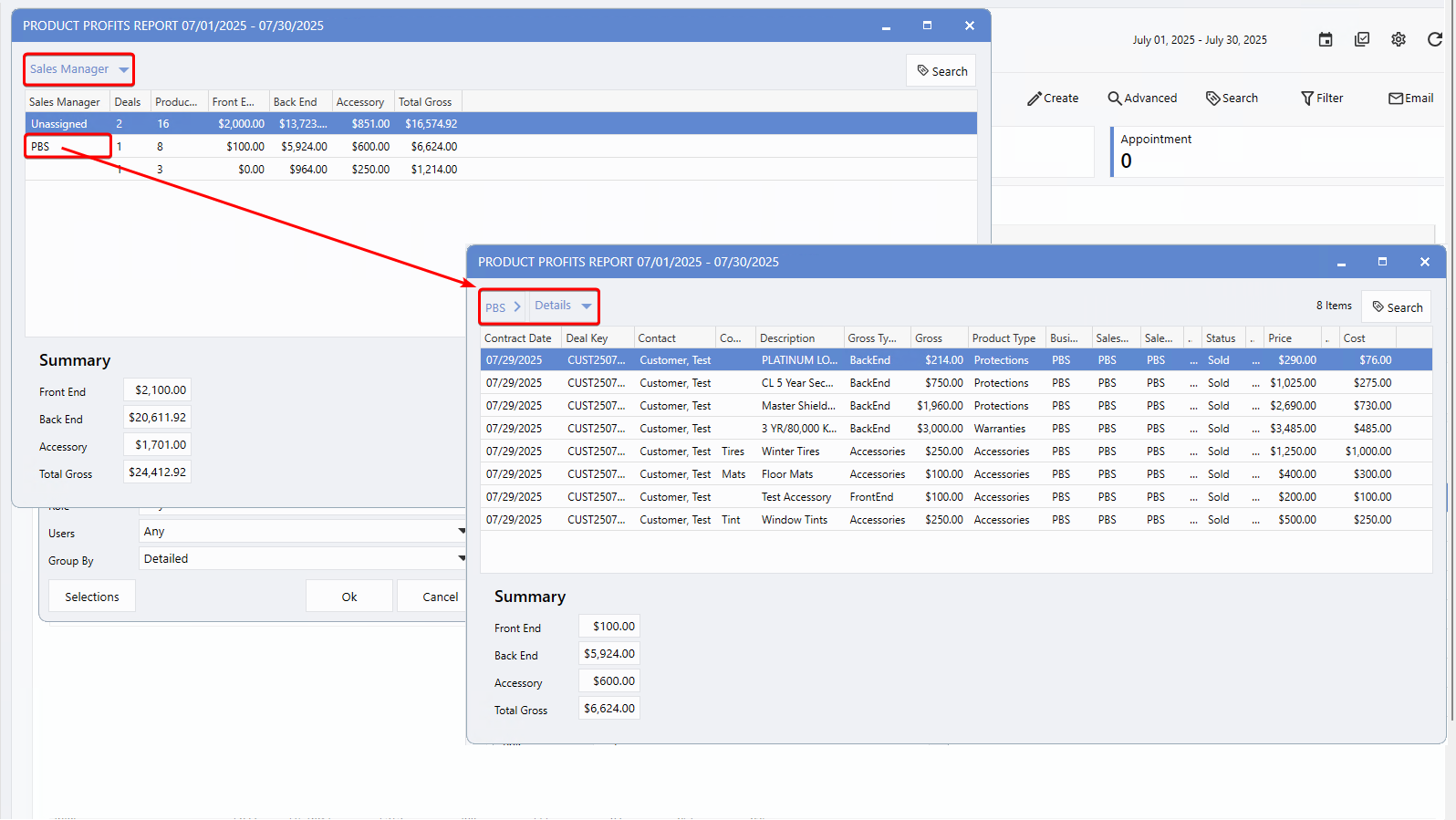
These views provide high-level summaries grouped by User Role, showing total figures for all employees under the selected role. Each row represents a specific User, along with their associated Gross Type amounts.
-
Clicking on a User's name drills down into all deals linked to that individual.
-
Users can also click on individual rows to view detailed deal-level information.
-
A summary section at the bottom of these views displays cumulative totals across all included Users.
Summary Section
At the bottom of the report, a Summary Section displays total gross figures for:
-
Front End
-
Back End
-
Accessories
-
Overall Gross
These totals reflect the sum of each gross type based on the current view, updating dynamically when switching views or drilling into a specific User's data.
This feature provides a quick snapshot of overall performance, enabling Users to easily spot trends and make informed decisions without needing to review the entire report in detail.
The Summary Section automatically recalculates based on the selected report view or when drilling into an individual User's deals.
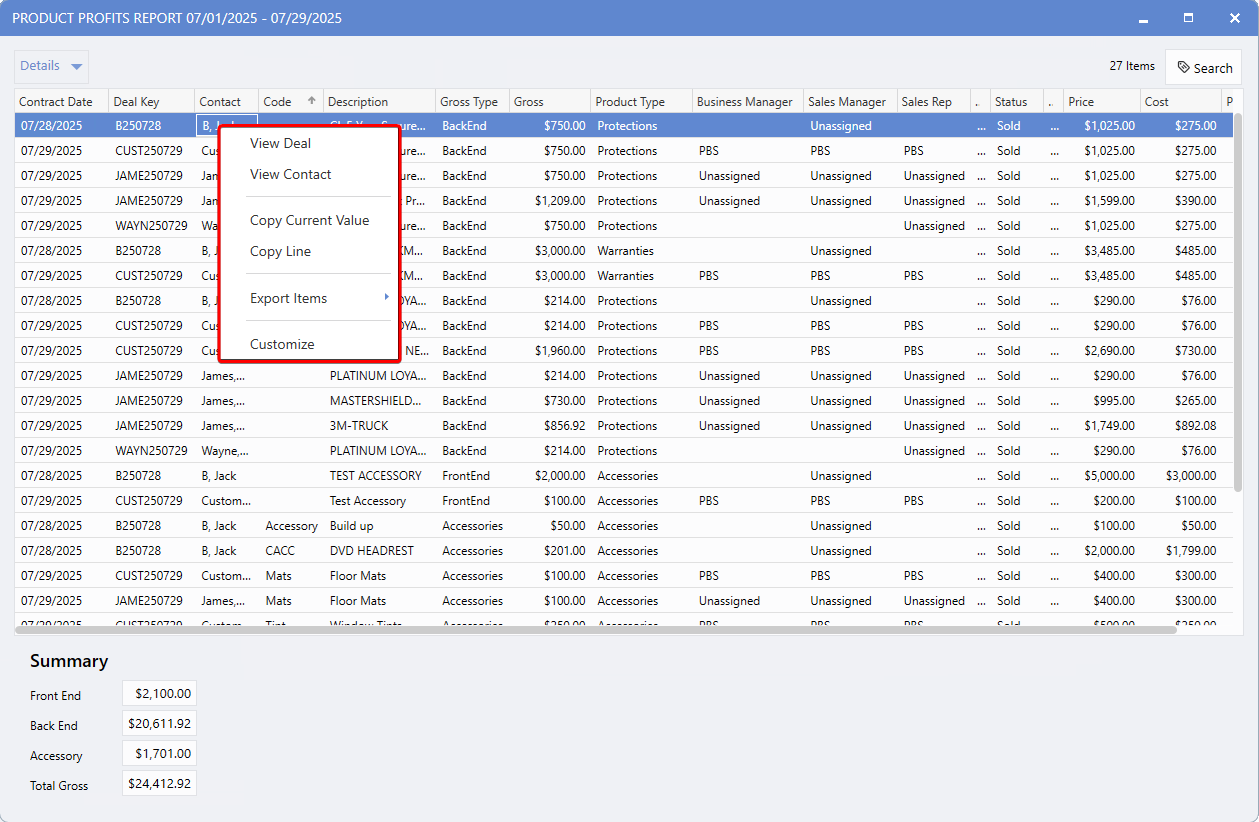
Right Click Functionality
Right-clicking on any row within the report opens a context menu with additional options.
From here, Users can quickly and conveniently access both the associated
Deal
and
Contact Record
, streamlining navigation and saving time.
|