|
10.23.1 IPR Smart Client - Wi-Fi Scanner / Label Printing
KB 3321, Release Note, Documentation, 6/12/2026
In version 10.23.1, printing labels, such as SOP labels through the Parts scanner has been streamlined. Users can now print directly from their desktop session, without needing to connect to the server. This update offers a faster, smoother, and more intuitive experience, enabling Users to complete tasks more quickly with fewer steps.
Control Flags - Setup
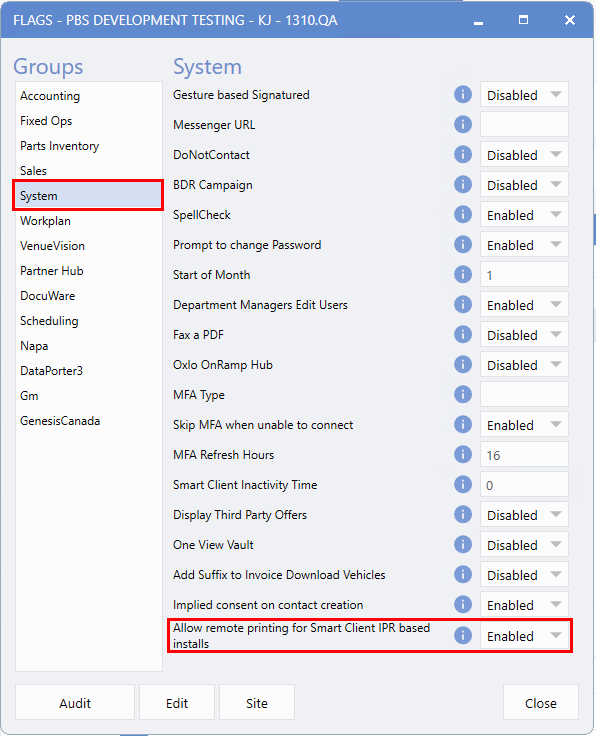
To use this feature, the new setting
Allow remote printing for Smart Client IPR based installs
must be turned on. Please contact PBS Support to have this flag activated.
Important note for PBS Support:
If the Dealership is already on IPR, the tunnel previously required for printing SOP labels through the server must now be removed, as it is no longer needed.
PBS Support Only:
To enable the Control Flag, follow the path:
System > Tools > Control Flags > Edit > System > Allow remote printing for Smart Client IPR based installs > Enabled
Label Printer - Setup
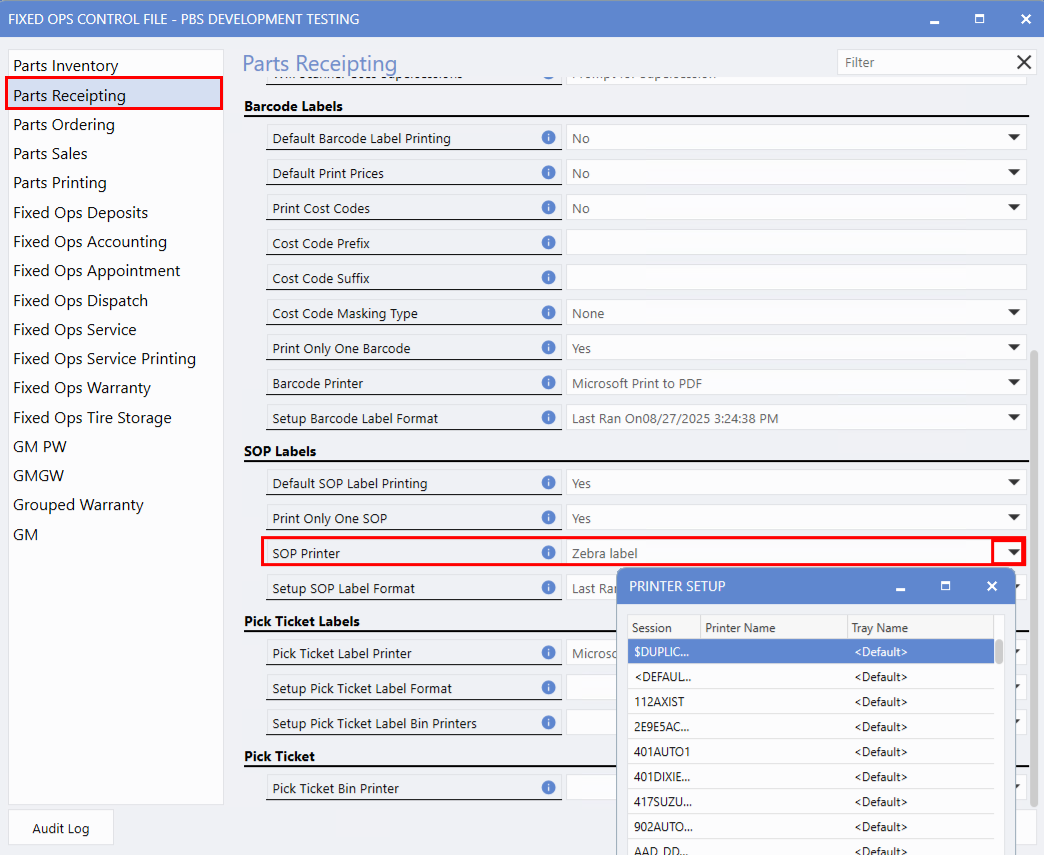
Label printer setup must be configured in the
Fixed Ops Control File
. This can be performed by a
Master User
at the Dealership or
PBS Support
.
Please note:
-
This setup must be configured individually on each
User's computer
utilizing this function.
-
Label printing is strictly tied to the User's active session.
-
The printer connects to the software only while the User is logged in.
-
The system will automatically select the printer based on the session printer assigned to that User.
To add the label printer to a session, follow the path:
System > Maintenance > Fixed Ops Control File > Edit > Parts Receipting > SOP Printer > Select the printer from the drop-down list
Note:
The printer set up will only be used for printing labels via the Scanner. All other printing jobs, e.g. reports, will continue to print to the User's default printer.
|