|
10.23 Notification Management
KB 3256, Release Note, Notifications, 9/26/2025
Version 10.23 introduces a fully redesigned Notification Management system - transforming how your Dealership communicates and stays connected!
This upgrade redefines the way Notifications are delivered, organized, and across the software, giving you greater control and clarity. Every message is now easier to access, act on, and tailor to your workflow - helping boost productivity and keep critical business updates front and center.
Key highlights include:
-
7-day Notification retention
for quick reference and follow-up
-
Centralized management interface
to view and organize both read and unread messages
-
Smart departmental organization
for faster access to relevant updates
-
Interactive flyout Notifications
to keep you informed without interrupting your work
-
Customizable User preferences
so each team member can manage Notifications their way
To access the new Notification Management System, follow the path:
Main Toolbar > Bell Icon
Important Information
-
No new permissions required - the upgrade works seamlessly with your current setup.
-
Existing Notification recipients and triggers remain unchanged - no action is needed to maintain your current Notification flow.
-
Same Notifications, enhanced experience - Users will continue receiving the same messages, now with improved management tools and more consistent messaging.
-
For detailed customization steps, refer to:
KB 3281 10.23 Notification Management System - User Preferences Setup
Notification Management Access
Access your upgraded Notification Management features directly from the Bell Icon in the Main Toolbar.
-
Red Badge Indicator
- Shows the number of unread Notifications at a glance.
-
Click to Open
- Instantly launches the full Notification Management window for complete control.
-
Always Visible
- The Bell Icon stays visible throughout the application for quick and convenient access.

Real Time Control with Flyouts
-
Interactive Flyout Notifications
- New Notifications let you take immediate action capabilities without breaking your workflow. Use the
Flag icon
to mark messages as important, instantly moving them to the flagged section for quick access and prioritization.
-
Snooze Functionality
- Temporarily hide Notifications for 5-20 minutes (customizable in Preferences) using the
Snooze icon
. Snoozed messages automatically reappear based on your personalized settings - ideal for staying focused during busy tasks.
-
Intelligent Dismiss Control
- Use the
X icon
to dismiss a flyout while keeping the Notification stored in the main window. This clears the pop-up without losing access to the message for later review.

Departmental Organization
Available Sections
-
Flagged
- Flagged Notifications from any department, always displayed at top for quick access.
-
Accounting
- Notifications related to accounting and financial activity.
-
General
- System-wide or administrative Notifications.
-
Sales
- Sales-related updates and alerts.
-
Service
- Notifications specific to the Service Department.
-
Parts
- Parts-related updates and requests.
Section Features
-
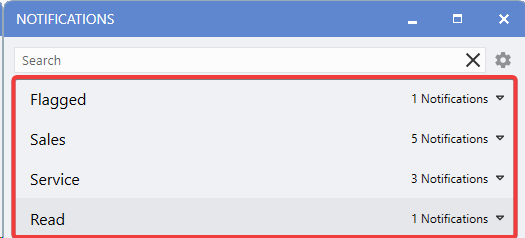
Expandable/Collapsible Sections
- Click any header to expand or collapse, customizing your view as needed.
-
Real-Time Notification Counts
- Each section shows the number of Notifications, even when collapsed.
-
Clear Visual Hierarchy
- Distinct Department groupings make scanning and organizing Notifications effortless.
Read vs. Unread Notifications
Unread Section
-
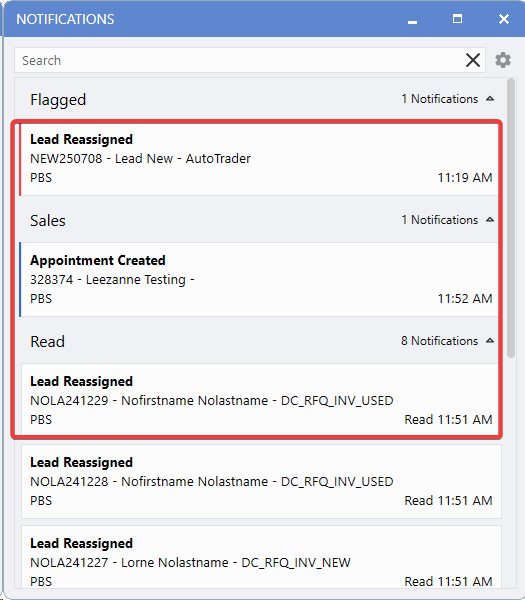
Displays all new Notifications with coloured status bars for instant priority recognition.
-
Organized by department, with the flagged section always pinned to the top.
-
Full details and action icons appear on hover, allowing immediate management.
Read Section
-
Provides a separate space for processed Notifications, maintaining clear organization.
-
Retains departmental grouping for easy reference and follow-up.
-
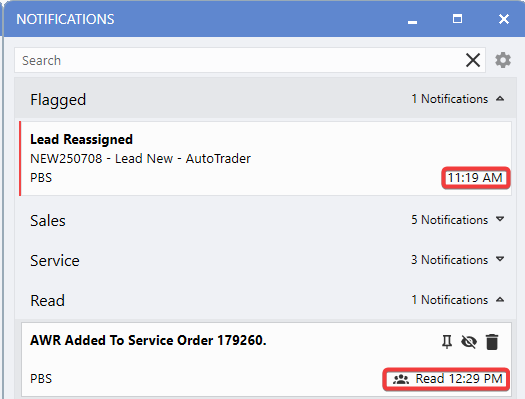
Shows both received and read timestamps for a complete audit trail.
-
Hover over the read time on department Notifications to see who read it.
-
Retains Notifications for up to 7 days (fully configurable in preferences).
Colour-Coded Visual Status Indicators
Priority Colour System
-
Green
- Pinned Unread Notifications
-
Blue
- Standard unread Notifications
-
Red
- Flagged or Important Notifications
-
No Colour
- Read Notifications (found in the separate Read section)
Advanced Indicators
-
Multi-User Icon
- Indicates when a Notification is sent to multiple Users or Departments, ensuring team-wide visibility.
-
Detailed Timestamp
- Displays both the time a Notification was received and when it was marked as read.
-
Departmental Grouping
- Notifications remain organized by Department, even after being processed.
Search and Filtering
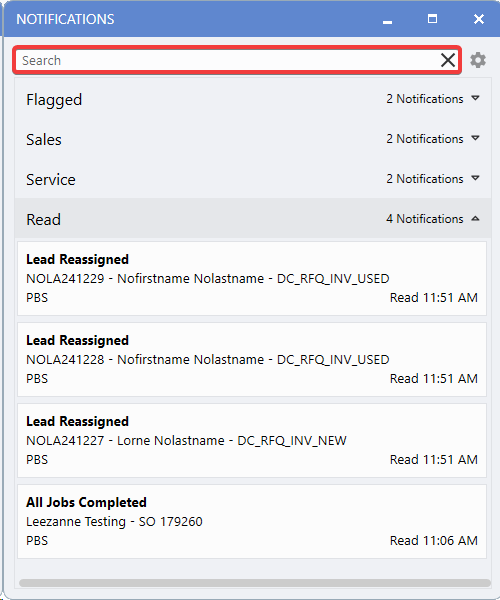
-
Advanced Search Bar
- Quickly filter Notifications by title or description with instant results.
-
Cross-Departmental Search
- Locate specific messages across all Departments in seconds.
-
Real-Time Filtering
- Results update dynamically as you type for faster navigation.
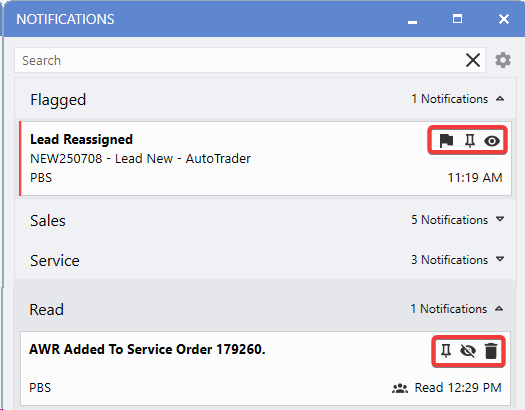
Notification Management Controls
-
Flag Icon
- Marks a Notification as important, moving it to the flagged section with red status bar. The flag remains even after the Notification is read.
-
Pin Icon
- Pins a Notification to the top of its department section, ensuring it appears before unpinned items. Multiple Notifications can be pinned at once.
-
Eye Icon
- Toggle a Notification's read/unread status, moving it between sections with accurate timestamps. A crossed-out eye icon reverses the action.
-
Bin Icon
- Permanently deletes a processed (read) Notification. Note: The action cannot be undone.
Bulk Management Right-Click Menu Options
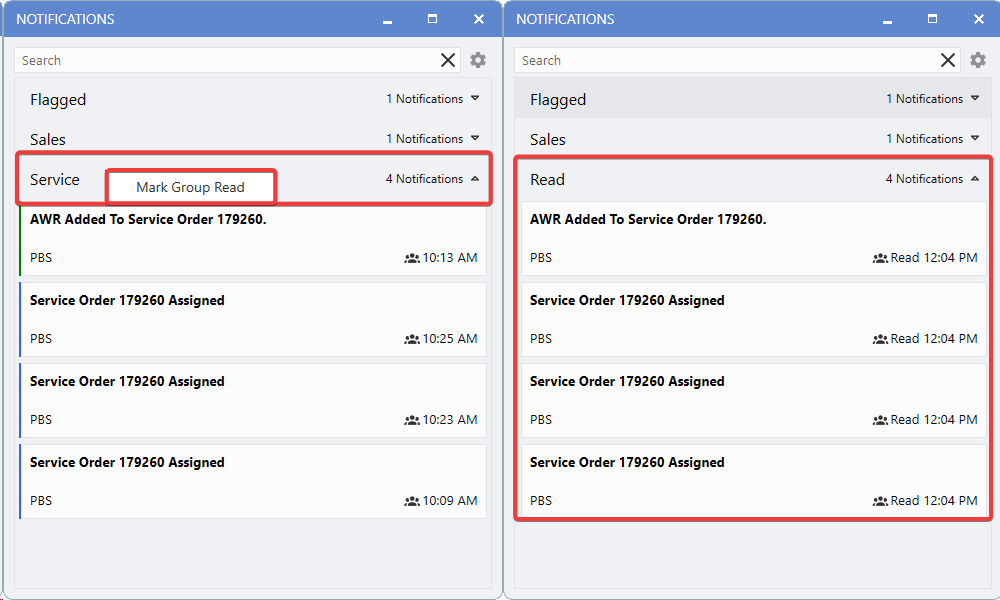
Mark Group Read
-
Marks all unread Notifications in a selected department (e.g., "Service") as read in one action.
-
Instantly moves those Notifications to the "Read" section for streamlined management.
-
Ideal for quickly clearing multiple updates from a single department at once.
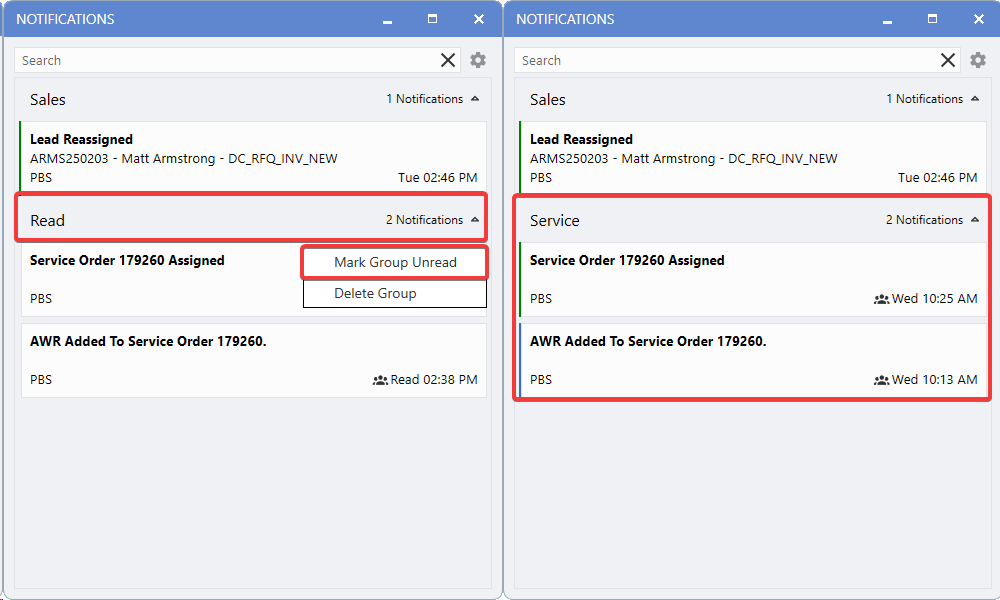
Mark Group Unread
-
Reverts all read Notifications in a selected department back to unread status.
-
Moves them from the read section to unread for easy re-review.
-
Useful when revisiting previously processed Notifications.
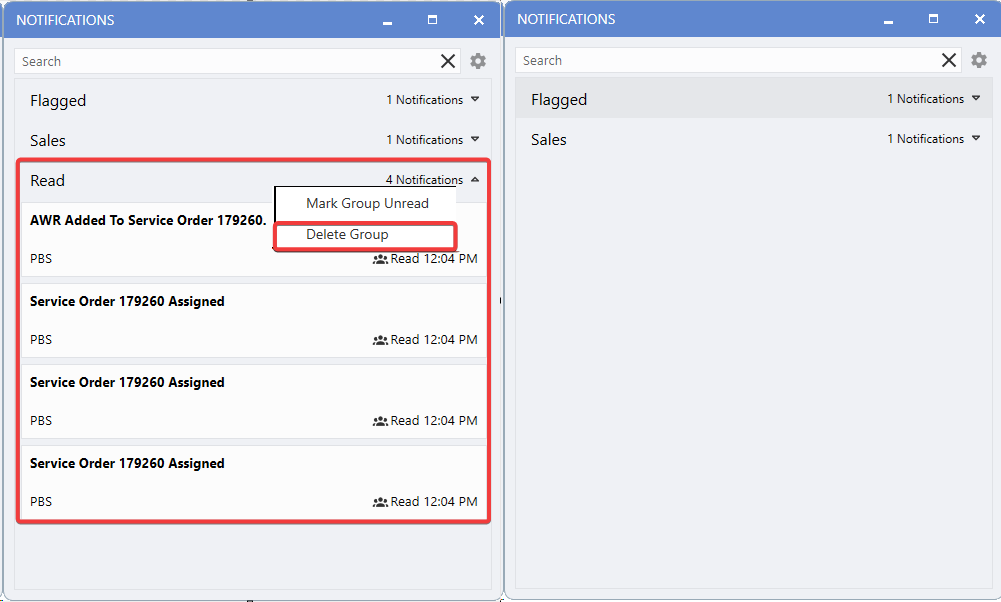
Delete Group
-
Permanently deletes all read Notifications from the system.
-
Acts as a cleanup function and cannot be undone.
-
Helps free up space by removing processed Notifications you no longer need.
|