|
10.23 Notification Management - User Preferences
KB 3281, Release Note, Notifications, 10/14/2025
Master your Notification experience with the new Notification Management User Preferences guide!
This resource offers step-by-step instructions for customizing every aspect of your Notifications - from snooze timing and retention settings to personalized sound profiles and display preferences. Learn how to fine-tune advanced options to boost productivity and tailor Notifications to your work environment and workflow.
To access the new Notification Management System, follow the path:
Main Toolbar > Bell Icon

User Preferences & Customization
The advanced Notification management system includes comprehensive preference settings that let Users customize their Notification experience. Access these options by clicking the
Gear icon
in the Notification window.
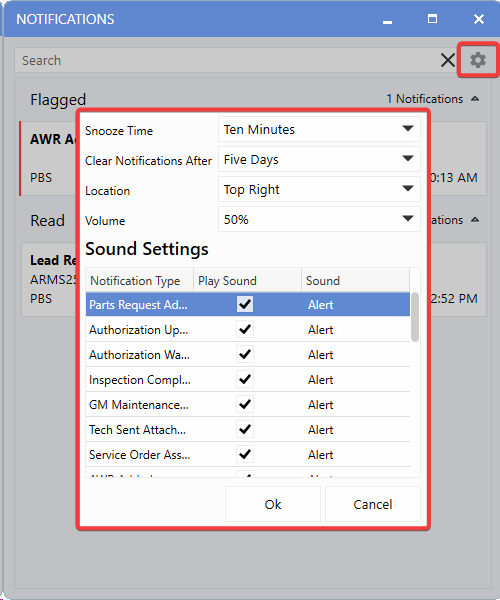
Snooze Time
Controls how long Notifications remain hidden after clicking Snooze on flyout Notifications.
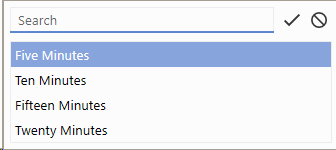
Available Options:
-
Five minutes:
Reappears after 5 minutes (ideal for quick breaks).
-
Ten minutes:
Reappears after 10 minutes (Default - fits most workflows).
-
Fifteen minutes:
Reappears after 15 minutes (great for focused tasks).
-
Twenty minutes:
Reappears after 20 minutes (maximizes focus and productivity).
Notification Retention Management
Controls the automatic cleanup of stored Notifications to maintain optimal system performance.
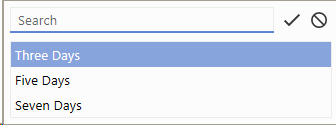
Clear Notifications After:
-
3 Days:
Notifications are deleted after 3 days (ideal for high-volume environments requiring rapid cleanup).
-
5 Days:
Notifications are deleted after 5 days (Default - provides balanced retention).
-
7 Days:
Notifications are deleted after 7 days (best for maximum retention and detailed tracking).
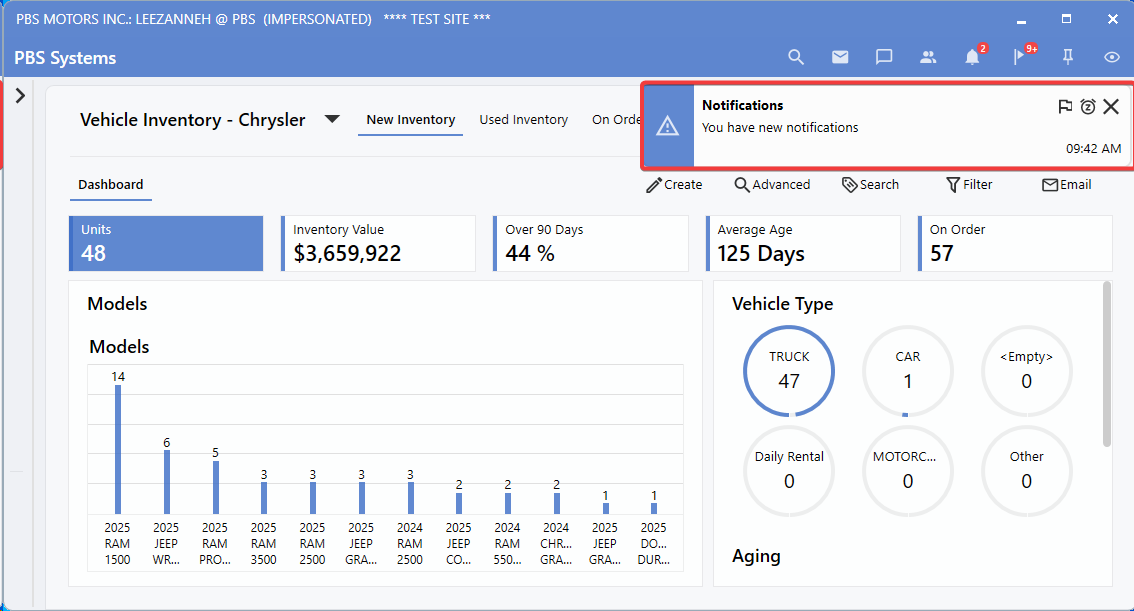
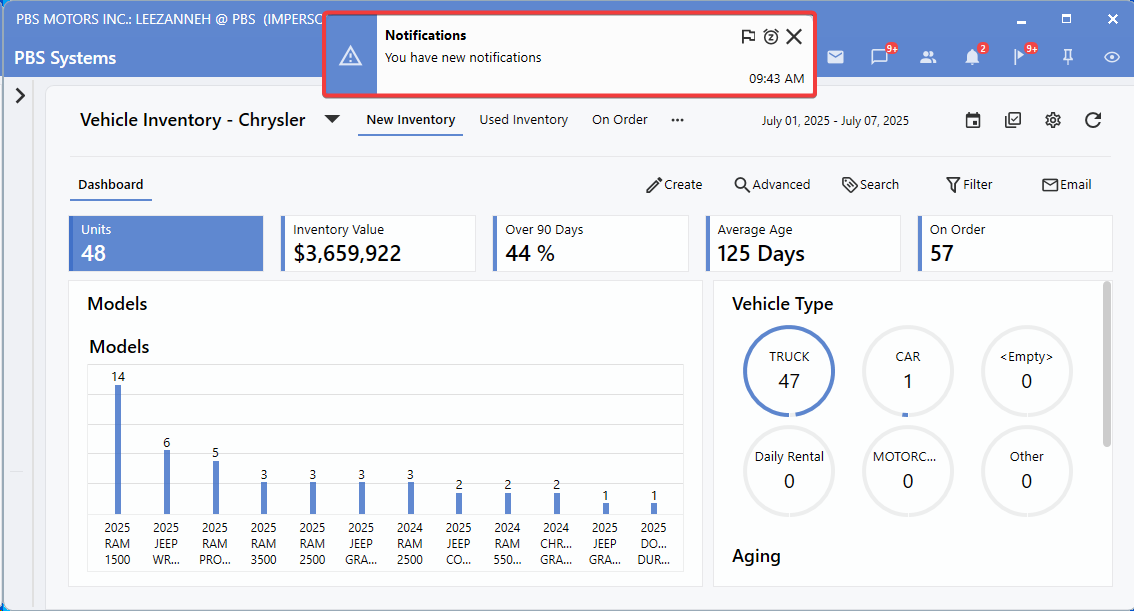
Display Location
Determines where fly-out Notifications appear on your screen for optimal visibility and workflow integration.
Available Display Options:
Volume Control
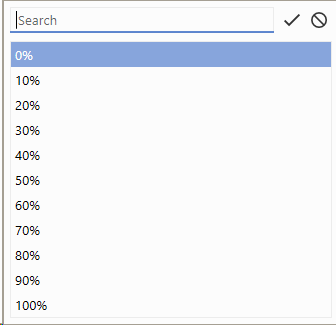
Controls the overall volume level for all Notification sounds, allowing you to match audio alerts to your work environment.
Available Volume Options:
-
0%:
Silent (ideal for quiet environments)
-
10%:
Very quiet (subtle audio cue)
-
20%:
Quiet (minimal disruption)
-
30%:
Low volume (gentle notification)
-
40%:
Below medium volume
-
50%:
Medium volume (balanced setting) - Default option
-
60%:
Above medium volume
-
70%:
Moderately loud (suited for busy environments)
-
80%:
Loud (compensates for noisy areas)
-
90%:
Very loud (high ambient noise)
-
100%:
Maximum volume (ensures maximum attention)
Individual Notification Sound Settings
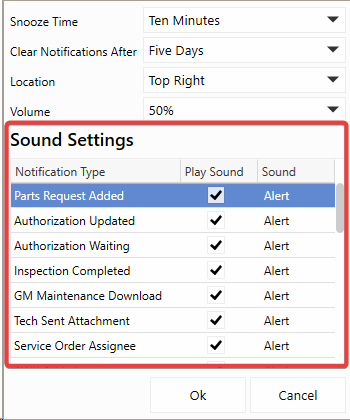
Users can customize sound settings for each Notification category independently, providing full control over their audio experience.
When a Notification type is
Checked
, the selected sound will play on receipt; if
Unchecked
, the Notifications will arrive silently. This flexibility allows Users to enable sounds only for high-priority alerts, reducing the distractions and ensuring important updates get immediate attention.
Available Sound Choices
-
Alert:
Standard system alert sound (Default - professional and reliable)
-
Chime:
Gentle chime sound (subtle and refined)
-
Car Horn:
Car horn sound effect (urgent and attention-grabbing)
-
Ding:
Simple ding sound (clean and clear)
-
Rhythm:
Rhythmic sound pattern (distinctive and memorable)
-
Rise:
Rising tone (progressive and engaging)
Learn how to navigate, organize, and manage your Notifications with our comprehensive User guide:
KB 3256 10.23 Notification Management System - How To Use
|