|
10.23 - Invoice Hub Rework
KB 3279, Release Note, Accounting Development, 1/13/2026
In Version 10.23, Invoice Hub has been fully redesigned to deliver a modern, intuitive experience that aligns with our unified web design standards. This rework improves the overall User journey through:
The new design also establishes consistency across all Customer-facing web pages, creating a familiar look and feel that promotes higher adoption and satisfaction.
Behind the scenes, enhanced backend logic improves performance and reduces load times, making Invoice management faster and more efficient than ever.
Setups
Prerequisites
To use the redesigned Invoice Hub, Dealerships must have the appropriate account setup and permissions in place. Access is protected by authentication and authorization protocols to ensure secure handling of receivables data and payment processing.
If your Dealership does not yet have access, please contact PBS to enable this feature.
Requirements:
For PBS staff only:
Refer to
KB 816
for setup instructions.
What Has Changed
Interface Updates
The Invoice Hub interface has been fully modernized with a clean, contemporary styling and enhanced usability. The redesign follows our unified web design standard, ensuring consistency across all Customer-facing pages and delivering a familiar experience aligned with the new Web Appointments interface.
|
|
|
Key Enhancements
-
Dealership logo
- Displays your custom logo for personalized experience
-
Dark mode (moon icon)
- Default viewing mode for comfort
-
Light mode (sun icon)
- Easily toggle back based on User preference
|
Navigation & accessibility
-
EN/FR language toggle
- Switch seamlessly between English and French
-
Sidebar navigation
- Left-panel menu with clear highlights for active sections
-
Responsive design
- Optimized to adapt smoothly across all devices and screen sizes
|
|
Home Page
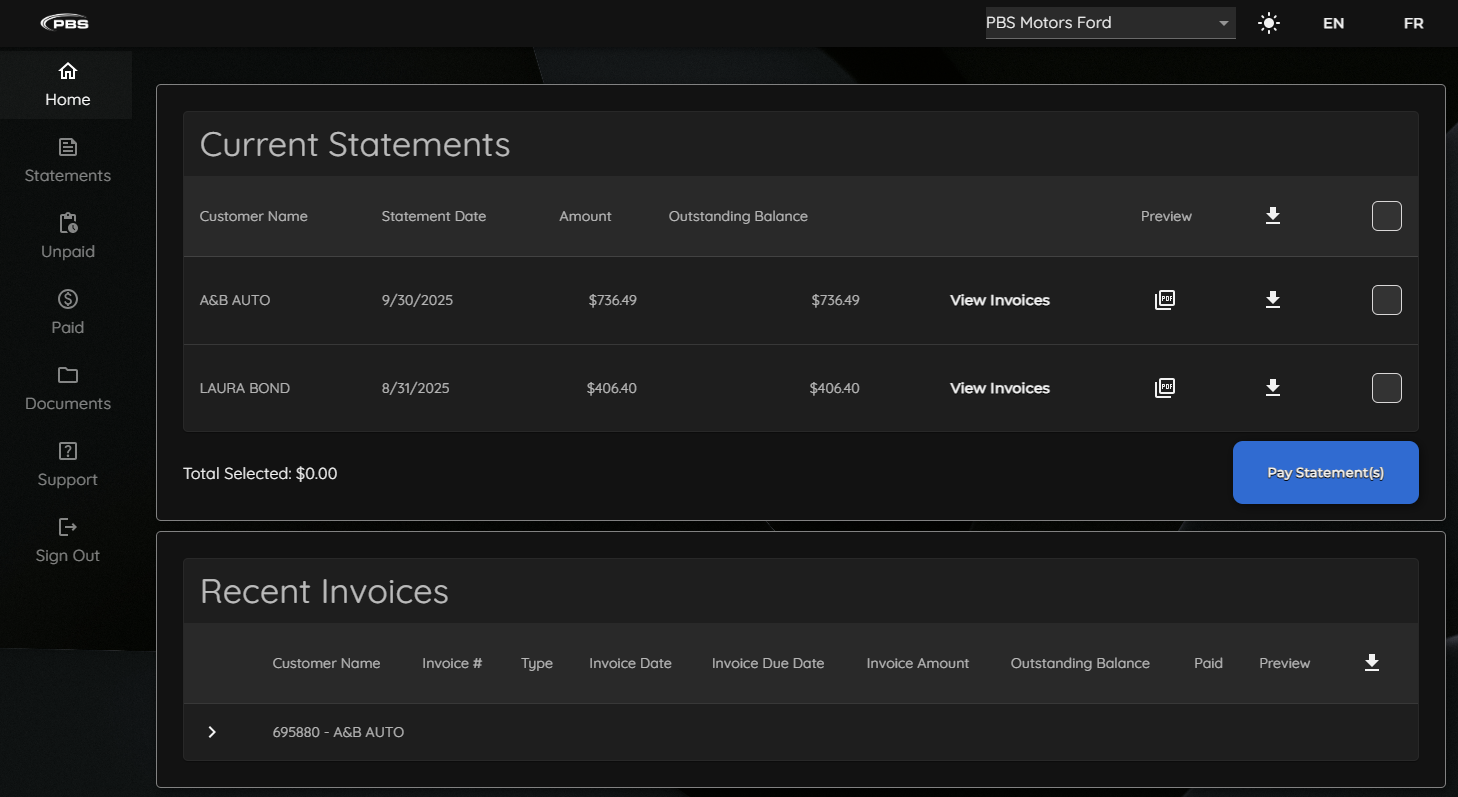
The redesigned Invoice Hub introduces a centralized Home dashboard that delivers an at-a-glance overview of account activity and recent statements with enhanced viewing capabilities. This dashboard now serves as the primary landing page, replacing the previous direct-to-statements approach, and provides quick access to both current statements and recent invoice activity.
Current Statements
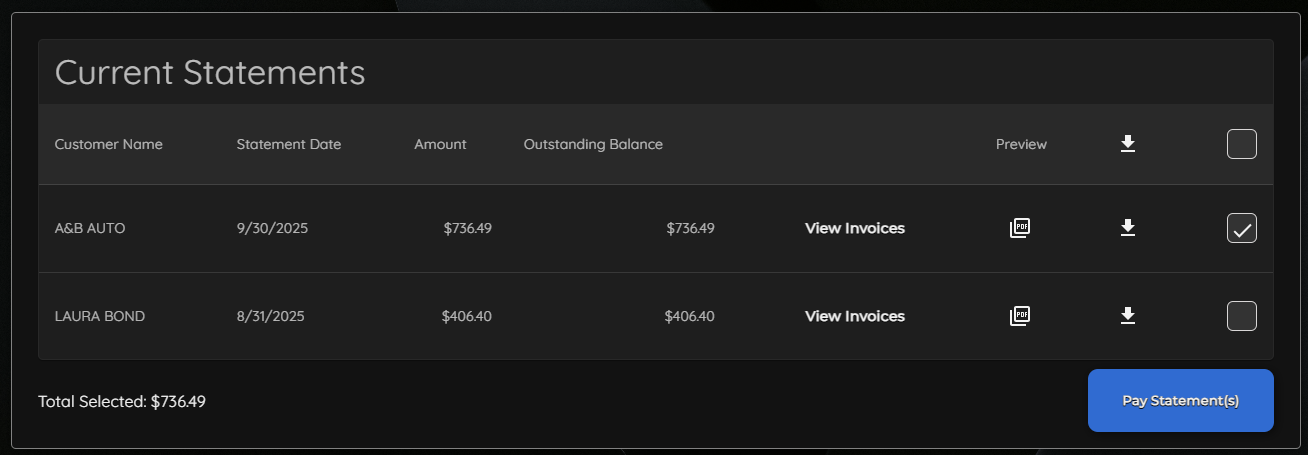
The Current Statements section displays the latest statement for each Customer on the account, highlighting outstanding balances and payment obligations in a clear, concise format.
|
|
|
Features:
-
Columns:
Customer Name, Statement Date, Amount, Outstanding Balance
-
View Invoices:
Expand to see a detailed Invoice breakdown of each Statement
-
Preview:
PDF preview directly in the browser
-
Download Icon:
Individual and bulk download options
-
Pay Statement(s):
Batch payment processing button
|
|
Recent Invoices
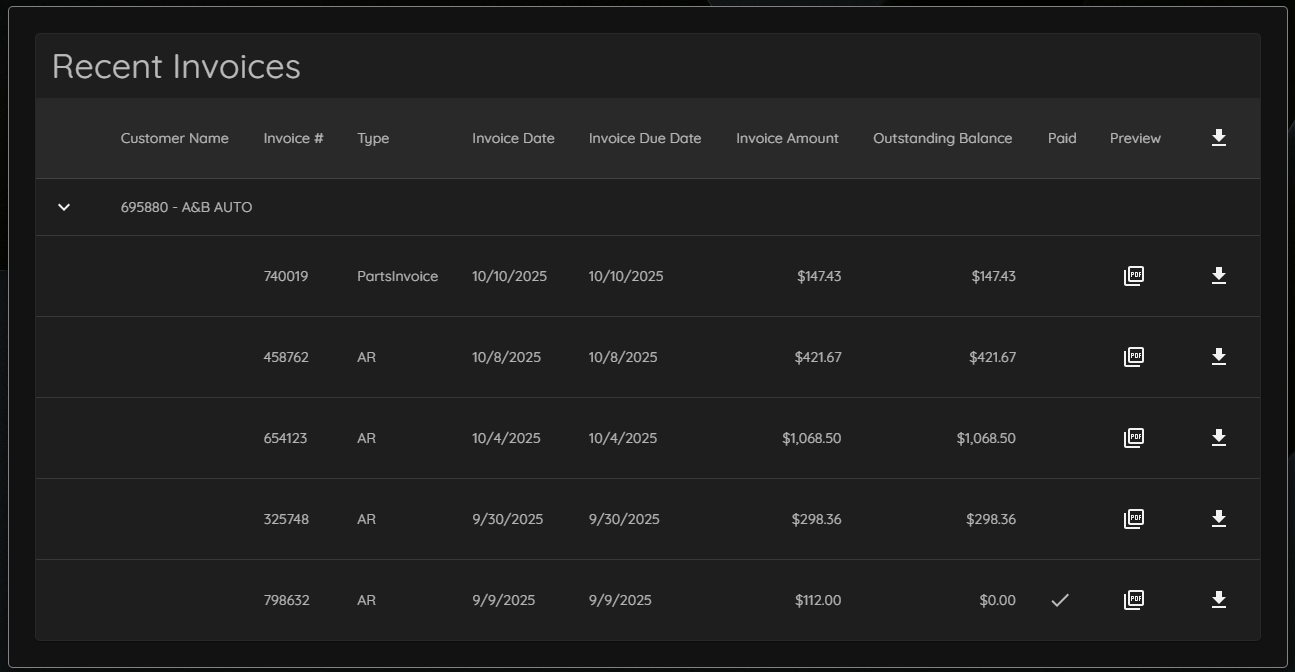
The Recent Invoices section provides a chronological view of the latest Invoice activity that may not yet be included on a statement. This allows Users to quickly identify new transactions.
|
|
|
Features:
-
Columns:
Customer Name, Invoice Number, Type, Invoice Date, Invoice Due Date, Invoice Amount, Outstanding Balance
-
Paid Indicator:
Checkmark to confirm invoice has been paid
-
Preview:
PDF preview directly in the browser
-
Download Icon:
Individual Invoice download
|
|
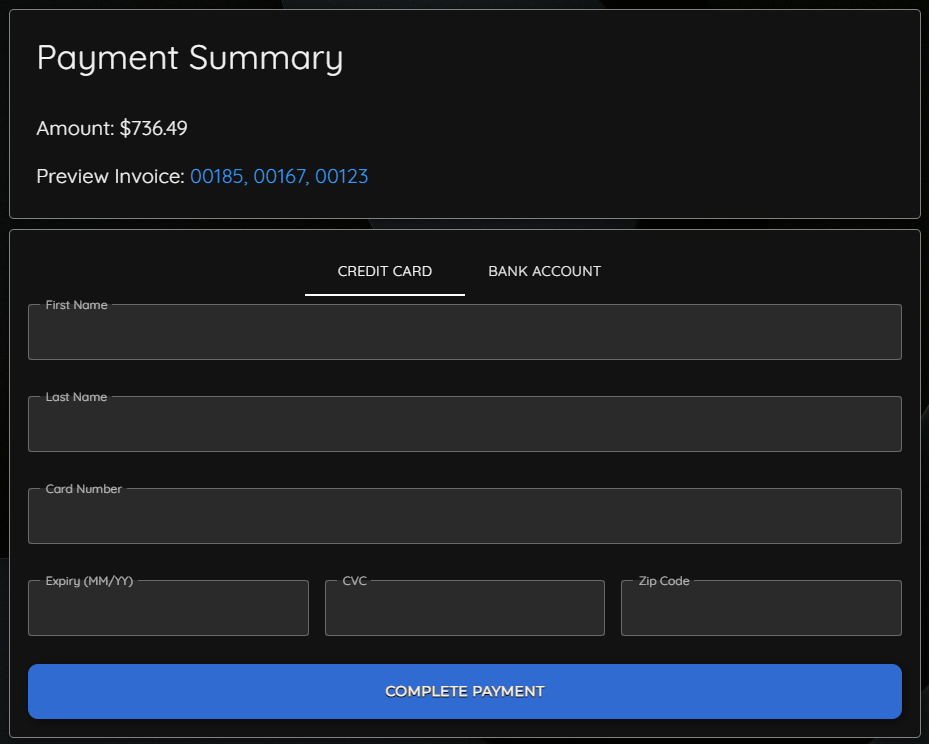
Payment
The integrated payment processing system supports fast, streamlined settlement of single or multiple invoices directly from Invoice Hub.
-
Payment Amount:
Running total of selected Invoices
-
Preview Invoice:
Clickable PDF preview for verification
-
Payment Options:
Credit Card or Bank Account (ACH)
Note:
For details on the new Elavon ACH eCheck Integration, see
KB 3278
. (Feature available in the USA only; Canadian payments are processed via EFT.)
Statements
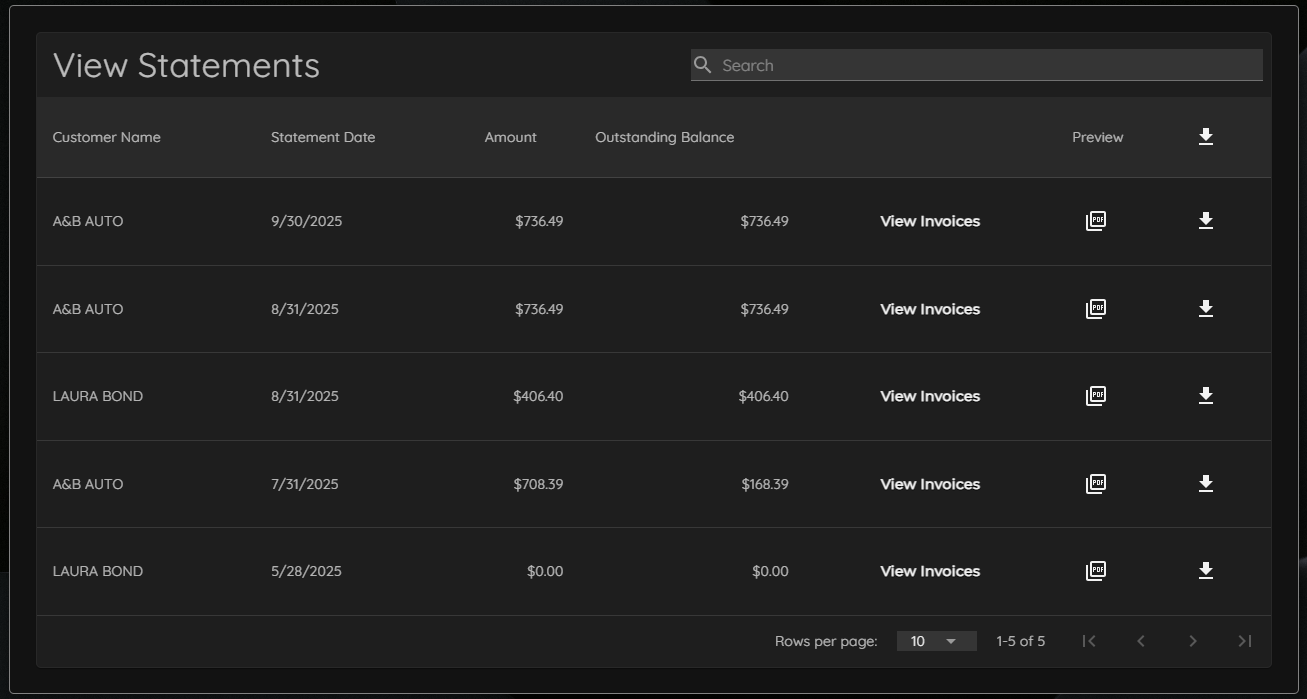
The Statements section offers full management capabilities with enhanced filtering, viewing, and payment tools for all Customer statements.
Note:
The last 200 Invoices are available for viewing.
|
|
|
Features:
-
Columns:
Customer Name, Statement Date, Amount, Outstanding Balance
-
View Invoices:
Expand to review Invoice details within a Statement
-
Preview:
PDF preview directly in the browser
-
Download Icon:
Individual or bulk download options
-
Checkbox & Total Selected:
Select multiple statements with running total
-
Pay Statement(s):
Batch payment button
-
Search Bar:
Quickly find specific Invoices
-
Rows Per Page:
Choose 10, 25, 50, or 100 rows
-
Page Navigator:
Navigate through additional pages
|
|
Unpaid
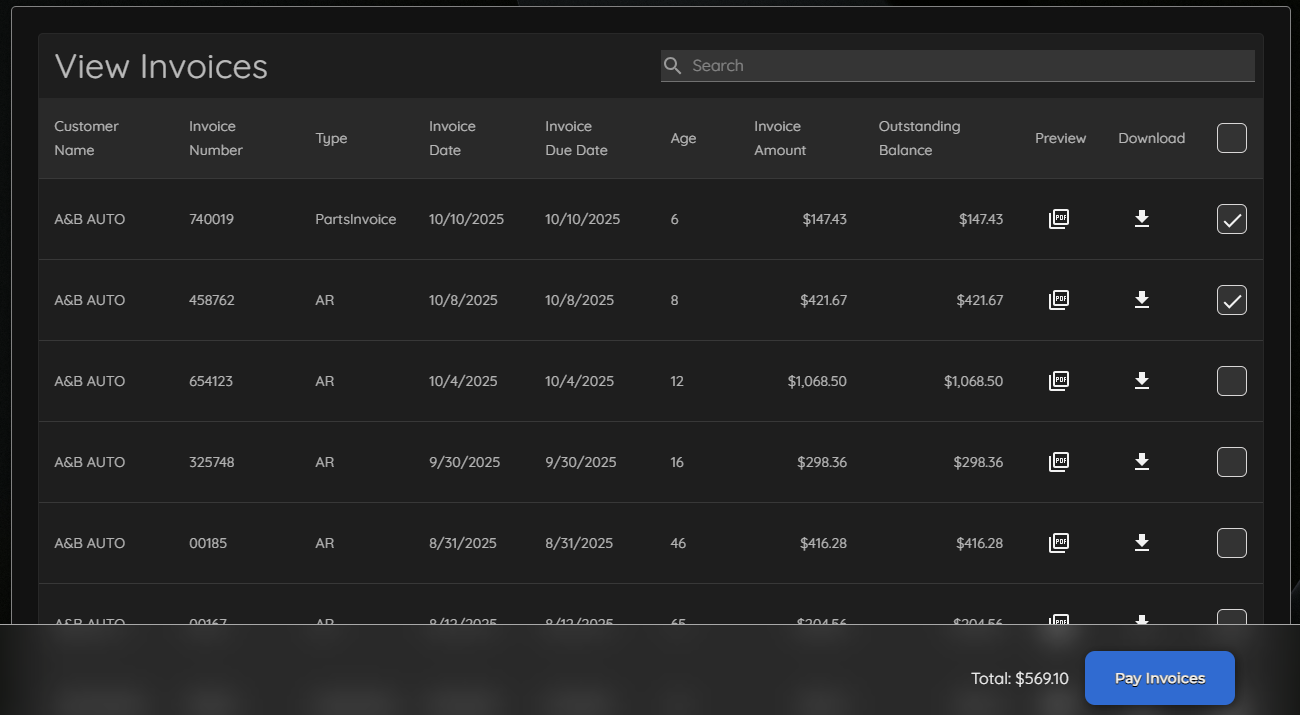
The Unpaid section highlights all on outstanding Invoices, with aging details to support prioritization and collection activities.
|
|
|
Features:
-
Columns:
Customer Name, Invoice Number, Type, Invoice Date, Invoice due Date, Age, Invoice Amount, Outstanding Balance
-
Preview:
PDF preview directly in the browser
-
Download:
Individual or bulk download options
-
Checkbox & Total Selected:
Select multiple invoices with running total
-
Pay Invoice(s):
Batch payment button
-
Search Bar:
Quickly locate Invoices
-
Rows Per Page & Page Navigator:
Flexible display controls
|
|
Paid
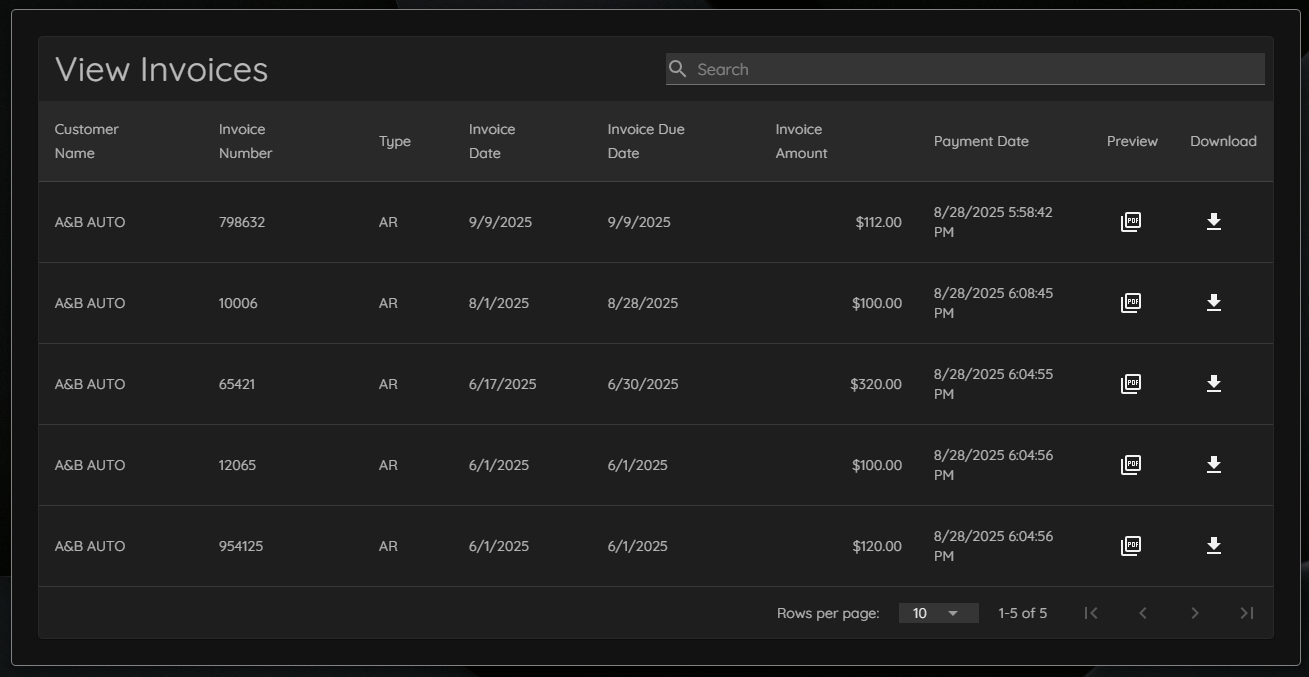
The Paid section maintains a complete record of all completed transactions, creating a reliable audit trail with detailed tracking and confirmation options.
|
|
|
Features:
-
Columns:
customer Name, Invoice Number, Type, Invoice Date, Invoice Due Date, Invoice Amount, Payment Date
-
Preview:
PDF preview directly in the browser
-
Download Icon:
Individual or bulk download options
-
Search Bar:
Locate specific Invoices from the View Invoice window
-
Rows Per Page & Page Navigator:
Flexible display controls
|
|
Documents
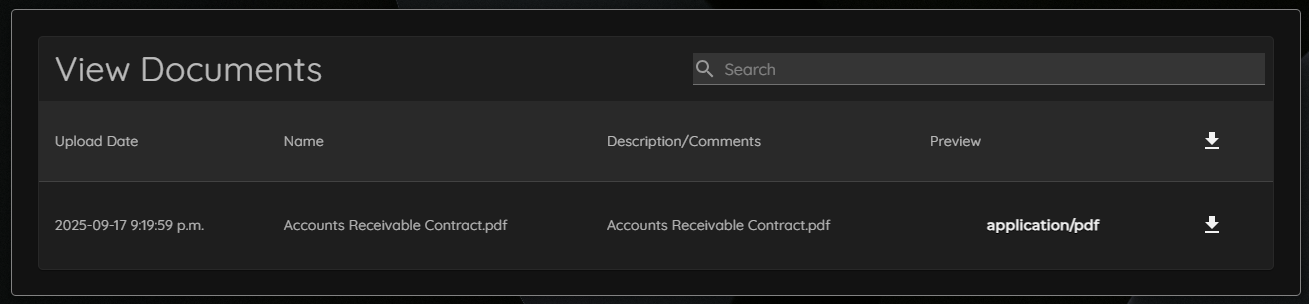
The Documents functions as a central repository for uploaded files, offering quick access and organization of materials beyond invoices and statements.
|
|
|
Features:
-
Columns
Upload Date, Name, Description/Comments
-
Preview:
PDF preview directly in the browser
-
Download Icon:
One-click document download
-
Search Bar:
Locate specific documents quickly
|
|
|
|